Send Telegram messages in Customer Journey
Use this guide to send Telegram messages in Customer Journey Builder.
Using Telegram through Pushwoosh helps you run Telegram as part of your omnichannel journeys, segmentation, and analytics in one place.
Before you begin
Anchor link to- Create a Telegram bot in @BotFather or use an existing one.
- Configure Telegram in Settings > Configure platforms and verify the token. Learn more
Create a journey
Anchor link to- Add the Trigger-based entry element.
- Select TelegramBotStarted as the event.
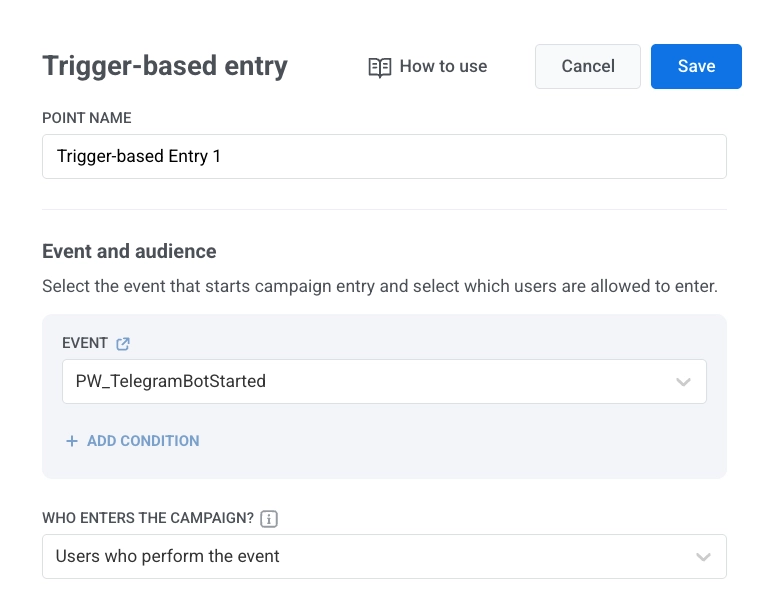
- Add the Telegram element to the canvas.
Configure message content
Anchor link toIn the Telegram element:
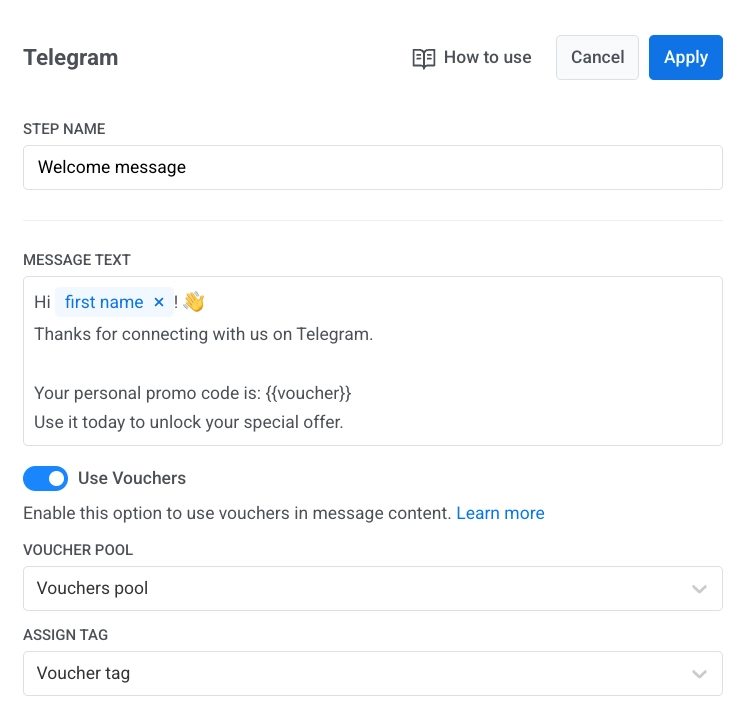
- Enter the element name.
- Enter your message in Message text. Keep the message text-only and within 4096 characters.
- Optional. Add tags or Liquid placeholders to personalize content. Dynamic content and Liquid in journeys
- Optional. Turn on Use vouchers, select Voucher pool, and set Assign tag. Learn more
- Click Apply.
Finalize and launch the journey
Anchor link toComplete the journey, ending each branch with an Exit element or by leaving it without an outgoing connection. When the campaign is ready, click Launch campaign.
Reachability and statistics
Anchor link toIf sending fails because of a temporary network issue, Pushwoosh retries automatically.
If Telegram reports that the user blocked or removed the bot, that the chat wasn’t found, or that the account was deactivated, Pushwoosh unsubscribes the user from Telegram. These sends appear as Chat Unavailable (410007) on the Errors tab of the message stats. Nothing needs fixing: the person can’t receive messages from the bot anymore. See Telegram errors.
Learn more about Telegram statistics
View user data in User Explorer
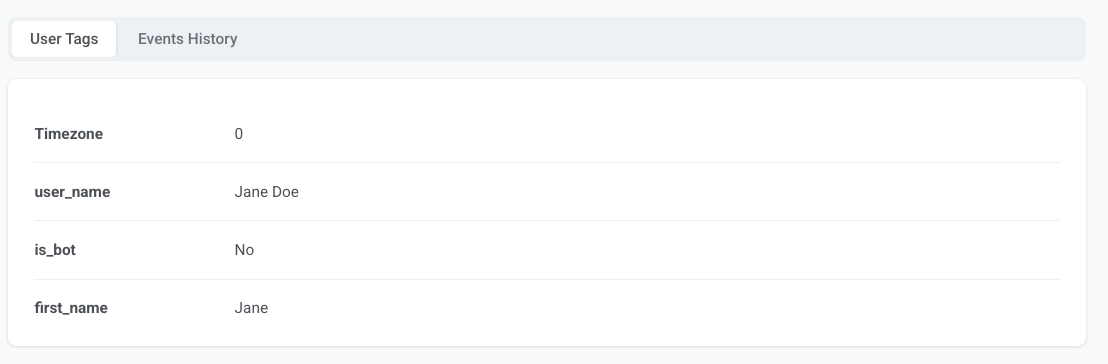
Anchor link toWhen a user starts a conversation with your bot, Pushwoosh creates a profile in User Explorer with Telegram as the platform and the Telegram user ID.
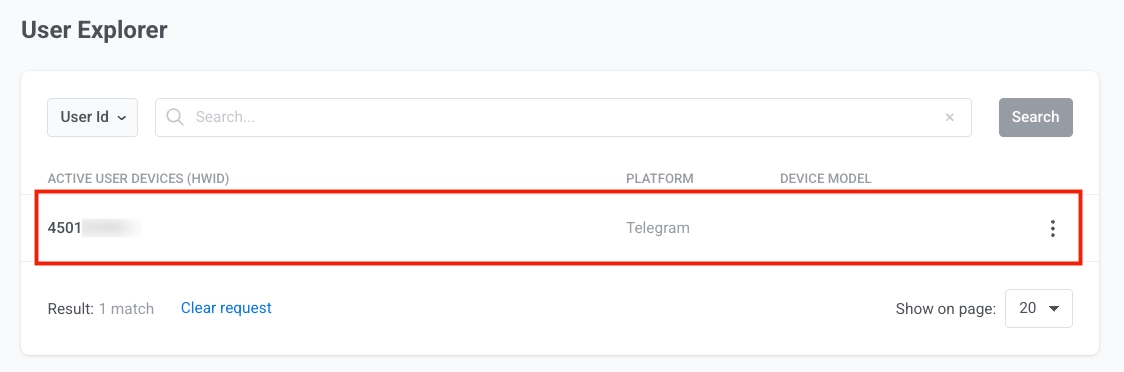
The profile includes:
- user tags received from Telegram
- events such as
PW_TelegramBotStarted.