In-app
To show an in-app message in a journey, add the In-App element next to the step that should trigger it. Then choose an in-app page to display.
Click the In-App element to open its settings. Configure the following:
Select template and set expiration
Anchor link toChoose the in-app to show and set how long it stays available:
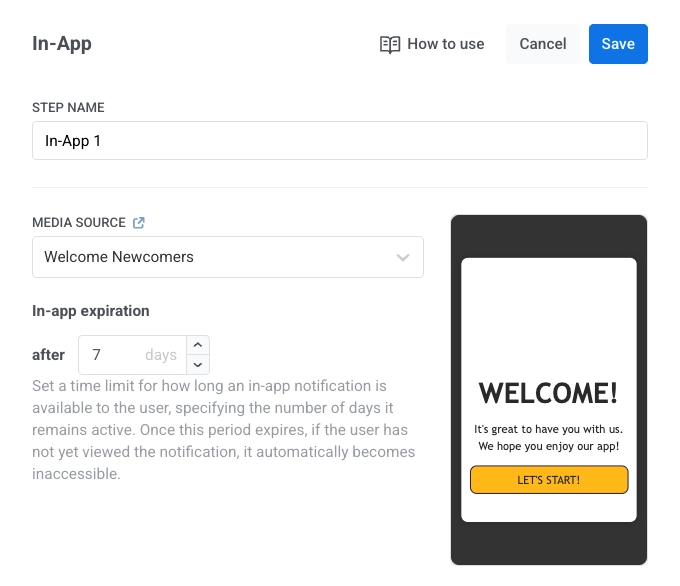
- In Media Source, select an in-app template.
- Set In-app expiration: how many days the message stays available, from 1 to 7. The default is 7 days.
- Template order. The newest templates are at the top of the list. To change the order, click the sort button above the list. The order you pick also applies to the other in-app dropdowns.
- Older elements. If an In-App element was saved with a longer expiration, it opens with 7 days.
Choose when to show the in-app
Anchor link toIn Show in-app, choose when the user sees the message. On next app launch is selected by default.
- On next app launch: when the user reaches the In-App element, the message is shown right away if the app is open. If the app is closed, it is shown the next time the user opens the app.
- On event: the message waits for the event you select and is shown in the same session, right after the user triggers it. Use it to show an in-app message at the moment of an action, for example when the user opens the cart.
Set up the On event mode
Anchor link toTo show the in-app message when the user triggers an event:
- In Show in-app, select On event.
- Select the event that shows the in-app message.
- Optional: click Add condition to filter the event by its attributes. For the available operators, see Tag operators by type.
- Click Save. The element saves only when an event is selected and its conditions are complete.
How On event mode works
Anchor link toIn On event mode:
- The in-app message reacts only to events that happen after the user reaches the In-App element.
- If the event doesn’t happen within the In-app expiration period, the in-app message isn’t shown.
- To check which event a running journey waits for, open the In-App element details. The event and its conditions are listed under Shown on event.
Set message type
Anchor link toChoose Marketing message or Transactional message:
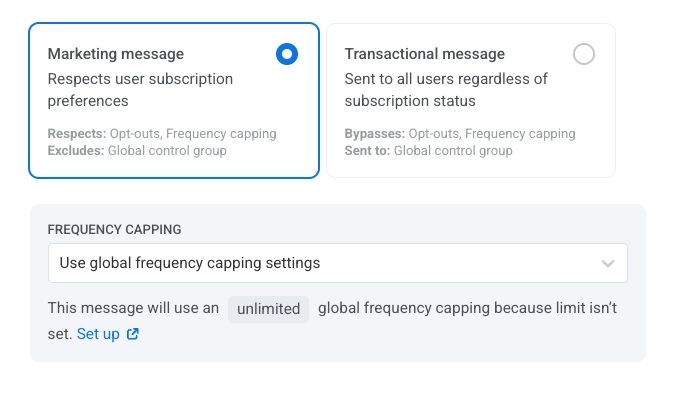
- Marketing message: For campaigns and promos. All rules and limits apply. Respects: frequency capping and the silence period. Excludes: the control group users.
- Transactional message: For operational or service messages. Rules and limits don’t apply. Bypasses: frequency capping. Sent to: the control group users.
Until you choose a type, the element shows the Message type not selected warning. A journey that reaches the element from a Trigger-based or API-based entry can’t be launched until you do.
Learn more about the difference between marketing and transactional messages.
Set frequency capping
Anchor link toUse Frequency capping to limit how often users receive in-app messages, preventing over-messaging and reducing churn. In the In-App element settings, choose one of the following options:
-
Use global frequency capping settings
Apply the project-wide limits configured in your Global frequency capping settings.
For example, if the global limit is set to 3 messages in 9 days, additional messages exceeding this limit will be skipped.
-
Send messages without global frequency capping
The user will receive this message even if they’ve exceeded the channel’s message limits. Use this option with caution to avoid over-messaging.
-
Use custom frequency capping
Set a custom message limit for this message. If the user exceeds this custom cap, the message will be skipped, and the user will proceed to the next step.
Choose a counting mode for this custom limit: Rolling window or Calendar day.