Build segments by events
Event-based segmentation allows you to target users based on their actual behavior and actions within your app or website. This creates highly personalized and effective campaigns by focusing on user engagement patterns.
Build segments by events
Anchor link toTo build a segment by events:
- Hit Event in the Add filter by section.
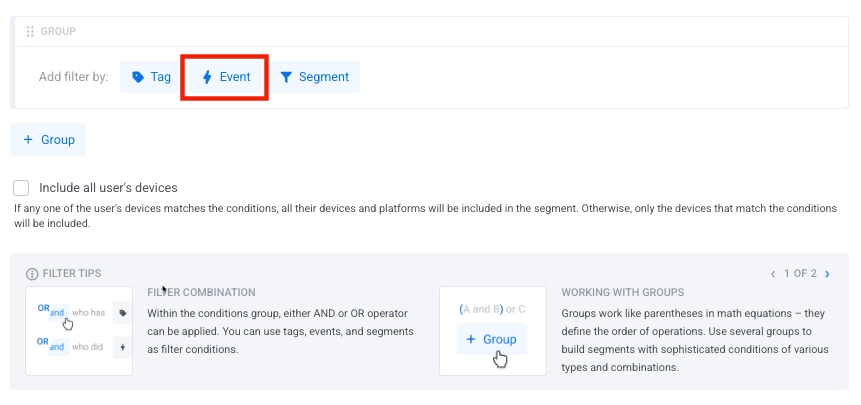
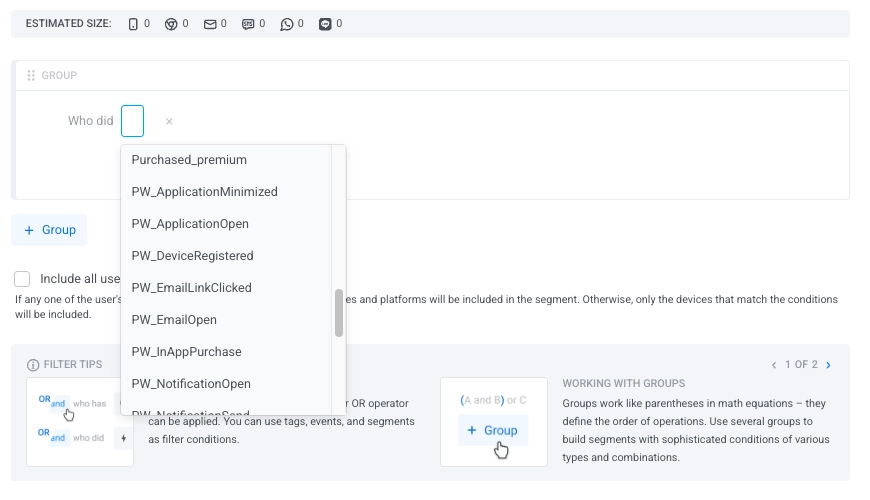
- Select an event from the drop-down list.
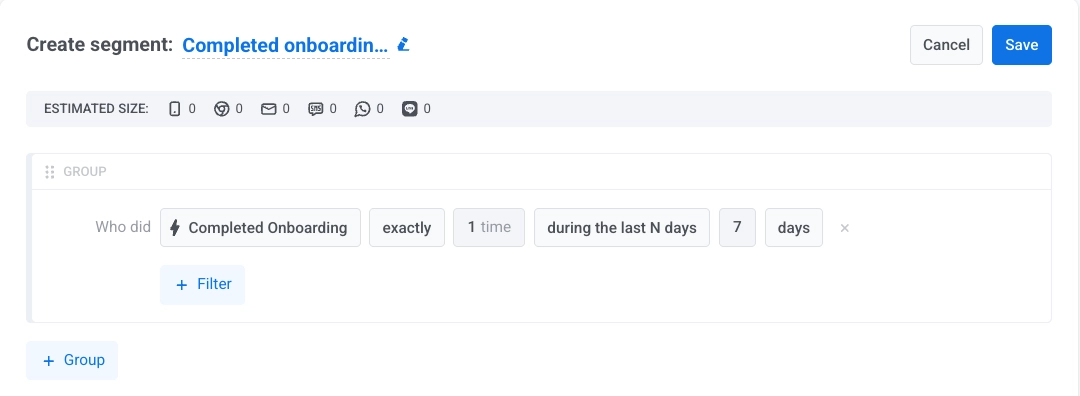
- Indicate conditions for the selected event: the number of times it happened and a time frame.
When specifying a time frame for your segment, you can choose from two categories: Relative dates and Specific dates.
Relative dates
Anchor link toUse these options for dynamically updating time windows based on the current date:
| during the last N days | Includes events that occurred within the past N days |
| exactly N days ago | Targets users who triggered the event exactly N days ago |
| N or more days ago | Includes users who triggered the event at least N days ago |
| between N and M days ago | Defines a range of days before today |
| between N and M days ahead | Defines a range from N to M days from today, where 0 means today. Both N and M are included |
Specific dates
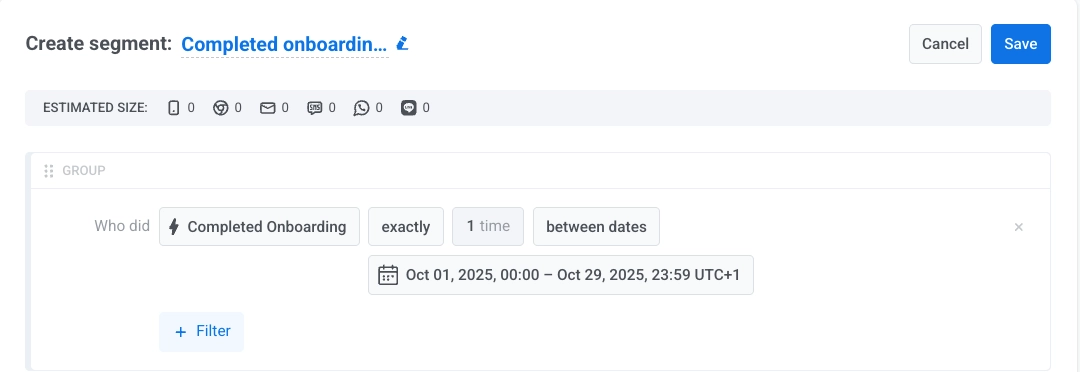
Anchor link toUse these options to define fixed calendar-based filters:
| on a specific date | Includes users who triggered the event on a selected calendar date |
| on or after a specific date | Includes users who triggered the event starting from the selected date onward |
| on or before a specific date | Includes users who triggered the event up to and including the selected date |
| between dates | Includes users who triggered the event between two specific calendar dates |
- (Optional) Click + Attribute to narrow the condition down to a specific event attribute. Select the attribute from the dropdown, choose an operator, and specify a value. Start typing to search suggested values based on previously recorded data.
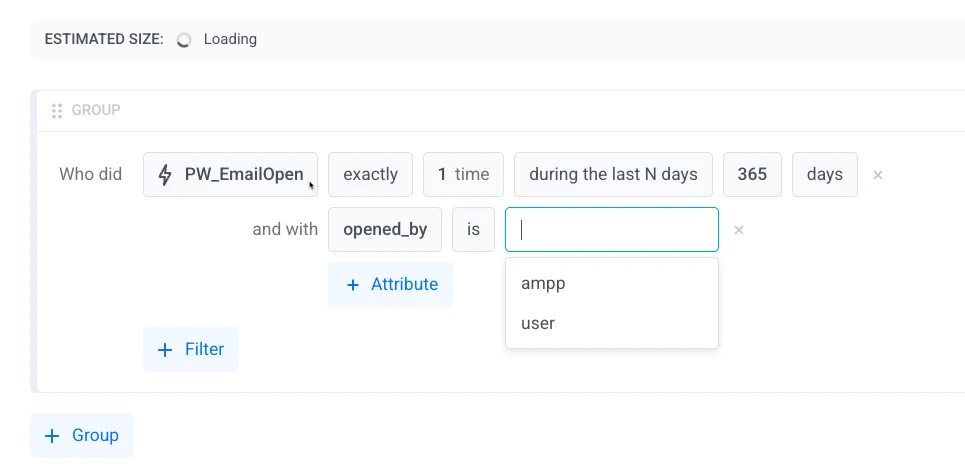
See event attribute operators by type for the full list of available operators.
- (Optional) Click + Sum when you need a total across matching events (for example, total spend), not a limit on a single event.
Choose an integer or decimal (price) attribute, an operator, and a threshold. + Sum appears only when the event has at least one integer or decimal (price) attribute. See operators for sums.
Example: Purchase at least once during the last 90 days, with sum of amount greater or equals 100, targets users who spent 100 or more in that window, in one purchase or several.
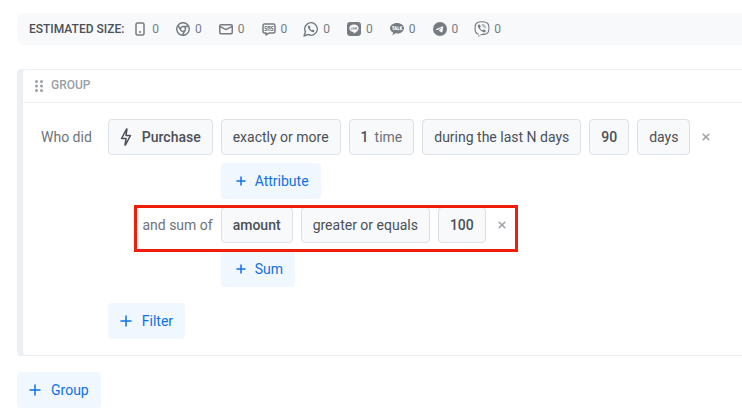
Attribute filters on the same event still apply: the sum uses only events that match them (for example, total amount where category is "shoes"). You can add more than one sum, on the same or different attributes. A user must pass every sum you add.
- If you set several events as a segment condition, select an operator you’d like to use (AND/OR).
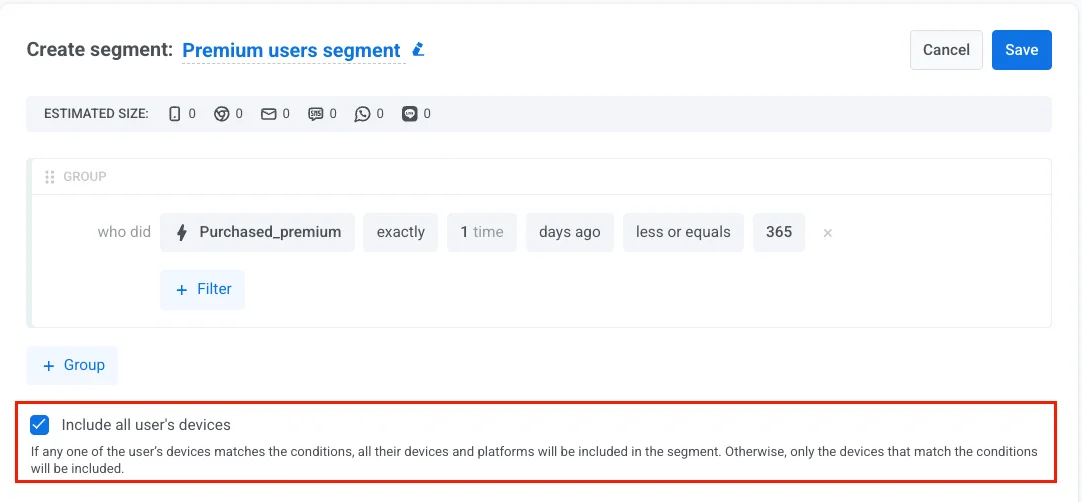
- Below the filter groups, enable Include all of a user’s devices to target a user across all their devices, not just the one that matched the segment condition. This ensures they receive your messages on every platform they use.
If any of a user’s devices matches the conditions, all their devices are added to the segment. If the checkbox is left unchecked, only matching devices are included.
This same checkbox appears, disabled, on a segment’s read-only detail page — it reflects the setting the segment was created with and can’t be changed there.
Event attribute operators by type
Anchor link toThe available operators depend on the type of the event attribute you’re filtering by. Select a type below to see its operators.
| Operator | Description | Example |
|---|---|---|
| is | Attribute value equals the specified value | button_name is "checkout" |
| is not | Attribute value does not equal the specified value | url is not "/cart" |
| starts with | Attribute value begins with the specified string | url starts with "https://example.com" |
| ends with | Attribute value ends with the specified string | url ends with ".html" |
| contains | Attribute value contains the specified string | url contains "/products/" |
| in | Attribute value matches any value in a provided list | button_name in ["submit", "cancel"] |
| not in | Attribute value does not match any value in a provided list | category not in ["spam", "test"] |
| not set | No value was recorded for the attribute | coupon_code not set |
| any | Attribute has any recorded value | referrer any |
| Operator | Description | Example |
|---|---|---|
| is | Attribute value equals the specified number | level_number is 5 |
| is not | Attribute value does not equal the specified number | score is not 0 |
| greater or equals | Attribute value is greater than or equal to the specified number | points_earned greater or equals 100 |
| less or equals | Attribute value is less than or equal to the specified number | attempts less or equals 3 |
| between | Attribute value is within the specified range (inclusive) | level_number between 10 and 20 |
| in | Attribute value matches any value in the list | level_number in [5, 10, 15] |
| not in | Attribute value does not match any value in the list | attempts not in [0, 1] |
| not set | No value was recorded for the attribute | score not set |
| any | Attribute has any recorded value | level_number any |
| Operator | Description | Example |
|---|---|---|
| is true | Attribute value is true | enabled is true |
| is false | Attribute value is false | is_trial is false |
| not set | No value was recorded for the attribute | enabled not set |
| any | Attribute has any recorded value (true or false) | is_trial any |
Use this type for monetary values with decimals. In the Control Panel it appears as decimal (price) when you create or edit an event attribute.
| Operator | Description | Example |
|---|---|---|
| is | Attribute value equals the specified price | total_price is 9.99 |
| is not | Attribute value does not equal the specified price | total_price is not 0 |
| greater or equals | Attribute value is greater than or equal to a price | total_price greater or equals 50.00 |
| less or equals | Attribute value is less than or equal to a price | total_price less or equals 100.00 |
| between | Attribute value falls within the specified price range (inclusive) | total_price between 10.00 and 50.00 |
| in | Attribute value matches any value in a list | total_price in [9.99, 14.99, 19.99] |
| not in | Attribute value does not match any value in a list | total_price not in [0, 5] |
| not set | No value was recorded for the attribute | total_price not set |
| any | Attribute has any recorded value | total_price any |
List-type attributes can hold multiple values at once, such as product IDs added to a cart.
| Operator | Description | Example |
|---|---|---|
| in | Attribute contains at least one of the specified values | product_ids in ["prod-123", "prod-456"] |
| not in | Attribute does not contain any of the specified values | product_ids not in ["prod-789"] |
| not set | No value was recorded for the attribute | product_ids not set |
| any | Attribute has any recorded value | product_ids any |
Date-type attributes support the same relative and specific date comparisons used for the event’s own time frame.
Operators for sums
Anchor link toA sum condition compares the total of an attribute across the matched events, so it supports fewer operators than an attribute condition.
| Operator | Description | Example |
|---|---|---|
| is | The total equals the specified number | total_price is 100 |
| is not | The total does not equal the specified number | total_price is not 0 |
| greater or equals | The total is greater than or equal to the specified number | total_price greater or equals 100 |
| less or equals | The total is less than or equal to the specified number | total_price less or equals 500 |
| between | The total is within the specified range (inclusive) | total_price between 100 and 500 |
Event-based segmentation examples
Anchor link toBelow are several practical scenarios illustrating how you can use event filters to create meaningful audience segments.
Frequent purchasers
Anchor link toGoal: Target highly engaged users who have made multiple purchases recently.
How to set up:
- Event:
Purchase_made - Condition: exactly or more
- Times:
3 - Time frame: during the last N days
- Time frame value:
30
Use case: Send special offers or loyalty rewards to users who demonstrate frequent buying activity.
High-value single purchase
Anchor link toGoal: Target users who made a large purchase, regardless of how often they buy.
How to set up:
- Event:
Purchase_made - Condition: exactly or more
- Times:
1 - Time frame: during the last N days
- Time frame value:
30 - Attribute:
total_price - Operator: greater or equals
- Attribute value:
50
Use case: Invite big spenders to a loyalty or VIP program right after a qualifying purchase.
Total spend over a period
Anchor link toGoal: Target users whose combined purchases reach a spending threshold, even if no single purchase does.
How to set up:
- Event:
Purchase_made - Condition: exactly or more
- Times:
1 - Time frame: during the last N days
- Time frame value:
90 - Sum:
total_price - Operator: greater or equals
- Sum value:
200
Use case: Move customers into a higher loyalty tier once their spending over the last 90 days reaches the threshold.
Refunds exceed purchases
Anchor link toGoal: Target users who got back more than they spent over a period. This works when refunds are tracked with the same event and a negative amount.
How to set up:
- Event:
Purchase_made - Condition: exactly or more
- Times:
1 - Time frame: during the last N days
- Time frame value:
90 - Sum:
total_price - Operator: less or equals
- Sum value:
-1
Use case: Route these users to a support or win-back flow instead of promotional campaigns.
Viewed products but no purchase
Anchor link toGoal: Identify users who have shown interest but have not converted.
How to set up:
- Event 1:
Product_Viewed- Condition: exactly or more
- Times:
1 - Time frame: during the last N days
- Time frame value:
7
- Event 2:
Purchase_made- Condition: never
- Time frame: during the last N days
- Time frame value:
7
- Operator: AND
Use case: Send reminders, special offers, or personalized messages to users who browsed products but haven’t made a purchase yet.
Users engaged during a campaign
Anchor link toGoal: Target users who participated during a specific promotional period.
How to set up:
- Event:
Promotion_Click - Condition: exactly or more
- Times:
1 - Time frame: between dates
- Time frame value:
"2024-01-01"and"2024-01-31"
Use case: Follow up with users who interacted with a past campaign to promote a related offer or gather feedback.
High-value actions over time
Anchor link toGoal: Identify users who performed a valuable event a certain number of times within a custom date range.
How to set up:
- Event:
Subscription_Renewal - Condition: exactly or more
- Times:
2 - Time frame: between dates
- Time frame value:
"2024-01-01"and"2024-12-31"
Use case: Offer special recognition or advanced features to loyal subscribers who regularly renew their subscriptions.
Tips for event-based segmentation
Anchor link to- Use relative dates for ongoing campaigns that should stay updated with current user activity.
- Narrow an event condition down with an event attribute filter (e.g., purchase amount, product category) instead of relying on event occurrence alone.
- Combine event filters with other criteria such as tags (e.g., user demographics, subscription status) or existing segments for more precise targeting. For example, you can filter users based on both event occurrence and user properties stored in tags to tailor your messaging even further.
- Periodically review and update your segment filters to adapt to changing user behaviors or business goals.