User Explorer
The User Explorer section provides a detailed view of your audience, allowing you to explore individual user data, including their devices, received messages, and interactions. It gathers and organizes customer data from multiple touchpoints, structuring real-time insights into centralized user profiles. This enables effective debugging, user segmentation, and targeted marketing strategies.
Opening User Explorer requires the Personal data permission in your role.
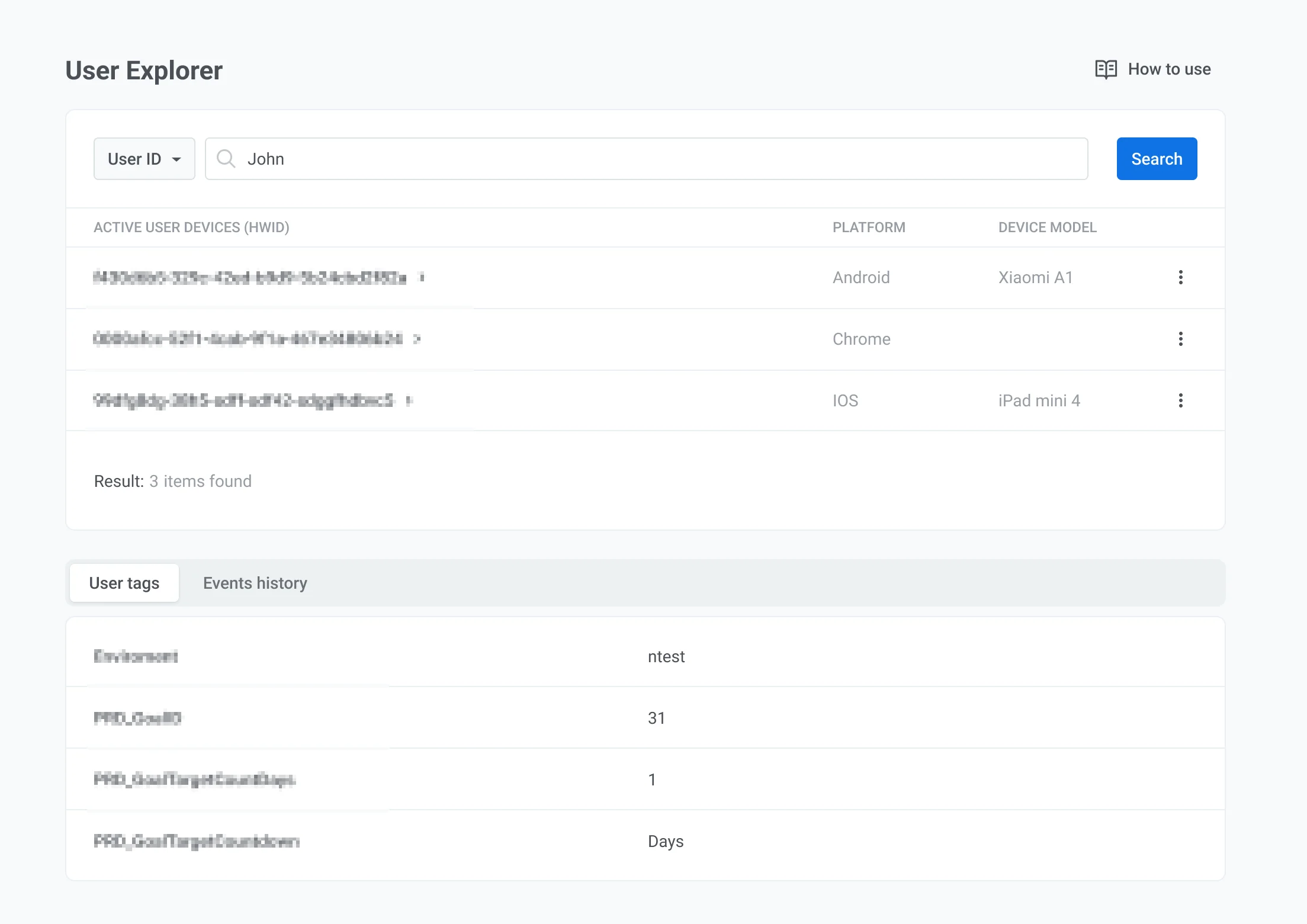
Search for a user
Anchor link to- Go to Audience → User Explorer.
- In the search bar, select a criterion from the dropdown:
- User ID: search by User ID
- HWID, Email, Phone: search by HWID, email address, or phone number
- Token: search by push token
- Enter the value for the selected criterion.
- Click Search.
Matching users appear in the results list under USER ID. Click the name to open the user profile.
View user profile
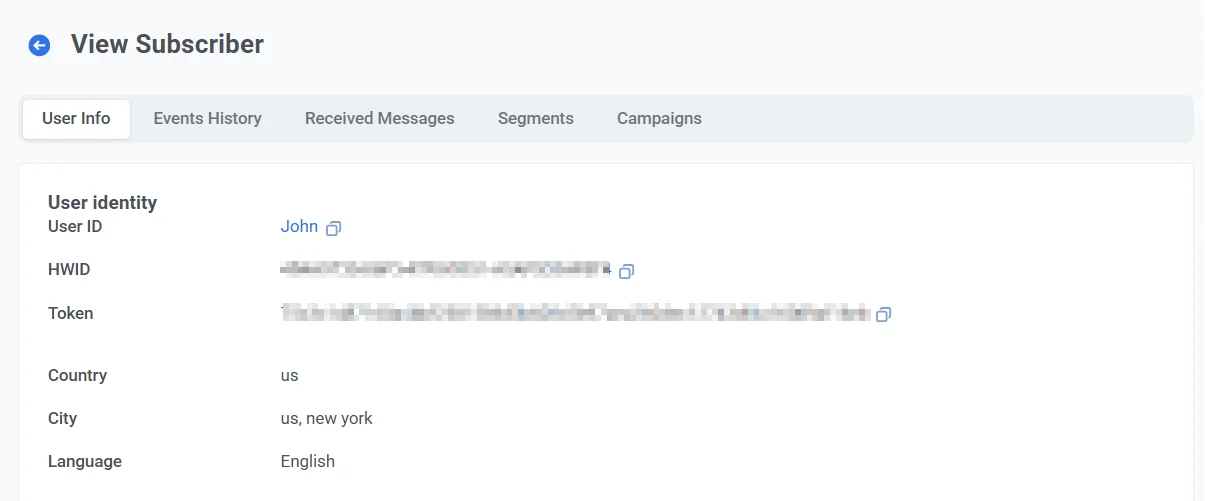
Anchor link toThe View user page opens when you select a user from the search results. Use the tabs at the top to review profile data:
- User overview: view user-level tags and edit tag values
- Devices and platforms: review channels, set test devices, or manage a channel
- Events History: search and filter events, view event attributes
- Received Messages: find messages by code and open delivery details
- Inbox: see what’s currently stored in the user’s Message Inbox
- Segments: see segment membership and open segment settings
- Campaigns: see Customer Journey entry, status, and exit dates
User overview tab
Anchor link toThe User overview tab shows the user’s User ID and a table of tags assigned at the user level.
The table includes every tag that has a value for this user.
Edit tag values
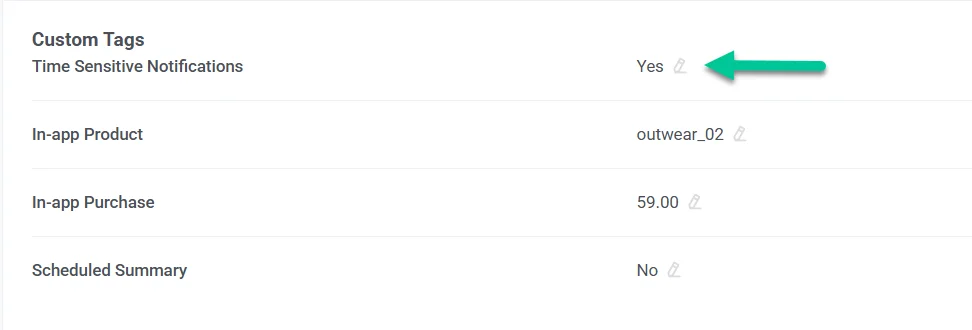
Anchor link toTo edit a tag value in the table:
- Find the tag in the table.
- Click the pencil icon next to the value.
- Enter a new value.
- Click Submit to save changes or Cancel to discard them.
Erase personal data
Anchor link toTo permanently erase a subscriber’s personal data for the current application:
- Click the three-dot menu (⋮) next to the User ID.
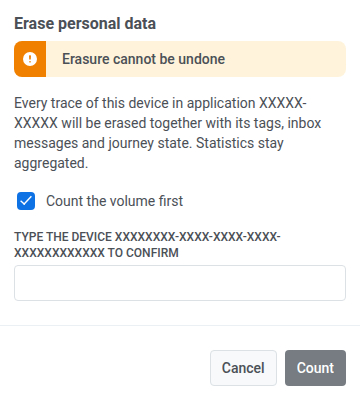
- Select Erase personal data.
- Leave Count the volume first checked (the default) to see how many records match before anything is deleted, or clear it to erase directly. Clearing the checkbox changes the primary button from Count to Erase data.
- Type the identifier shown in the dialog to confirm. The button stays disabled until it matches exactly.
- Click Count to check the volume, or Erase data to erase, depending on step 3.
Erasing removes the subscriber from any journey they’re travelling through, which also cancels that journey’s next step for them. It doesn’t cancel a message scheduled or queued for them outside a journey, for example a delayed send.
Each erasure appears as a row in the account-wide Data requests journal, alongside bulk CSV erasures. Count-only runs are hidden there by default. Turn on Show volume counts to see them. Open a row to review the result or download a CSV report. The account can start up to 20 data erasure runs, from here or from Data requests, in a rolling 24 hours.
Devices and platforms tab
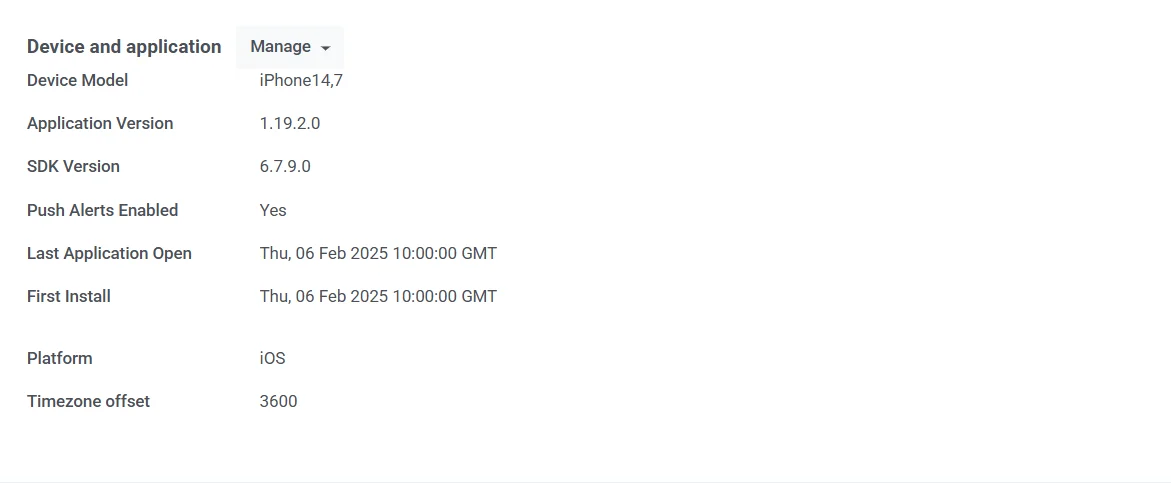
Anchor link toThe Devices and platforms tab lists every channel linked to the user. Select a platform in the left sidebar to view its profile in the main panel.
For each platform, you can review:
- Subscription status (for example, Subscribed for email, or Suppressed if Pushwoosh blocked the address after a hard bounce or spam complaint). See Reactivate a suppressed email address.
- Platform identifier (for example, an email address or phone number)
- Metadata: Last active, First subscription, Location, Language, and Timezone
- Tags assigned to that platform. The table lists default and custom tags that have values for this channel. You can edit values with the pencil icon.
Setting a test device
Anchor link toWith a channel selected in the sidebar, click Set as test device at the top of its profile on the right. In the dialog, enter a recognizable name, add a description if needed, and click Apply.
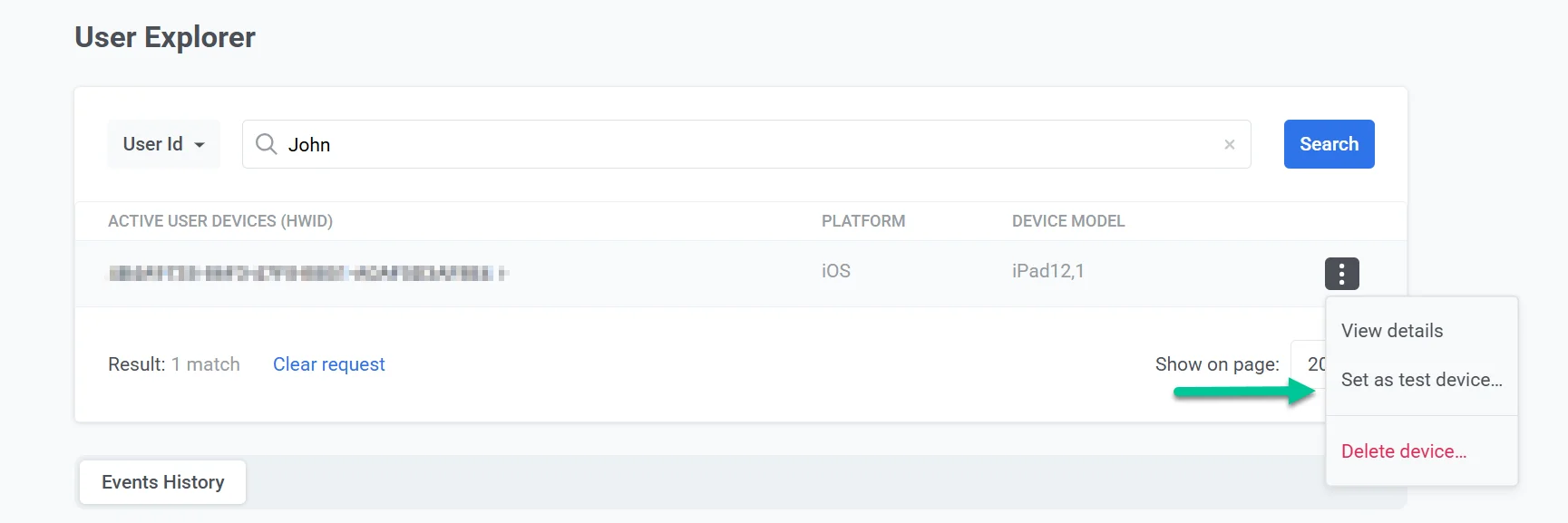
The channel is added as a test device and can receive test messages before you launch a campaign.
To remove it, click Remove from test devices on that channel profile.
Managing devices
Anchor link toUse the three-dot menu (⋮) in the platform profile header to manage that channel.
Delete a device
Anchor link toSelect Delete email for email or Delete device for other platforms to remove the channel from the user profile.
Unsubscribe user from marketing emails (email only)
Anchor link toFor an email profile, select Unsubscribe from email campaigns in the same menu to opt the user out of marketing email without removing the address.
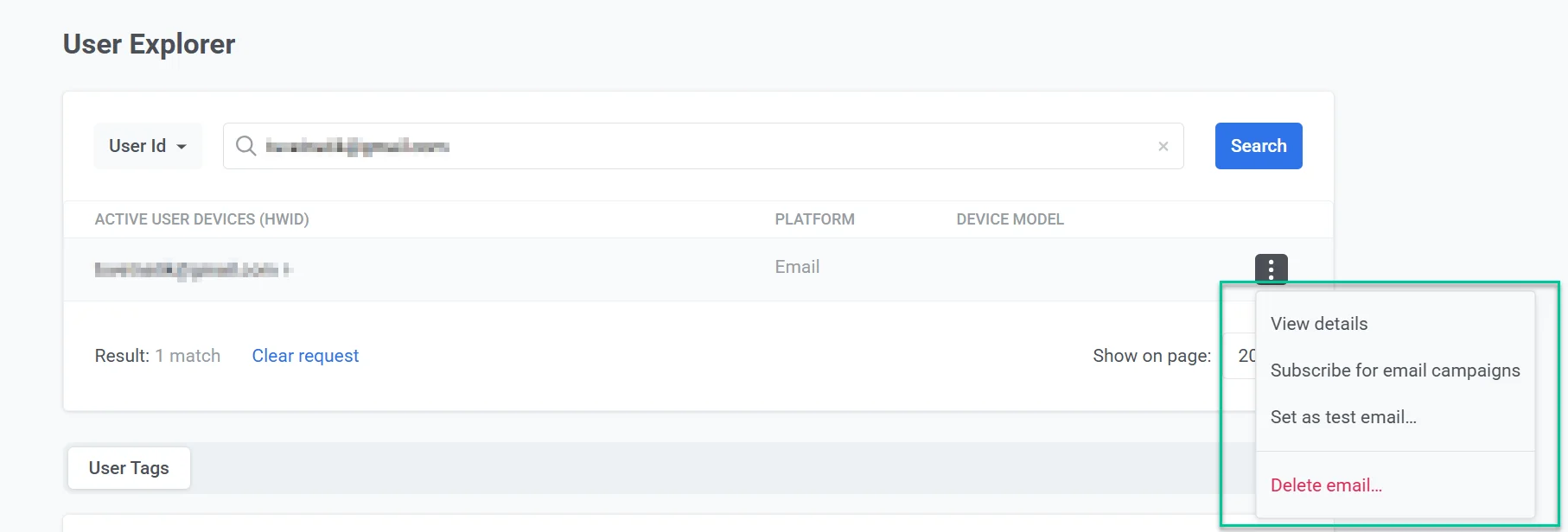
Pushwoosh sets the Unsubscribed Emails tag to true for that address. The user will no longer receive marketing emails. Transactional emails are not affected and will still be delivered. Learn more.
Reactivate a suppressed email address
Anchor link toReactivate takes an address off the suppression list.
What Suppressed means
Anchor link toWhen Pushwoosh suppresses an email address for a hard bounce or a spam complaint, its Subscription status shows Suppressed, and Pushwoosh blocks all email to that address, including transactional. That is different from unsubscribing from marketing emails, which only opts the user out of marketing email.
Review Email delivery status
Anchor link toOn the channel profile, open Email delivery status to see why the address was suppressed:
- Source: Spam complaint or Hard bounce
- Date: when the suppression occurred
- Reason: a human-readable reason based on the mail provider’s feedback
- Recorded in: the project where the suppression was logged. This is where the event was recorded, not which projects are blocked. Suppression applies across your whole account.
- SMTP and diagnostic codes: additional detail from the mail server, shown when available. You don’t need these to reactivate.
How to reactivate
Anchor link toIf you’ve fixed the issue that caused the suppression, for example corrected the mailbox or the subscriber reconfirmed consent after a spam complaint, reactivate the address so Pushwoosh can send to it again:
- On the Devices and platforms tab, select the email in the left sidebar.
- Click Reactivate.
- If the address was suppressed for a spam complaint, check the box confirming the recipient has renewed their consent. This is required for spam complaints, and the reactivation can’t proceed without it. A hard bounce reactivation skips this step.
- Optionally, add a Comment (up to 255 characters), for example a reference to a support ticket or the subscriber’s own confirmation.
- Click Reactivate.
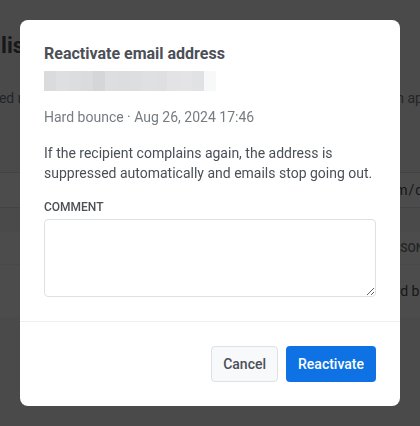
Reactivating clears the Bounced Email tag on the device. If a spam complaint had removed the email from this user’s Devices and platforms list, reactivation brings that email channel back onto the profile.
Reactivation applies to the whole Pushwoosh account, not just the project you’re viewing. The address becomes eligible for delivery again in every project under this account. Pushwoosh logs every reactivation, including who made it and when, so support can look it up if needed.
To review or reactivate suppressed addresses across your whole account instead of one at a time, use the Email suppression list.
Events history tab
Anchor link toPushwoosh tracks and stores the events log for each user for up to one year.
On the Events History tab, use Search to filter events by name. Use the channel dropdown to limit results to a specific platform.
Events are listed in chronological order. Each row shows the timestamp, event name, and device or platform.
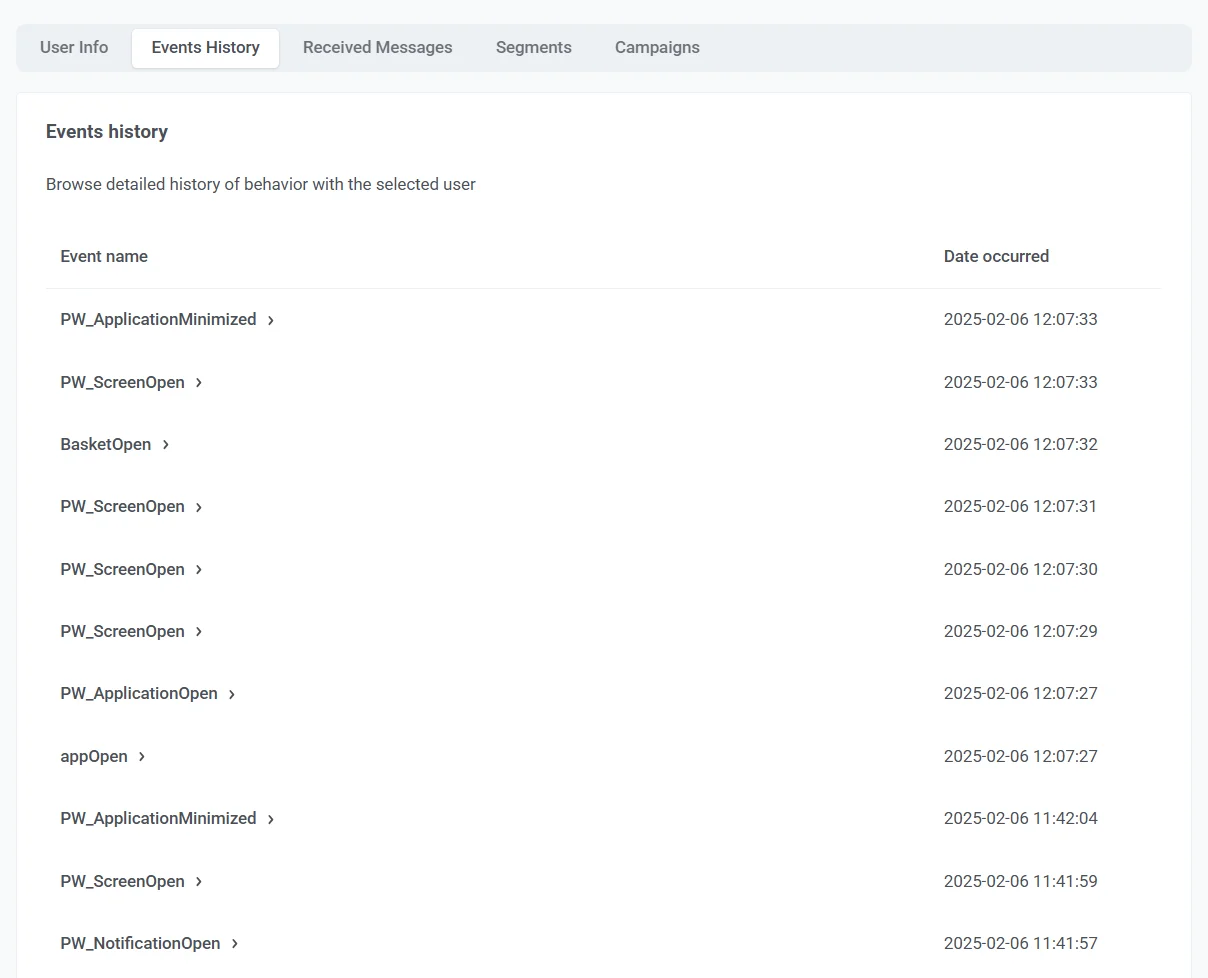
Click the arrow at the start of a row to expand the event. The expanded section lists the attributes recorded for that event, such as platform, device type, or application version. Available attributes depend on the event type.
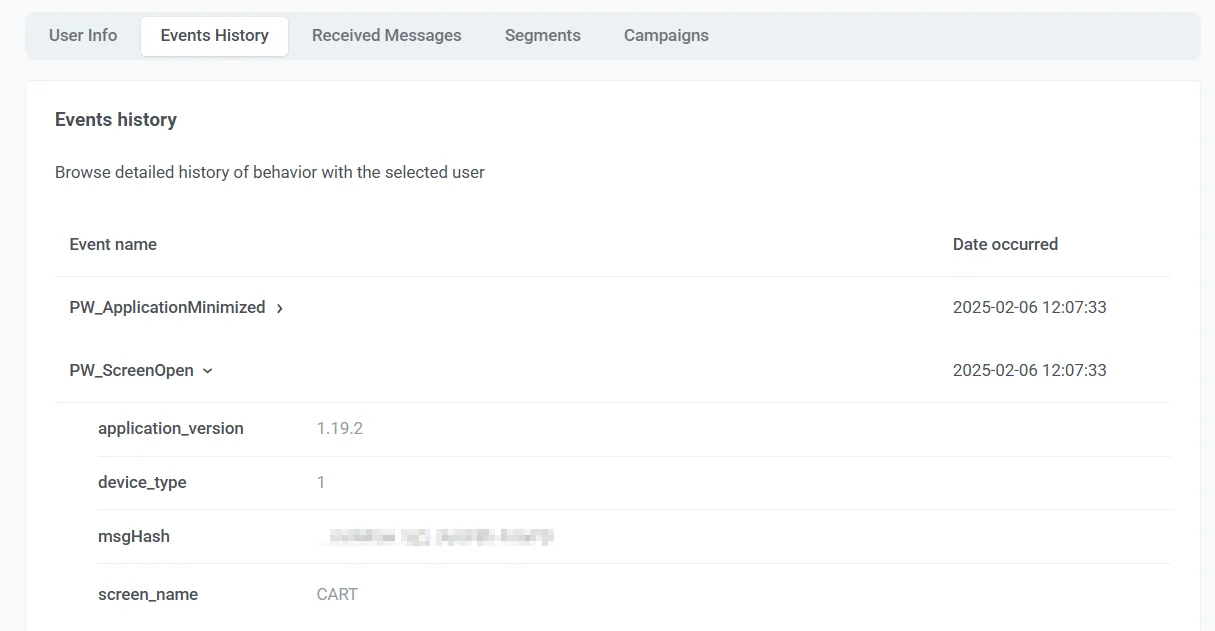
For example, PW_ApplicationMinimized may include application_version and device_type, and PW_DeviceRegistered may include platform and platform_id.
See default events for system event names and typical attributes.
Received messages tab
Anchor link toThe Received Messages tab lists messages sent to this user across channels. Use Search to find a message by message code.
Use the channel dropdown to show messages for one platform only.
Use the message type selector next to the channel dropdown to narrow the list by how the message was sent:
- All messages: show every message (default).
- Broadcast: show only broadcast messages sent to a segment or your whole audience.
- Transactional: show only transactional messages sent through the API to this specific user.
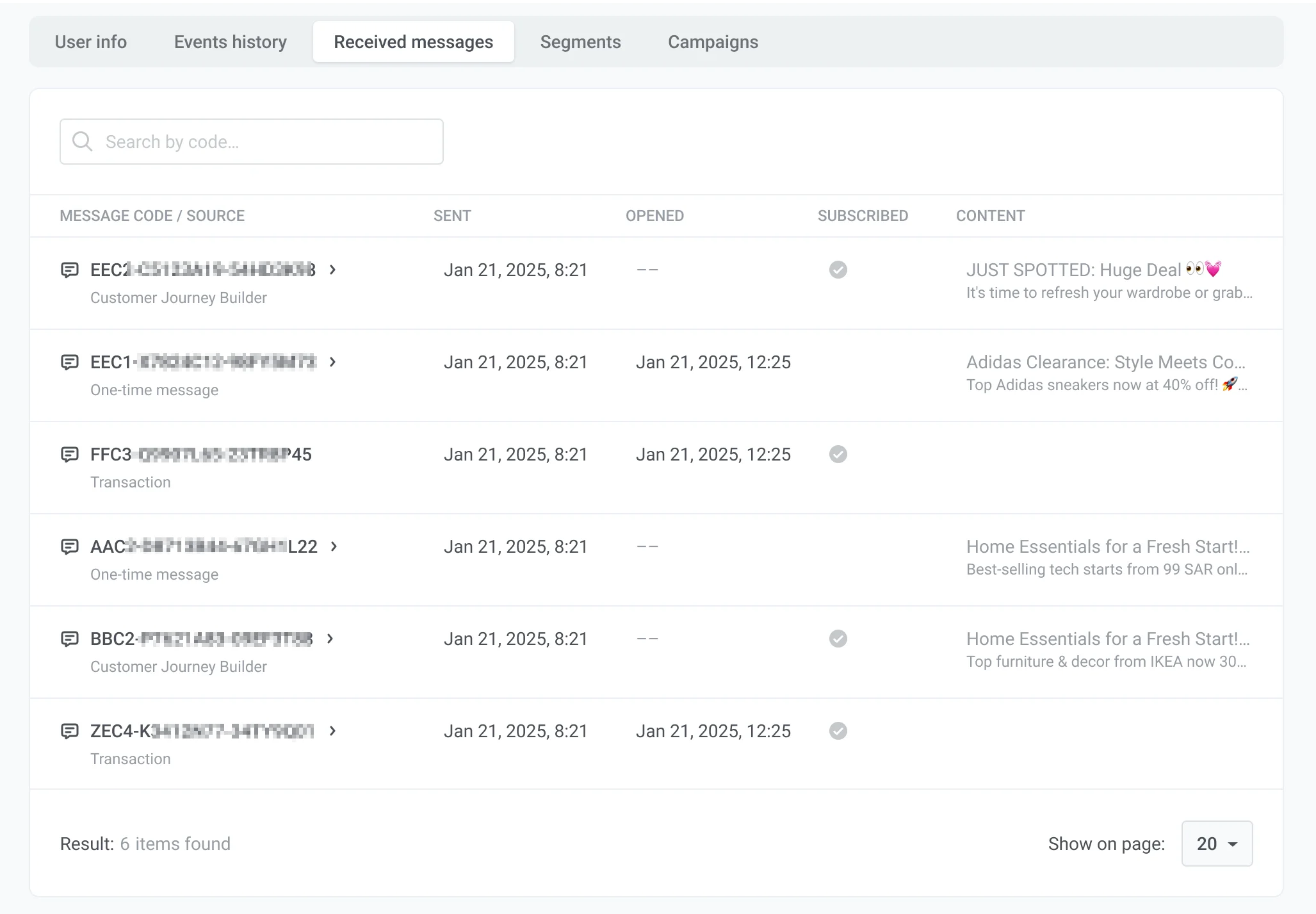
Each row includes:
-
Message code / Source: The message identifier and where it was sent from (for example, Transaction or Customer Journey Builder). Click the message code to open message details and statistics. Learn more.
-
Sent: The date and time the message was sent.
-
Opened: The date and time the user opened the message, if applicable.
-
Content: A preview of the message, such as the email subject line.
Inbox tab
Anchor link toThe Inbox tab shows what’s currently stored in this user’s Message Inbox. This differs from the Received Messages tab, which lists everything ever sent to the user’s devices.
Use Search to filter messages by title or text.
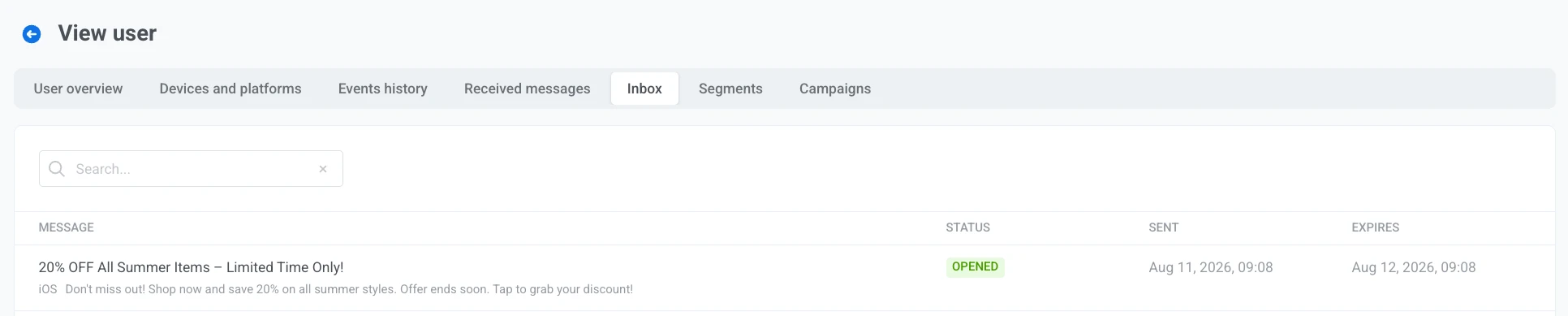
Each row includes:
- Message: The message title (or text preview, if there’s no title) and the platform it was sent to.
- Status: The message’s inbox status:
- Not delivered: the message hasn’t reached the user’s inbox yet.
- Unread: delivered, but the user hasn’t opened it.
- Opened: the user opened the message from the inbox.
- Read: the user marked the message as read without opening it.
- Deleted by user: the user removed the message from the inbox.
- Deleted: the message was removed from the inbox by other means (for example, expiration cleanup).
- Sent: The date and time the message was sent, or –– if not available.
- Expires: The expiration date and time, Expired if that date has passed, or –– if the message has no expiration.
Segments tab
Anchor link toThe Segments tab lists segments this user currently belongs to.
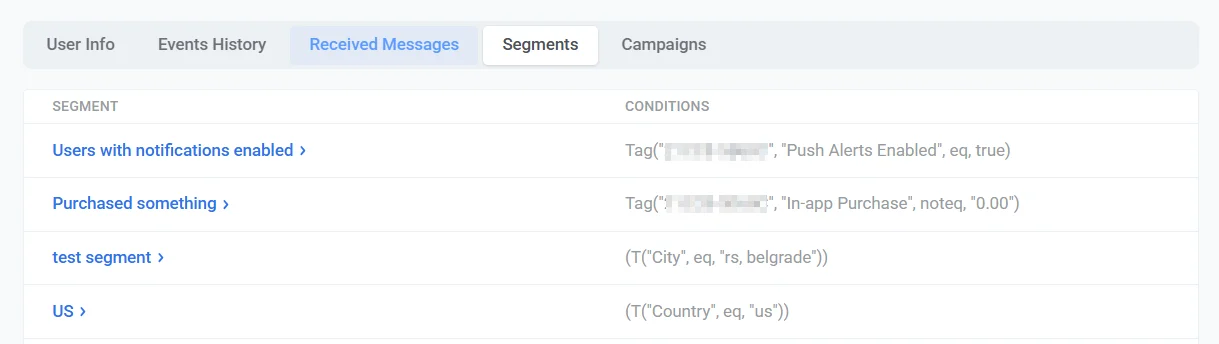
Each row includes:
- Segment: The segment name. Click the name to open the segment and view or edit its settings.
- Conditions: The filter expression that defines the segment, including tags and other rules that match this user.
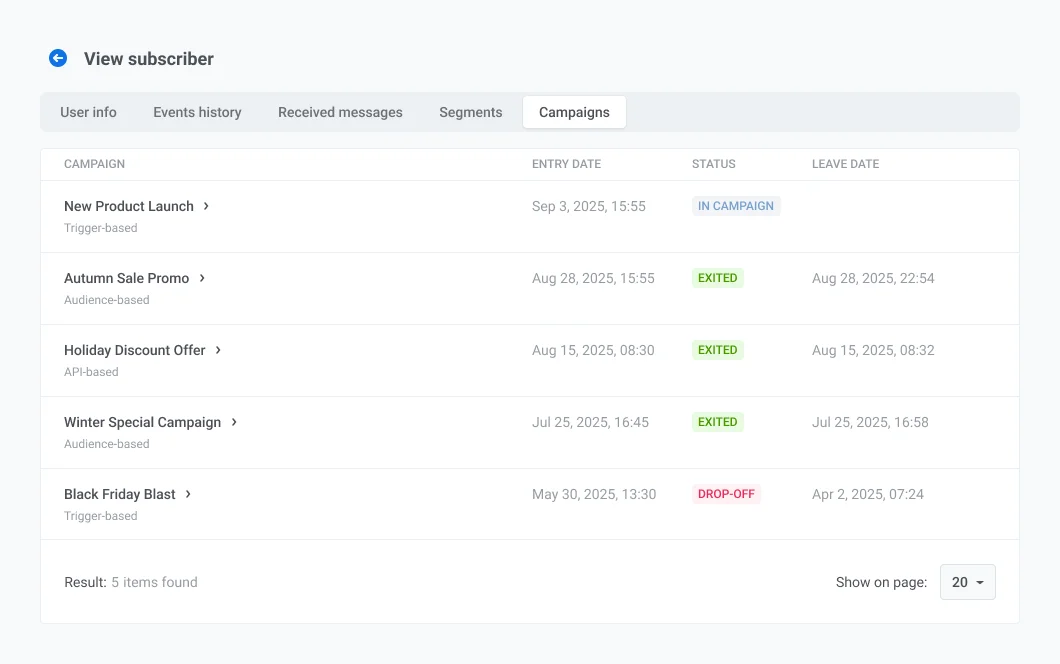
Campaigns tab
Anchor link toThe Campaigns tab lists Customer Journey campaigns this user has entered.
Each row includes:
- Campaign: The campaign name and type shown below it, such as Audience based or Trigger based. Click the name to open the campaign.
- Entry date: The date and time the user entered the campaign.
- Status: The user’s status in the campaign:
- IN CAMPAIGN: the user is currently progressing through the journey.
- EXITED: the user completed or left the journey.
- DROP-OFF: the user was dropped from the journey due to an error.
- Leave date: The date and time the user left the campaign.