Telegram platform configuration
Connect your Telegram bot to Pushwoosh to run Telegram as part of your omnichannel journeys from one place and track delivery results in Journey analytics.
Prerequisites
Anchor link toBefore configuring Telegram, ensure the following requirements are met:
- Telegram account: Use an active Telegram account that can access @BotFather.
- Telegram bot: Create a Telegram bot in BotFather.
Copy your Telegram bot API token
Anchor link toTo get an API token for an existing bot:
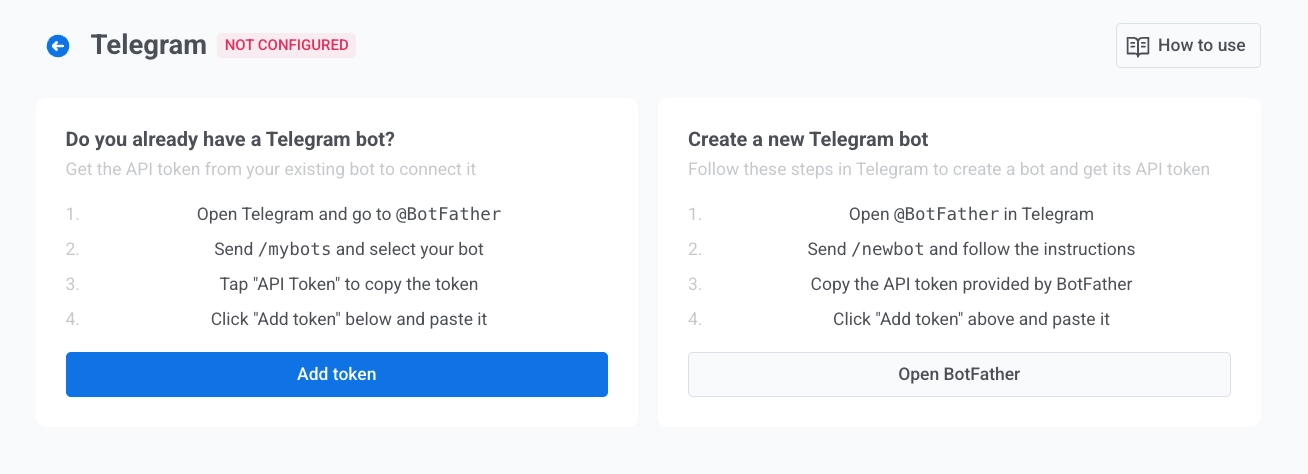
- In Telegram, open @BotFather.
- Send
/mybotsand select your bot. - Tap API Token and copy the token.
If you do not have a bot, create one in @BotFather by following the official Telegram guide.
Set up the Telegram configuration in Pushwoosh
Anchor link toTo set up the Telegram configuration, follow these steps:
-
Navigate to Settings > Configure platforms and open Telegram.
-
(Optional) If you don’t have a bot yet, click Open BotFather in the Create a new Telegram bot panel and create the bot in Telegram.
-
Click Add token.
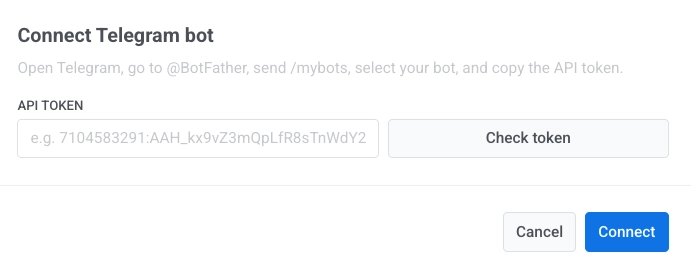
- In the Connect Telegram bot dialog, enter the API token you copied from BotFather. Learn how to get the token.
- Click Check token to verify the token.
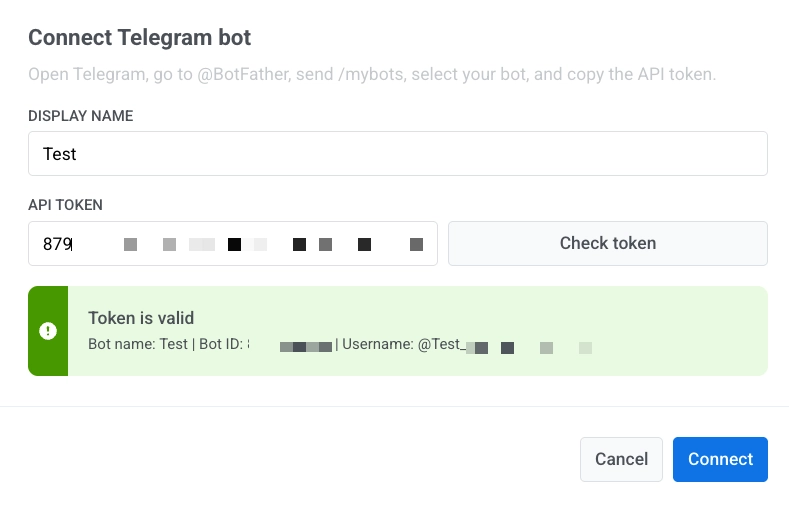
- Click Connect to save. To discard changes, click Cancel.
Manage Telegram bot tokens
Anchor link toReplace the bot token
Anchor link to- In Telegram settings, click Replace bot.
- In the Confirm replace Telegram bot dialog, click Replace bot.
- In the Connect Telegram bot dialog, enter the new API token.
- Click Check token.
- Click Connect.
Delete a token
Anchor link to- Click the three-dot menu next to the bot token.
- Click Delete.
Deleting a token turns off Telegram for the project. Active journeys and scheduled one-time campaigns keep running, but their Telegram messages aren’t delivered. To turn Telegram back on, set up the Telegram configuration again with a bot token.
Send Telegram messages
Anchor link toAfter setup, you can send Telegram messages in Customer Journey Builder.