Microsoft Fabric: ingest row
Use Microsoft Fabric: ingest row to stream one row into an Eventhouse (KQL) table from a journey step, through the Fabric ingest API. Unlike the other Integrations points that take their own token, this one authenticates through an Entra ID application connected once for the whole account. There’s no token field on the point itself.
Typical uses:
- Feed a reporting table: insert a row per journey step reached, for a dashboard or scheduled query downstream.
- Log events as they happen: stream raw journey data into the Eventhouse instead of waiting on a batch pipeline.
- Join with existing data: insert a device or tag value your Fabric tables can join against your own datasets.
Before you start
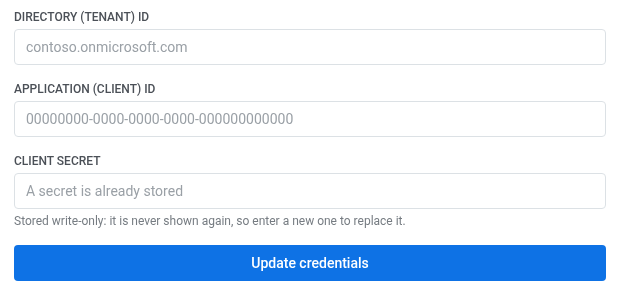
Anchor link toConnect an Entra ID application under Settings > 3rd-party integrations > Microsoft Azure:
- Register an application in your Entra ID directory and create a client secret for it.
- In Directory (tenant) ID, enter your tenant, for example
contoso.onmicrosoft.com. - In Application (client) ID, enter the app registration’s client ID.
- In Client secret, paste the secret. It’s stored write-only: Pushwoosh never shows it again, so paste a new one to replace it.
- Click Connect Azure.
After you connect Azure, install the integration so the point appears in the journey builder.
Three things also need to be in place on the Eventhouse side, or the request fails:
- The target table needs a JSON ingestion mapping — streaming ingestion of JSON doesn’t work without one.
- The app registration needs the
ingestorrole on the Eventhouse. There’s no button for this in the Fabric UI — grant it by running this in the Eventhouse’s query window:.add database ['<database name>'] ingestors ('aadapp=<Application (client) ID>;<Directory (tenant) ID>') - The KQL database needs its streaming ingestion policy enabled. Run this in the same query window:
.alter database ['<database name>'] policy streamingingestion enable
Keep the ['...'] around the database name in these commands if it contains a hyphen — a bare hyphenated name fails to parse.
Configure the point
Anchor link to- Drag Microsoft Fabric: ingest row from the Integrations section of the left panel onto the canvas.
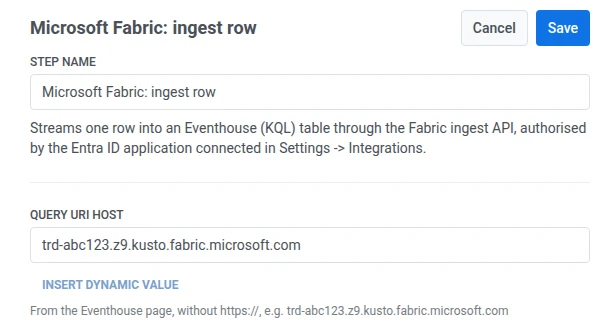
- Double-click the point and enter a Step Name.
- In Query URI host, enter your Eventhouse’s host from its Query URI, on the Eventhouse’s System overview page. Don’t include
https://, for exampletrd-abc123.z9.kusto.fabric.microsoft.com.
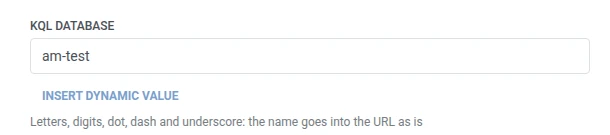
- In KQL database, enter the target database’s name.
- In Table, enter the target table’s name.

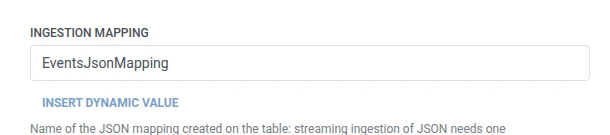
- In Ingestion mapping, enter the name of the JSON mapping created on that table.
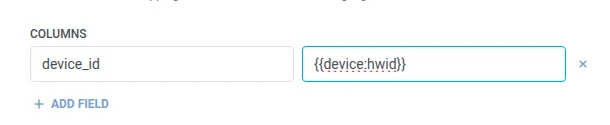
- In Columns, add one row per Eventhouse column to write. Enter the column name and the value. Names must be non-empty and unique. A value can be fixed text or a traveler macro such as
{{tag:Name}}, the same macros as in a Webhook body. Or click Insert Dynamic Value to pick an attribute an earlier step in this journey produced, for example an LLM response or a mapped Webhook value.
- Click Save.
Response
Anchor link toThe traveler continues to whatever step you connect next on the canvas.
Attributes after the step runs
Anchor link toThis point doesn’t map any response data back into the journey.
Failures and unexpected responses
Anchor link toOpen Calls log in the point’s drawer and check the response:
- 401 or 403 — the connected Entra ID application’s credentials or its
ingestorrole are wrong or missing. - 520 with
StreamingIngestionException: Failed to initialize cursor tracker...— the KQL database’s streaming ingestion policy isn’t enabled. The error’s ownpermanent: falseflag reads as “retry later,” but retrying doesn’t fix this. Run.alter database ['<database name>'] policy streamingingestion enablein the Eventhouse’s query window (see Before you start).
A failed request drops the traveler from the journey. See Errors and failed requests.
Example scenario: Streaming journey activity into a Fabric dashboard
Anchor link toA team wants a live dashboard of every step reached across an active journey, without waiting on a batch export.
- Add Microsoft Fabric: ingest row right after the step you want to track. Set KQL database to
am-test, Table toEvents, and Ingestion mapping toEventsJsonMapping. In Columns, setdevice_idto{{device:hwid}}. - Click Save.
Once this runs, each traveler who reaches this step shows up in the Eventhouse table within seconds, ready for the dashboard.