RevenueCat integration
RevenueCat is a subscription management platform that simplifies in-app purchases and subscriptions for businesses across iOS, Android, and web platforms. It provides comprehensive tools for building, analyzing, and enhancing in-app subscriptions.
By integrating Pushwoosh with RevenueCat, businesses can send targeted push notifications, in-app prompts, and other messages to users based on subscription events sent by RevenueCat to Pushwoosh. This can encourage users to renew subscriptions, upgrade to higher tiers, or take advantage of special offers, enhancing engagement, maximizing revenue, and simplifying subscription management.
Use cases
Anchor link toPersonalized communication
Anchor link toBusinesses can use the integration to personalize communication with clients. For example, an e-learning platform can boost user engagement by sending personalized push notifications when detecting a subscription plan change. These notifications offer transition guidance, recommend relevant courses based on the new plan, and provide exclusive benefits aligned with the update.
Billing issue notifications
Anchor link toWhen a user’s subscription faces a billing issue, businesses can use the RevenueCat integration with Pushwoosh to promptly send targeted notifications. For instance, a streaming service can notify the user about the billing problem and provide instructions for resolving it, such as updating payment information.
Non-renewing purchase notifications
Anchor link toBusinesses can leverage the RevenueCat integration with Pushwoosh to turn one-time purchases into lasting customer relationships. For example, a meal delivery service can send a post-purchase push notification thanking the customer and recommending relevant products or promoting a subscription plan for continued convenience. This will foster customer loyalty, drive upsell opportunities, and potentially convert one-time buyers into subscribers.
Tier upgrade promotions
Anchor link toApps with multiple subscription tiers can use the integration to monitor user subscriptions and send tailored upgrade prompts. For instance, a gaming app could use push notifications to underline the benefits of premium levels, like exclusive content or discounts, encouraging users to elevate their subscriptions.
Events
Anchor link toEvery webhook RevenueCat sends becomes a Pushwoosh event named RC_ plus the RevenueCat event type, for example RC_INITIAL_PURCHASE, RC_RENEWAL, RC_CANCELLATION, RC_BILLING_ISSUE, or RC_EXPIRATION. Pushwoosh creates the event the first time a webhook of that type arrives, so new RevenueCat event types appear in your app on their own. See Event types in the RevenueCat documentation for the full list.
Each event carries the fields of the RevenueCat webhook as event attributes, for example price, price_in_purchased_currency, currency, product_id, store, period_type, environment, country_code, and entitlement_ids:
- Fields that hold a time in milliseconds become dates without the
_mssuffix, for examplepurchased_atandexpiration_at. The date the webhook was sent is thetimestampattribute. - These dates are in UTC and have the
YYYY-MM-DDformat, without the time of day. - The customer attributes you set in RevenueCat become event attributes too. Attributes that identify a person or a device, such as email, phone number, display name, IP address, advertising IDs, and push tokens, aren’t passed to Pushwoosh.
- An event keeps up to 100 attributes.
Purchases from the App Store, Google Play, the Mac App Store, and Amazon are recorded on the iOS, Android, macOS, and Amazon platforms. Purchases from other stores, such as Stripe, RevenueCat Billing, or promotional grants, are recorded without a platform.
You can use these events in your customer journeys. Events with the price attribute can be used with RFM segmentation.
Setting up the integration
Anchor link toThe integration works through RevenueCat webhooks, which are available on RevenueCat’s Pro plan.
Match RevenueCat customers to Pushwoosh users
Anchor link toPushwoosh records a webhook for the Pushwoosh user it names and skips a webhook that names no user at all. Choose how RevenueCat names the user:
- If your app identifies users with its own ID and passes it to RevenueCat as the App User ID, use the App User ID as the Pushwoosh User ID.
- If the App User ID differs from the Pushwoosh User ID, for example when RevenueCat uses anonymous IDs like
$RCAnonymousID:…, send the Pushwoosh IDs as RevenueCat attributes. Without them, events go to a user ID Pushwoosh doesn’t have.
Use the RevenueCat App User ID as the Pushwoosh User ID
Anchor link toSet the App User ID you pass to RevenueCat as the Pushwoosh User ID (setUserId).
Android
Anchor link toPushwoosh.getInstance().setUserId(appUserID);Pushwoosh.configure.setUserId(appUserID)Send Pushwoosh IDs as RevenueCat attributes
Anchor link toSet the attributes pushwooshUserId and pushwooshHwid in RevenueCat. Pushwoosh uses them instead of the App User ID:
pushwooshUserId: the Pushwoosh User ID of the customer.pushwooshHwid: the Pushwoosh hardware ID (HWID) of the customer’s device. It’s optional. Without it, Pushwoosh uses the User ID as the HWID.
Android
Anchor link toPurchases.sharedInstance.setAttributes(mapOf( "pushwooshUserId" to pushwooshUserId, "pushwooshHwid" to Pushwoosh.getInstance().hwid))Purchases.shared.attribution.setAttributes([ "pushwooshUserId": pushwooshUserId, "pushwooshHwid": Pushwoosh.configure.getHWID()])Send RevenueCat webhooks to Pushwoosh
Anchor link toIn your RevenueCat dashboard:
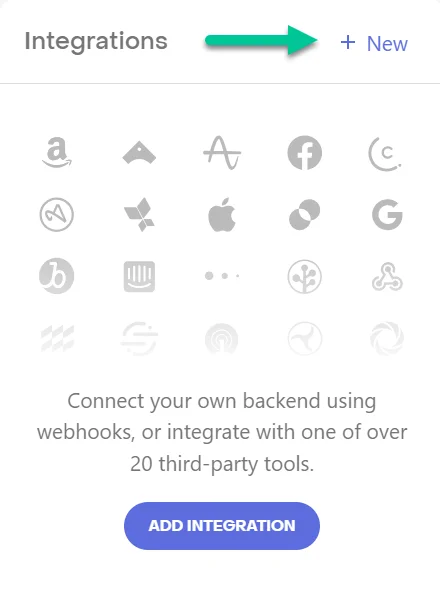
- Open your project, find the Integrations card in the left menu, and click + New.
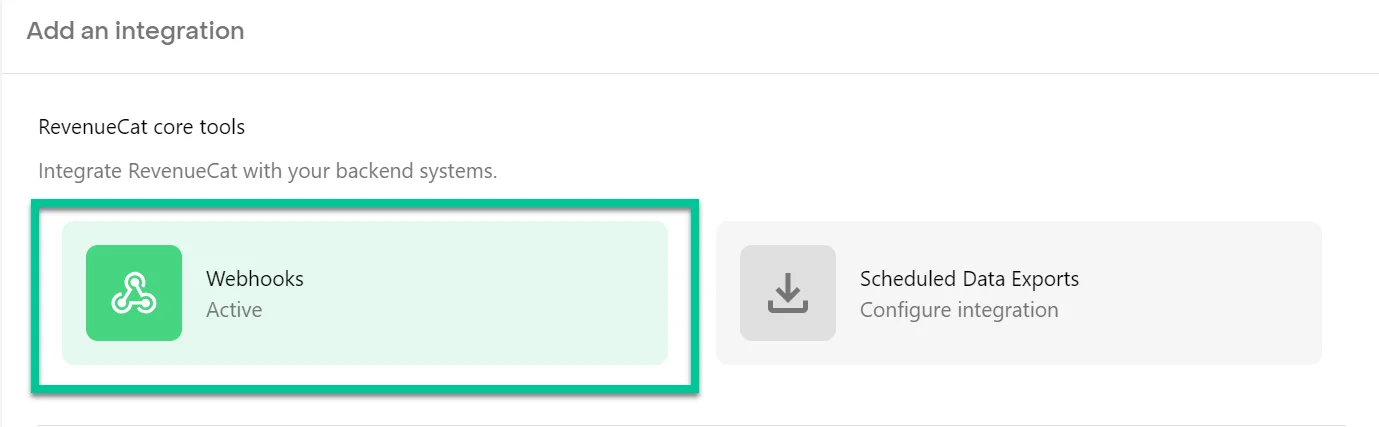
- Choose Webhooks.
- If RevenueCat shows the list of your webhooks, click Add new configuration.
- Give the integration a straightforward name, such as Pushwoosh, for easy identification.
- Enter the following URL as the webhook URL:
https://integration-revenuecat.svc-nue.pushwoosh.com/integration-revenuecat/v1/post-event?pwapp=APP_CODE
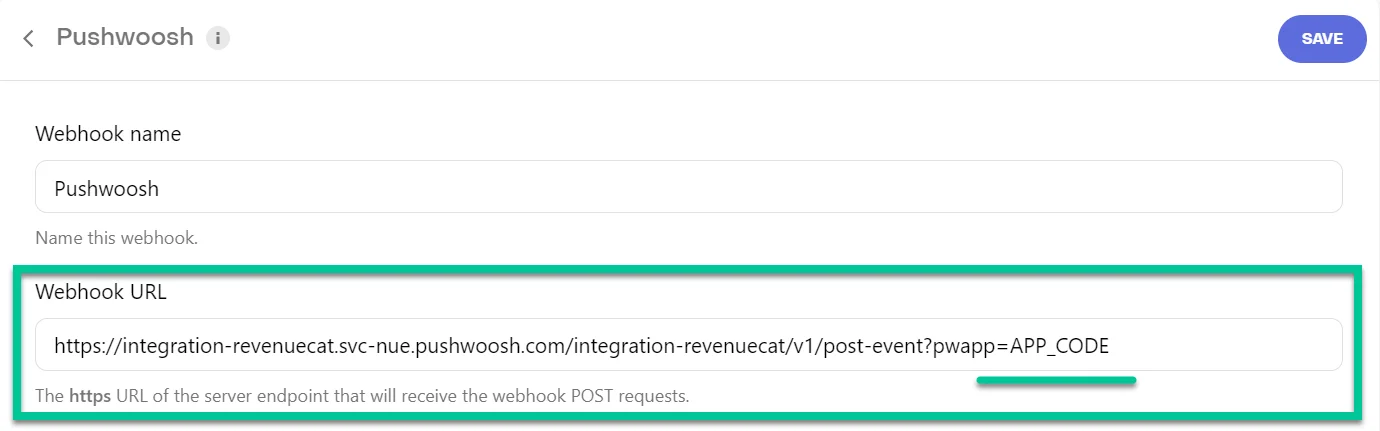
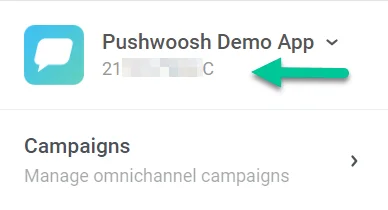
In the URL, replace APP_CODE with your existing Pushwoosh application code which is located below the name of your application in your Pushwoosh account.
- In the Authorization header value field, insert your Pushwoosh API token. You can find this token under Settings > API Access in Pushwoosh.
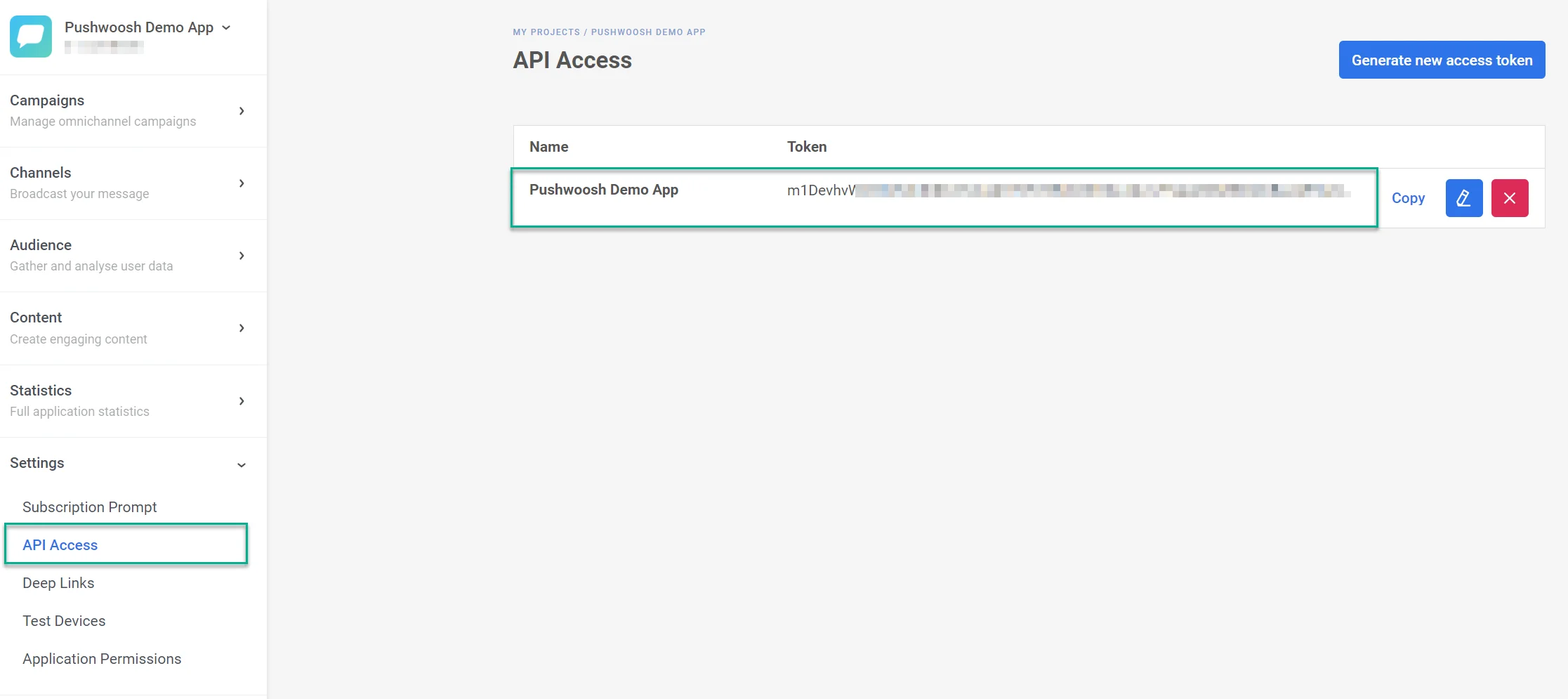
- Decide if you want to transmit events for production (live) purchases, sandbox (test) purchases, or both.
- In the App dropdown, specify whether webhook events should be dispatched for a single app or all apps within the project.
- In the Event Type dropdown, select whether to send all events or specify which events to send to Pushwoosh.
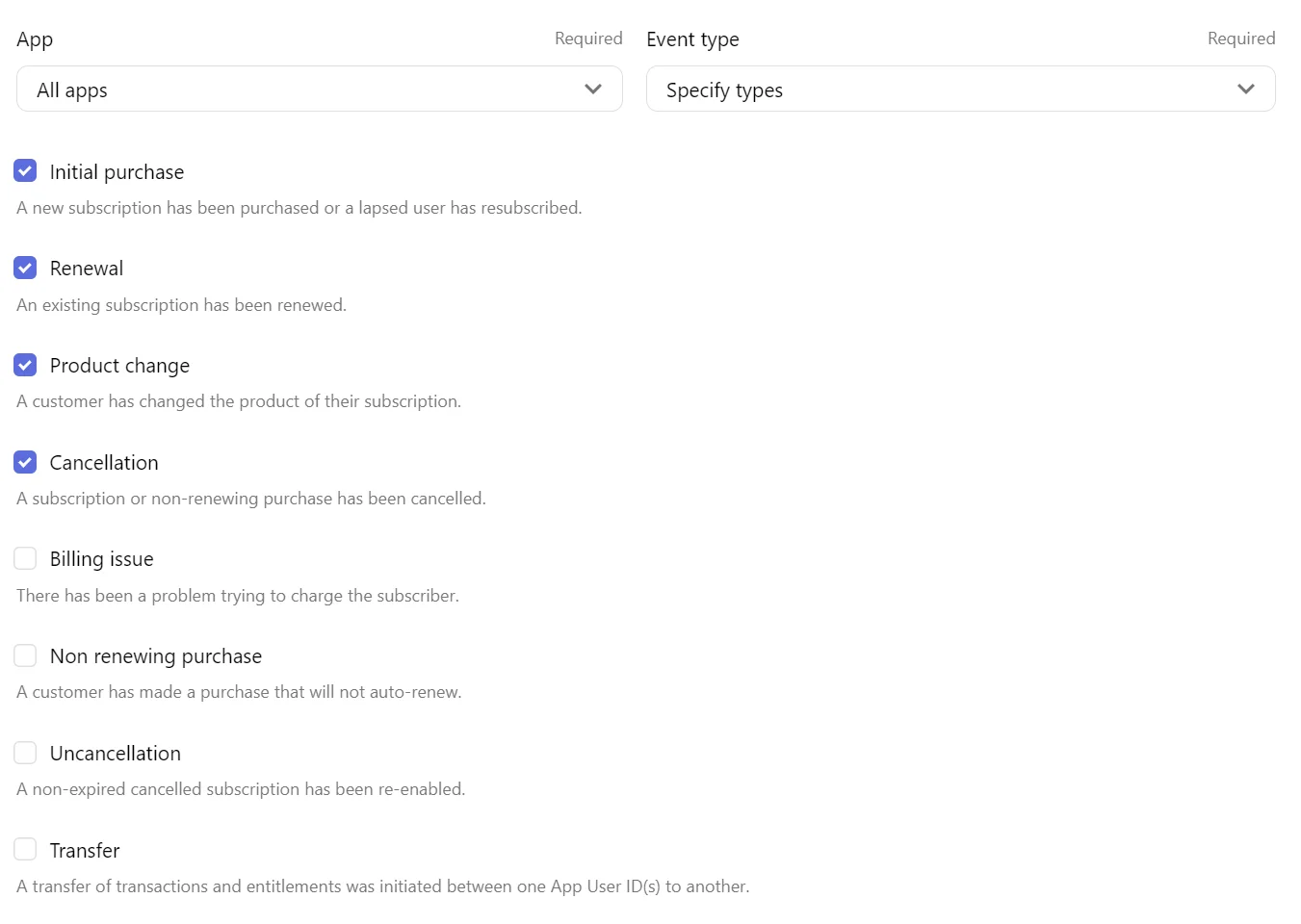
- Choose to show all events, only succeeded events, or only failed events.
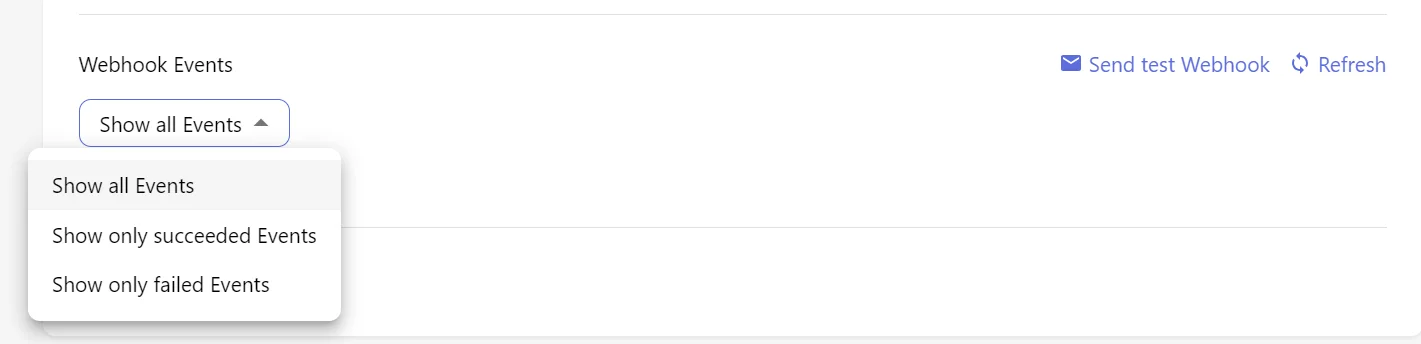
To check the connection, send a test webhook from RevenueCat. A successful delivery means Pushwoosh accepted the URL and the API token. The test webhook itself isn’t recorded as an event: each RC_ event appears under Audience → Events in your Pushwoosh app once the first real webhook of that type arrives.