Reachability check
The Reachability check element tests a user against a list of channels you choose and sends them down the branch for the first channel they’re reachable on. Add channels in priority order (push, email, SMS, WhatsApp, LINE, in-app, and wallet pass are all available) and route the rest to a fallback branch. Use it to try a preferred channel first and fall back to alternatives instead of losing users who aren’t reachable on it.
When to use
Anchor link to- You want to send a push first, then email or SMS only if the user isn’t reachable on push.
- You want one path for users with a wallet pass and another path (email or in-app) for everyone else.
- You want to message users by email when they have it, fall back to SMS if they don’t, and use All others for everyone left.
Add channels to check
Anchor link to- Drag the Reachability check element onto the canvas from the Flow section of the left panel.
- Double-click the element to open the configuration panel.
- In Step Name, enter a name for the point, for example
Reachability check for push campaign. This name replaces the default label on the canvas. - Under Add a channel, click each channel you want to check. Repeat until your list is complete.
- For Push Notifications, In-Apps, and Wallet Pass, choose which platforms to include. A newly added channel starts with All platforms selected. Keep that, or pick only the ones you need:
- In-Apps and Wallet Pass: iOS, Android
- Push Notifications: iOS, Android, Web, Desktop, Amazon
- Use the Move up and Move down arrows next to a channel’s name to change its position in the list, or the trash icon to remove it.
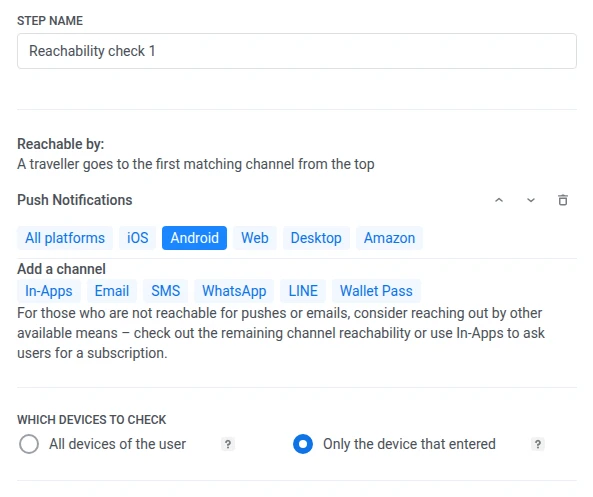
- Under Which devices to check, choose whether the check looks at All devices of the user or Only the device that entered the journey.
- Click Save.
Choose which devices to check
Anchor link toA user can have several devices. For example, they might enter the journey on an Android phone but also own an iPad. By default, the check looks across all of the user’s devices for a channel, so a user who entered on Android can still match a channel or platform tied to a different device.
Under Which devices to check, choose All devices of the user to keep that behavior, or Only the device that entered to check the entry device only, so an Android traveler isn’t matched into an iOS branch for example.
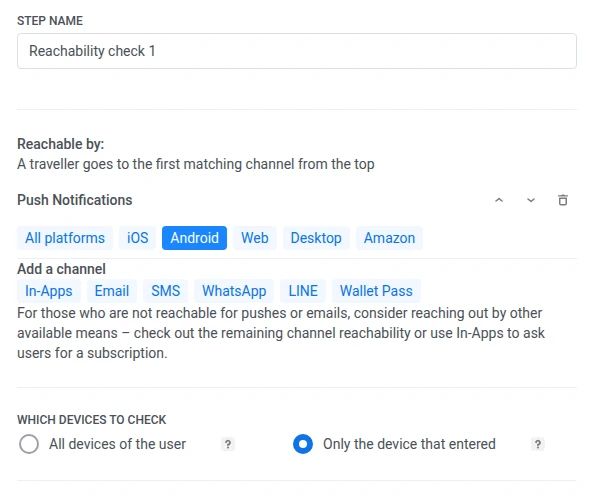
The entry device isn’t limited to a push-registered one. Only the device that entered checks whichever device is tied to how the user entered the journey, including an email- or SMS-only device, or the specific device matched by an Audience-based entry.
If you leave both options unselected, Pushwoosh falls back to your account’s default scope, named in the hint under the radio buttons (for example, “this account checks only the device that entered by default”). Points built before this update keep that same default. Nothing is preselected for them.
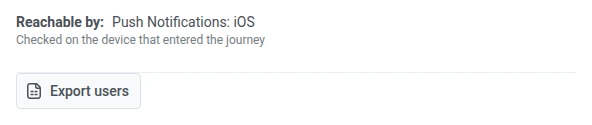
The chosen scope also shows in the read-only view of a running journey version, as a line under the branch list. Points using the account default don’t show this line.
Condition split’s Segment and Tag strategies use the same Which devices to check control. See Choose which devices to check on that page for how it behaves there.
Connect the branches
Anchor link toAfter you save, each channel becomes its own branch on the canvas, in the same order as the list. Users who don’t match any listed channel go down All others.
Each branch is labeled with its channel name. Push Notifications, In-Apps, and Wallet Pass use short labels on the canvas: Push, In-App, and Wallet. If you narrowed a channel to specific platforms, the label lists them after the channel name, for example Push: iOS or Wallet: iOS, Android. A channel left on All platforms shows the channel name only.
- Connect the next step to each channel branch. For example, put a Push step on Push and an Email step on Email.
- Connect All others to the path you want for everyone else.
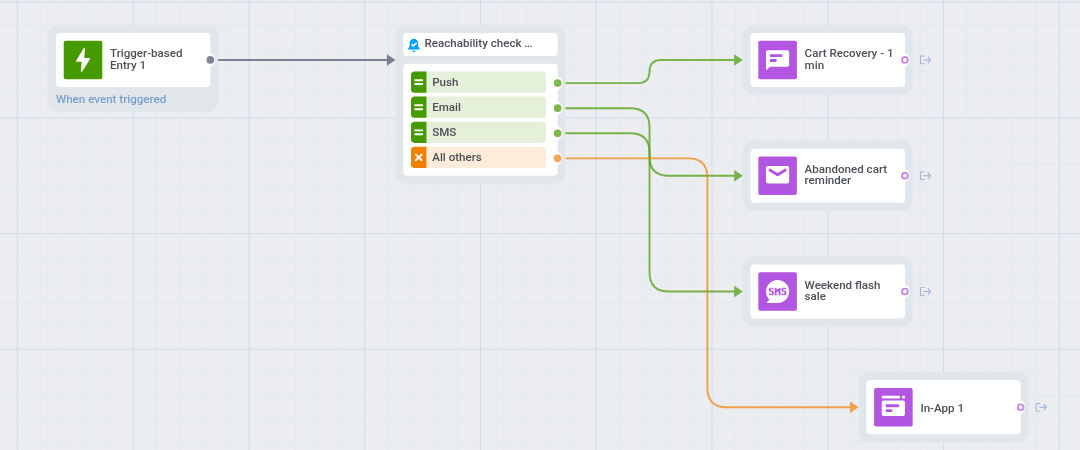
If you remove a channel later, only that branch is deleted. Every other branch keeps the connection it already had.
Which branch the user follows
Anchor link toPushwoosh checks the channels in the order you set in the list. The user follows only the first channel they are reachable on, then continues along that branch. If they aren’t reachable on any of those channels, they go down All others. Only a user who has no device at all in the application doesn’t go down any branch: they drop out of the journey at this element with the Device not found reason, for example when the entry event came with a User ID that has no devices.
What counts as reachable depends on the channel:
| Channel | User is reachable when |
|---|---|
| Push | A device is registered on a matching platform, and the app’s Push Alerts Enabled tag is true for that device. |
A device is registered, and the app’s Unsubscribed Emails tag is not true for that device. | |
| In-Apps, Wallet Pass | A device is registered on a matching platform (a pass is installed, for Wallet Pass). |
| SMS, WhatsApp, LINE | A device is registered for that channel. |
None of the channels check push-token validity or the OS-level notification permission, only the tag or device state above.