Audience-based entry
Audience-based entry launches a journey for a pre-built segment of your app’s users. A segment includes subscribers who meet specific conditions.
For more information on Audience segments, refer to the Segments guide.
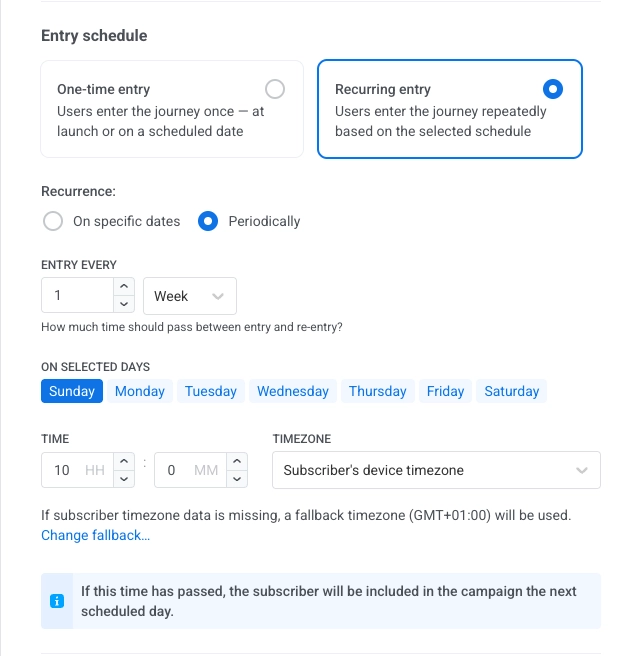
To set up the Audience-based entry, drag the Audience-based entry element onto the canvas and select an Audience Source (i.e., a pre-built segment of app subscribers).
You can manage segments directly from this element:
- To edit the selected segment, click the Edit icon next to the Audience Source dropdown.
- To create a new segment, click Create Segment.
You can also upload a CSV file to create a segment and then start a journey for it. Learn more
Once the journey is activated, all users from the selected segment enter the journey.
Entry schedule
Anchor link toEntry schedule defines how users enter the journey.
In the element configuration, choose between two entry types:
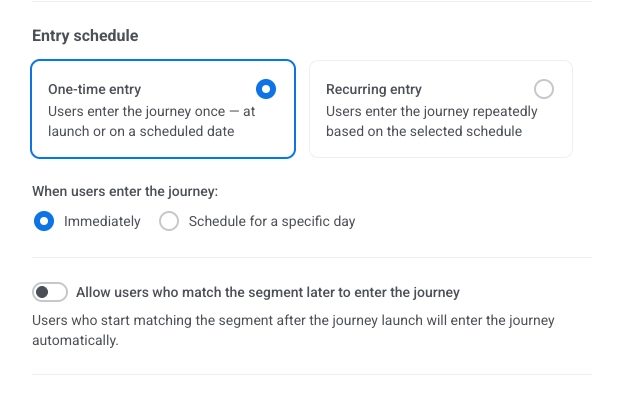
- One-time entry: users enter the journey once – at launch or on a scheduled date.
- Recurring entry: users enter the journey repeatedly based on the selected schedule.
One-time entry
Anchor link toWhen One-time entry is selected, choose when users enter the journey:
- Immediately: users enter as soon as the journey is activated.
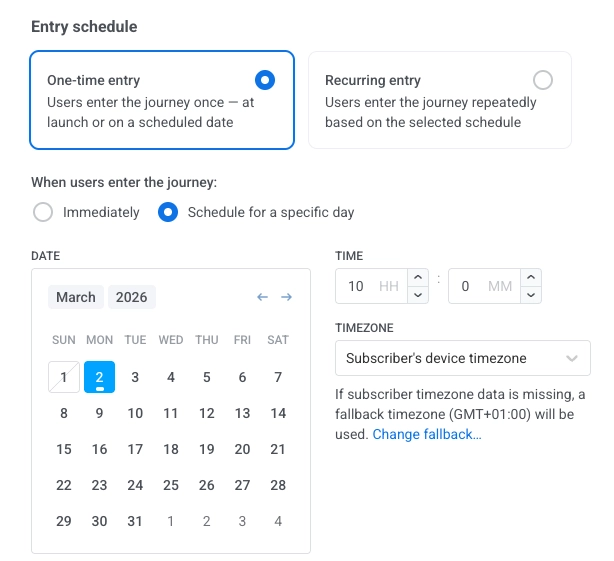
- Schedule for a specific day: users enter on the date and time you set.
Immediately
Anchor link toUsers enter the journey as soon as it is activated.
Schedule for a specific day
Anchor link toIf you choose Schedule for a specific day, set the date, time, and timezone.
Timezone options
Anchor link to- Subscriber’s device timezone (default): entry uses each subscriber’s device timezone. If timezone is missing, a fallback (e.g. GMT+01:00) is used. Click Change fallback to change it.
- Specific timezone: pick a timezone from the dropdown for a fixed entry time.
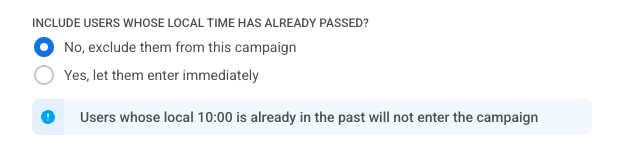
Choose what happens when a user’s scheduled time has already passed
Anchor link toChoose what happens when a user’s scheduled entry time (in their local timezone) has already passed:
- No, exclude them from this journey: the user will not enter the journey.
- Yes, let them enter immediately: the user enters the journey right away.
Define who enters the journey
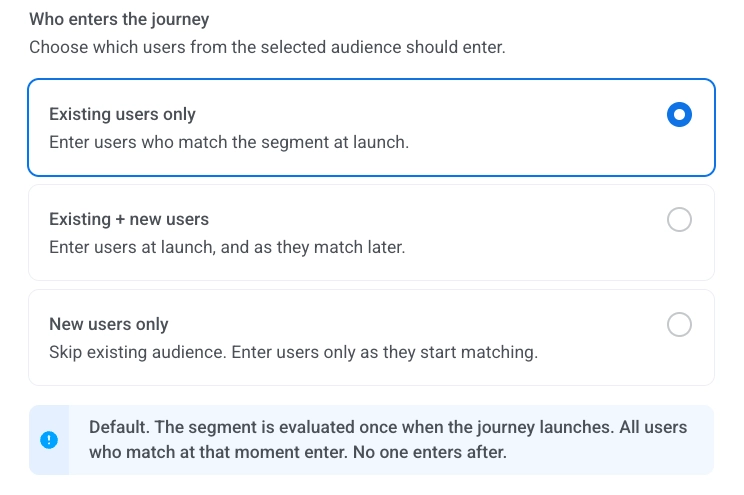
Anchor link toChoose which users from the selected segment can enter:
-
Only existing users (default): only users who already match the segment at launch enter the journey. No one enters later. For example, send a one-time promo to users with the tag
Subscribed. -
Existing and new users: users who match the segment at launch enter first. After launch, users who become matches also enter. For example, run an onboarding journey for users with the tag
Registered. -
Only new users: no one enters at launch. Only users who become matches after the journey is activated enter. For example, run a post-purchase flow only for users who make their first order after activation.
When entry closes
Anchor link toThis setting is available only when both are true:
- Entry schedule is set to One-time entry.
- Define who enters the journey is set to Existing and new users or Only new users.
With Only existing users, no one enters after launch, so there’s no window to close.
Choose whether new users can keep entering:
- Never (default): new matching users keep entering for as long as the journey runs.
- On a specific day: after the date and time you set, no new users enter. Set the date, time, and timezone the same way as for Schedule for a specific day. Users already in the journey continue: waits, sends, and branches keep working as before.
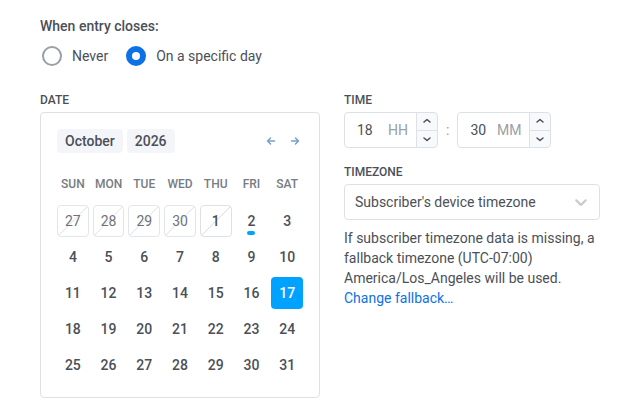
If you keep Subscriber’s device timezone, entry closes at the set time in each subscriber’s local timezone. So it closes in waves over up to 24 hours (UTC−12…UTC+12).
If the close date has already passed
Anchor link toA close date in the past behaves differently depending on when you hit it:
- When you set the date: a past date shows This date has already passed. Select a future date.
- When you launch the journey for the first time: the launch is rejected with The end entry date has already passed.
- When you resume a journey you paused after its close date: this check doesn’t apply. The journey resumes, and entry simply stays closed.
Change the close date
Anchor link toThe close date field is locked while the journey is running. To change it:
- Pause the journey.
- Set the new date.
- Click Resume campaign.
Campaign status after entry closes
Anchor link toOnce entry closes, the campaign header dropdown that normally reads Campaign is active switches to:
- Active · entry closed
- Active · entry closed · N in flight while N users are still moving through the journey
See Campaign statuses.
Recurring entry
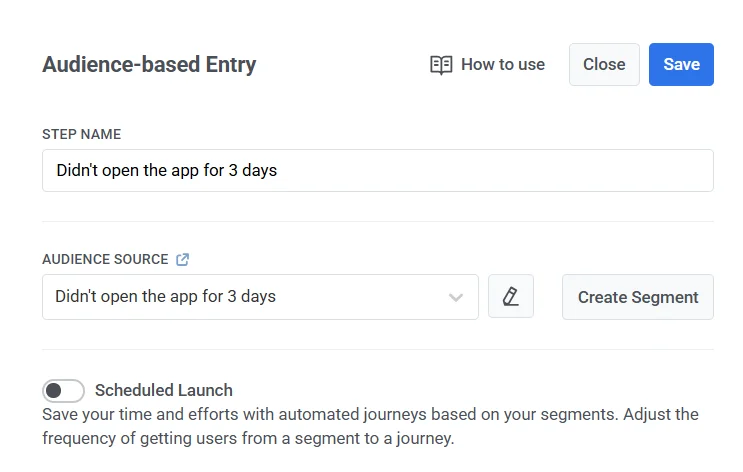
Anchor link toWhen Recurring entry is selected, users enter the journey repeatedly. Recurring entry doesn’t offer a close-date option. That’s only available for One-time entry.
Choose the schedule:
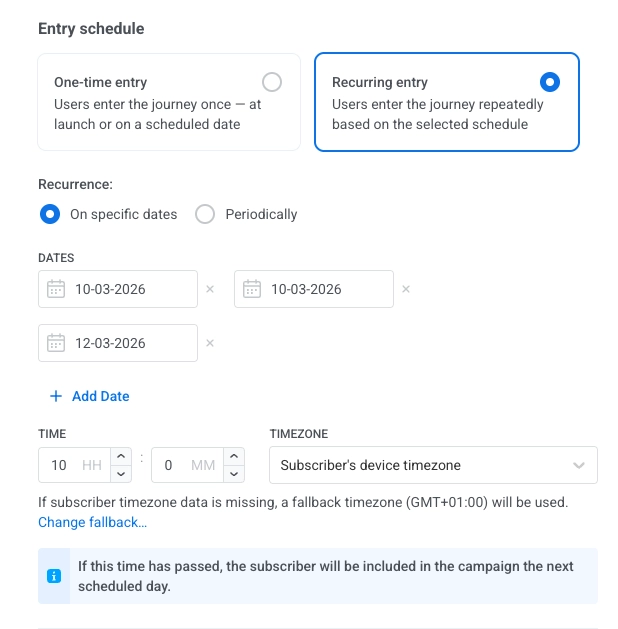
- On specific dates: users enter on the dates you pick.
- Periodically: users enter at a fixed interval (e.g. every 1 day).
On specific dates
Anchor link toUsers enter the same journey on the dates you choose (e.g. the same reminder or signup flow runs on each scheduled webinar or training date).
- Select On specific dates and pick the dates in the calendar. Click + Add Date to add more dates.
- Set the time.
- Set the timezone the same way as for Schedule for a specific day.
If a subscriber’s scheduled time has already passed, they are included on the next scheduled date.
Periodically
Anchor link toUsers enter the journey at a fixed interval on the days you choose (e.g. a fitness app runs the same daily 8 AM reminder journey every day).
- Select Periodically.
- In ENTRY EVERY, set the interval (e.g. every 1 day, every 2 weeks).
- Pick the days (of the week or month, depending on the interval).
- Set the time and the timezone the same way as for Schedule for a specific day.
If a subscriber’s scheduled time has already passed, they are included on the next scheduled day.