Journey element statistics
To display metrics for each journey element on the canvas, open Canvas settings (the gear icon in the bottom-right corner of the canvas) and turn on Show metrics at the bottom of the panel. Alternatively, you can hover over the element to view the metrics.
Audience progress
Anchor link toPushwoosh allows you to keep track of your audience as they progress through the journey with real-time visualization on the canvas. A number on the arrow following each journey element indicates the total number of customers who have completed that particular step.
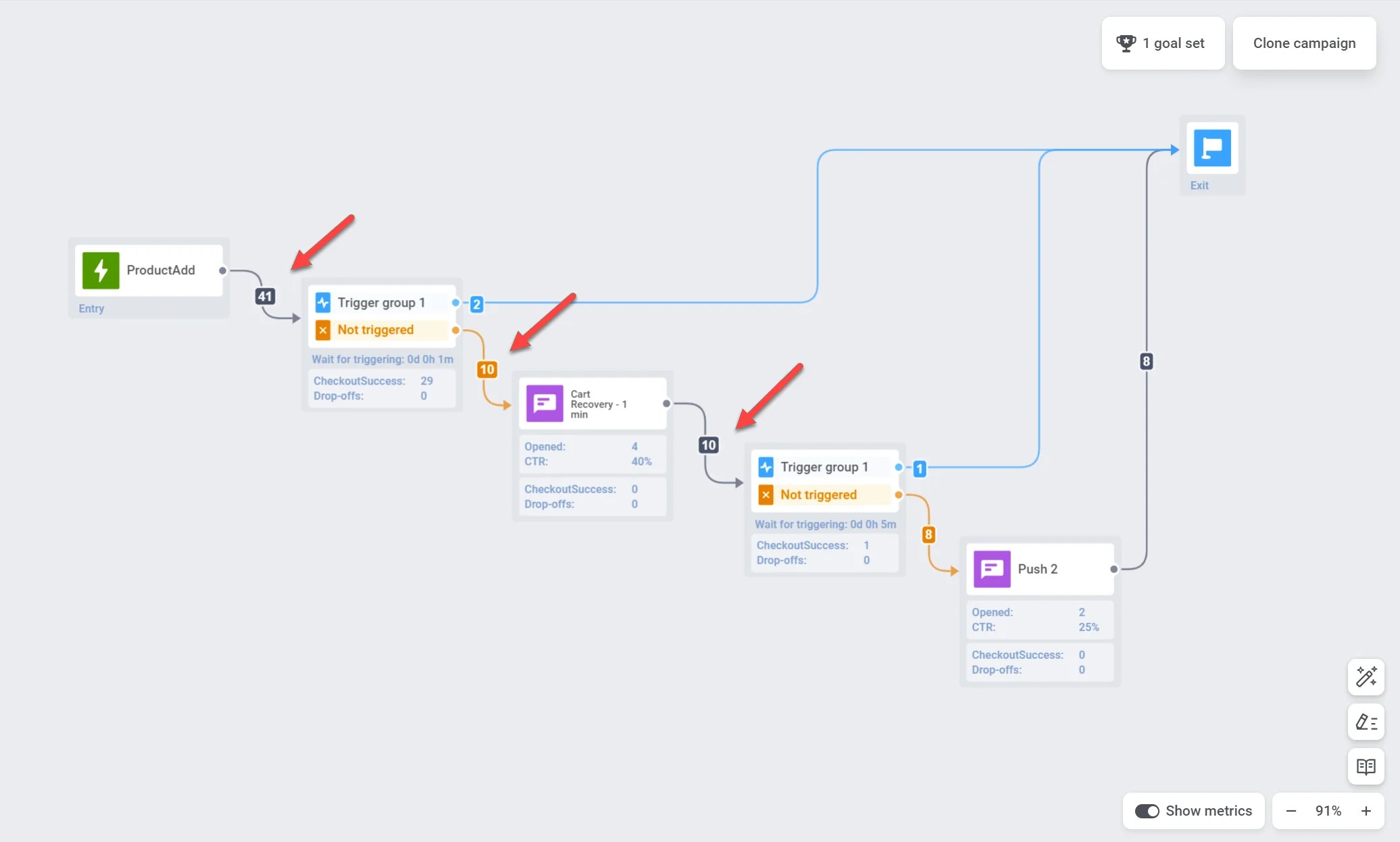
Statistics for each communication point
Anchor link toYou can gain insights into the performance of each communication point through metrics such as:
Push notifications and email messages
Anchor link to| Goals reached | Indicates the number of users who reached the Conversion Goal at that specific point. |
| Opened | Displays the number of times the message was opened by users. |
| CTR | Represents the percentage of users who clicked on the message. |
| Drop-offs | Represents the number of messages that couldn’t be sent for some reason (e.g., an expired push token or an invalid email address). |
| Exited by Conversion goals or Cancel events | Number of users who exited the journey at this point due to reaching a conversion goal or triggering a cancel event. |
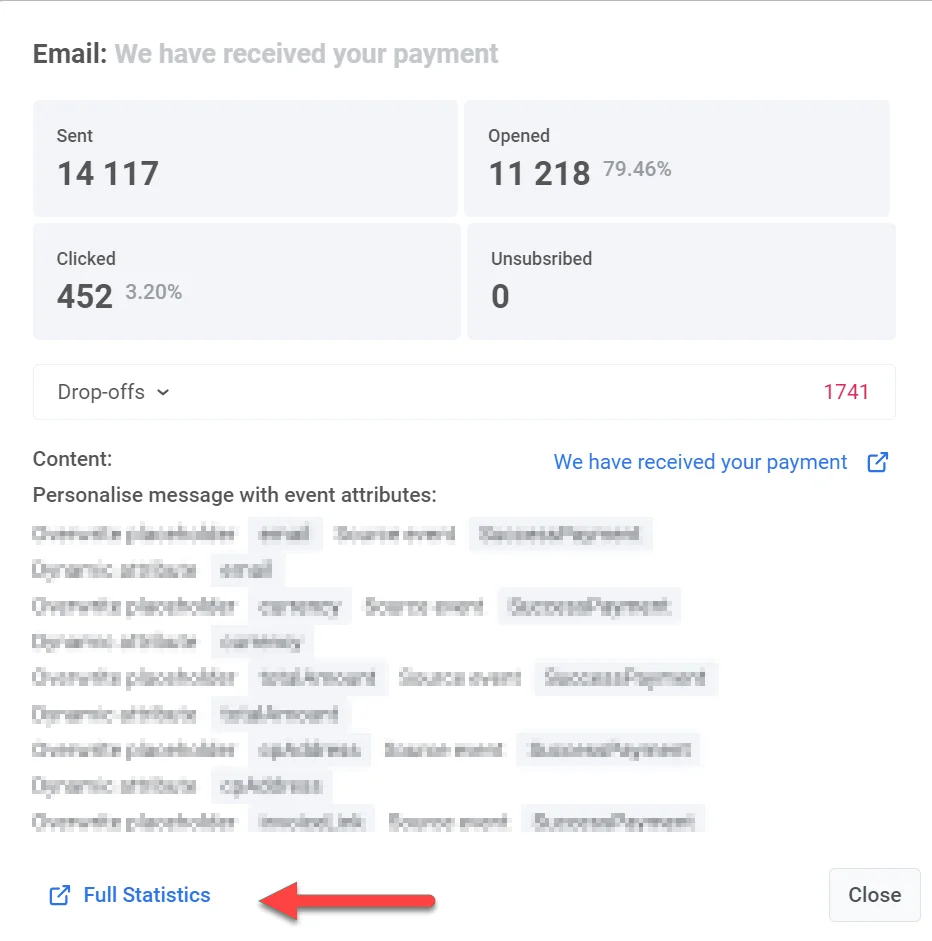
For deeper insights into individual message effectiveness, double-click on a message element on the canvas. A detailed statistics window will pop up, displaying key metrics for the message such as:
- number of sent messages
- number of opened messages
- conversion rate
- number of entries
- number of drop-offs,
- number of clicks, etc.
To see the reasons for drop-offs and the number of drop-offs for each cause, expand the Drop-off block.
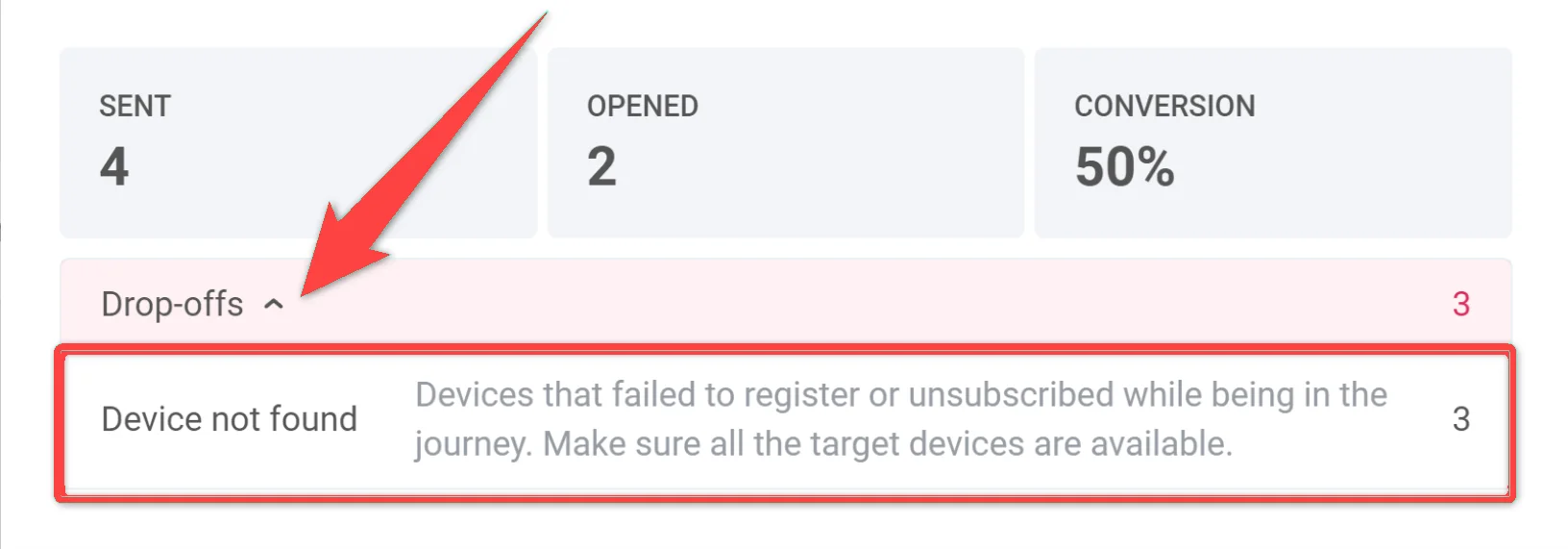
To access even more comprehensive statistics for a message, click Detailed Statistics at the bottom of the window.
In-apps
Anchor link to| Goals reached | Indicates the number of users who reached the Conversion Goal at that specific point. |
| Drop-offs | Represents the number of in-app messages that could not be displayed to users. |
For a more detailed understanding of your in-app message’s performance, double-click on the message element and then, in the window that appears, click on the in-app’s name. This will open up comprehensive message statistics.
| Goals reached | Indicates the number of users who reached the Conversion Goal at that specific point. |
| Sent | Indicates the number of messages sent. |
Telegram
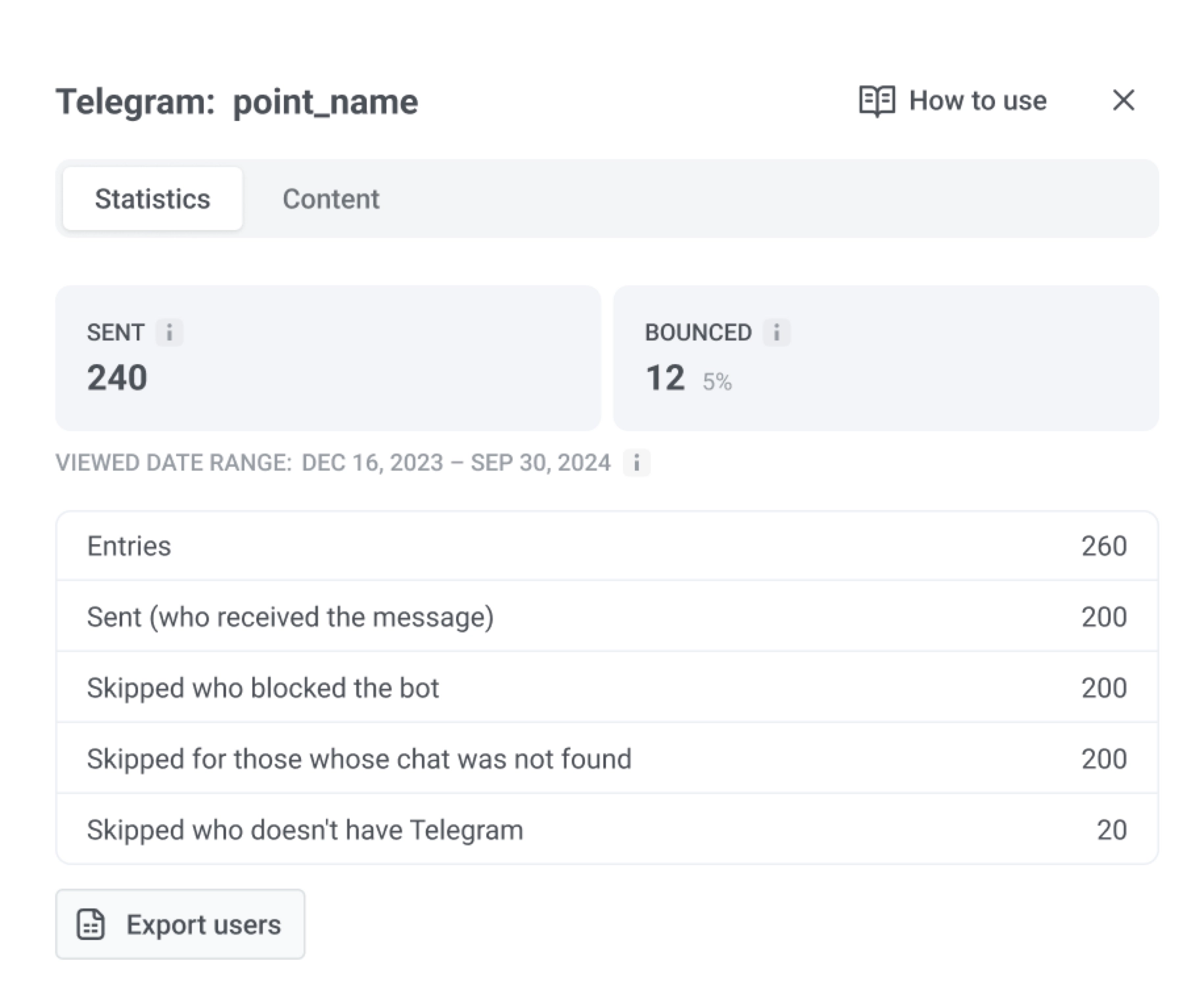
Anchor link to| Sent | Indicates the number of Telegram messages sent. |
| Bounced | Indicates the number of Telegram messages that could not be delivered. |
| Entries | Indicates the number of users who reached the Telegram element. |
| Sent (who received the message) | Indicates the number of users who successfully received the Telegram message. |
You can also review Viewed date range: all time and click Export users. Export users requires the Personal data permission in your role.
Audience sync
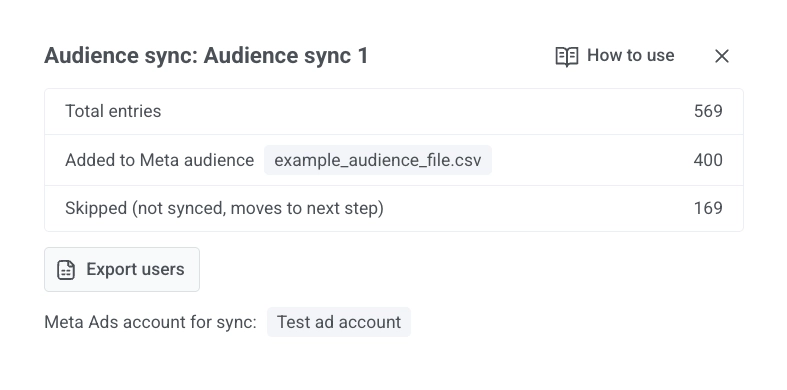
Anchor link toFor an Audience sync element, the statistics view includes:
| Total entries | Indicates how many users reached this step in the journey. |
| Added to Meta audience | Indicates how many users Meta matched and added to the audience you selected. |
| Removed from Meta audience | Indicates how many users Meta matched and removed from the audience you selected. |
| Skipped (not synced, moves to next step) | Indicates how many users were not synced. They continue to the next step in the journey. |
You can Export users from this view. The screen also shows which Meta Ads account was used for the sync.
A/B/n test statistics
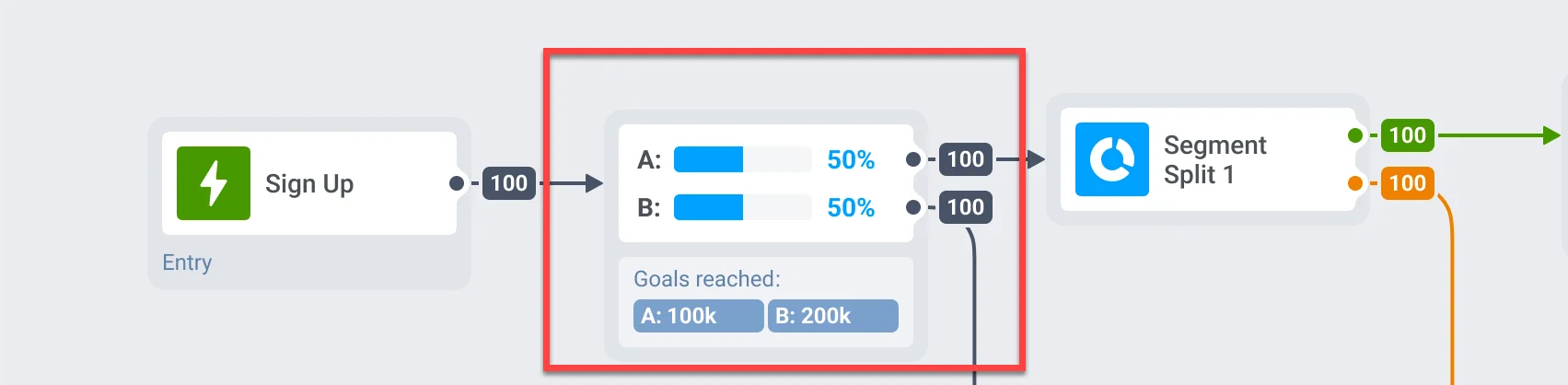
Anchor link toIf you conduct A/B/n tests on different elements of your customer journey, you can quickly identify the best-performing variant of each element.
Still waiting
Anchor link toThe Still waiting metric in Pushwoosh Customer Journey applies to Time Delay and Wait for Trigger steps. It helps monitor user flow, identify delays, and optimize your customer journey setup.
Wait for trigger
Anchor link toShows the number of users currently waiting to trigger a specific event. These users have entered the step but have not yet fulfilled the required conditions within the defined waiting period.
Time delay
Anchor link toReflects users still in the waiting period before proceeding to the next step.
Export statistics for each step of your customer journey
Anchor link toYou can export users who passed through each step of your customer journey, including elements like push notifications, emails, in-app messages, Wait for Trigger, Condition split, etc. This allows you to analyze the performance of individual campaign elements.
To export statistics:
- Open the campaign you want to track in the Customer Journey Builder.
- Click on the specific journey step for which you want to export statistics.
- Click Export statistics.
- Specify the date range for the data you wish to export and click Start exporting.
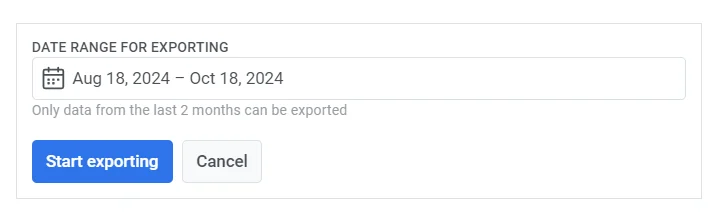
- Once the export process is complete, Pushwoosh will display a confirmation message. Click on the file to download the exported data, or choose to export another period if needed.
