Message Wallet pass holders
Once a user adds your pass, it appears in their profile as an Apple Wallet or Google Wallet subscription tied to that User ID. You can then reach the holder in these ways:
- One-time push: send a standalone message to one holder or a wider audience.
- Customer Journey: automate messages based on events or segments.
- API: update one pass and notify its holders. See Manage passes via API.
To alert holders when you edit a pass, see Alert holders about a pass update.
Send a one-time push to pass holders
Anchor link toSend a standalone push to one pass holder or to a wider audience. It appears as a lock-screen message on an Apple Wallet pass, or a notification on a Google Wallet pass.
-
Open the one-time push composer. Either click Send message in the pass’s actions menu in Campaigns → Wallet Passes → All passes, or go to Campaigns → One-time messages and click Send message → One-time push.
-
On the Content step, write the message or select a preset.
-
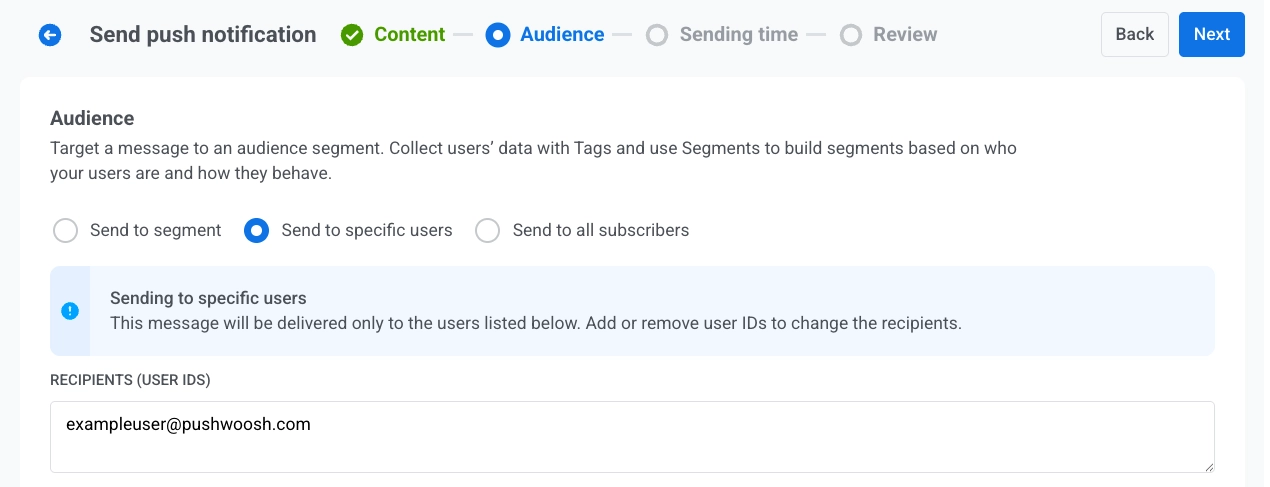
On the Audience step, set who receives the message. The default depends on where you opened the composer:
- From Send message on a pass: Send to specific users is selected, and Recipients (user IDs) already lists that pass holder’s User ID. Send as is to reach that one holder, or change the audience:
- Add more User IDs in Recipients (user IDs)
- Switch to Send to segment
- Choose Send to all subscribers
- From One-time messages: Set the audience as in a regular one-time push: Send to specific users, Send to segment, or Send to all subscribers.
- From Send message on a pass: Send to specific users is selected, and Recipients (user IDs) already lists that pass holder’s User ID. Send as is to reach that one holder, or change the audience:
- Under Target platforms, select Apple Wallet, Google Wallet, or both.
- Send or schedule the message.
Automate messages from a Customer Journey
Anchor link toSend messages automatically based on events or segments.
For a step-by-step example, see How to notify wallet pass holders about a reward.
Trigger-based entry journey
Anchor link to- Create a Customer Journey and add a Trigger-based entry.
- Select the event that should start the Journey. Create a custom event in the Control Panel first if you haven’t already, for example
RewardAvailable. - Add and configure a push element. Turn on Send to all user devices (from UserID) so the push reaches every device tied to the user, including the saved pass.
- Finish configuring and activate the Journey.
When the entry event fires, Pushwoosh sends the push to every device tied to the user. Pass holders receive it as a lock-screen message on Apple Wallet, or a notification on Google Wallet. Users without a wallet pass receive it on their other devices.
Other ways to build the journey
Anchor link toThe trigger-based flow above is one option. Depending on what should start the journey, choose a different entry element:
- Audience-based entry: start the journey for a whole segment instead of a single event. Run it once, on a schedule, or periodically (for example, every week to everyone holding an active pass), with new users entering as they join the segment.
- API-based entry: start the journey from something that happens outside the app, such as a changed event start time. Your external system sends a request to the entry element and uses a filter to pick the users, for example everyone with the tag
eventId = 1234set when the pass was issued. A good fit for event tickets and boarding passes.