Facebook Messenger
The Facebook Messenger element allows you to send Facebook Messenger messages to users as part of your Customer Journey.
In Customer Journey Builder, add the Facebook Messenger element from the channel elements, connect it after your Entry, then open the element to configure the settings below.
Entry triggers
Anchor link toWhen someone interacts with your connected Facebook Page, Pushwoosh logs events you can use to start a journey:
- User sent a message (
PW_FBMessengerReceived): use when the journey should start after any inbound text from the user. - User tapped a menu, quick reply, or opened a referral link (
PW_FBMessengerStarted): this can fire more than once for the same person. Build logic around that specific action, not around first contact only.
In the journey, add a Trigger-based Entry, open its settings, and select one of these events. Learn how to configure Entry elements
Select message content
Anchor link toChoose how to set the message content:
- Preset: select a Messenger preset. Messenger presets are copies of rich messages, so they can carry buttons, media, and cards.
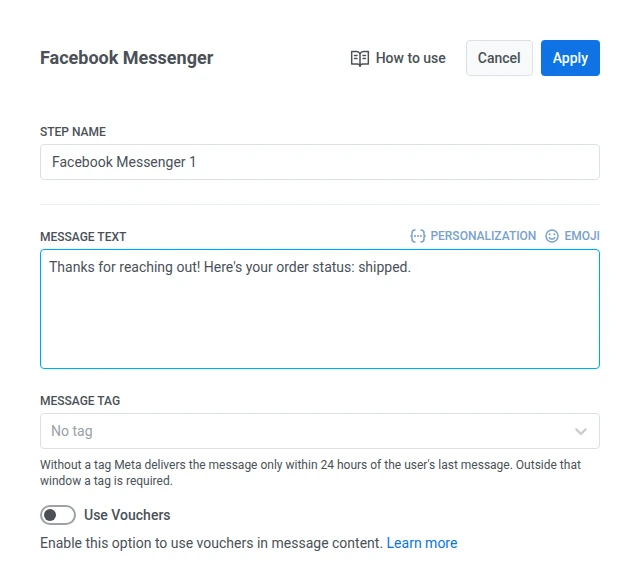
- Custom content: enter plain text in Message Text.
Branch on reply buttons
Anchor link toWhen the selected preset has quick reply buttons, the element gets a branch for each button, labeled with the button text, plus a Not match branch.
- The user waits up to 24 hours for a tap. A tap sends the user down that button’s branch. If there’s no tap within 24 hours, the user goes to Not match.
- Only quick reply buttons get branches. A button that opens a link or calls a phone number doesn’t.
Branch when the provider rejects the message
Anchor link toTo send users whose Messenger message the provider rejected to a separate branch, for example to try another channel:
- In the element settings, turn on Branch when the provider rejects the message.
- Save the element.
- On the canvas, connect the Rejected by provider branch to the next element.
A user goes to Rejected by provider when Messenger refuses the message at sending, for example outside the 24-hour window without a message tag. Errors that Pushwoosh retries don’t lead to this branch.
- With quick reply buttons: a rejected message goes to Rejected by provider at once. Other users wait for a tap.
- Otherwise: the element holds the user for up to 1 hour, and the canvas shows Wait for refusal: 1 hour. If the provider doesn’t reject the message within that time, the user continues through Sent.
Without a connected Rejected by provider arrow, a user whose message was rejected follows the element’s other branches. Turning the setting off removes the branch and its arrow. For a rich message, see also Branch when the provider rejects the message.
Use a message tag outside the 24-hour window
Anchor link toIf a user messaged your Page, you can respond with custom content within the 24-hour window that message opens. Leave Message tag set to No tag when you are sending inside that window.
Outside that window, Meta requires a Message tag matching one of its approved use cases:
- CONFIRMED_EVENT_UPDATE: a reminder or update about an event the recipient is scheduled to attend.
- POST_PURCHASE_UPDATE: an update related to a purchase the recipient already made.
- ACCOUNT_UPDATE: a non-recurring update about a change to the recipient’s account.
- HUMAN_AGENT: a message from a human agent responding to the recipient.
Choose a tag that matches the real reason for the message. Meta can reject sends that use the wrong tag.
Use vouchers
Anchor link toYou can personalize Facebook Messenger messages by attaching a voucher code from a predefined pool. This is useful for promotions, discounts, and loyalty incentives. For this, include the placeholder {{voucher}} in your message text.
Add the voucher pool in advance. Learn more about vouchers
To include a voucher in your Facebook Messenger message:
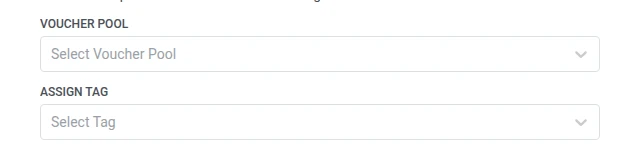
- Toggle Use Vouchers to ON in the Facebook Messenger element.
- In the Voucher Pool field, select the pool containing your available voucher codes.
- (Optional) Use the Assign Tag field to apply a tag to users who receive a voucher. This tag can be used for segmentation or reporting.
Limitations
Anchor link to- Custom content is plain text only. Buttons, media, and cards need a preset.
- You can’t confirm that one specific outbound Messenger message was read. Meta only reports that the conversation was read up to a certain time, not per message.
- The channel only delivers once Meta has approved your Meta App’s Messenger permissions for the connected Page.
After configuring the Facebook Messenger element, click Apply to save your settings. Launch the journey when the rest of the canvas is ready.