Build push content from a catalog or feed
Build a push once, then let Pushwoosh fill it with live products or articles at send time.
- Use Product recommendations to promote items from your Product Catalog, such as new arrivals or bestsellers.
- Use News feed to share the latest or trending articles from a registered feed.
Prerequisites
Anchor link to- Product recommendations: a Product Catalog with products to pull from.
- News feed: at least one feed registered under Content > News Feeds. The preset editor only picks a feed. It doesn’t register one.
How to create the preset
Anchor link to- Open Content > Push Presets.
- Click Create content.
- Pick Product recommendations or News feed. See Create push presets.
Compose the message
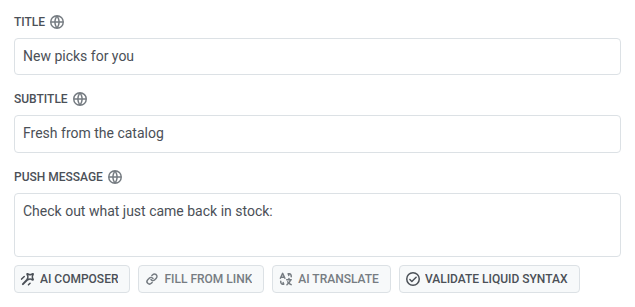
Anchor link to- Enter the push title, for example
New picks for you. It is sent once. - Optionally enter a subtitle, for example
Fresh from the catalog. It only shows on iOS. - Enter the push message as the intro before the rows, for example
Check out what just came back in stock:. - In Content source further down, fill Item template (once per row) and Outro (once after the rows). See Fill in the item template and outro.
Configure the content source
Anchor link toIn Content source, set the rule for the type you picked when creating the preset.
Product recommendations
Anchor link to- Set Items to how many products to pull, from 1 to 3. It defaults to 3.
- Set Category to filter which products the rule can pick from, or leave it as Any category.
- Set Strategy to how products are picked.
- Set Sort by (Newest, Price, lowest first, Price, highest first, or Title) to order the rows the rule returns.

Catalog data vs. events from your backend
Anchor link toSome strategies work out of the box. Pushwoosh reads your product catalog and ranks automatically. Others need purchase and browsing data from your backend before they can rank anything.
Work out of the box: catalog data only
| Strategy | How it ranks |
|---|---|
| Newest | By date added to the catalog, newest first |
| Back in stock | By when the product came back in stock, most recent first |
| Price drop | By how recently the price dropped |
No setup needed beyond keeping your catalog in sync with Pushwoosh.
Require product events
These strategies rank on real user behavior: purchases, browsing history, co-purchase patterns. They won’t work until Pushwoosh receives the right events from your app, website, or backend. See How to set up product recommendations in email for what to send.
| Strategy | How it ranks | What it needs |
|---|---|---|
| Bestsellers, 7 days | Products with the most units sold in the last 7 days | PW_OrderCreated and PW_OrderUpdated events, each with an items array listing what was purchased |
| Bestsellers, 30 days | Same, over a 30-day window | Same as above |
| Bought together | Products other users viewed, added to cart, or bought alongside a specific anchor product in the last 30 days | Product activity events, plus a device tag holding the anchor product ID, set in the Anchor tag field. Without a tag, Pushwoosh skips this strategy and falls back to Category and Sort by. |
| Recently viewed | Products that other users interacted with alongside the last 10 products this recipient interacted with, based on the last 30 days. Products the recipient already touched are left out. | Any event sent through the SDK or API with a userId and a product ID in product_id, productId, item_id, or sku, or in a products array. The ID must match the product id in your catalog. Without such events for the recipient, Pushwoosh skips this strategy and falls back to Category and Sort by. |
News feed
Anchor link to- Set Articles to how many articles to pull, from 1 to 3. It defaults to 3.
- Set Rubric to filter which articles the rule can pick from, or leave it as Any rubric.
- Set Ranking:
- Newest: the latest articles by publish date.
- Trending: the articles with the most recent opens on your site and clicks in your emails.
- Set Feed to one of your account’s registered feeds, or All feeds to pull from every feed. This panel only picks a feed. It doesn’t register one; if none exist yet, register one on the News feeds page first.

Fill in the item template and outro
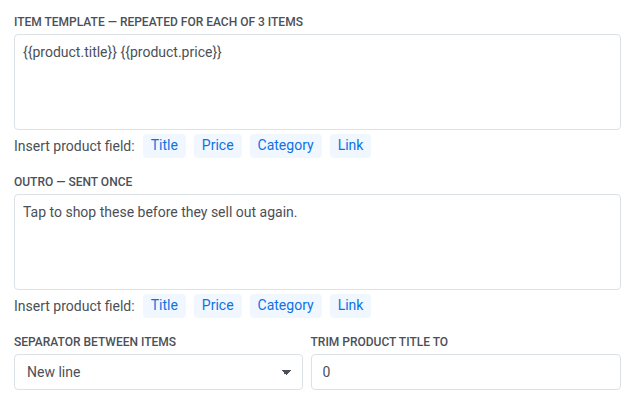
Anchor link to- Fill in Item template. For Product recommendations, click Title, Price, Category, or Link to insert a Liquid placeholder like
{{product.title}}at the cursor. For News feed, click Title, Summary, Category, Author, or Link to insert the matching article field. This block repeats once per row. - Choose Separator between items: Comma puts rows on one line, New line puts each row on its own line.
- Fill in Outro. The same insert buttons are available here. This block is sent once, after the rows.
- Optionally, set Trim product title to (or Trim article title to) a character count. Leave it at 0 for no trimming.
Show the leading item’s picture as the banner
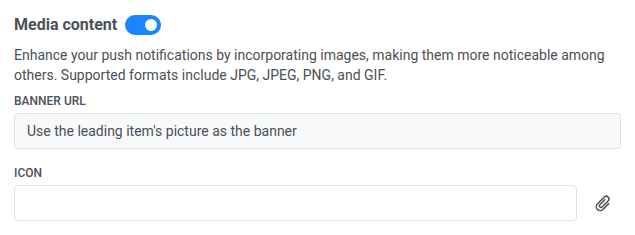
Anchor link to- Turn on Use the leading item’s picture as the banner so the push uses the picture of the first product or article the feed returns.
- Leave Banner URL alone. You don’t need to open Media content or paste a URL. Pushwoosh sets the banner link when you save.

Once it’s on, Banner URL under Media content shows the toggle’s own name instead of an editable field.
Set a fallback for when there’s nothing to send
Anchor link toUnder If the feed returns nothing, choose what happens when the rule finds no rows:
- Do not send to this recipient: Pushwoosh skips the send to that recipient instead of delivering an empty push.
- Send this text instead: send the fallback text you type in the field that appears.

Point the on-click action at the leading item
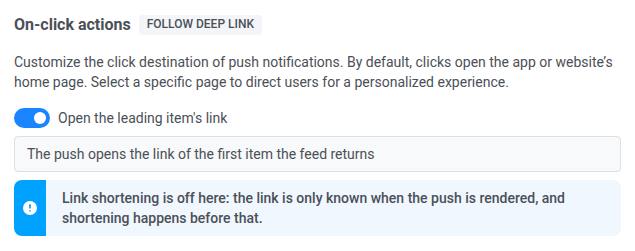
Anchor link toUnder On-click actions, use Open the leading item’s link:
- Leave it on: the push opens the link of the first product or article the feed returns.
- Turn it off: set a manual action yourself (deep link or web page).
Preview the push
Anchor link toCheck the preview. It fills the item rows with real products or articles, fetched the same way a send would fetch them — it doesn’t show the intro or outro text.
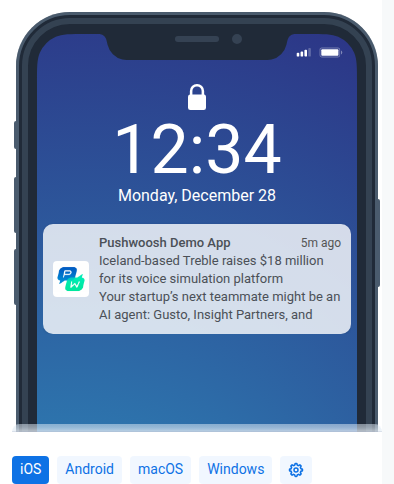
If the preview is empty, read the note in the panel:
- For Bought together or Recently viewed, this is expected. Pushwoosh picks products per recipient, so there is nothing to preview in the editor.
- If Pushwoosh can’t reach the catalog or the feed, fix that connection before you send.
- If the rule returned no products or articles, check If the feed returns nothing. The preview may still say nothing is sent even when you chose Send this text instead. In that case the fallback text still goes out. Only Do not send to this recipient skips the send.
Save the preset
Anchor link toClick Save. Pushwoosh checks that every placeholder in the title, subtitle, and message is valid. If one isn’t, saving is blocked, and Pushwoosh points to the field and language that needs fixing.
After you save, open the preset from the list of available push content.