Ad inventory
The Ad inventory holds the campaigns and creatives your account sells to advertisers for email Ad slots and Sponsored push. You use the same list for both email and push.
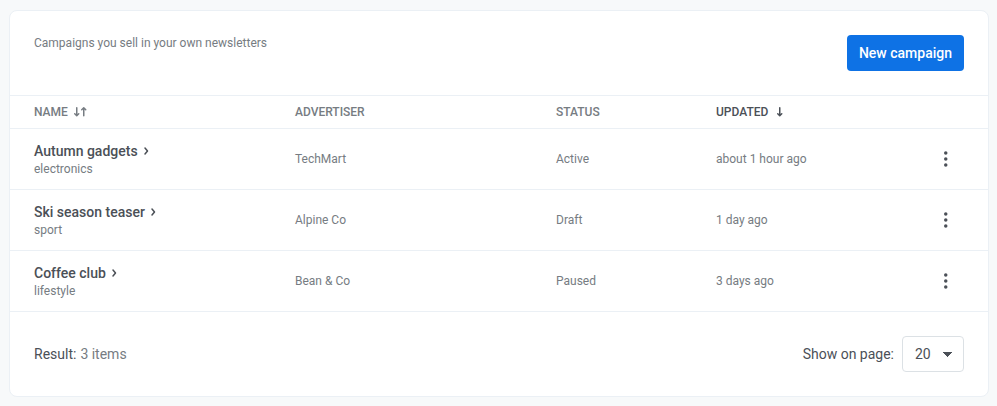
Check Spent on each row to see how many times the campaign has gone out so far (emails and pushes together) compared with its Sends limit. Spent counts how many times the ad was sent, not money:
"120 of 500"when the campaign has a limit"120, no limit"when Sends limit is0"3 of 2 · limit reached"when the campaign has hit its cap
The inventory is shared across every application in your account, not limited to one. Open it from a different application and you’ll see the same campaigns and creatives.
Add a campaign
Anchor link to- Go to Content → Ad inventory. You can also open
https://app.pushwoosh.com/applications/<code>/email-ads, replacing<code>with your application’s code. - Click New campaign.
- In Name, enter an internal name for the campaign, for example “September sponsor”.
- In Advertiser, enter who bought the slot.
- Optionally enter a Category tag. An Ad slot can find the campaign by this tag instead of by ID.
- Choose Category when you want to swap sponsors in the inventory without editing the email template.
- Choose Campaign ID in the Ad slot when you need one specific campaign.
- See Ad slot for how both fields work together.
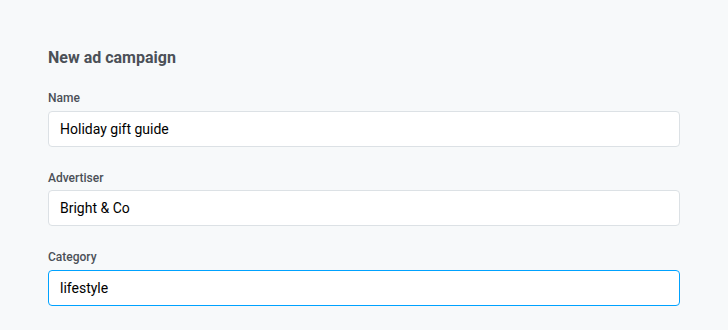
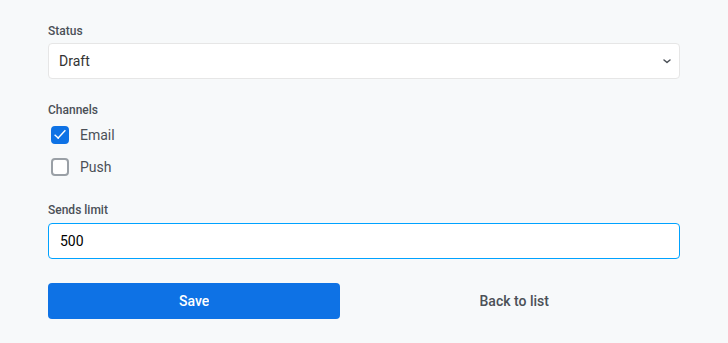
- Set Status to one of these:
- Draft, until the campaign has at least one creative
- Active, when the campaign should appear in emails or pushes
- Paused or Finished, to stop it (identical behavior, reversible to Active)
- Under Channels, turn on Email, Push, or both.
- Leave both off when you create the campaign to save it as email only.
- Turn on Push if you’ll use Sponsored push.
- Turn on both if the same campaign should appear in email and push.
- After save, keep at least one channel on when you edit, or you cannot save.
- Set Sends limit if you want a maximum number of times this campaign can go out. Leave it at
0for no maximum.- The count includes every email and every push that uses this campaign.
- When the count reaches the limit, the campaign stops being used in new sends. Status can stay Active.
- Check Spent on the list to see how close you are, including when the limit is reached.
- If both Email and Push are on, they share one limit.
- Click Save. Pushwoosh keeps you on the campaign’s own page so you can add creatives next.
Add creatives to a campaign
Anchor link toA campaign needs at least one creative to show anything. Keep the campaign in Draft until you’ve saved at least one creative. If you set Active with no creatives, an Ad slot can still pick the campaign, but there is nothing to show, so the slot looks the same as when no campaign was found.
- Click Add creative.
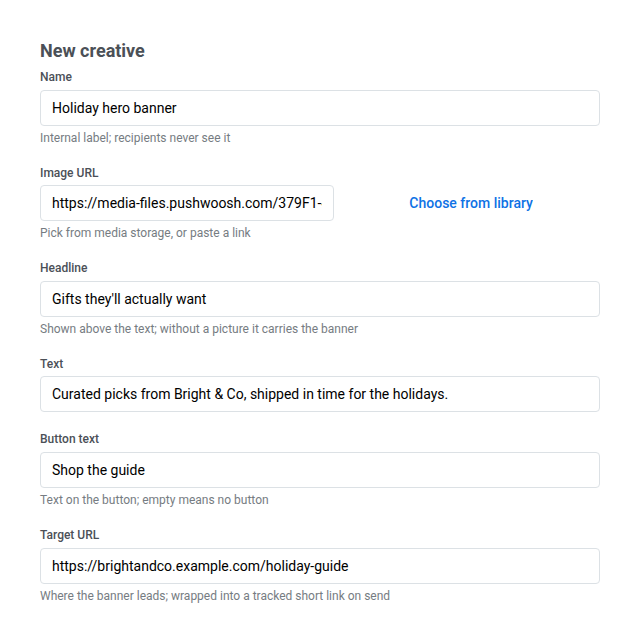
- In Name (required), enter an internal name for the creative.
- In Image URL, paste a link to the image for the ad, or click Choose from library next to the field to upload one to Media storage (
.jpg,.jpeg,.png,.gif, or.webp) and use that instead. Required if Headline is empty. - In Headline, enter the ad’s headline. Required if Image URL is empty.
- In Text, enter the ad’s body copy.
- In Button text, enter the button label. Leave it empty for no button.
- In Target URL (required), enter the page the ad should open.
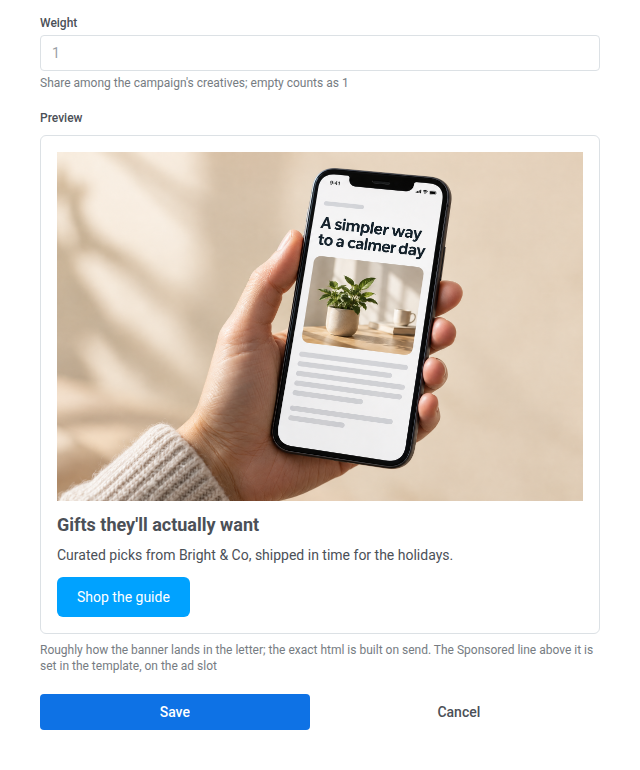
- Set Weight if the campaign has more than one creative.
- For each send, Pushwoosh uses the creative with the highest Weight.
- Leave the field empty to use the default of 1.
- Use a lower weight for a backup creative. To switch to it later, either raise its Weight or remove the heavier one.
- Click Save.
Use the campaign
Anchor link toAfter at least one creative is saved, set Status to Active. Then put the campaign into the place where recipients should see the ad:
- For email, open your email in the Drag & drop editor, add an Ad slot block, and point it at this campaign with Campaign ID or Category.
- For push, create a Sponsored push preset and pick this campaign from the Campaign dropdown. Turn on the Push channel on the campaign first, or it won’t appear in that list.
View a campaign’s report
Anchor link toOpen a campaign and scroll to Report to review each creative from the campaign’s creation date through today.

- Check Letters and sends for how many emails used this creative, and how many separate email sends that covers. Push isn’t in this line. For emails and pushes together, check Spent on the Ad inventory list. For push opens, use Push taps.
- Check Opens for how many people opened the email, as a percentage of letters sent.
- Check Clicks for how many people clicked the creative, how many click events that includes, and the rate as a percentage of opens.
- After the creative has gone out on push, check Push taps for how many devices opened the sponsored push, out of all taps.
If the campaign hasn’t gone out in any send yet, you’ll see “Nothing to report yet”.
Manage campaigns and creatives
Anchor link toOn the Ad inventory list:
- Click a campaign’s name to open it.
- Click the three-dot menu (⋮) next to a campaign to Edit or Delete it. Deleting a campaign deletes its creatives too.
- On a campaign’s page, click Edit or Delete next to a creative to change or remove it.
With only See email ads, you can open campaigns and read their fields, but you cannot create, edit, or delete. The creatives list only shows each creative’s Name and Weight. Its Image URL, Headline, Text, Button text, and Target URL appear only when you open Edit, which needs Modify email ads.