Web content template gallery
The web content template gallery has ready-made popups grouped by use case: push opt-in prompts, offers, lead capture, consent gates, surveys, and more. Each template comes with finished copy and, where the layout has one, an image. Pick one, then replace the text and image with your own in the editor.
To open the web content template gallery, go to Content → Web content, click Create, and choose the Web content type. Use the dropdown in the top right to filter the gallery by category, or leave it on All templates. Each category shows its template count, and the templates below are listed by the same categories.
Each category below also has a suggested audience and timing. These are recommendations, not settings, because a template has no targeting of its own. You choose who sees the content and when in the web campaign.
Before you save content made from a template:
- Replace the template images with your own. Templates with a background image ship with a dark placeholder image.
- Set a link for each button that should open a page. Template buttons that don’t close the popup or switch pages come without a link.
- A template with a Topic picker or Rating block doesn’t write anything until you pick a tag or an event for it. See Topic picker and Rating.
- A template with a Countdown block comes with a placeholder deadline at midnight a week ahead. Set your own Deadline in the block settings. See Countdown.
Then save the content and attach it to a web campaign. See Save the content.
The web content template gallery has no web form templates. To collect emails or visitor answers, create a web form instead.
Blank layouts
Anchor link toStart from a layout with placeholder content when no use-case template fits.
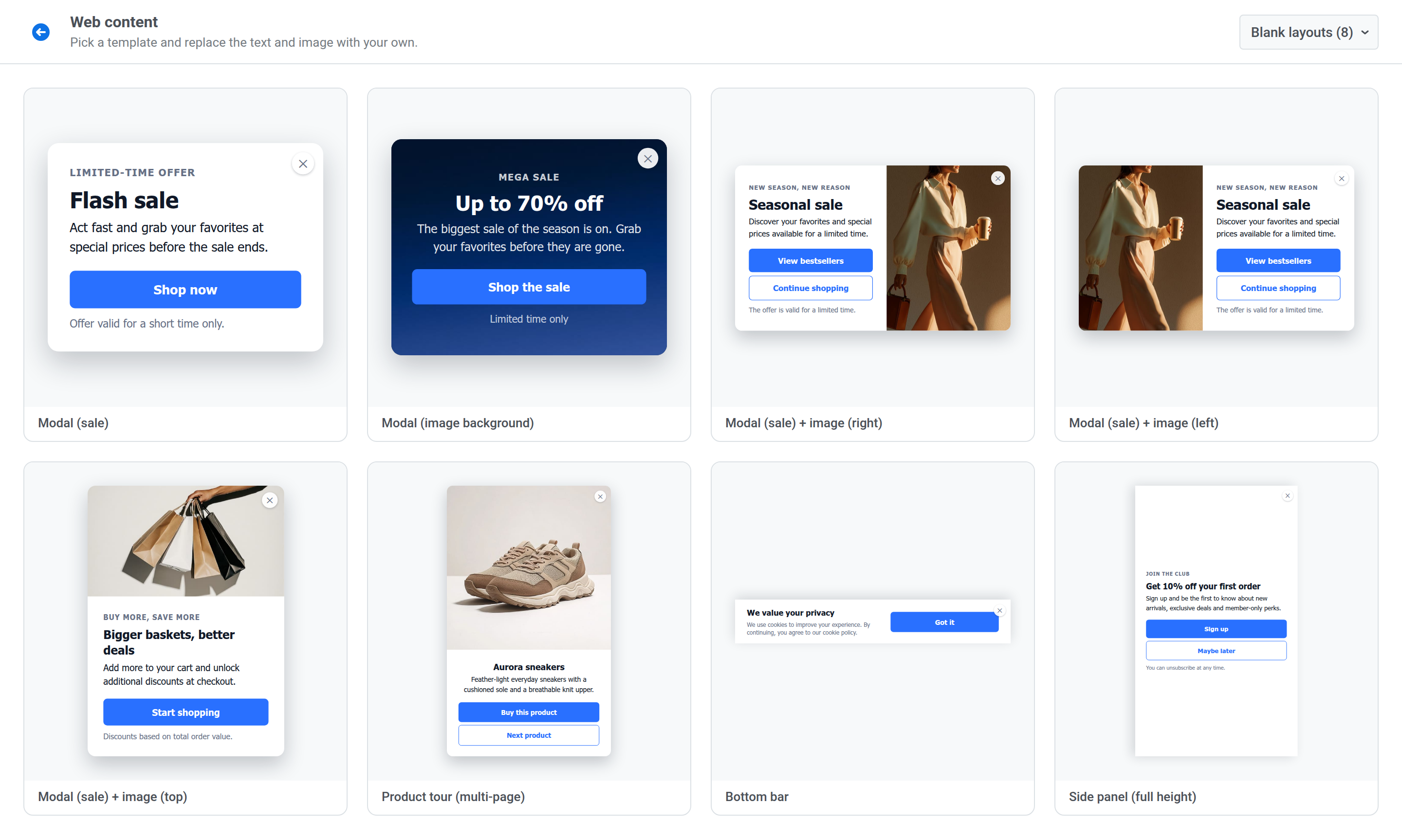
- Modal (sale): a centered card with a headline, text, one button, and a footnote.
- Modal (image background): a centered card with the text over a dark placeholder background image.
- Modal (sale) + image (right): a card with the text on the left and an image on the right.
- Modal (sale) + image (left): the same card with the image on the left.
- Modal (sale) + image (top): a card with the image above the text.
- Product tour (multi-page): three product pages, each with an image, a buy button, and a Next product button that steps to the next page. See Multiple pages.
- Bottom bar: a full-width bar at the bottom of the page with text on the left and a button on the right.
- Side panel (full height): a panel that takes the full height of the window along one side.
Push opt-in
Anchor link toAsk visitors to turn on browser push notifications.
Suggested audience: visitors who haven’t subscribed to push notifications yet, or, for Notifications are off, visitors who blocked them earlier.
Suggested timing: after the visitor has seen some content, for example on their second page view, not the moment the site opens.
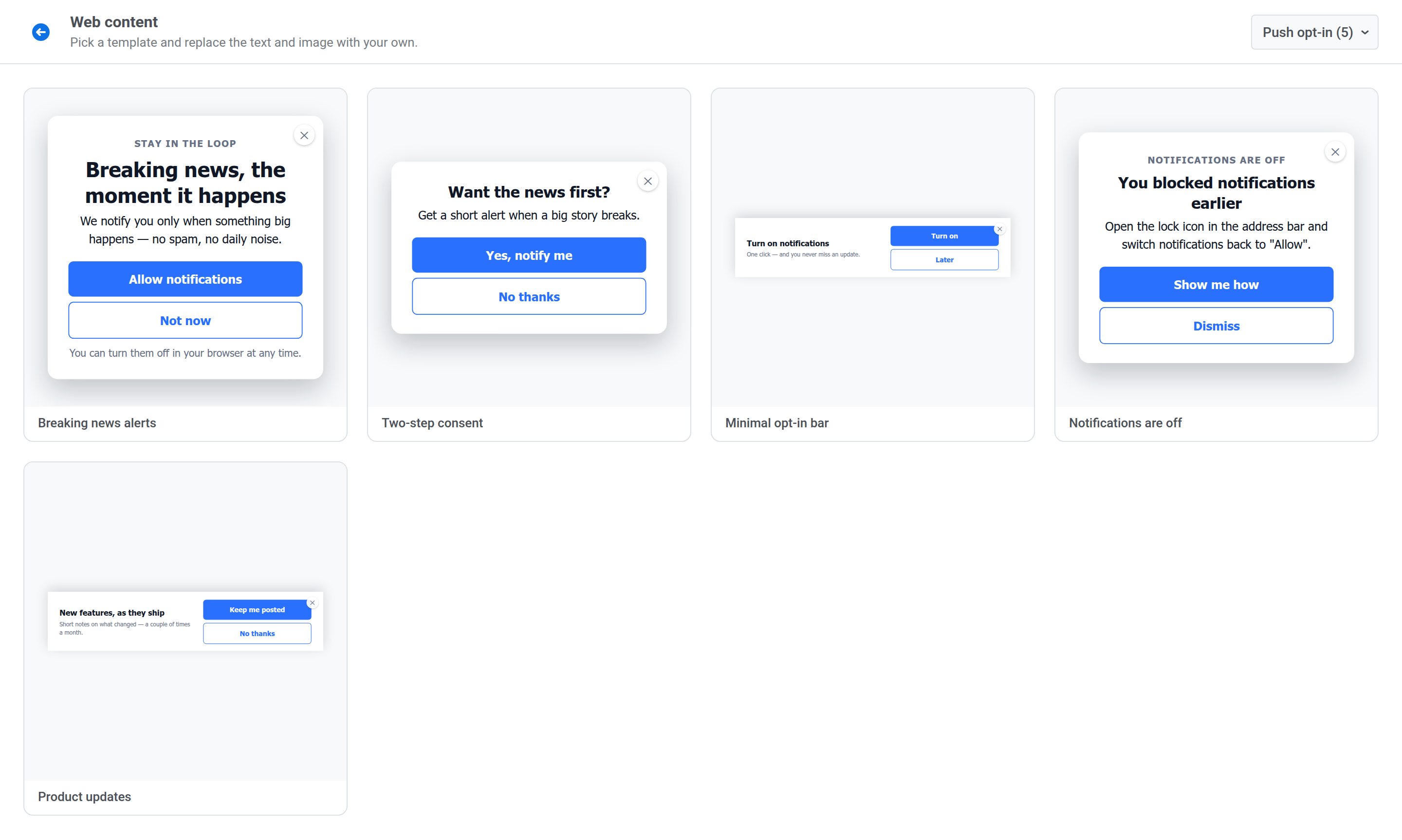
- Breaking news alerts: promise alerts only for big stories, with an Allow notifications button.
- Two-step consent: ask about interest first, then explain the browser prompt on the second page.
- Minimal opt-in bar: an unobtrusive bottom bar with Turn on and Later buttons.
- Notifications are off: tell a visitor who blocked notifications how to allow them again in the browser.
- Product updates: a bottom bar offering short notes on new features.
News & media
Anchor link toBring readers back to a story or turn them into subscribers.
Suggested audience: returning readers, readers of a specific section, or readers who aren’t subscribers yet.
Suggested timing: when a reader returns to an unfinished article, hits subscriber-only content, or finishes reading a story.
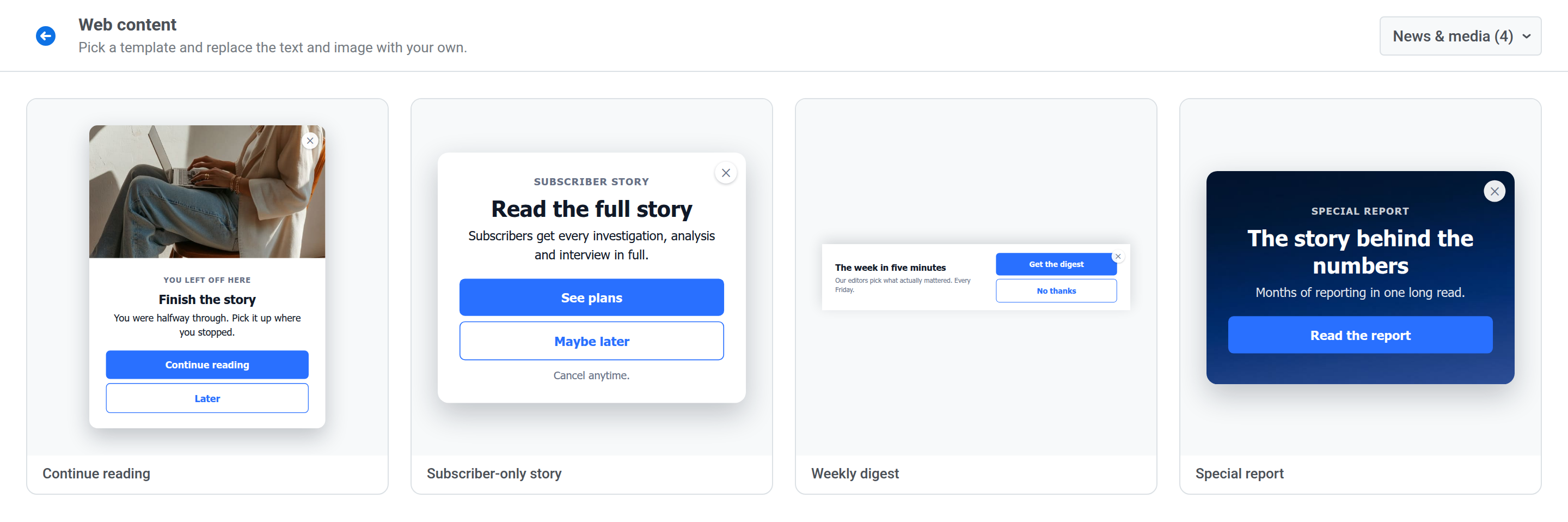
- Continue reading: invite a reader back to the story they left halfway.
- Subscriber-only story: tell a reader the story is for subscribers and point to subscription plans.
- Weekly digest: a bottom bar offering a weekly editors’ pick.
- Special report: promote a long read, with the text over a dark placeholder background image.
Promotions & offers
Anchor link toDrive a purchase with a discount, a bonus, or a deadline.
Suggested audience: first-time visitors for welcome offers, shoppers with items in the cart, or players and shoppers you want to reactivate.
Suggested timing: on entry for a welcome offer, on product and cart pages for stock and shipping messages, and during the sale window for time-limited deals.
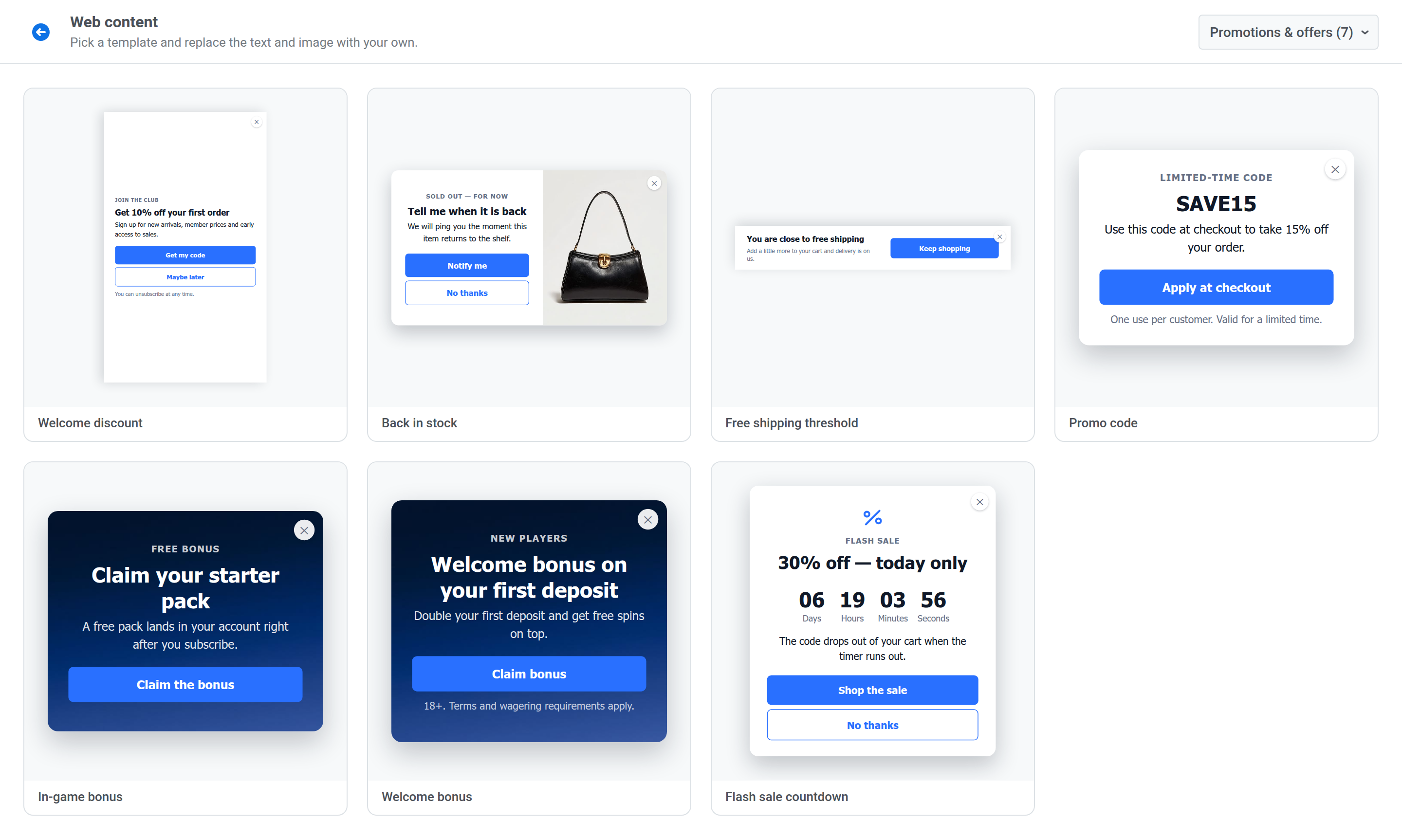
- Welcome discount: a side panel offering a discount on the first order.
- Back in stock: offer to notify a shopper when a sold-out item returns.
- Free shipping threshold: a bottom bar telling a shopper they’re close to free delivery.
- Promo code: show a code to use at checkout.
- In-game bonus: offer a free starter pack, with the text over a dark placeholder background image.
- Welcome bonus: a first-deposit bonus with a terms footnote, over a dark placeholder background image.
- Flash sale countdown: a flash sale offer with a live Countdown block.
Gaming & marketplaces
Anchor link toOnboard players and buyers, and announce new item releases and matches.
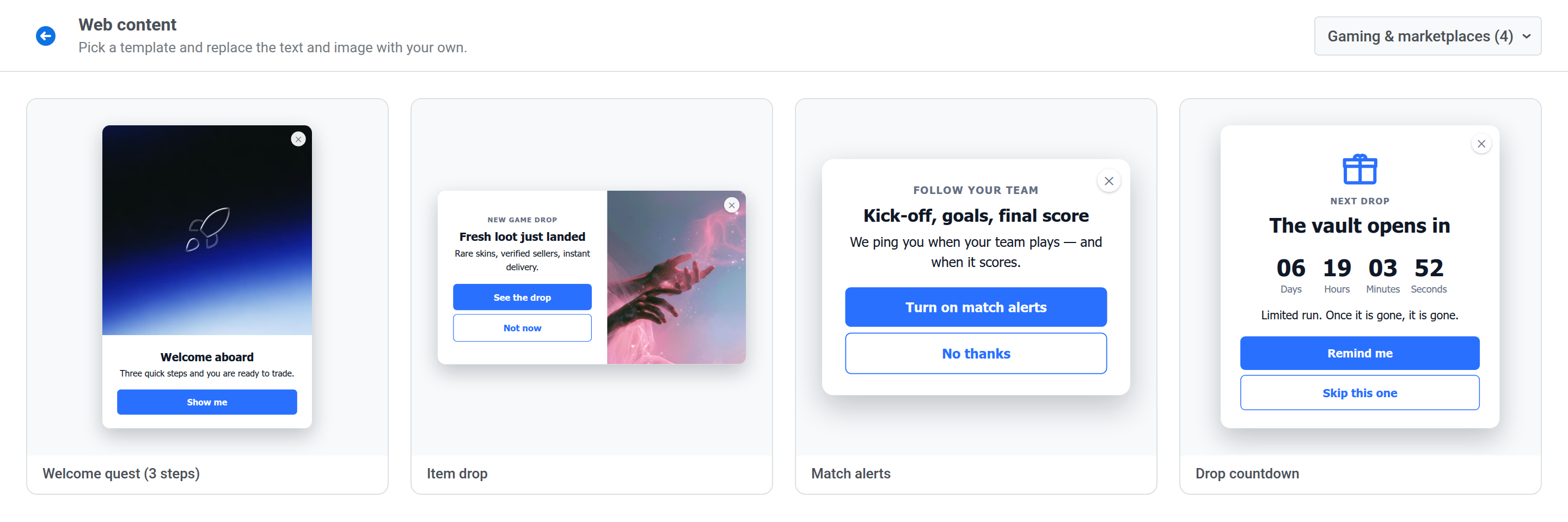
Suggested audience: new players or buyers, fans of a specific team or game, or users who follow specific items.
Suggested timing: on the first visit for onboarding, and ahead of an item release or a match for alerts.
- Welcome quest (3 steps): a three-page onboarding with an image on each page.
- Item drop: announce newly released items with an image.
- Match alerts: offer alerts when a match starts, when a team scores, and when the match ends.
- Drop countdown: count down to a limited-time item release with a Countdown block.
Finance & trading
Anchor link toOffer market alerts and analyst content with the disclaimers your audience expects.
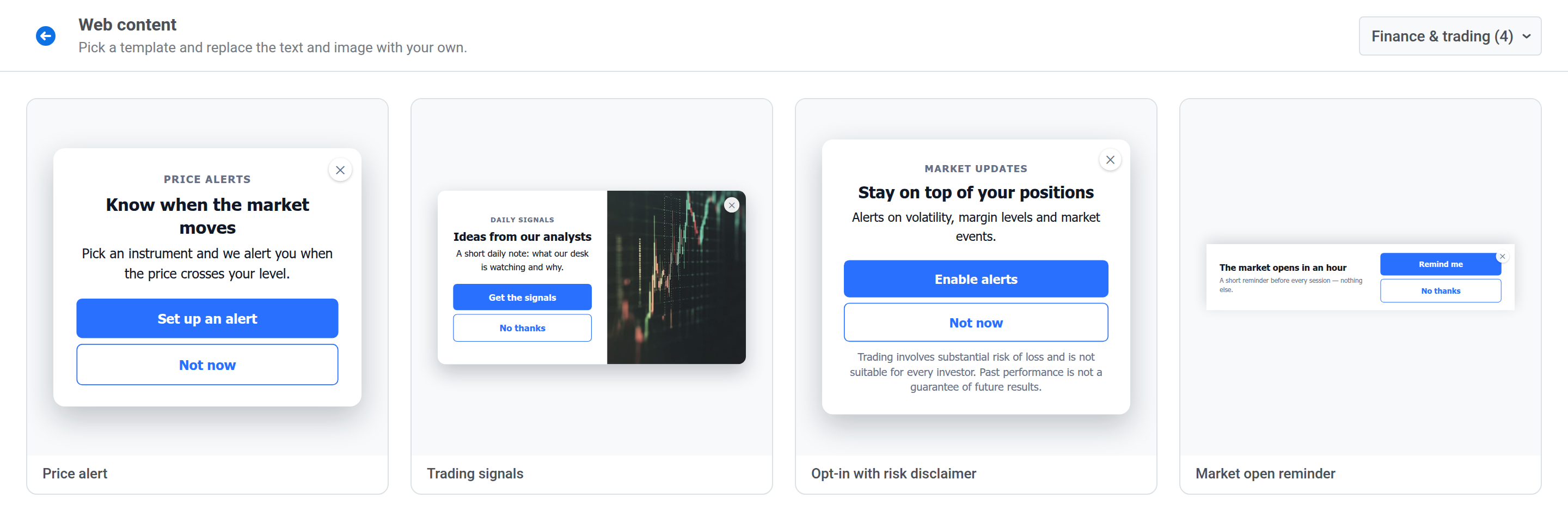
Suggested audience: registered traders, users who follow specific instruments, or visitors who haven’t turned on alerts yet.
Suggested timing: while the visitor views an instrument or a market page, or ahead of a trading session.
- Price alert: offer an alert when an instrument crosses a price level.
- Trading signals: offer a daily note from your analysts.
- Opt-in with risk disclaimer: an alerts opt-in with a risk warning in the footnote.
- Market open reminder: a bottom bar offering a reminder before each session.
Lead generation
Anchor link toTurn visitors into leads with an event, a report, a demo, or a short question.
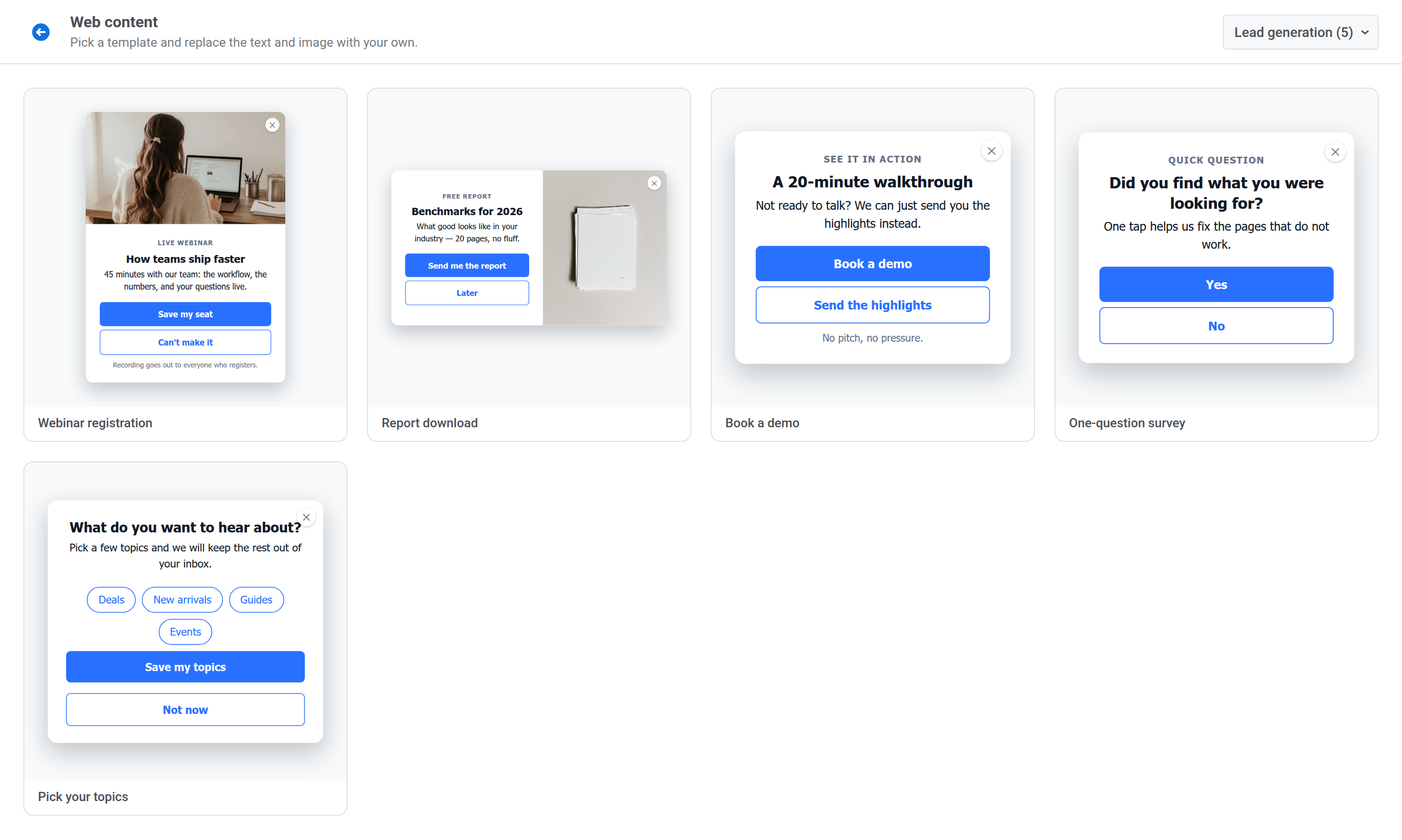
Suggested audience: visitors who aren’t customers yet, or visitors reading content about a specific topic.
Suggested timing: after the visitor has read a page or scrolled through most of an article.
- Webinar registration: invite visitors to a live webinar.
- Report download: offer a free report.
- Book a demo: offer a walkthrough, with a second button for visitors who only want the highlights.
- One-question survey: ask whether the visitor found what they were looking for, with Yes and No buttons.
- Pick your topics: let visitors choose topics with a Topic picker block.
Consent & gates
Anchor link toAsk for consent or a choice before the visitor continues.
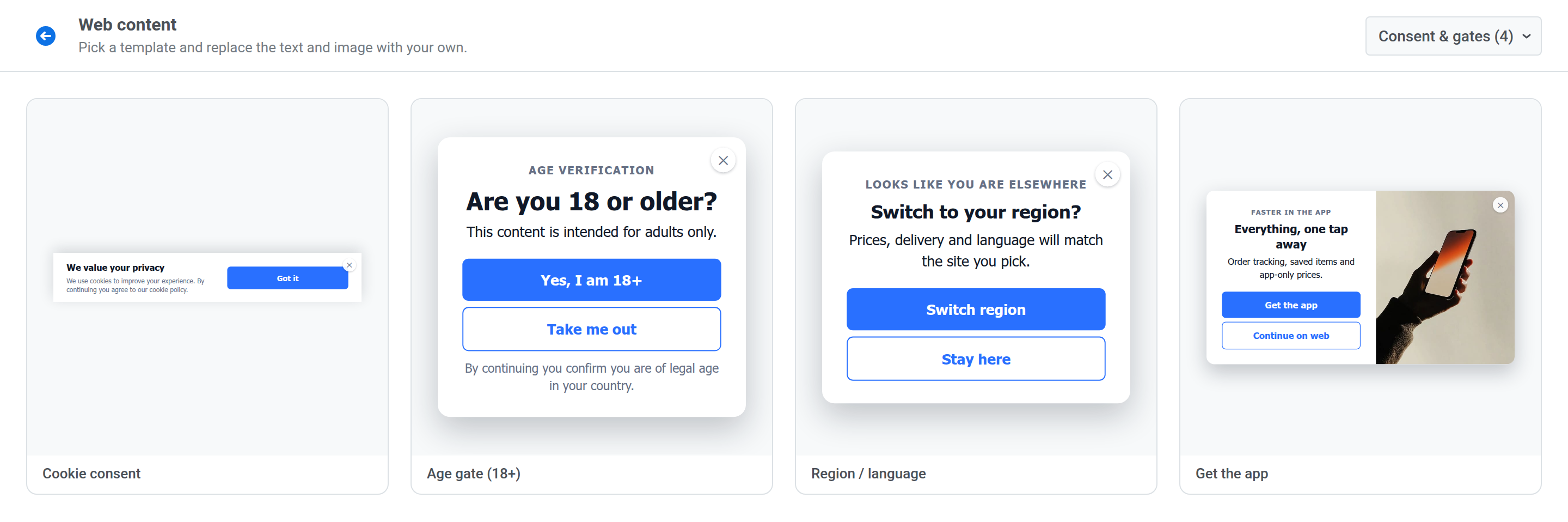
Suggested audience: all visitors for cookie consent and age gates, visitors from another region for the region switch, and mobile visitors for the app prompt.
Suggested timing: on the first page view.
- Cookie consent: a bottom bar about cookies with a Got it button.
- Age gate (18+): ask visitors to confirm they’re of legal age.
- Region / language: offer to switch to the visitor’s regional site.
- Get the app: invite web visitors to install your app.
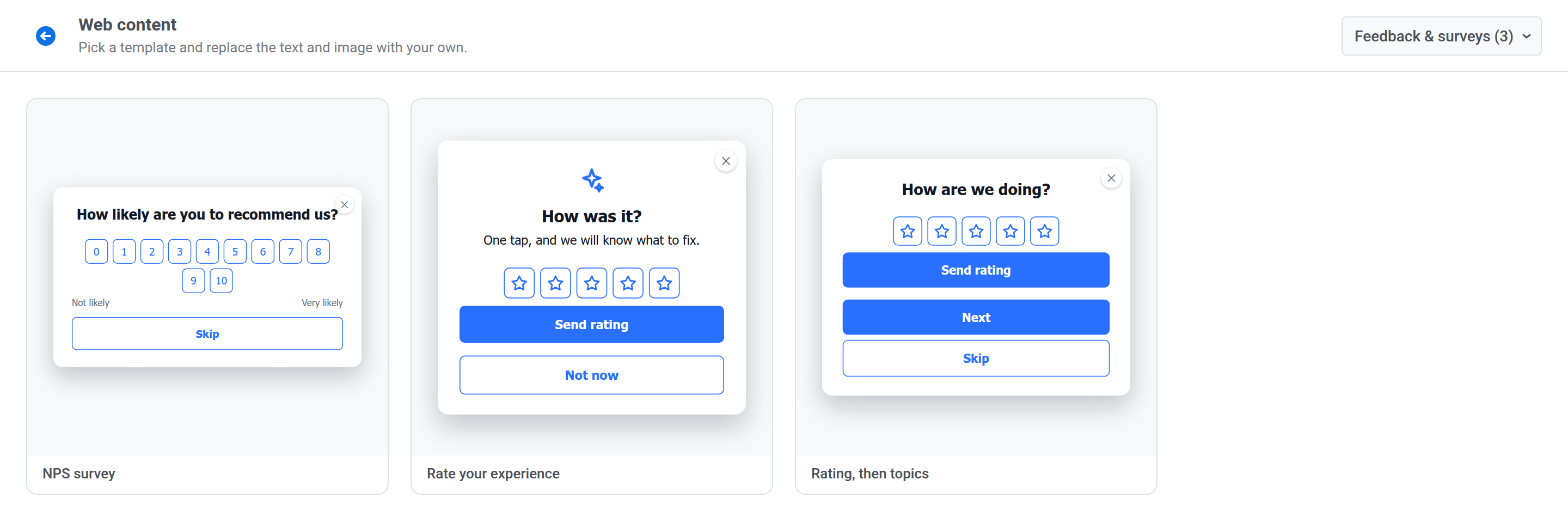
Feedback & surveys
Anchor link toCollect a score or feedback with a Rating block.
Suggested audience: active users or customers who have just completed a purchase or another key action.
Suggested timing: right after the key action, or after the visitor has used the site for a while.
- NPS survey: ask how likely the visitor is to recommend you on a 0–10 scale.
- Rate your experience: a five-star rating with a Send rating button.
- Rating, then topics: a star rating on the first page and a Topic picker on the second.