Sync pass fields from tags
Tag sync keeps issued passes up to date with your users’ tags. When a tag behind a field’s placeholder changes, Pushwoosh sends the new value to the pass, so you don’t need to edit the campaign by hand.
For example, a loyalty card has a field with the value Points {Points}. When a customer’s Points tag changes from 120 to 150, the pass on their phone shows 150 without you editing the campaign.
Turn on tag sync
Anchor link toIn the Tag sync section of a new campaign or on the campaign’s Design tab, turn on Update pass fields from tags. Pushwoosh then re-checks the tag placeholders in the campaign’s fields on a schedule and sends a fresh value to every pass whose tag changed.
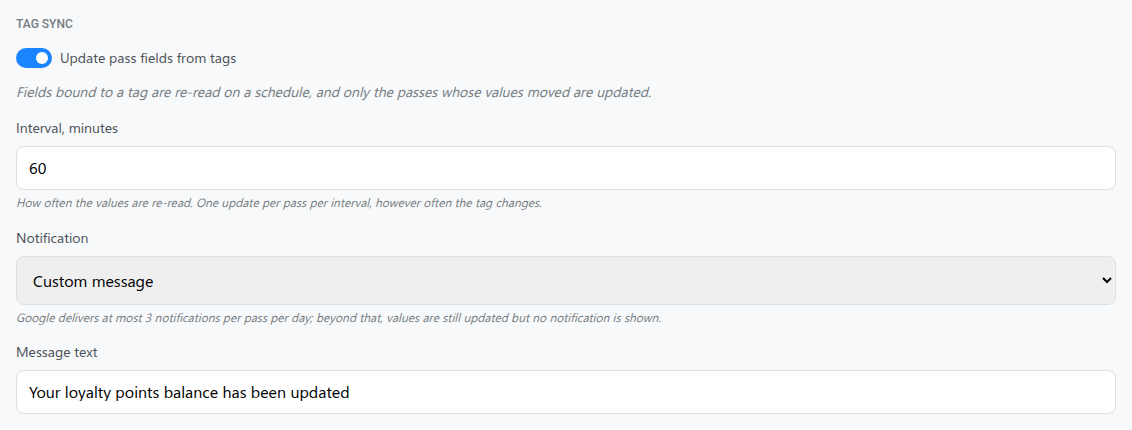
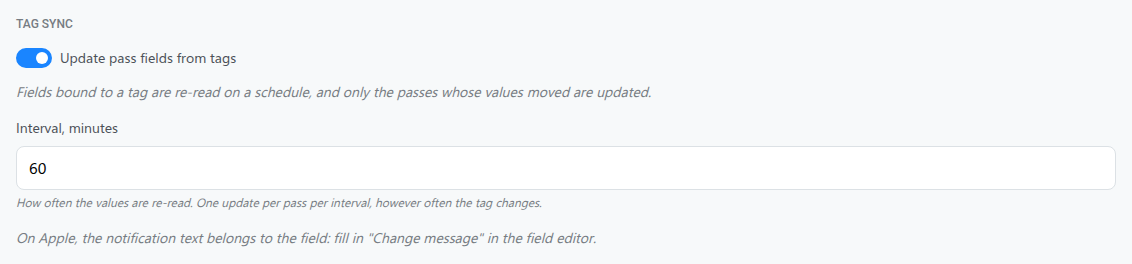
- Interval, minutes: how often Pushwoosh re-reads the tags. Defaults to 60 and can’t go below 5. A pass gets at most one refresh per interval, no matter how many times its tag changes in between.
- Notification: how the holder learns about the refresh. On Google Wallet, the same setting also applies when you push a design update from the campaign, even after you turn tag sync off.
-
Google Wallet: choose Silently, Custom message (fill Message text, sent with the update), or Google field notification (Google’s own field-update alert). Google caps notifications at 3 per pass per 24 hours. Past that, the new values still reach the pass, just without a notification.
-
Apple Wallet: there is no campaign-wide notification, so this picker doesn’t appear for Apple campaigns. The notification text lives on the field itself: fill Change message on each field in the Apple Wallet pass builder.
-
When tag sync runs
Anchor link toTag sync only runs while the campaign’s status is Active. Set it to Draft or Archived to pause scheduled checks without turning the toggle off.
After the first run, the Tag sync section on the Design tab shows Last tag sync with the date and time of the latest check.