Flight Status integration
Tell passengers about changes to their flight as they happen: a new gate, a delay, boarding, arrival, or a cancellation. The Flight Status integration connects Pushwoosh to AeroDataBox, a flight-data provider, so a customer journey can watch a specific passenger’s flight and react the moment its status changes.
Integration overview
Anchor link toIntegration type
Anchor link toSource: you subscribe a booking to its flight from inside a journey. Pushwoosh sends the status changes back as an event you use later in that same journey.
Prerequisites
Anchor link toBefore connecting Flight Status, make sure you have:
- An active Pushwoosh account with an application in Pushwoosh’s NUE data center. Flight Status isn’t available in other data centers yet.
- An AeroDataBox account and API key. The feed is billed on your own AeroDataBox account.
- A booking event that carries the flight’s carrier, number, date, and departure airport (see Build the flight status journey).
- A dedicated API Access token for the journey to authenticate with.
How does the integration work?
Anchor link toConnecting the integration and watching one flight are two separate steps, done at different times:
- Connect your AeroDataBox key in Settings → 3rd-party integrations.
- A booking event enters a passenger into your journey.
- The journey’s Webhook step subscribes that booking to its flight through Pushwoosh’s public API.
- Pushwoosh watches the flight with AeroDataBox and detects changes: gate, delay, boarding, arrival, cancellation, or a baggage belt assignment.
- Each change is delivered to the app as a
PW_FlightStatusChangedevent, which the journey’s Wait for Trigger and Condition split route to the right message.
Each flight subscription ends automatically 36 hours after the local departure date. It can end sooner: once the flight lands or is cancelled, or once nothing is watching it anymore. Pushwoosh then cancels the matching AeroDataBox subscription, so it doesn’t keep billing in the background.
This window is fixed at subscribe time, from the booked departure date, and doesn’t shift if AeroDataBox later reports a delay. A delay that pushes the flight into the next calendar day can make the subscription end before the delayed actual departure.
Use cases
Anchor link toFlight Status covers four kinds of updates, each usable on its own or combined in one journey:
- Gate change alerts: notify passengers the moment their departure gate changes.
- Delay notifications: alert passengers once a flight’s delay passes a few minutes, so they can adjust their plans.
- Boarding and arrival updates: tell passengers when boarding opens or their flight lands.
- Baggage claim: send the baggage belt number as soon as it’s assigned.
Set up the integration
Anchor link toConnect Flight Status to Pushwoosh
Anchor link toConnect your AeroDataBox key once per application:
-
Open your application and go to Settings → 3rd-party integrations.
-
Under Available services, find the Flight Status card and click Configure.
-
Paste your AeroDataBox key into API key and click Connect.
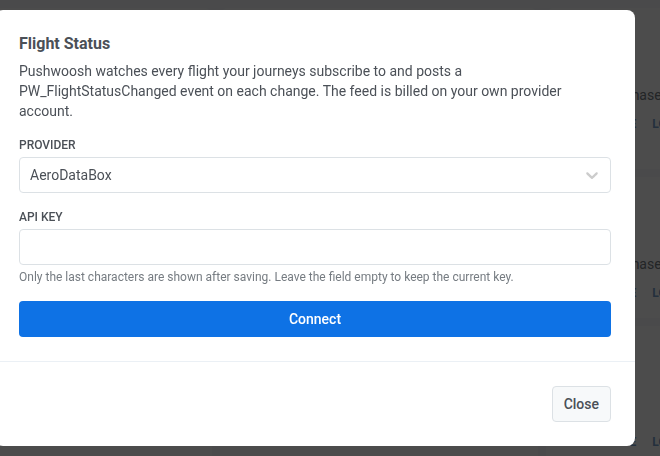
After you click Connect, the card moves to Connected services.
If the key is rejected
Anchor link toPushwoosh checks the key in the background. If something’s wrong, the card shows one of these messages:
| Message | Cause |
|---|---|
provider rejected the API key | The key is invalid or was revoked in AeroDataBox |
provider account is out of credits | Your AeroDataBox plan has run out of credits |
provider rate limit reached | AeroDataBox is throttling requests, and this clears on its own |
provider is unavailable | AeroDataBox couldn’t be reached, due to a network issue or an outage on either side |
provider refused the request | AeroDataBox returned an error Pushwoosh doesn’t otherwise recognize |
Replace the key
Anchor link toReopen the Flight Status card in Connected services, for example after the key is rejected:
- Replace the key: paste a new one into API key.
- Keep the current key: leave API key empty. The field shows only the last few characters of the saved key.
Disconnect the integration
Anchor link to- Open the Flight Status card in Connected services.
- Remove the key.
After you disconnect:
- New subscriptions are no longer created.
- Flights that journeys already watch keep their subscriptions until they end on their own or you delete them from the journey.
- The active-subscriptions count on the card includes these subscriptions until they end.
Build the flight status journey
Anchor link toBefore you build the journey
Anchor link toMake sure you have:
- A booking event carrying the flight’s carrier, number, date (
YYYY-MM-DD), and departure airport, plus one attribute holding the flight key in<carrier><number>/<date>/<departure airport>format, for exampleLH400/2026-09-20/MUC. This is what session matching uses throughout the journey. - A dedicated API Access token. The subscribe method accepts any token from your account, with no permissions to grant. Create one specifically for this journey so you can revoke it later without touching anything else.
- Your data center’s public API host. For NUE accounts, that’s
rpc-api.svc-nue.pushwoosh.com. - The journey’s Campaign entry limit, turned off. Campaign entry limit tracks entries per user only. It doesn’t know about the session identifier you set up below, so it would block a passenger’s second flight until the limit period passes.
Start the journey from a booking event
Anchor link to- Add a Trigger-based entry and select your booking event, for example
flight_booked. - Under Control how many sessions a user can have at the same time, choose Multiple active sessions per user.
- Pick the flight-key attribute as the session identifier. This lets the same passenger track more than one flight at once, each in its own session.
Subscribe the booking with a Webhook step
Anchor link toAdd a Webhook step directly after the entry. Its request body pulls the flight fields from the entry event, so the step needs to sit right after entry to use them.
-
Set REQUEST TYPE to
POST. -
Set URL to
https://rpc-api.svc-nue.pushwoosh.com/api/integrations/flight-status/subscriptions. -
In HEADERS, keep
Content-Type: application/json. -
Add a header
Authorization: Token <your API token>. Pushwoosh masks this value after you save, because any header namedAuthorizationis treated as a secret automatically. See Mark a header value as secret for what that means for editing and version history. -
In DATA, enter the request body below, typing your own application code directly:
{"application": "<your application code>","user_id": "{{device:user_id}}","source": "journey","flight": {"carrier": "","flight_number": "","flight_date": "","departure_airport": ""}} -
For each of the four empty
flightvalues, open DATA BUILDER. -
Select category Event.
-
Pick the matching attribute from your booking event (carrier, flight number, flight date, departure airport).
-
Copy the macro Pushwoosh generates and paste it in as that field’s value. Repeat for the remaining three values.
You don’t need to map anything from the response. It returns flight_key, which is already on your booking event.
Wait for a status update
Anchor link toAdd a Wait for Trigger step after the Webhook step.
- Add one branch and set its event to
PW_FlightStatusChanged. - Under multi-session attribute matching, select the same flight-key attribute you used on the entry. This makes sure a status update only wakes the passenger whose flight it’s actually about.
- Set the waiting period to comfortably cover the flight. 48 hours is enough for most itineraries.
- Leave the Not triggered branch without a next step, or add a fallback message. Passengers whose flight has no update before the wait ends leave the journey here, and that’s expected.
Branch by event type
Anchor link toAdd a Condition split after the Wait for Trigger step.
- Select Event as the condition type.
- In Event from Journey, choose
PW_FlightStatusChanged. - Under Attribute, select
event_type. - Set the condition to is.
- Add a branch with the value
gate_change. - Click Save. This creates two branches: the one you named for a gate change, and All other users for every other event type.
Repeat this element, or add more branches to it, for the other event_type values you want to act on: delay, boarding, departed, arrived, cancelled, and baggage_ready all work the same way.
Notify the passenger
Anchor link toAdd a Push element on the gate-change branch.
- Select or create a push preset.
- Set Message type to Transactional message, since a flight status alert is a service notification, not a promo. Frequency capping doesn’t apply, and it still reaches passengers in a control group.
- Enable personalization with event attributes.
- Choose
PW_FlightStatusChangedas the source event. - Fill your preset’s placeholders from
flight_numberandgate_new.
Show a Live Activity card instead
Anchor link toAdd three Live Activity elements, in place of Push or in addition to it:
- Start: right after the Webhook step, not directly after the entry. The entry connects to only one next step, so Webhook and Start can’t both come right after it.
- Update: on the gate-change branch.
- End: once the journey no longer needs to track the flight, for example after arrival or cancellation.
On the Start element, under Card attributes, add all six fields the card’s ActivityAttributes type needs. Card attributes is a free list of names and values, and the interface doesn’t check the names, so enter each one exactly as listed. Five of them are already on your booking event:
carrierflight_numberflight_datedeparture_airportflight_keyarrival_airport: the subscribe call doesn’t need it, so add it to your booking event only if you use Live Activity.
Only Start sets Card attributes, and they stay the same for the card’s whole life. Update and End don’t set them. The fields that change, such as status, gate, and delay, are Card content, and they come from the widget schema you publish for this app.
PW_FlightStatusChanged event reference
Anchor link toEvery change the integration detects is delivered as one PW_FlightStatusChanged event, with all attributes always present: empty ones are sent as blank values, never left out.
| Attribute | Type | Description |
|---|---|---|
event_type | String | What changed (see the values below) |
flight_key | String | The same flight key you set on the booking event |
flight_number | String | The flight number |
departure_airport | String | Departure airport code |
arrival_airport | String | Arrival airport code |
status | String | Current flight status (see the values below) |
gate_old / gate_new | String | Departure gate before and after the change |
terminal_old / terminal_new | String | Departure terminal before and after the change |
baggage_claim | String | Baggage belt number, once assigned |
provider | String | The data provider that reported the change (aerodatabox) |
delay_minutes | Integer | Minutes running late against schedule, present on every event |
scheduled_at / estimated_at / actual_at | String | Scheduled, currently estimated, and actual departure times, in the provider’s own format |
arrival_terminal | String | Arrival terminal, once assigned |
arrival_scheduled_at / arrival_estimated_at / arrival_actual_at | String | Scheduled, currently estimated, and actual arrival times, in the provider’s own format |
scheduled_at_local / estimated_at_local / actual_at_local | String | The three departure times above, in the departure airport’s local time |
arrival_scheduled_at_local / arrival_estimated_at_local / arrival_actual_at_local | String | The three arrival times above, in the arrival airport’s local time |
flight_date / event_time | Date | The flight’s date, and when the change happened |
Attribute values and formats
Anchor link toevent_typevalues:gate_change,delay,boarding,departed,arrived,cancelled,baggage_ready.statusvalues:scheduled,check_in,boarding,departed,delayed,arrived,cancelled,diverted,unknown. An AeroDataBox status that Pushwoosh doesn’t recognize is reported asunknown.delay_minutes: present on every event, not onlydelayones. 0 means the flight is on time, and a negative value means it’s running early. Adelayevent is sent once the delay reaches 5 minutes.- Time attributes: all of them, including the
arrival_*and_localones, are String, not Date. This way an empty time isn’t dropped from the event, and a local time keeps the airport’s UTC offset. To filter by date, useflight_dateandevent_time.