Approvals and content versions
Every time you save a push preset or email template, Pushwoosh keeps a new version of it. That works for every account.
Content approval is an optional extra step. When it’s on for your account, you can’t send a version until a reviewer approves it.
You can always view, compare, and restore versions, whether or not content approval is on.
Turn on content approval
Anchor link toBy default, every saved version is approved automatically. Content keeps sending as before.
To require a review before sending, ask Pushwoosh support to turn on the Require content approval restriction for your account.
Grant the Approve messages permission
Anchor link toReviewers need the Approve messages permission to open the review queue and approve or reject submitted versions.
- Open Users and roles.
- Add Approve messages to a role. It sits in the Messages group with Send messages and Delete messages.
If you don’t manage roles, ask an account admin to add Approve messages for reviewers.
See Available permissions for the full roles matrix.
Submit content for approval
Anchor link toOnce content approval is on, both editors show a version status (Draft, On approval, Approved, or Rejected) and a Submit for approval button. Where they sit differs for push and email.
Push presets
Anchor link toIn the push content editor, Version history sits next to Save. The version status and Submit for approval sit together on their own row below.
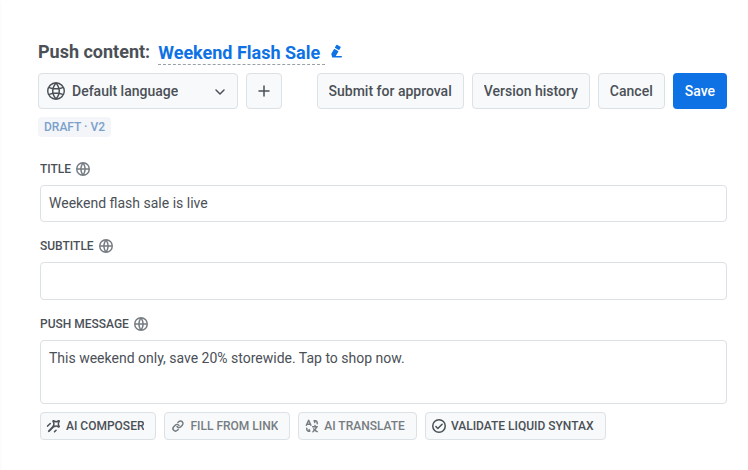
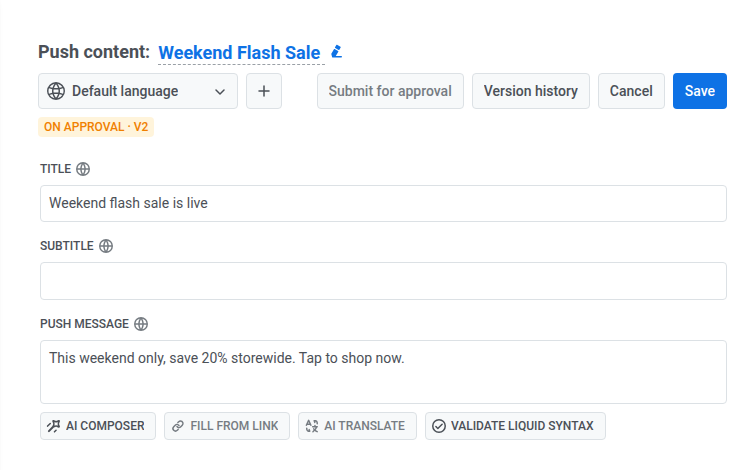
To submit a version for review, click Submit for approval. The status changes to On approval, and the version appears in the reviewer’s queue. Submit for approval becomes unavailable. Version history stays available.
Email templates
Anchor link toIn the email content editor (including its AI tab), the version status appears next to the email title.
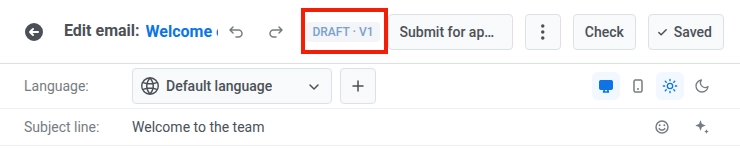
To submit a version for review, click Submit for approval. The status changes to On approval, and the version appears in the reviewer’s queue. Submit for approval becomes unavailable while the version is on approval.

If a reviewer rejects it, the status changes to Rejected and shows the reviewer’s reason on its second line. Edit the content and click Submit for approval again to resubmit.
What happens when you edit approved content
Anchor link toIf you edit a push preset or email template that is Approved, its status changes to Draft and shows a new version number, for example Draft · v4.
Any request still waiting for approval on that content is cancelled.
Review pending approvals
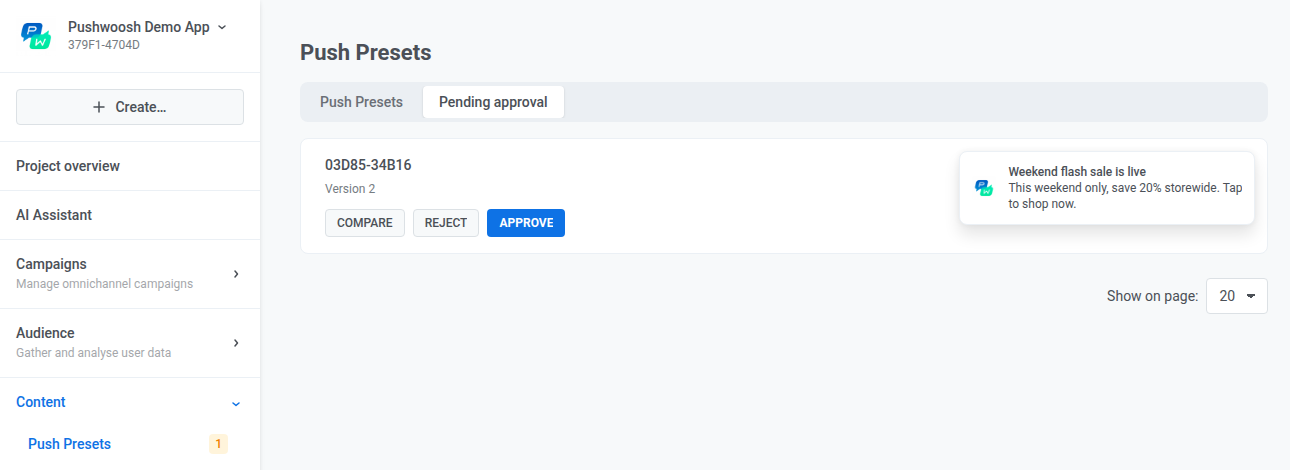
Anchor link toOpen Content, choose Push Presets or Email content, then open the Pending approval tab. The number next to that item in the left menu is how many versions are waiting.
What the queue includes depends on the channel:
- Push presets: versions waiting in the project you have open now. Versions from other projects don’t appear here.
- Email content: versions waiting in every project in the account. Email cards also include Open template.
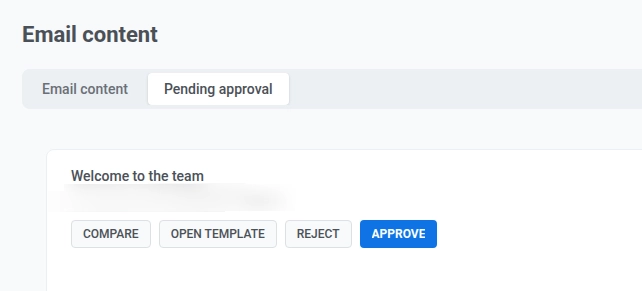
Each pending card has the actions below.
Compare
Anchor link toClick Compare to open a side-by-side view of the previous version and this one. Use it to check what changed before you approve or reject.
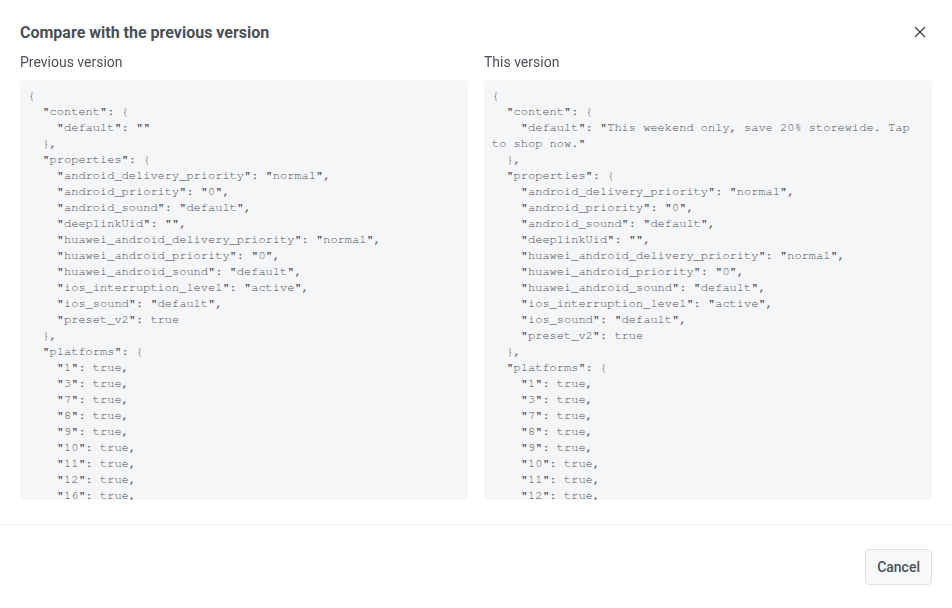
Open template
Anchor link toOn email cards only, click Open template to open that template in the email content editor. Use it when you need the full editor view, not only the card preview.
Reject
Anchor link toClick Reject to decline the version. A reason is required. The reason appears on the card in the list and on the version status in the editor, so the editor can see why it was rejected and resubmit after fixing it.
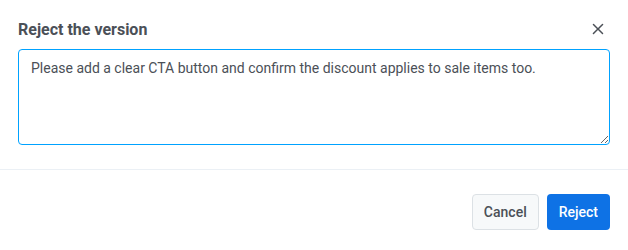
Approve
Anchor link toClick Approve to accept the version. Its status becomes Approved, it leaves the pending queue, and it can be sent.
What happens when you try to send unapproved content
Anchor link toWith content approval on, only an Approved version can be sent. Anything still in Draft, On approval, or Rejected is blocked.
- One-time push and one-time email. Unapproved content still appears in the content dropdown, but you can’t select it. The one-time email form behaves the same way.
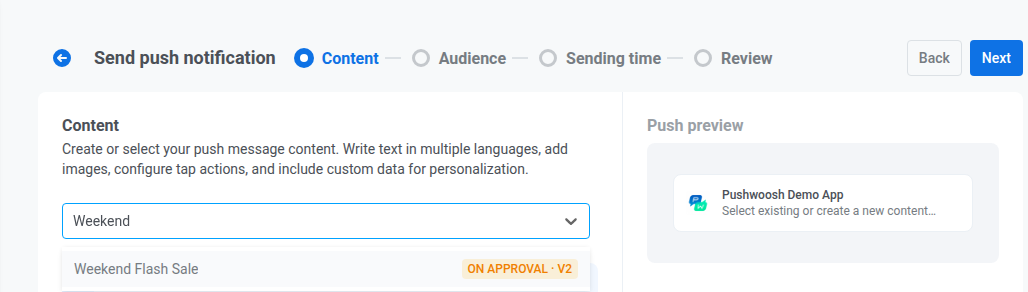
-
Customer Journey. In the Send Push and Send Email journey elements, the content dropdown shows the same version status next to each option, and any option that isn’t Approved is disabled. If a previously picked preset or template stops being Approved (for example, a later edit created a new Draft version), a note appears under the dropdown: “This content is not approved and cannot be sent.”
Launching or resuming a Journey also checks every push preset and email template it would send. If any of them isn’t Approved, the pre-launch check flags the point with
Content is not approved and cannot be sent. The Journey can’t launch or resume until you fix it or pick approved content.This only catches content that’s already unapproved before launch or resume. If content stops being Approved while the Journey is already running, the traveler gets a Content not approved drop-off reason instead of a generic internal error. A Send Push element also pauses the Journey. Send Email only drops that traveler and keeps the Journey running.
If you call the API directly, createMessage (push) or createEmailMessage (email) rejects an unapproved version with error code 210. A preset-based send gets the message Preset content is not approved. A transactional email sent by template code only, with no preset, gets Email Template content is not approved instead.
Creating content for a one-time send
Anchor link toYou can still create push presets and email templates. With content approval on, you just can’t create them from the one-time push or one-time email form. Instead:
- Create the preset or template under Content → Push presets or Content → Email content.
- Submit it for approval and wait until its status is Approved.
- Open the one-time form and select that approved content from the dropdown.
Testing content
Anchor link toWith content approval on, Test push notification is hidden in the push content editor, and Test email is hidden in the email content editor. This applies for every version status.
View, compare, and restore versions
Anchor link toEvery push preset and email template keeps its last 20 versions in its version history. You can open this history whether or not content approval is on for your account.
A version waiting for approval stays in history even if you already have 20 other versions. It is not dropped to make room for newer ones.
From the push content editor or the email content editor, open Version history next to Save to:
- Compare two versions side by side to see what changed between them.
- Restore an earlier version. Nothing is saved until you click Save.
- Push preset: restores the version’s text. Media, actions, and settings stay as they are in the editor.
- Email template: restores the HTML content, locale variants, and theme. It does not restore the email-wide styling and footer from the Settings tab.