Event streaming integration
Integration overview
Anchor link toIntegration type
Anchor link toSource: Data is sent from Pushwoosh to your system via HTTP or gRPC based on configured event triggers.
How does the integration work?
Anchor link toPushwoosh transmits communication event data (e.g., push/email activity) to a client-defined endpoint. Data is sent in batch streams at scheduled intervals or upon reaching a minimum batch size.
Data is only sent if it matches the selected events, platforms, and optional filters (campaign/message codes, live activity). The client endpoint must be ready to receive and optionally respond with a status.
Glossary
Anchor link toEndpoint URL: Server-side endpoint which allows receiving requests. The client may specify a port if needed.
Examples:
https://clientdomainname.com/webhook_endpointhttps://clientdomainname.com:8081/webhook_endpoint
List of synchronized entities
Anchor link to- Communication statistics events (e.g., Push Sent, Email Delivered)
- Post events: events your app sends to Pushwoosh via
postEvent, streamed separately from communication statistics events
Use cases
Anchor link to- Real-time engagement tracking
Monitor user interactions such as push sent, email opened, or message delivered as they happen, enabling immediate visibility into campaign performance.
- External analytics integration
Stream events to third-party analytics platforms for centralized reporting and analysis.
- Automated user workflows
Trigger actions in external systems (like CRMs or marketing automation tools) based on user behaviors, e.g., send a follow-up message when a user opens an email.
- Device list sync
Remove devices from your own database when they can no longer receive messages. See Sync unregistered devices to your system.
Setting up the integration
Anchor link toTo set up the integration:
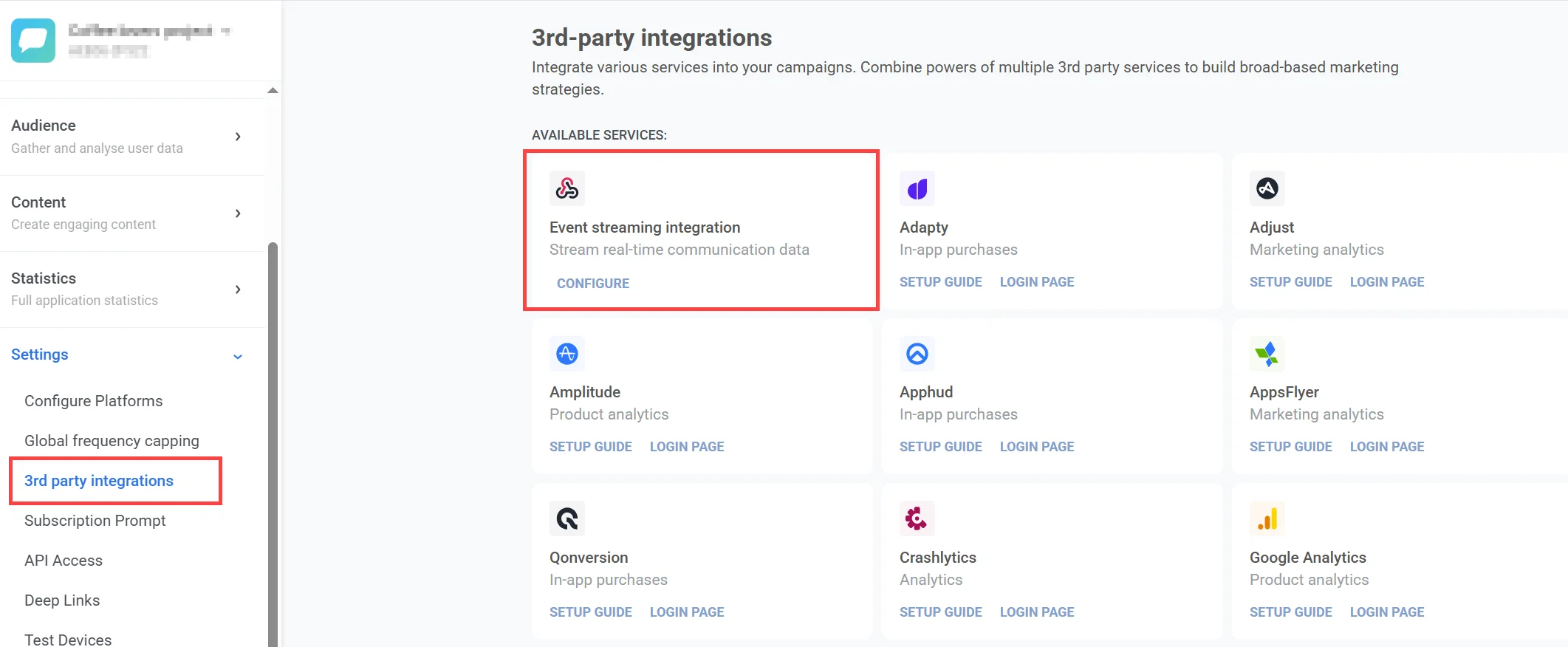
- In your Pushwoosh account, go to Settings > 3rd party Integrations, find Event streaming integration, and click Configure.
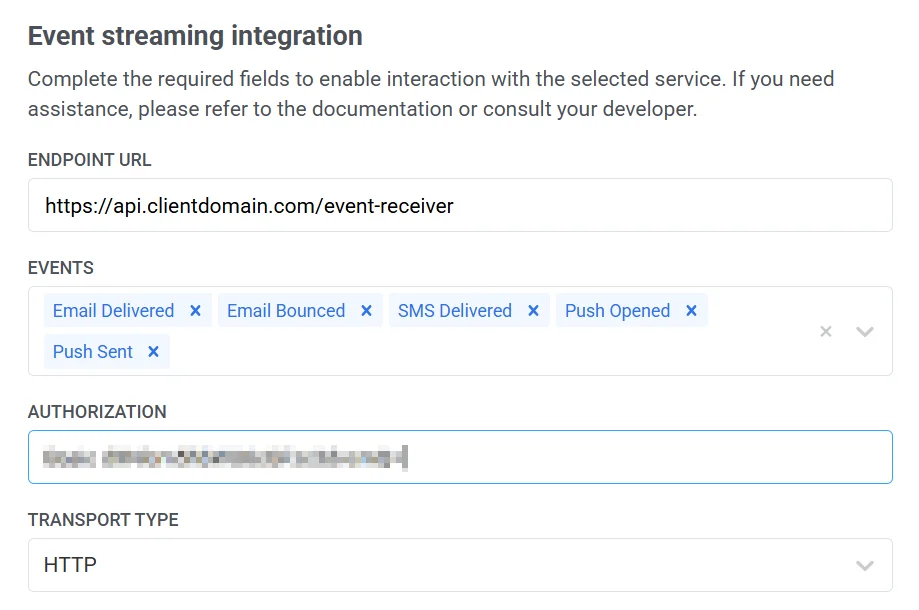
- In the window that opens, fill out the necessary fields.
Enter endpoint URL
Anchor link toIn the Endpoint URL field, enter the full URL where events will be sent, including the protocol and port if applicable.
Example
https://clientdomainname.com/webhook_endpointhttps://clientdomainname.com:8081/webhook\_endpoint
Select events
Anchor link toFrom the Events dropdown, select at least one event. If none are selected, validation will fail. The list of events is managed by the backend and may change over time.
Provide authorization credentials
Anchor link toIf required by your server, enter the complete value for the Authorization header in the Authorization field.
Examples:
-
Bearer your_token_here -
Basic base64encoded_credentials
Choose transport type
Anchor link toFrom the Transport type dropdown, choose the delivery protocol for event transmission: HTTP or gRPC. Each has specific behavior and configuration.
HTTP
Anchor link toWith the HTTP transport type, Pushwoosh sends data in batches based on one of the following conditions:
-
At least 100 events are ready to be sent, or
-
One hour has passed since the last transmission.
After sending the data, the connection is closed once a successful response is received.
If the server responds with a 5xx error, Pushwoosh will retry the request according to the defined retry policy.
Retry mechanism
| Attempt | Delay |
|---|---|
| 1st | 1 second |
| 2nd | 3 seconds after 1st try |
| 3rd | 8 seconds after 2nd try |
If all retries fail, the request is discarded. If your endpoint keeps failing for 24 hours without accepting any events, Pushwoosh pauses the integration. See Paused integration.
Timeout
The default timeout for a request is 30 seconds. This can be customized upon request via support.
gRPC
Anchor link toThe gRPC transport type uses bidirectional streaming for data transmission. Learn more in the gRPC documentation.
A stream is opened when either of the following conditions is met:
- At least 1,000 events are ready for delivery
- One hour has passed since the last stream was opened
The stream is closed after the events are sent. This ensures that a new stream is not opened for each individual event in a short time.
Retry mechanism
Each event includes a unique uuid. If an event fails:
- The response must include a
statusnot equal to"Success" - The original
uuidfrom the request must be included
Pushwoosh will retry delivery based on this response.
Connection settings
Advanced options like TLS, keep-alive, or retry policies are configured manually via support and may require development involvement.
Enable post events
Anchor link toThis toggle is off by default, so only communication statistics events stream. To also stream events your app sends to Pushwoosh via postEvent, turn on the Allow post events toggle.
From the Post events field that appears, select which of your account’s events to stream. At least one event is required while the toggle is on. If your account hasn’t sent any events yet, this list is empty until you call postEvent at least once.
In-app impressions and clicks also travel through this post event stream, as PW_InAppShow and PW_InAppClicked. Each appears in the Post events list only after it has fired at least once for the account, same as any other post event.
Select platforms
Anchor link toIn the Platforms section, select at least one platform to activate event streaming.
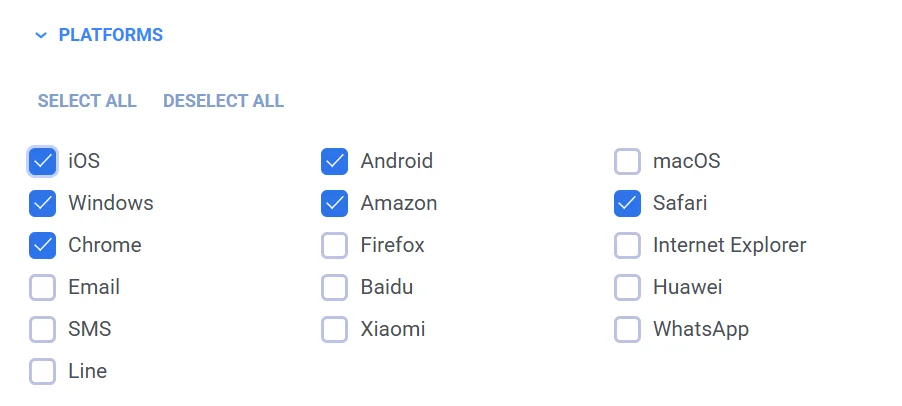
Supported platforms include:
- iOS, Android, macOS, Windows, Amazon, Safari
- Chrome, Firefox, Internet Explorer, Huawei
- Email, SMS, Line, Xiaomi, WhatsApp
Configure advanced filters
Anchor link toIn the Advanced filters section, refine the event delivery criteria using filters:
-
Live activity events: Enable to receive live activity events. These events contain only metadata including
live_activity_id. -
Campaign filters: Filter by campaign code. Only events tied to these campaigns will be delivered.
-
Message filters: Filter by message code. Only events tied to these messages will be delivered.
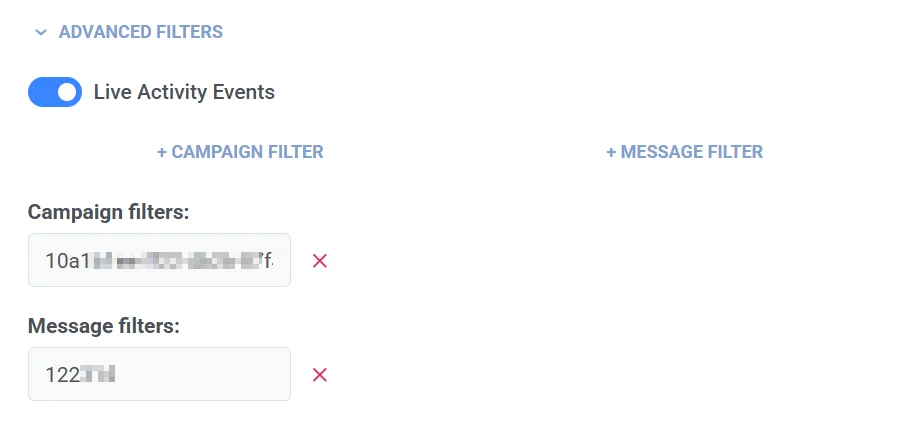
After completing all the required fields, click the Apply button to save and activate your integration.
Request details and example
Anchor link to| Endpoint | https://exampleclientendpoint.com/webhook_endpoint |
| HTTP Request | POST |
| Authentication | No |
| Request type | Source |
| Request meaning | Send requests to the webhook endpoint |
| Headers | Content-Type: application/json |
Request body example
{ "event_name": "Email Opened", "message_code": "E682-E6D92B9A-53E24868", "campaign_id": 961048, "platform": "Email", "payload": "Welcome to Headway! 👋", "application_code": "XXXXX-XXXXX", "hwid": "user@example.com", "user_id": "USER_ID", "timestamp": 1723799271, "journey_title": "", "journey_point_title": "5_Welcome_ID_new", "attributes": null}Attributes
Anchor link toAmong communication statistics events, attributes populates only for push events, with channel-specific content (Android, iOS, and so on) for the platform that push was sent to. Email and SMS events carry only the top-level fields (event_name, platform, payload, and so on). attributes is null for those events. Within a populated attributes object, fields outside the event’s own platform are omitted rather than sent as empty values. See webhook.proto for the full field list.
A post event carries its attribute key/value pairs in attributes.event_attributes instead. message_code and payload stay empty, because a post event isn’t tied to a message or campaign.
Response
The response body is ignored. With the HTTP transport, the response code decides whether the events count as delivered. A 2xx code means your endpoint accepted them.
Sync unregistered devices to your system
Anchor link toIf you keep your own copy of the device list, for example in a CRM or a customer data platform, stream the PW_DeviceUnregistered post event to find devices that Pushwoosh can no longer reach. Pushwoosh sends this event when a device loses its push subscription. For the reasons, see PW_DeviceUnregistered.
Start from an integration that is already set up, with an Endpoint URL entered and at least one platform selected. Then:
- In the integration settings, turn on Allow post events. See Enable post events.
- In the Post events field, select
PW_DeviceUnregistered. - To also learn about devices that get a push token, select
PW_DeviceRegistered. - Click Apply. The change takes effect within 15 minutes.
Like any post event, PW_DeviceUnregistered appears in the Post events list only after it has fired at least once for the account. See Enable post events.
Keep these limits in mind when you process the events:
- Match devices by
hwidoruser_id, not by push token. The event carries the device’shwid,user_id, and platform, but no push token and no reason for the unregistration. An expired token and an SDK unregistration look the same. - A new token for the same device sends no event.
PW_DeviceRegisteredfires only when a device without a push token receives one. A list that stores devices by push token keeps tokens that no longer work, because when a device gets a new token, neither event fires. - An email unsubscribe doesn’t delete the device. For email, the address stays on the device and Pushwoosh only marks it as unsubscribed. When the user unsubscribed through a link in an email,
attributes.event_attributesalso carries themessage_codeandcampaign_idof that email.
Some events may never reach your endpoint, because a batch that fails all HTTP retries is discarded. To catch these devices, periodically export the segment of devices you target to CSV and compare it with your device list. Exporting a segment requires the Personal data permission in your role. If your endpoint keeps failing for 24 hours, the integration is paused and events stop arriving. See Paused integration.
Paused integration
Anchor link toIf deliveries to your HTTP endpoint keep failing for 24 hours and the endpoint accepts no events during that time, Pushwoosh pauses the integration:
- Pushwoosh stops sending events to the endpoint.
- Events waiting to be sent are discarded. Events from the paused period aren’t sent later.
- The account owner receives an email about the pause. The integration settings don’t show the pause, so this email is the only notice.
An event counts as accepted when your endpoint returns a 2xx response code. Partial failures don’t pause the integration: any accepted event restarts the 24-hour count. Integrations with the gRPC transport aren’t paused.
To resume streaming:
- Make sure your endpoint is reachable and returns a
2xxresponse code. - Go to Settings > 3rd party Integrations, find Event streaming integration, and click Configure.
- Click Apply. You don’t need to change any settings. Streaming resumes within 15 minutes.
How do you know that the integration is working?
Anchor link toYou will start receiving requests from Pushwoosh at your configured endpoint.