App Inbox
Use the App Inbox channel element to place a message directly in a user’s in-app inbox from a journey, without going through push. Learn how App Inbox works.
Drag the App Inbox element onto the canvas from Channels, then click it to open its settings.
Requirements
Anchor link toApp Inbox needs the Message Inbox SDK module integrated in the app. Users with no device on an inbox platform (iOS, Android, Huawei, or web) skip this point. See What happens to users at this point.
Select or create App Inbox content
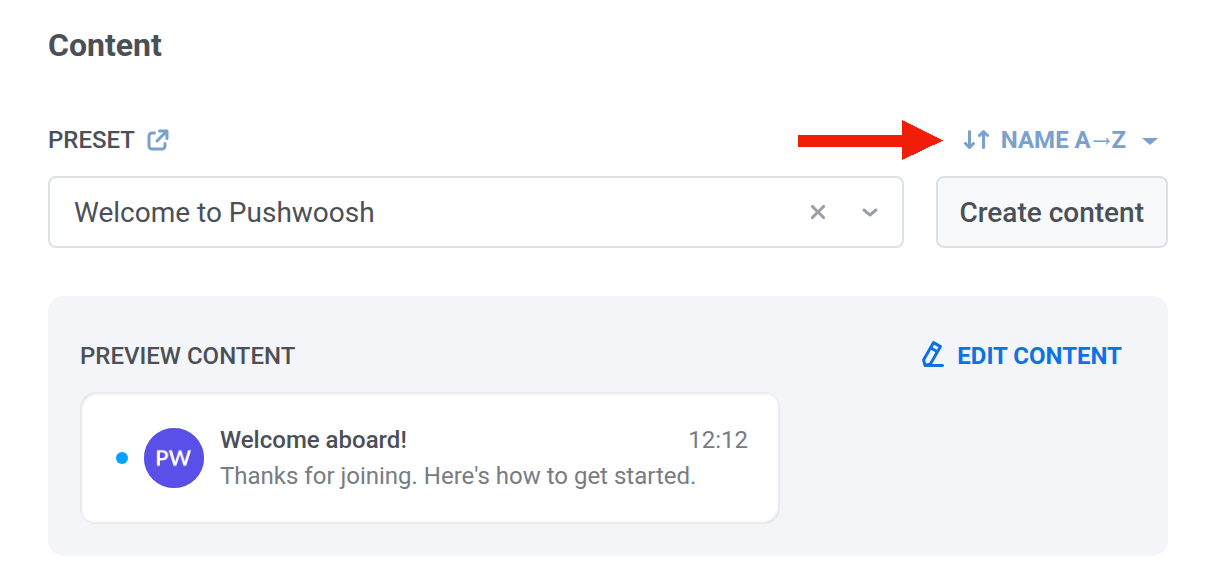
Anchor link toIn Preset, select an existing App Inbox preset, or click Create content to open the editor. Edit content opens the same editor for the selected preset. The fields match App Inbox presets: layout type, title, message, media, and the rest.
To change the order of presets in the dropdown, click the sort button above it. The dropdown is sorted by Name A→Z until you pick another order, and Pushwoosh remembers the order you pick and uses it in every App Inbox preset dropdown, in one-time messages and journeys alike.
Choose a tab
Anchor link toIf the app’s inbox is split into tabs, choose where the message shows:
- To show it in a tab and in All, select the tab in Tab.
- To show it only in All, leave No tab.
If the app has no tabs yet, the field shows Set up tabs: click it to open the tab settings. If you delete the selected tab later, this element can’t send its message until you choose another tab.

Set message type
Anchor link toChoose Marketing message or Transactional message for this element. Until you choose one, the element shows a Message type not selected warning.
- Marketing message: respects frequency capping. Excludes the global control group.
- Transactional message: for service messages. Bypasses frequency capping. Sent to the global control group too.

Set on click actions
Anchor link toIn On click actions, choose what happens when the user taps the message.
Mobile:
- No action on click: nothing opens when the user taps.
- Open Deep link: open a deep link in the app.
- Open URL in browser: open a URL in the device browser.
- Show in-app content: show an in-app message you select. The in-app list is sorted by Newest first until you pick another order with its sort button.
Web:
- No action on click: nothing opens when the user taps.
- Open URL in browser: open a URL in the browser.
- Show web pop-up: show a web popup you select. The list starts with Recently updated until you pick another order with its sort button. Pick web content here, not a web form. The Web SDK shows a web form only inside a web campaign, so a web form picked here doesn’t open.
Set expiration
Anchor link toIn Expires, choose how long the message stays in the inbox:
- After 7 / 14 / 30 / 90 days, or a specific date.
- Leave After 30 days unless you need a shorter or longer window.
After that time, Pushwoosh removes the message from the inbox.

Set frequency capping
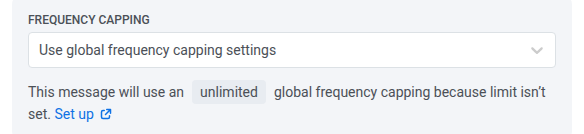
Anchor link toIn Frequency capping, choose how often this user can get App Inbox messages. Limits apply to the App Inbox frequency capping channel, separate from push, email, and other channels.
- Use global frequency capping settings: apply the project-wide App Inbox limit.
- Send messages without global frequency capping: send even if the user already hit that limit. Use with caution.
- Use custom frequency capping: set a limit only for this element.
Once you configure the element, click Apply.
What happens to users at this point
Anchor link toThe table covers edge cases: no device to place the message on, more than one device, and what happens if you pause or stop the journey.
| When | What happens |
|---|---|
| Message is placed in the inbox | The user moves to the next step right away (Sent). They do not need to open the app first. |
| No inbox on any device | Email-only or messenger-only users, and other users with no device on an inbox platform, skip this step and continue. They show up as skipped in the stats. Web counts when the site has the SDK. |
| More than one device | The message appears in the inbox on every device that supports it. Sent counts the person once, not each device. |
| You pause or finish the journey | Messages already in the inbox stay until they expire. Stopping the journey does not remove them. |