Send in-apps via Customer Journey
This guide walks you through sending an in-app message via Customer Journey.
Create a journey and add elements
Anchor link to-
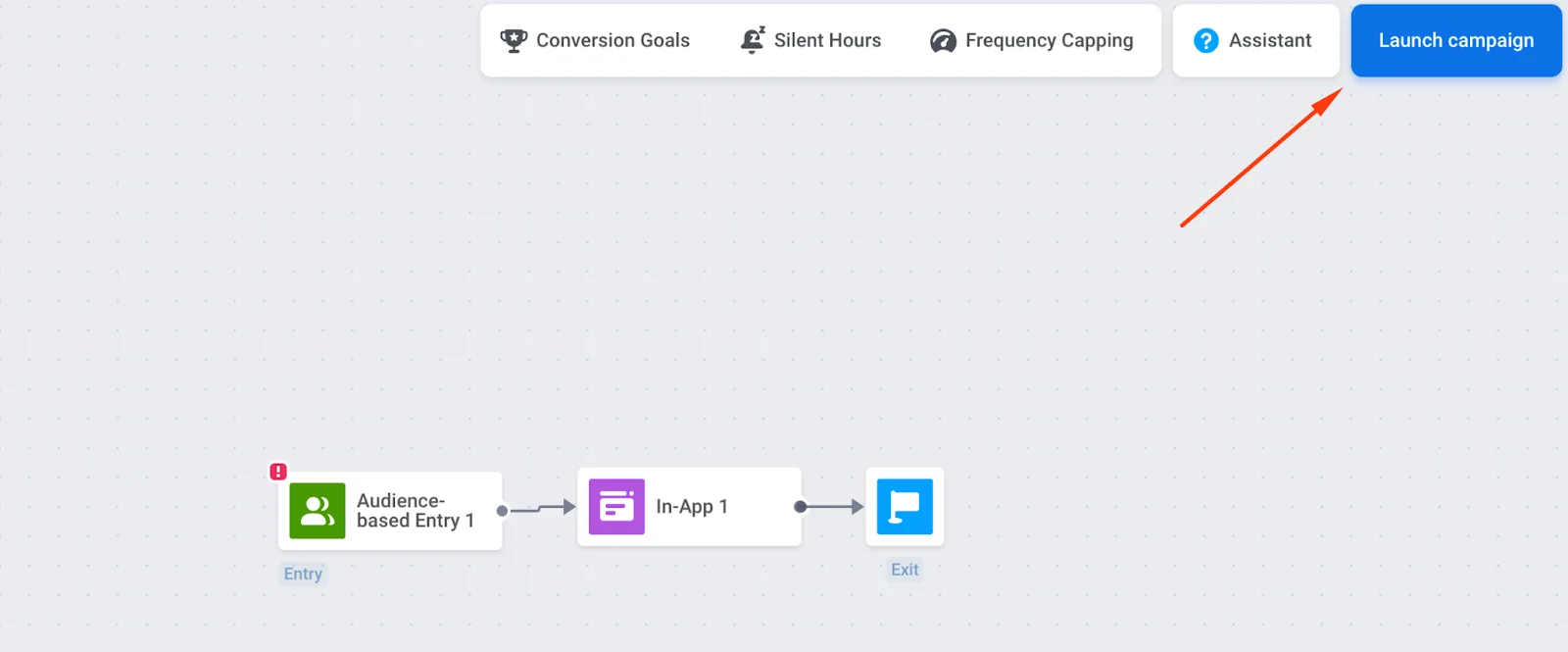
Go to Customer Journey Builder → Create Campaign.
-
Drag Entry, In-App, and Exit onto the canvas and connect them in that order. Exit is optional. You can leave the branch without an outgoing connection instead.
Configure entry and audience
Anchor link toYou must configure the Entry element; otherwise, the in-app message will not be delivered.
Trigger-based entry
Anchor link toShow the in-app when a user performs a specific action (for example, lands on a pricing screen). Use default triggers and events or create your own.
Learn more about trigger-based entry.
Example: show an in-app with a discount only to iOS users by adding a platform filter.
Audience-based entry
Anchor link toStart the journey for a segment of users (for example, your entire user base). Create a segment from tags and/or events or use pre-built segments.
Learn more about audience-based entry.
Configure scheduling
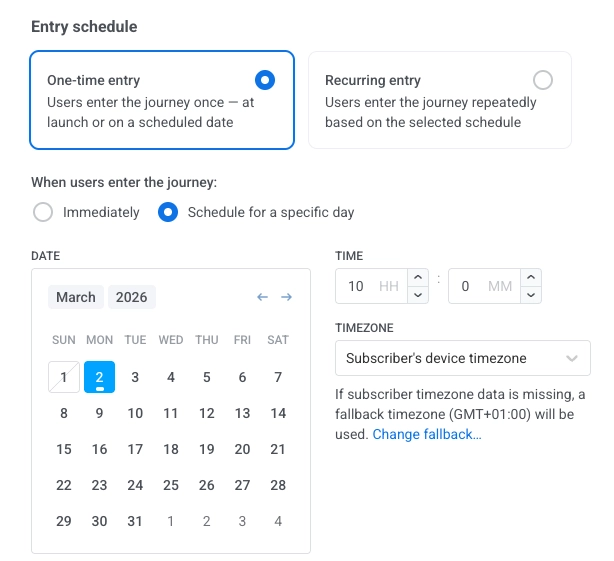
Anchor link toIn the Audience-based entry element, Entry schedule controls when users enter. By default, One-time entry with Immediately makes users enter as soon as the journey is activated.
To run on a specific date and time (with timezone), choose One-time entry → Schedule for a specific day. To run on several dates or at a fixed interval, choose Recurring entry. Learn more
Configure the in-app element
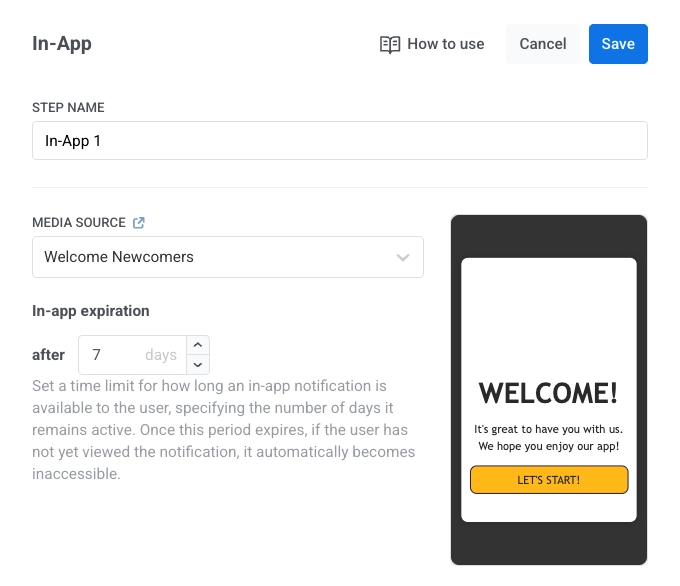
Anchor link to- Click the In-App element → Media Source. Select a template. The list starts with the newest templates. To change the order, click its sort button.
- Set In-app expiration (number of days the message is available). For example, set 7 days if the offer expires in a week.
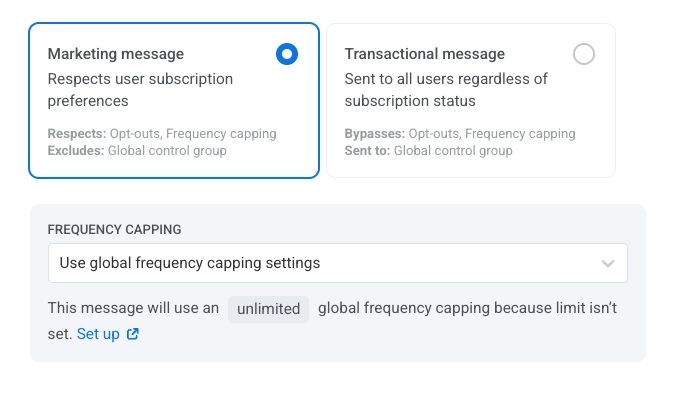
- Choose the message type:
- Marketing message: For campaigns and promos. All rules and limits apply. Respects: frequency capping and the silence period. Excludes: the control group users.
- Transactional message: For operational or service messages. Rules and limits don’t apply. Bypasses: frequency capping. Sent to: the control group users.
No message type is preselected. Until you choose one, the element shows a Message type not selected warning. If the element is reached only from an Audience-based entry, Marketing message is shown with a Default badge. Choose Transactional message if the message is a service one.
Learn more about the difference between marketing and transactional messages.
-
Configure frequency capping. Learn more.
-
Click Save to save the settings.
Validate and launch the journey
Anchor link to- Finish configuring the journey and run the pre-launch check to validate the journey.
- Click Launch campaign (top-right) to send the in-app message to users.