Meta Ads integration
Meta Ads integration lets you sync Pushwoosh audiences to your Meta ad accounts. Use it to target or exclude users in ad campaigns and add paid ads as another channel in your customer journey.
Use cases
Anchor link toUse this integration to:
- target high-value users in multiple channels to increase purchases or engagement
- retarget users who are less responsive in other channels
- build suppression audiences so loyal customers do not receive unnecessary ads
Prerequisites
Anchor link toBefore you connect Meta Ads, make sure:
- You have the Admin role in your Pushwoosh account. See Manage user access and permissions for how roles and permissions work.
- You have a Facebook Business Manager set up to manage your brand’s Facebook assets, including ad accounts, pages, and apps.
- You have an active Facebook Ad Account tied to your Business Manager.
- Your Facebook Business Manager admin has granted you either Manage Campaigns or Manage ad accounts permissions for the ad accounts you plan to use with Pushwoosh.
- You have accepted the ad account terms and conditions for those accounts.
- You have accepted Facebook’s Custom Audiences Terms for the Facebook ad accounts you plan to use with Pushwoosh.
Set up Meta Ads in Pushwoosh
Anchor link to-
In Pushwoosh, go to Settings > 3rd party integrations.
-
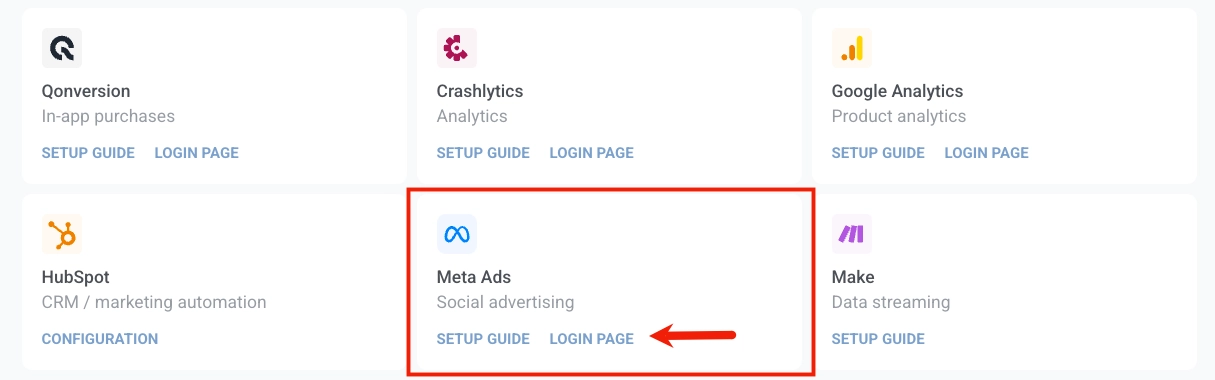
In the Meta Ads card, click Login page.
-
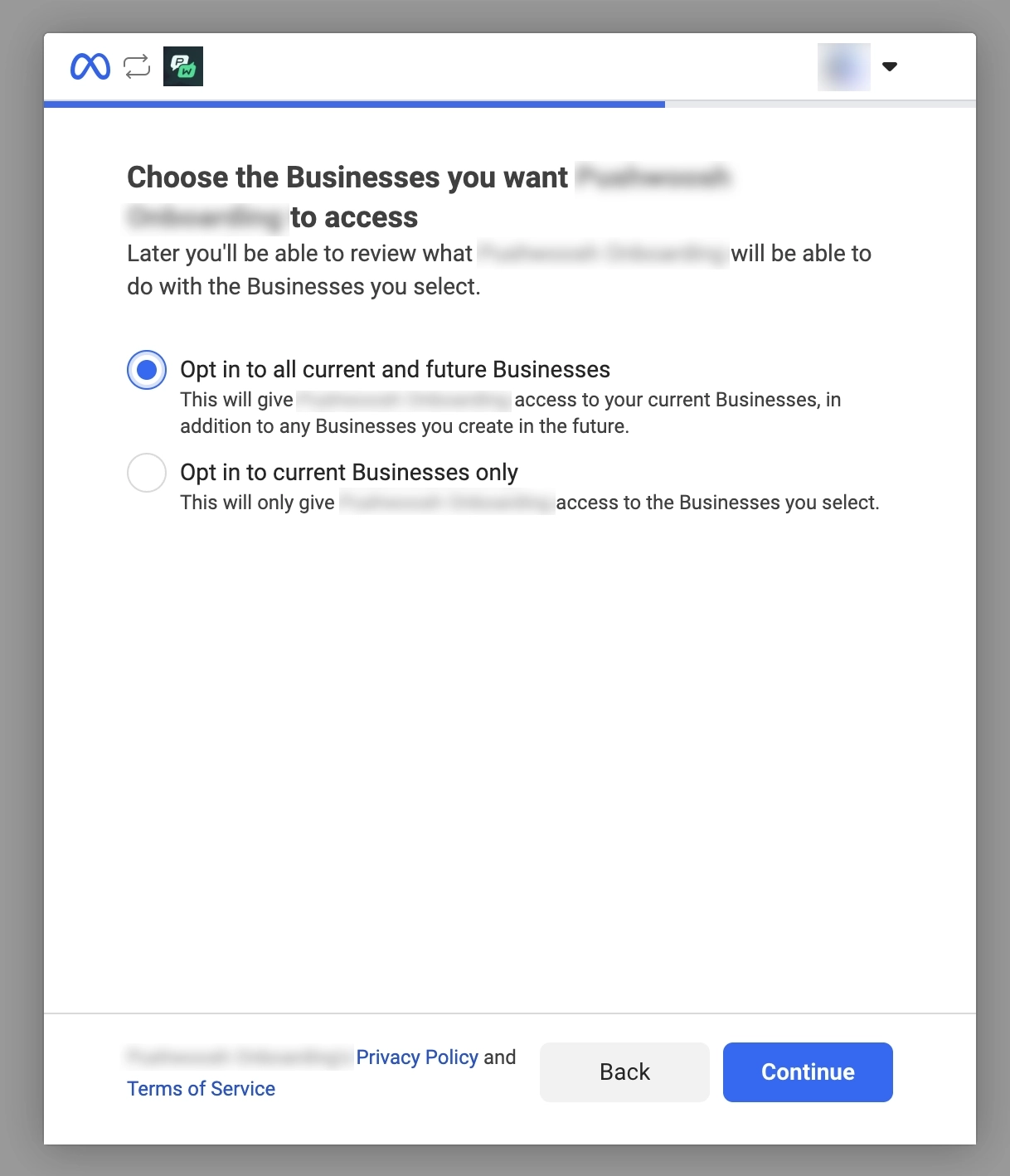
Sign in to your Meta account, then click Continue.
-
Select the ad accounts you want to connect.
-
Review the requested permissions for ad account and business access.
-
Click Save. Meta then shows a confirmation that your account is connected.
Review connection status
Anchor link toAfter setup, you will be redirected to the Meta Ads page in Pushwoosh.
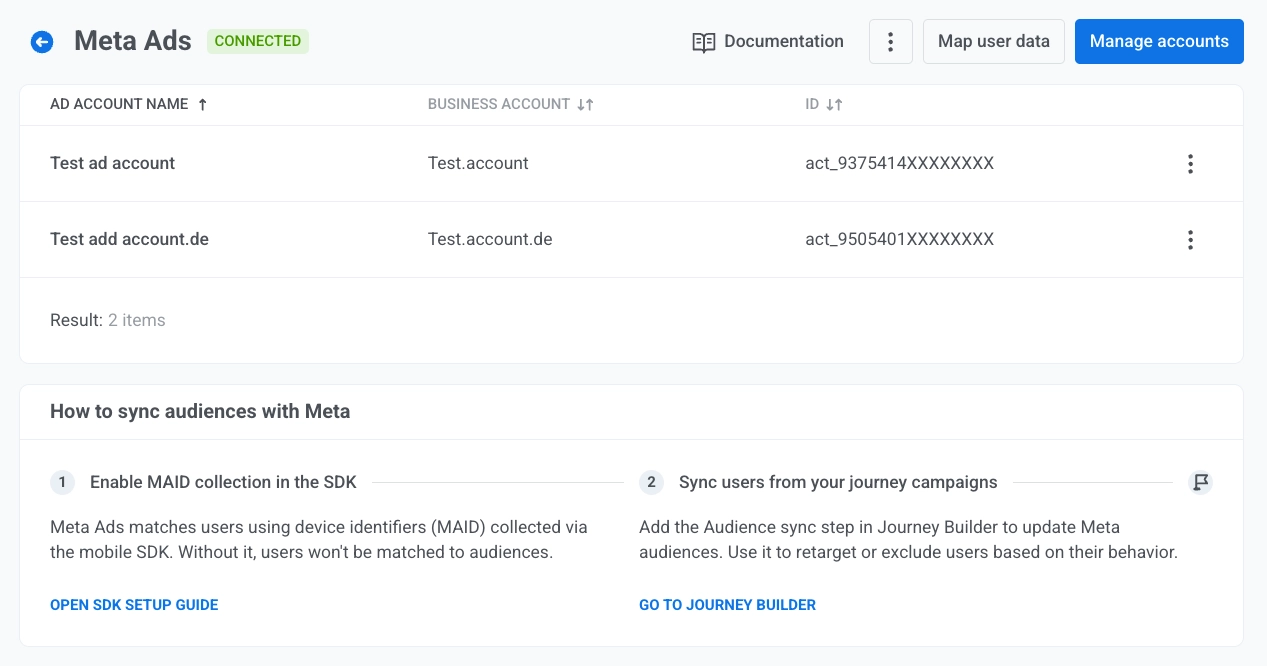
The ad accounts table lists each connected account with:
- Ad account name
- Business account
- ID
Open the three dots at the end of a row and choose Remove ad account to delete that ad account from the list in Pushwoosh.
Manage connected ad accounts
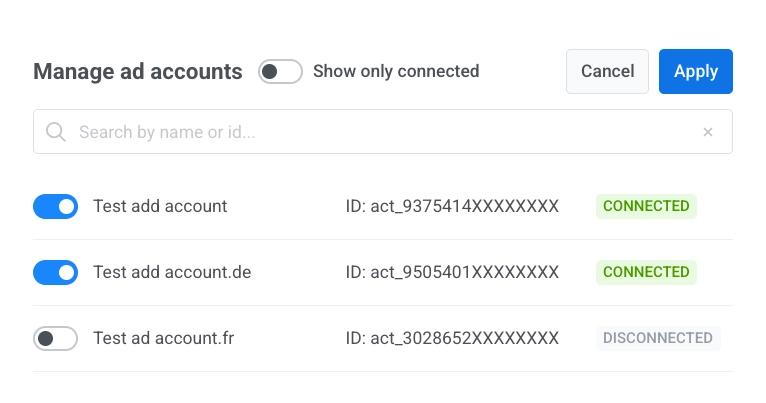
Anchor link toOn the Meta Ads page, click Manage accounts to open the dialog. Use the toggle on each row to include or exclude that ad account from the integration. Click Apply to save changes or Cancel to close without saving.
To adjust the list view:
- Turn Show only connected on or off to limit which rows appear.
- Type in Search by name or id… to find accounts in the list.
Map project tags to Meta fields
Anchor link toMapping user properties allows you to tell Pushwoosh which Meta user attributes should update which Tag name fields in your project. That way, when data comes from Meta, it is saved where you expect.
-
On the Meta Ads page, click Map user data.
-
For each Facebook field in the left column, choose a Tag name in your project from the control on the right. Map only the rows you need.
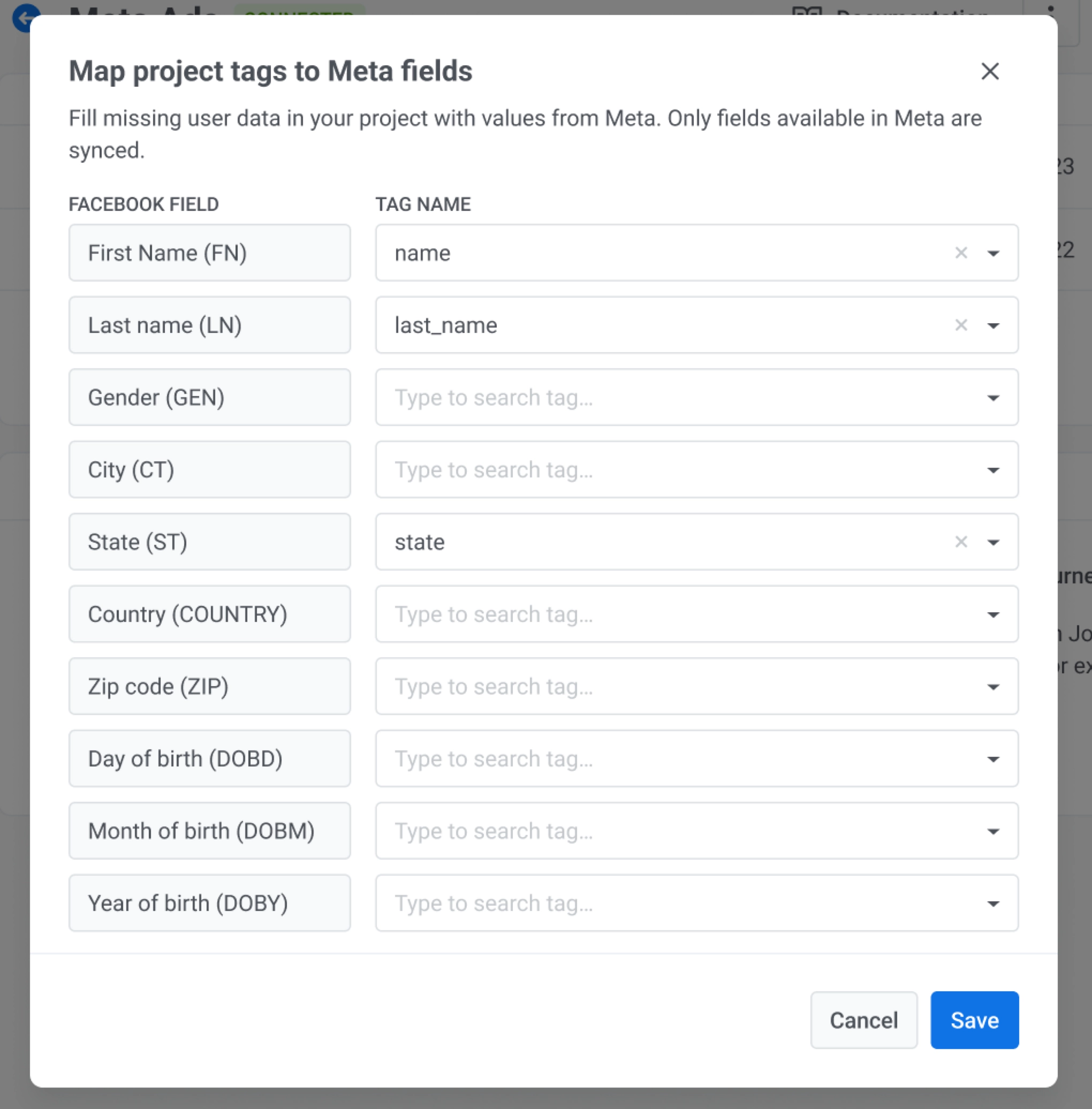
- Click Save to apply the mapping or Cancel to close without saving.
Enable MADID collection in the SDK
Anchor link toMeta Ads matches users using device identifiers (MADID) collected via the mobile SDK. The Pushwoosh SDK does not collect advertising identifiers (GAID on Android, IDFA on iOS) automatically. Both platforms require explicit user consent before the identifier can be read. In your application, request user consent, read the identifier when permitted, and pass the value to the SDK.
1. Add the dependency
implementation 'com.google.android.gms:play-services-ads-identifier:...'2. Declare the AD_ID permission (required for targetSdk ≥ 33)
Add this to your AndroidManifest.xml:
<uses-permission android:name="com.google.android.gms.permission.AD_ID"/>3. Retrieve the GAID and pass it to the SDK
getAdvertisingIdInfo must be called on a background thread:
String gaid = AdvertisingIdClient.getAdvertisingIdInfo(context).getId();
Pushwoosh.getInstance().setAdvertisingId(gaid);
To clear the stored value on the backend, pass null or an empty string:
Pushwoosh.getInstance().setAdvertisingId(null);Behavior notes:
- If the value has not changed since the last successful call, no network request is made.
- If the network request fails, retry on the next app launch.
- The call is ignored when
Pushwoosh.stopCommunication()is active. - The zero UUID (
00000000-0000-0000-0000-000000000000) is treated the same asnull— the stored MADID is cleared on the backend.
1. Add the usage description to Info.plist
Apple requires this key before showing the ATT permission dialog:
<key>NSUserTrackingUsageDescription</key><string>We use your advertising identifier to show you relevant ads.</string>2. Declare the tracking domain in your privacy manifest
If your app uses IDFA for tracking, Apple requires you to list the domains that receive tracking data in your privacy manifest (PrivacyInfo.xcprivacy). See TN3182 for the full requirements.
Set NSPrivacyTracking to true and add the Pushwoosh tracking domain to NSPrivacyTrackingDomains:
<key>NSPrivacyTracking</key><true/><key>NSPrivacyTrackingDomains</key><array> <string>tracking.svc-nue.pushwoosh.com</string></array>3. Request tracking authorization and pass the IDFA to the SDK
ATTrackingManager requires iOS 14 or later. If your deployment target is below iOS 14, wrap the call in an availability check.
The Pushwoosh SDK does not call ATTrackingManager. Request tracking authorization in your application, then pass the result to the SDK:
import AppTrackingTransparencyimport AdSupport
if #available(iOS 14, *) {    ATTrackingManager.requestTrackingAuthorization { status in        let idfa = status == .authorized            ? ASIdentifierManager.shared().advertisingIdentifier.uuidString            : nil        Pushwoosh.configure.setAdvertisingId(idfa)    }}
To clear the stored value on the backend, pass nil or an empty string:
Pushwoosh.configure.setAdvertisingId(nil)Behavior notes:
- If the value has not changed since the last successful call, no network request is made.
- If the network request fails, call
setAdvertisingIdagain on the next app launch. - The call is ignored when
Pushwoosh_ALLOW_SERVER_COMMUNICATIONis disabled. - The zero UUID (
00000000-0000-0000-0000-000000000000) is treated the same asnilor an empty string — the stored MADID is cleared on the backend.
Call
requestTrackingAuthorizationfrom your app’s main UI flow. Apple recommends doing this after showing your own explanatory screen, not immediately on launch.
How it works
Anchor link toOnce you call setAdvertisingId, the SDK sends the value to the Pushwoosh tracking endpoint as the madid field alongside the app code and device hardware ID. Pushwoosh uses this identifier to match your device records with Meta Ads audiences for synchronization.
Sync audiences in journeys
Anchor link toThe Audience sync point in Journey Builder links your journey to a Meta Custom Audience. Every time a user reaches that point, Pushwoosh asks Meta to either add them to the audience or remove them from it.
For example, you may use this to stop showing a webinar ad to users who already registered, so you don’t waste ad spend on people who don’t need to see it anymore.
To configure audience sync:
-
Open Journey Builder.
-
Add an Audience-based entry. In Audience source, choose a Pushwoosh segment or list that defines who enters this journey. For example, a segment Users with tag
webinar_registeredset totrue. Only those users will move through the journey and reach Audience sync. -
Add the Audience sync point.
-
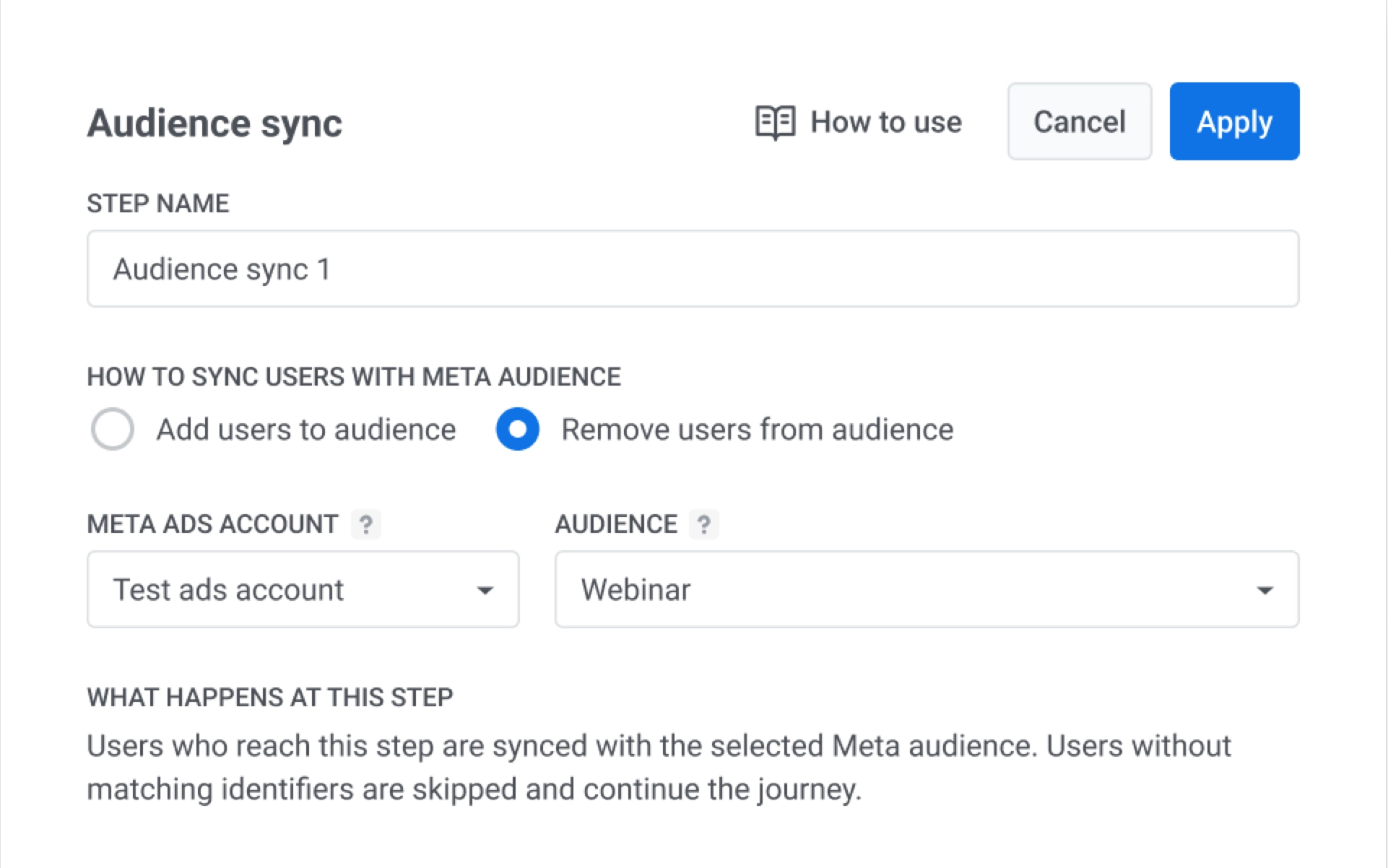
Under How to sync users info to the ad audience, pick one option:
- Add users to audience. Adds each user who reaches this step to the audience you select. For example, use this to start showing an ad to users who signed up but have not yet attended.
- Remove users from audience. Removes each user who reaches this step from that audience. In this example, select this option to stop showing the webinar ad to users who already registered.
-
In AD PLATFORM, choose Meta Ads. To sync to a Google Ads audience instead, see Google Ads integration.
-
In Meta Ads account, select the connected ad account.
-
In Audience, select the Meta audience, for example Webinar.
-
Click Apply to save the point or Cancel to close without saving.
-
Finish configuring the journey, then launch it.
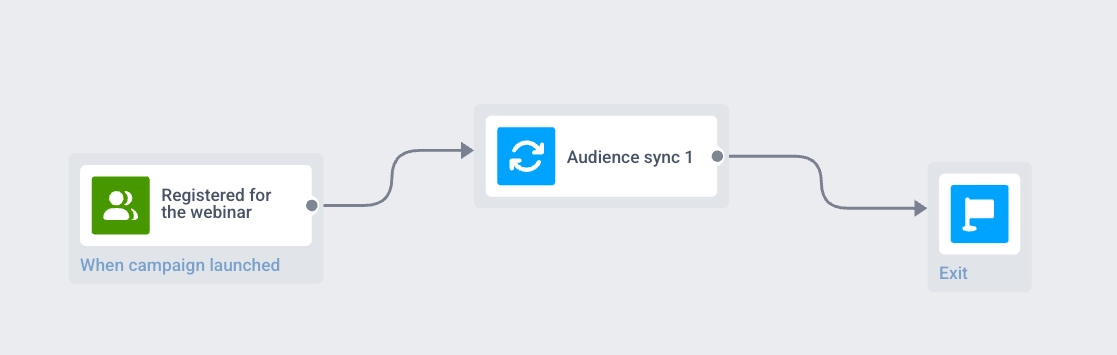
When those users reach Audience sync, they are removed from the Webinar audience in Meta, so they no longer see the webinar ad there.
Behavior and error handling
Anchor link toJourney processing depends on Meta account and audience availability:
- Meta updates the audience only when it can match the user from the data Pushwoosh provides. If Meta cannot match the user, the audience does not change for that user, and they continue in the journey.
- If a profile reaches the Audience sync point while the connected ad account is disconnected, the journey stops for that profile and Pushwoosh sends system and email notifications.
- If a selected audience is not found in Meta and the API returns an error, the journey stops for that profile and Pushwoosh sends system and email notifications.
Audience sync statistics
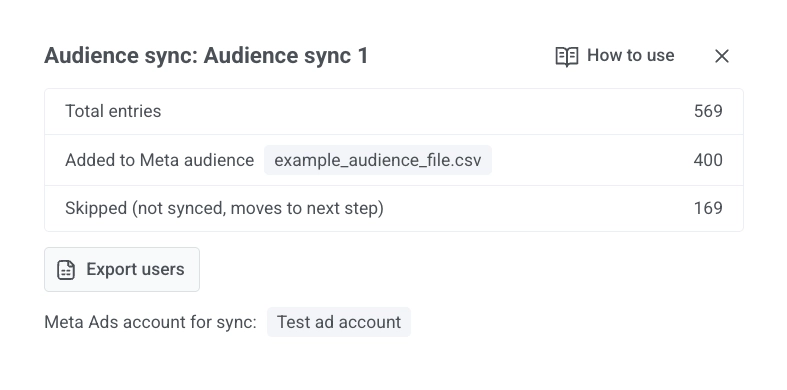
Anchor link toAfter launch, open statistics for the Audience sync step to see entry volume, adds and removals, and skipped profiles. For metric details, see Audience sync in Customer Journey statistics.