Gemini: generate text
Use Gemini: generate text to ask a Google Gemini model for a short piece of text mid-journey, then reuse it in a later push, email, or SMS. This point authenticates with its own Gemini API key. It doesn’t use any account-level integration configured elsewhere in Settings.
Typical uses:
- Personalize a message line: draft a one-line hook from a traveler’s tags, then drop it into the next push or email with Dynamic Content.
- Summarize before sending: turn a few tags, such as last order or browsing category, into a short natural-language line a template can display.
- Vary the wording: ask for a slightly different phrasing on each run so travelers don’t see identical text every time they pass through.
Configure the point
Anchor link to- Drag Gemini: generate text from the Integrations section of the left panel onto the canvas.
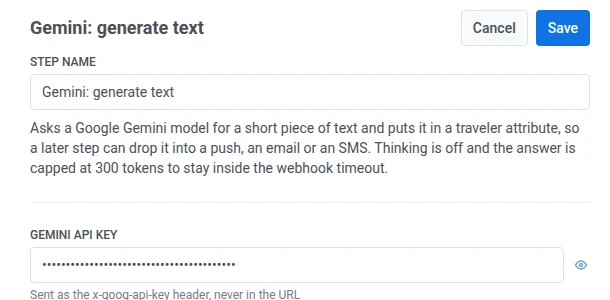
- Double-click the point and enter a Step Name.
- In Gemini API key, enter your Gemini API key. It’s stored masked, like a webhook secret header.
-
In Model, choose the Gemini model to use. Defaults to gemini-2.5-flash-lite.
- gemini-2.5-flash-lite: the default.
- gemini-2.5-flash: costs more per token than Flash Lite.
Gemini 2.5 Pro isn’t offered here: it can’t turn off its own reasoning step, so it isn’t guaranteed to finish within the point’s 10-second timeout.
Every call bills your own Gemini key for every traveler who reaches this step.

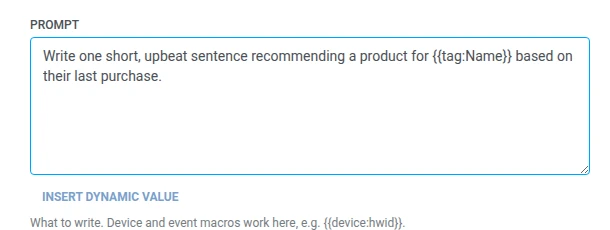
- In Prompt, write what you want the model to generate. It takes the same macros as any Webhook body, for example
{{device:hwid}}.
- Click Save.
Reasoning is turned off and responses are capped at about 300 tokens (roughly a short paragraph) to keep the request inside the Webhook timeout. Ask for something that short. A longer or more detailed prompt doesn’t get more room to answer.
Response
Anchor link toThe traveler continues to whatever step you connect next on the canvas.
Attributes after the step runs
Anchor link to| Attribute | What it holds |
|---|---|
llm_text | The generated text |
llm_input_tokens | Token count for the request’s input |
llm_output_tokens | Token count for the request’s output |
How to use llm_text in later steps
Anchor link to- Drop it into a push, email, or SMS: use Dynamic Content.
- Branch on it with Condition split: save it to a Tag first with Update user profile, then split on that Tag.
Failures and unexpected responses
Anchor link toA failed request drops the traveler from the journey. See Errors and failed requests.
A response that comes back but isn’t what you expected keeps the traveler in the journey:
- Text cut off at the 300-token cap:
llm_textholds the truncated text. - Model declined to answer:
llm_textholds whatever it replied with instead.
Example scenario: Drafting an order follow-up tip in SMS with Gemini
Anchor link toA team wants an order-confirmation SMS to include a short, product-specific care tip instead of just the order number.
- Add Gemini: generate text right after the step that confirms the order. In Prompt, write
Write one short care tip for someone who just bought {{tag:Last Purchased Category}}. - Add a Send SMS step right after it, using Dynamic Content to insert
llm_textinto the SMS text.
Once this runs, each order confirmation includes a tip relevant to what the traveler bought, instead of the same line for every order.