Message history
Pushwoosh provides a convenient way to monitor your past push notifications and emails for one year.
From Message History you can search and filter the list, edit or cancel scheduled one-time messages, and open detailed statistics for any message.
Message list
Anchor link toTo access Message History, go to Campaigns → One-time messages. Use the search bar to filter messages by campaign name, text, notification ID or code. You can enter the full value or a part of it.
Filter by message type
Anchor link toAbove the list, use the message type dropdown to quickly narrow the messages shown:
- All: shows both marketing and transactional messages (default).
- Marketing: shows only marketing messages (campaigns and promos).
- Transactional: shows only transactional messages (operational or service messages).
Learn more about marketing and transactional messages
Filter by date range
Anchor link toUse the date range filter in the table header to show only messages from a specific period.
- Open the Sent / Created dropdown and choose which date the range applies to:
- Sent: filter by send date.
- Created: filter by creation date.
- Use the calendar to select the start and end dates.
By default, Message History shows messages from the last 30 days. You can set any range of up to 90 days within your data retention window (typically one year).
If your browser’s timezone doesn’t match your account timezone, Message History shows a banner offering to switch your account to the browser’s timezone. Closing the banner hides it for that browser going forward.
Below the banner, a label names the account timezone the list’s dates use, for example Dates in EDT (UTC-04:00). For a zone without a common letter abbreviation, such as Asia/Karachi, the label shows the UTC offset instead, for example Dates in UTC+05:00.
Sort the list
Anchor link toIn the toolbar above the table, to the right of the date range filter, click the sort dropdown to order the list. The button label shows the active sort field (for example, Last modified).
- Last modified: sort by last edit date (default).
- Created: sort by creation date.
- Send date: sort by send date.
- Recipients: sort by recipient count.
- Opened: sort by unique opens.
- Open rate: sort by open rate.
- Errors: sort by error count.
Advanced Filters
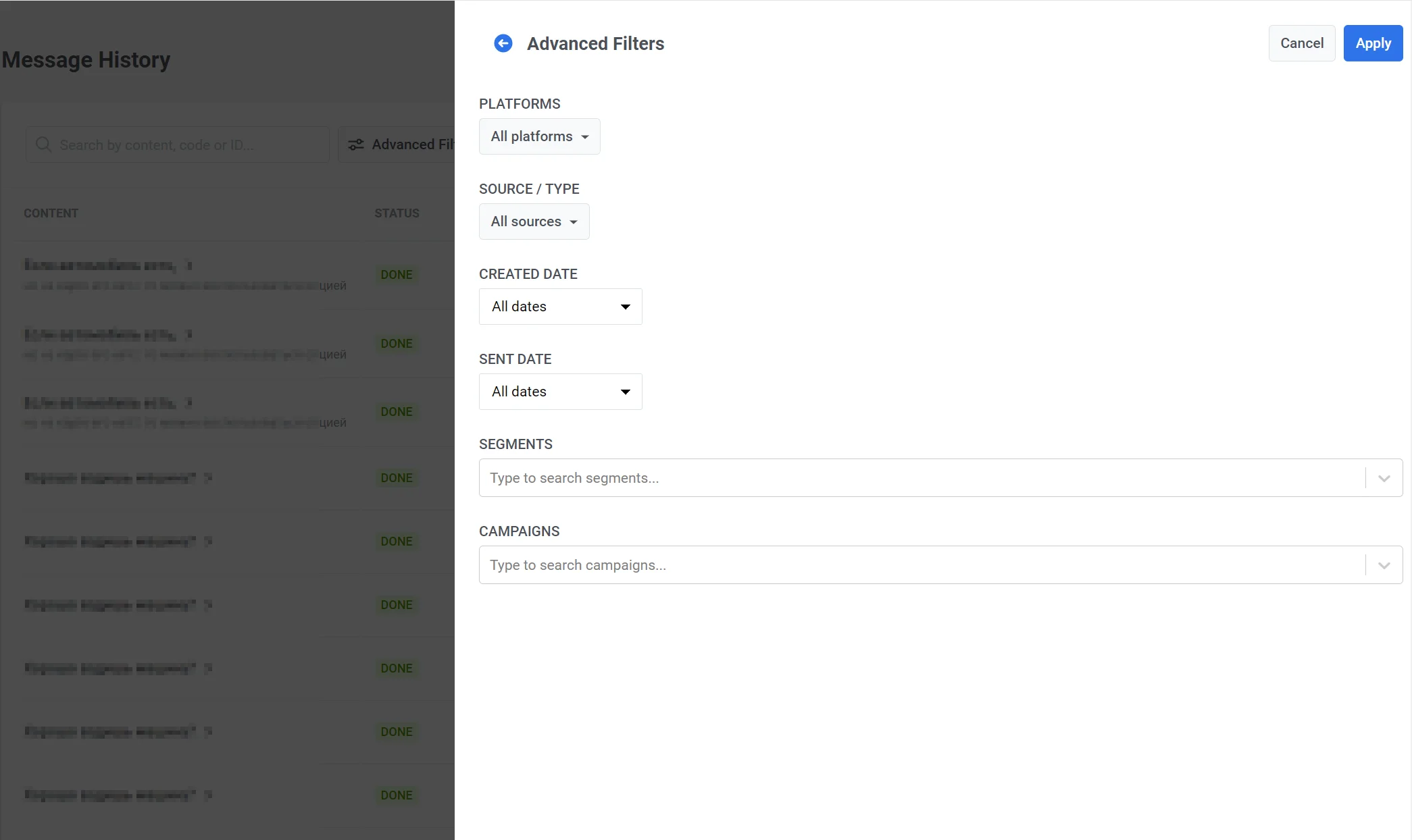
Anchor link toUse Advanced Filters to specify platforms, message source (API, Control Panel, AutoPush, Geozone, SMS API, WhatsApp API, Test email, and others), segments, and campaigns.
Find a Live Activity by its ID
Anchor link toTo see all messages of one Live Activity (a lock-screen card that updates in real time) started through the API, enter its full live_activity_id in the search bar. The ID is case-sensitive and can’t contain spaces.
The list shows that Live Activity’s messages within the selected date range, regardless of the message type filter. If you select sources in Advanced Filters, include Live Activity API. Otherwise, or if no Live Activity matches the ID, the search works as usual.
Message statuses
Anchor link toThe Status column shows the current state of each message:
| Status | Description |
|---|---|
| CREATING | Message was just created and is being prepared. |
| SCHEDULED | Send is scheduled for the future: the send date and time haven’t arrived yet. This includes delayed messages and timezone-based or Best time sends that haven’t started. You can edit or cancel the message. |
| PENDING | The message is queued to send now (the send time has already arrived), or sending has just started. This is a short, transient state that is rarely visible. |
| WAITING | The message is being delivered in subscribers’ local timezones — Pushwoosh sends it hour by hour as each timezone reaches the scheduled time, and the status stays Waiting until all timezones are covered. |
| PROCESSING | Message is being sent. |
| DONE | Sending completed successfully. |
| FAIL | Sending failed. Message stats shows the reason. See Why a message failed. |
| CANCELED | Scheduled message was canceled before send (e.g. via Delete message). |
Why a message failed
Anchor link toWhen a message has the FAIL status, its Message stats Overview tab shows dashes instead of numbers and a notice with the reason the send stopped. The notice text depends on the reason:
| Notice in Message stats | What happened | What to do |
|---|---|---|
| This message was not sent: its audience filter could not be built. Check the segment conditions | Pushwoosh could not build the audience from the segment. | Open the segment and check its conditions, then send the message again. |
| This message was not sent: its segment no longer exists | The segment the message targets was deleted. | Choose an existing segment and send the message again. |
| This message was not sent: the application of its segment no longer exists | The application the segment belongs to was deleted. | — |
| This message was not sent: its email category was deleted | The email category set on the message was deleted. | Choose an existing email category and send the email again. |
| This message was not sent: its send date is missing or invalid. Schedule it again | The message had no valid send date when Pushwoosh started processing it. The same notice appears when Best time to send is on and no best send time was calculated for the message. | Schedule the message again. |
| This message was not sent because of an internal error. Contact support and share the message code | The send stopped on the Pushwoosh side, or Message stats has no specific text for the reason. Messages that failed with no recorded reason also show it. | Contact Pushwoosh Support with the message code. |
If sending stopped after part of the audience was already reached, Message stats shows the numbers collected so far with the notice Sending stopped because of an error, so this message’s numbers are incomplete.
A test email shows a grey Test badge next to its status, so test sends are never mistaken for a live campaign.
Edit or cancel scheduled one-time messages
Anchor link toOnly messages with status Scheduled (the send time hasn’t been reached yet) can be edited or canceled. You can do this from Message History or from Campaigns → One-time messages.
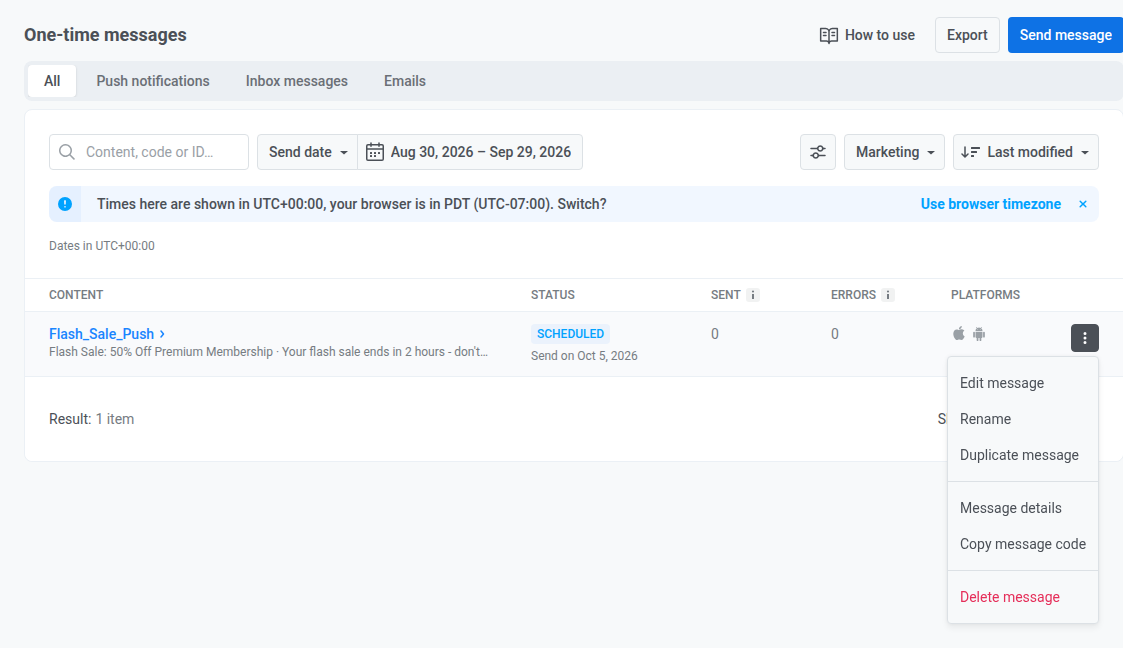
Open the actions menu (⋮) for the message:
- Delete message: cancels the scheduled delivery. Status becomes Canceled.
- Edit message: opens the campaign form so you can change the message. At the top of the form, below the step indicator, Last edit shows the date, time, and user who last changed the message.
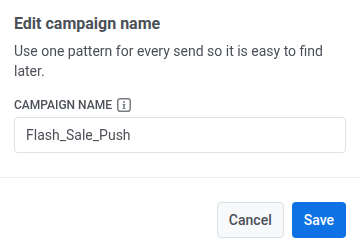
- Rename: opens a small dialog to set or change the campaign name, without reopening the full edit form. Same 255-character limit as the Campaign name field you set at send time. Clear the field and save to remove the name. The row reverts to its previous default title.
- Copy message code: copies the message code to your clipboard. Available for any message in the list.
Clicking Rename opens a dialog to set or change the campaign name:
View detailed statistics
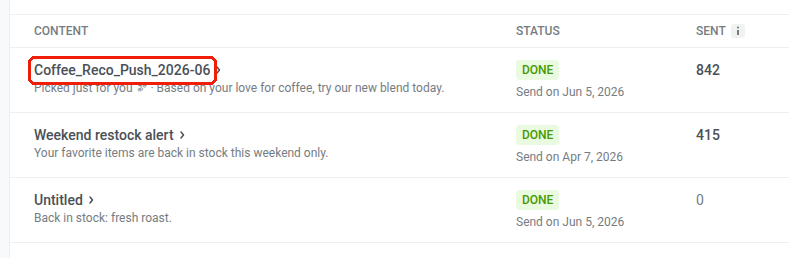
Anchor link toClick the message name in the Content column to open Message stats for that send (Overview, then Clicks for an email, then Timeline and Errors). A message deleted through the API after it was already sent is deleted for good, with no way back. It may still appear in the list under its last status, but you can no longer search for it by message code or ID or open its Message stats.
If a message has a Campaign name (set in the Confirm sending dialog when it was sent or scheduled), the Content column uses it as the row’s bold title, with the message’s own title, subject line, template, or preset name shown on the grey line below. Without a campaign name, the row falls back to its previous default: for an SMS sent from an SMS preset, the Content column names the row after the preset (instead of Untitled) and shows the preset’s text below the row name.
Opening a row’s Message stats shows Message code and Export stats buttons at the top of the page, regardless of whether the row has a campaign name.

For a message that’s still Scheduled, the header also shows an actions menu (⋮) next to Message code and Export stats, with a single Rename option. It opens the same dialog as Rename in the list’s actions menu. Once a campaign name is set, the page title adds it after a colon, for example Message stats: Flash_Sale_Push instead of plain Message stats.

Export message history
Anchor link toTo export message history data, click the Export button in the top-right corner of the Message History page. In the export dialog, select which fields to include. Once the export is ready, you will receive a notification with a Download CSV link.
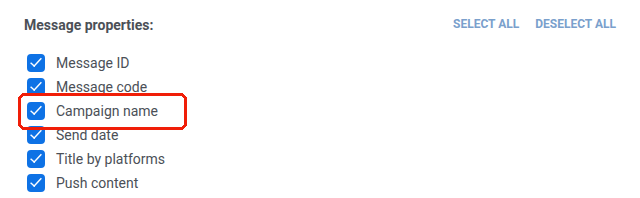
The export includes only the messages matching your current message type filter and other applied filters. For example, exporting with the Transactional filter active produces a CSV of transactional messages only. Exporting while the search bar holds a Live Activity ID produces a CSV of that Live Activity’s messages.
Message details
Anchor link to| Field | Description |
|---|---|
| ID | Unique numeric identifier of the message. For transactional messages this field is 0; use Message code to identify the message instead. |
| Message code | Message code used for tracking or API interactions. |
| Campaign name | The campaign name set for the message, if any. Empty when none was set. |
| Send date | Date and time when the message was sent. |
| Content | Notification title and body text. |
| Applications | Application or application group the message was sent from. |
| Status | Final delivery status. |
| Platforms | List of platforms the message was targeted to (e.g. iOS, Android). |
| Source | How the message was created: API, Control Panel, Customer Journey, Test email, etc. |
| Filter code | Code of the audience filter used for targeting. |
| Filter conditions | Conditions expression of the audience filter. |
| Filter name | Name of the audience filter. |
| Subscription segments | Subscription-based segments included in the send. |
Delivery and engagement metrics
Anchor link to| Field | Description |
|---|---|
| Total sent | Total number of send attempts dispatched to the provider. |
| Total recipients | Number of sent messages that could be displayed on the recipient’s device (total sent minus sends to devices that could not receive the message). |
| Total delivered unique | Number of unique delivery confirmations — each device counted once even if it received retries. |
| Total delivered | Total delivery confirmations including retries and repeated deliveries to the same device. |
| Total opened unique | Number of unique users who opened the message. (previously Total opened) |
| Total opened | Total open events, including repeated opens by the same user. (previously Total all opened) |
| Total errors | Number of send-time errors returned by the provider (e.g. invalid token, message rejected). |
| Total clicked unique | Number of unique users who clicked at least one link in the message. Requires link tracking to be enabled. (previously Total clicks) |
| Total clicked | Total link click events across all users, counting repeated clicks. Requires link tracking to be enabled. (previously Total all clicks) |
| Total unsubscribed | Number of unsubscribe actions triggered in response to this message. |
Learn more about: