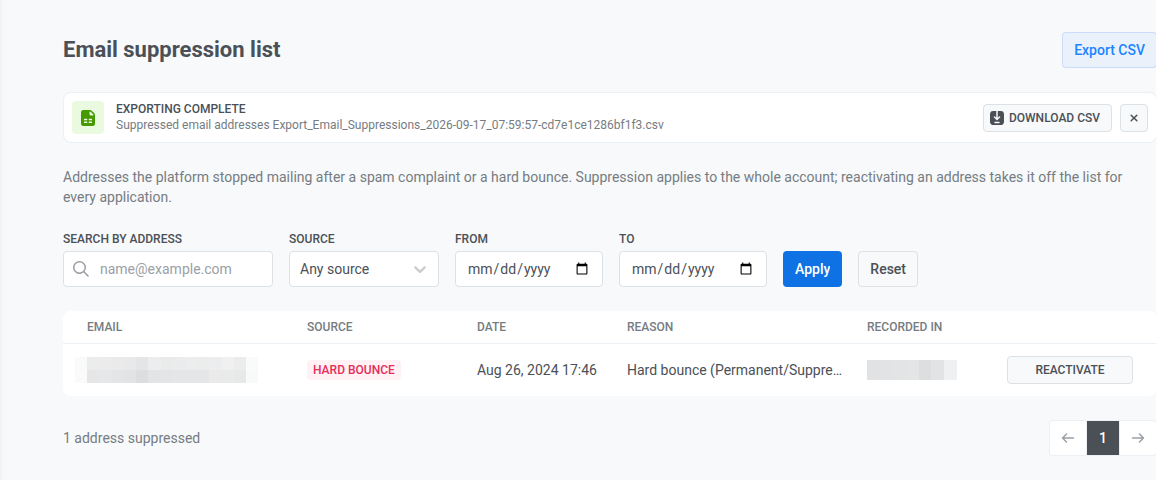
Email suppression list
The Email suppression list shows every email address Pushwoosh stopped mailing after a spam complaint or a hard bounce, across your whole account. Reactivating an address here takes it off the list for every project, not just the one you opened it from.
To open the list, go to Settings, then select Email suppression list. Opening the list requires the Personal data permission in your role.
Filter and search the list
Anchor link toUse the filters above the table to narrow the list:
- Search by address: an exact match on one email address, not a partial search.
- Source: Any source, Spam complaint, or Hard bounce.
- Reason: Any reason or one bounce reason, such as Mailbox full. Reasons apply to hard bounces only, so this filter is unavailable when Source is set to Spam complaint.
- From and To: limit results to a date range.
Click Apply to run the filters, or Reset to clear them.
Review suppressed addresses
Anchor link toThe table lists matching addresses, newest first, with these columns:
- Email: the suppressed address.
- Source: Spam complaint or Hard bounce.
- Date: when the suppression occurred.
- Reason: what caused the suppression.
- A hard bounce shows the bounce reason, such as Address doesn’t exist, followed by the SMTP code the recipient’s mail server returned, such as
5.1.1. See Bounces by reason for what to do about each reason. - A spam complaint, or a hard bounce with no reason assigned, shows a human-readable summary of the provider’s feedback.
- Long text is truncated in the table. Hover over the reason to read the full provider response.
- A hard bounce shows the bounce reason, such as Address doesn’t exist, followed by the SMTP code the recipient’s mail server returned, such as
- Recorded in: the project the suppression was recorded in.
The list is paginated at 50 addresses per page. The total count of suppressed addresses appears below the table.
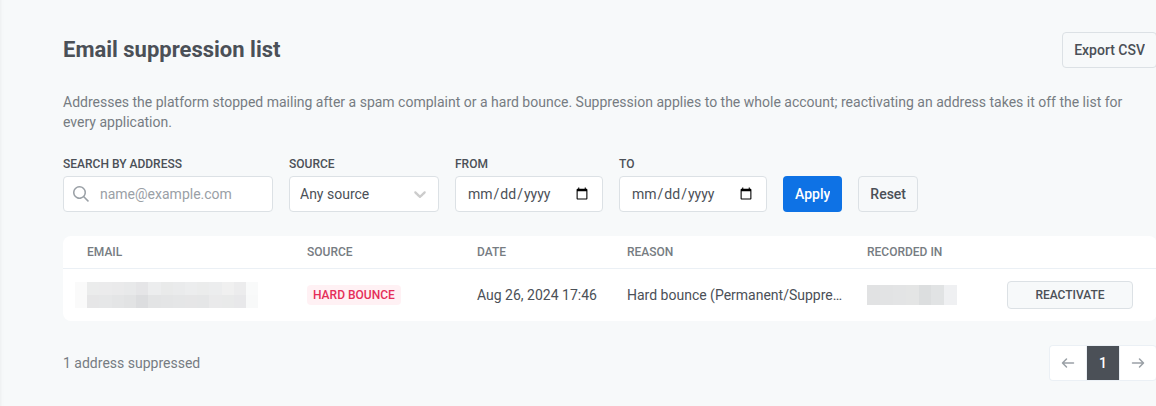
Reactivate an address from the list
Anchor link to- Click Reactivate in the address’s row.
- If the address was suppressed for a spam complaint, check the box confirming the recipient has renewed their consent. This is required for spam complaints, and the reactivation can’t proceed without it. A hard bounce reactivation skips this step.
- Optionally, add a Comment (up to 255 characters).
- Click Reactivate.
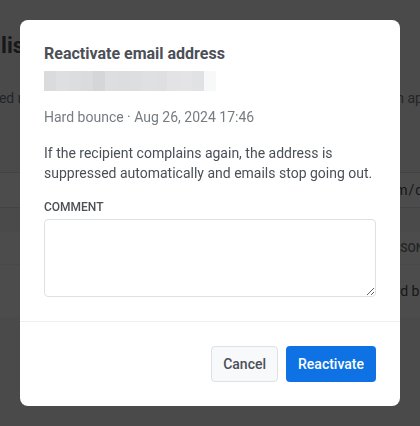
This is the same reactivation as on a subscriber’s profile: it clears the Bounced Email tag, re-registers the email device if a complaint had removed it, and is logged internally so support can look up who reactivated an address and when. See Reactivate a suppressed email address for these details.
Export the list as a CSV file
Anchor link to- Filter the list to the addresses you want to export.
- Click Export CSV at the top of the page.
The file contains the date, email, source, reason, recorded_in, bounce_category, and smtp_code columns. For spam complaints, bounce_category and smtp_code are empty.
Pushwoosh prepares the file in the background. A banner appears at the top of the page while the export is in progress, and a Download CSV button appears in it once the file is ready.