Google Analytics integration
Send the same user ID to Google Analytics 4 and Pushwoosh, and both tools treat a person who visits your website or app as one user. You can then message the users you analyze in Google Analytics, and build Pushwoosh segments from Google Analytics data.
Integration overview
Anchor link toIntegration type
Anchor link toDestination: Google Analytics audiences and the Google Analytics BigQuery export become Pushwoosh segments. The user ID goes from your website or app to each tool separately. Pushwoosh doesn’t send data to Google Analytics.
Prerequisites
Anchor link to- A Pushwoosh account and the Pushwoosh SDK (Web, Android, or iOS) on the website or in the app you send the user ID from.
- A Google Analytics 4 property that collects data from the same website or app.
To import Google Analytics audiences, you also need:
- A Google Cloud service account and its JSON key. See Create and delete service account keys.
- The Google Analytics Data API and Admin API enabled in that service account’s project.
- The Viewer role for the service account on the Google Analytics property. See Add, edit, and delete users and user groups.
To query the BigQuery export, you also need:
- The Google Analytics 4 property linked to BigQuery. See Set up BigQuery Export.
- A service account key with the BigQuery Data Viewer and BigQuery Job User roles. See BigQuery roles and permissions.
How does the integration work?
Anchor link toPushwoosh matches users by their ID:
- Your website or app sends the same user ID to Google Analytics and to Pushwoosh.
- Pushwoosh reads user IDs from a Google Analytics audience or from your BigQuery export.
- A user joins the segment when their ID matches a Pushwoosh User ID.
The segment refreshes differently for each source:
- A segment from an audience refreshes about once a day while you use it.
- A segment from BigQuery reflects activity up to the previous day.
Setting up the integration
Anchor link toSetting up has two parts. First, your developers send the user ID from your website or app. Then you build a segment from Google Analytics data in the Control Panel.
- With your developers, choose the user ID.
- Your developers send it to Google Analytics and to Pushwoosh from your website or mobile app.
- Optionally, build a Pushwoosh segment from Google Analytics data. You can then use it like any other segment.
Send the user ID to Google Analytics and Pushwoosh
Anchor link toYour developers do this part. Share the sections below with them.
Choose the user ID
Anchor link toUse an identifier your own system already has for each user, such as the account ID from your database. The same value goes to Google Analytics as its user ID and to Pushwoosh as the User ID.
Set the ID at the moment the user logs in or is otherwise identified.
Send the user ID from your website
Anchor link toPass the ID to Google Analytics in the user_id parameter of your Google tag. If you use Google Tag Manager, set the user_id field in your Google tag configuration instead. See Send user IDs in the Google documentation.
gtag('config', 'G-XXXXXXXXXX', { 'user_id': 'USER_ID'});Pass the same ID to Pushwoosh with the Web Push SDK:
Pushwoosh.push((api) => { api.registerUser('USER_ID');});Send the user ID from your mobile app
Anchor link toMobile apps send data to Google Analytics 4 through Firebase. Set the ID with Firebase Analytics setUserId (see Set a user ID in the Firebase documentation), and set the same value with the Pushwoosh SDK.
Android
Anchor link toFirebaseAnalytics.getInstance(context).setUserId("USER_ID");Pushwoosh.getInstance().setUserId("USER_ID");Analytics.setUserID("USER_ID")Pushwoosh.sharedInstance().setUserId("USER_ID")Create a segment from Google Analytics data
Anchor link toYou do this part in the Control Panel, after your developers send the user ID. Pushwoosh can turn Google Analytics data into a segment in two ways, both through external segments:
- Import a Google Analytics audience: pick an audience you already built in Google Analytics. No SQL and no BigQuery needed.
- Query the BigQuery export: write your own SQL over the raw events Google Analytics exports to BigQuery, for conditions an audience can’t express.
Import a Google Analytics audience
Anchor link toAsk your developer or Google Cloud administrator to do these steps in Google Cloud and Google Analytics:
- Prepare a service account and its JSON key. See Create and delete service account keys in the Google Cloud documentation.
- In the Google Cloud project of the service account, enable the Google Analytics Data API and the Google Analytics Admin API.
- In Google Analytics, go to Admin → Property access management and add the service account email with the Viewer role. A role granted in Google Cloud IAM doesn’t give access to Google Analytics.
Then do these steps in the Control Panel:
-
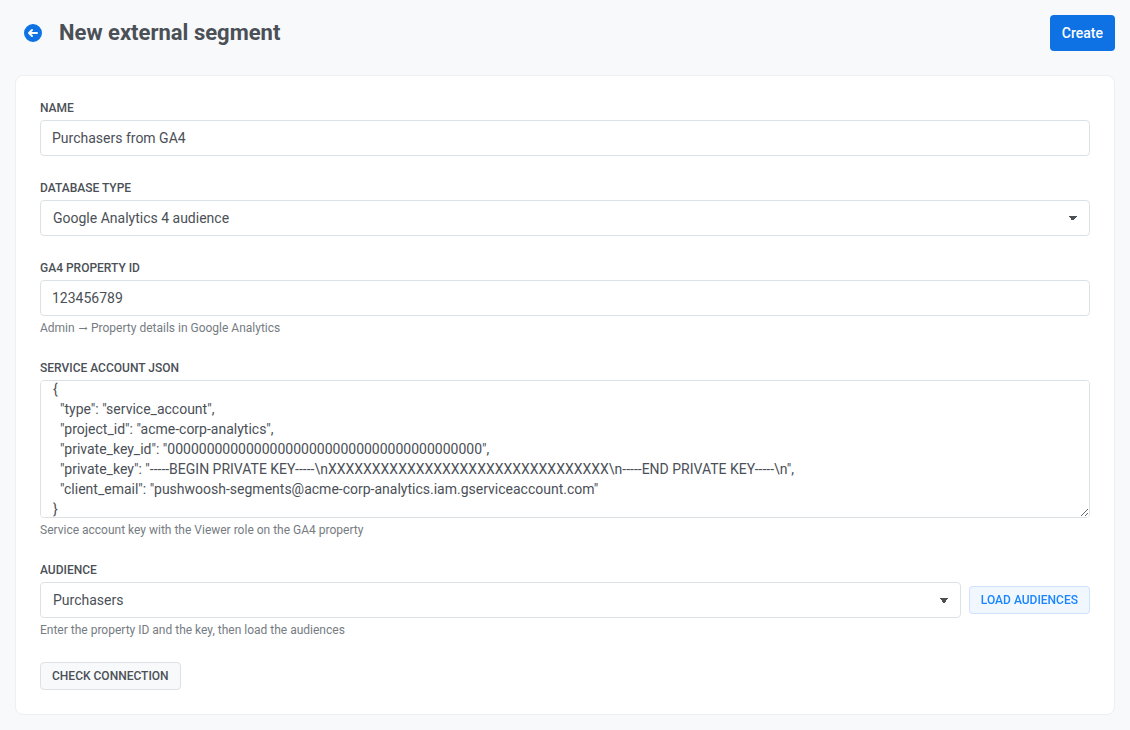
Create an external segment with Database type set to Google Analytics 4 audience.
-
Enter the GA4 property ID. You can find it in Google Analytics under Admin → Property details.
-
Paste the JSON key from the first list into Service account JSON.
-
Click Load audiences and choose the Audience.
-
Click Check connection.
-
Click Create.
Pushwoosh refreshes the segment when it reads the whole segment, for example when you send a campaign or journey to it or calculate its size:
- If the data is less than 24 hours old, Pushwoosh uses it as is, because Google Analytics updates audience membership about once a day.
- If it’s older than 24 hours, Pushwoosh uses the current data and refreshes the segment in the background.
- If it’s older than 72 hours, Pushwoosh waits for the refresh to finish.
You can’t refresh the segment more often than once a day. If it hasn’t been refreshed for more than a day, calculate the segment size some time before the send. This starts the refresh in the background, so the send uses fresher data.
Query the BigQuery export
Anchor link toIf you export your Google Analytics 4 data to BigQuery, you can select users with any SQL condition over their events, for example everyone who made a purchase in the last 30 days.
Ask your developer or Google Cloud administrator to do these steps in Google Cloud and Google Analytics:
-
Link your Google Analytics 4 property to a BigQuery project and turn on the daily export. Follow Set up BigQuery Export in the Google documentation.
Google Analytics then writes each day of events to a table named
events_YYYYMMDDin a dataset namedanalytics_<property ID>. The user ID you sent in the previous sections is in theuser_idcolumn. -
Create a service account key with the BigQuery Data Viewer and BigQuery Job User roles. Check connection and Check query run a test query job in your project, so they fail without BigQuery Job User.
Then, in the Control Panel, create an external segment with Database type set to Google BigQuery. Enter the service account key for the connection and a query that returns the user IDs of the users you want.
For example, this query returns users who made a purchase in the last 30 days. Replace my-project with your Google Cloud project ID and analytics_123456789 with your dataset name:
SELECT DISTINCT user_idFROM `my-project.analytics_123456789.events_*`WHERE event_name = 'purchase' AND user_id IS NOT NULL AND _TABLE_SUFFIX >= FORMAT_DATE('%Y%m%d', DATE_SUB(CURRENT_DATE(), INTERVAL 30 DAY))The segment reflects activity up to the previous day, because Google Analytics exports data once a day.
How do you know that the integration is working?
Anchor link to- User ID: in Pushwoosh, go to Audience → User Explorer and search by User ID for an ID you sent to Google Analytics. If the user is found, both tools have the same ID.
- Segments: on Audience → External Segments, the segment’s status is valid. To see how many users matched, check the segment size.
Troubleshooting
Anchor link toLoad audiences or Check connection shows an error
Anchor link toBoth buttons sign in with the service account key and read the property’s audience list, and the form shows the error Google Analytics returns. Check that:
- Service account JSON is a service account key. Other Google credential files are rejected.
- GA4 property ID is the number from Admin → Property details.
- The service account has the Viewer role in Google Analytics Admin → Property access management. A role granted in Google Cloud IAM doesn’t count.
- The Google Analytics Admin API is enabled in the service account’s Google Cloud project.
The audience list is empty
Anchor link toThe property has no audiences yet. Create one in Google Analytics under Admin → Audiences, then click Load audiences again.
Nobody gets into the segment
Anchor link to- Make sure the Google Analytics Data API is enabled. Check connection doesn’t test it, but Pushwoosh needs it to read audience members.
- Make sure your website or app sends the same user ID to Google Analytics and to Pushwoosh. Only users whose Google Analytics user ID matches a Pushwoosh User ID get into the segment. Users Google Analytics knows only by its anonymous client ID don’t get in.
Check connection or Check query fails for BigQuery
Anchor link toBoth checks run a test query job in your Google Cloud project without reading any data. Check that:
- The service account has both the BigQuery Data Viewer and BigQuery Job User roles. Without BigQuery Job User, neither check can run.
- The query uses your project ID and the
analytics_<property ID>dataset name, and the export has already written at least one dailyevents_YYYYMMDDtable. - The query returns exactly one column, named
user_id.