Send one-time WhatsApp messages
To send a one-time WhatsApp message in Pushwoosh, navigate to the Campaigns section, select One-time messages, and click Send message > WhatsApp.
Select WhatsApp content
Anchor link toIn the Content step, choose an approved WhatsApp template from the dropdown, or select Custom message at the top of the list to write your own text. The preview on the right shows the message as the recipient sees it.

To change the order of templates in the dropdown, click the sort button above it. The dropdown is sorted by Name A→Z until you pick another order, and Pushwoosh remembers the order you pick and uses it in every WhatsApp template dropdown, in one-time messages and journeys alike.
Write a custom message
Anchor link toA custom message is free-form text you write in the campaign itself, without a template. WhatsApp delivers free-form text only inside the 24-hour customer service window opened by the user’s last inbound message, so a custom message goes only to contacts whose window is still open.
To write a custom message:
- In the template dropdown, select Custom message.
- Enter the text in Message text. You can personalize it with user data and add emoji. The text can be up to 4096 characters.
- Optionally, add an attachment in Attachment URL. Enter a public https link, or click the attachment icon to choose an image from your media storage.
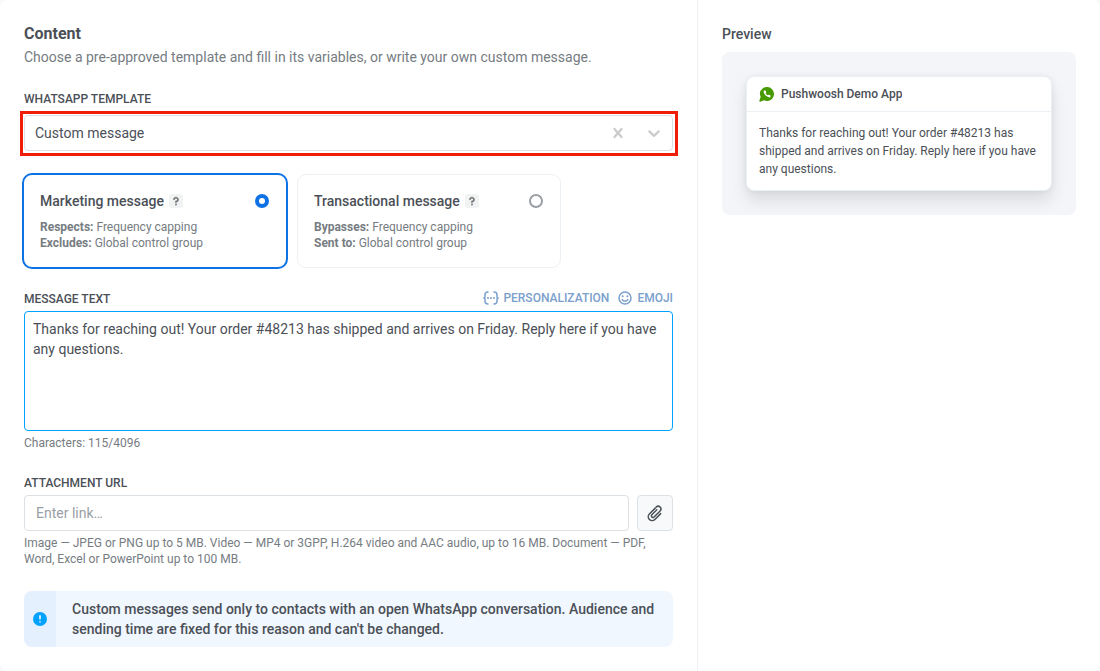
With an attachment, the text is sent as its caption and can be up to 1024 characters. The link must end with a supported extension:
- Image: JPEG or PNG, up to 5 MB. Media storage offers images only and rejects files over 5 MB.
- Video: MP4 or 3GPP, up to 16 MB.
- Document: PDF, Word, Excel, PowerPoint, or TXT, up to 100 MB.
WhatsApp downloads the file from the link itself. If the link isn’t publicly accessible or the file doesn’t meet these requirements, the message isn’t delivered.
When you select Custom message, the audience and the sending time are fixed. The campaign goes to the WhatsApp: 24h window open audience and is sent immediately. See Select the audience and Schedule WhatsApp message.
Configure template variables
Anchor link toIf the selected template contains placeholders in the header, body, or a button URL, configure a value for each one before you can proceed.
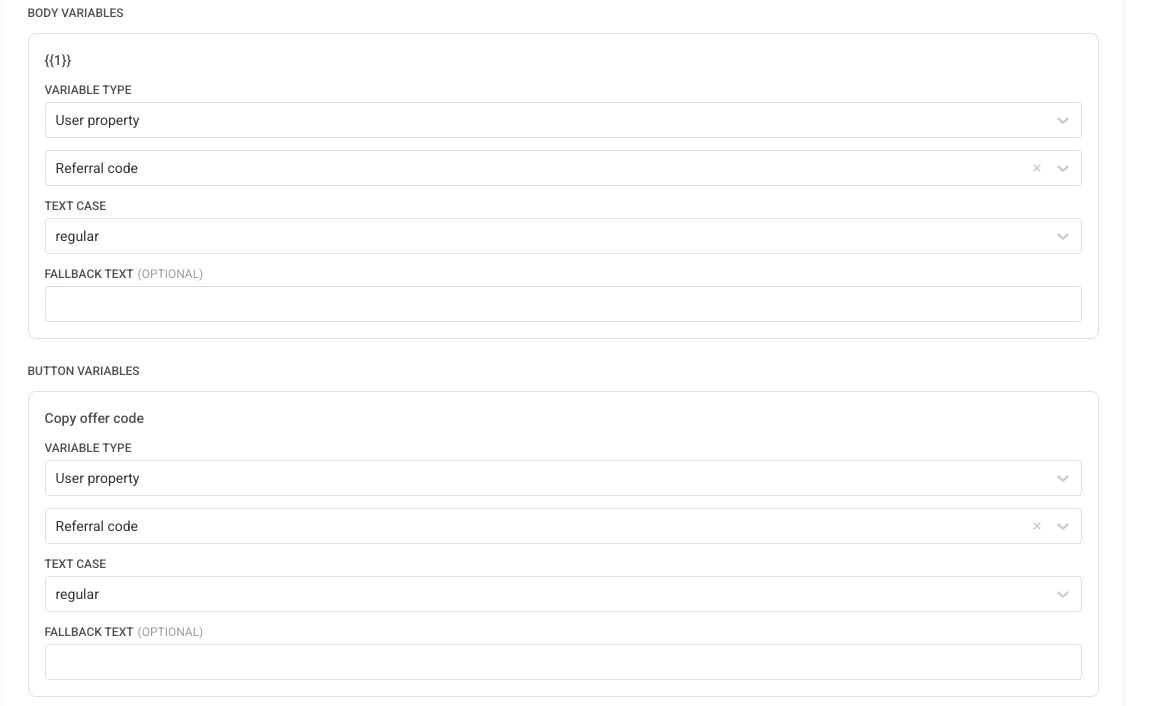
For each placeholder, choose the Variable Type:
- Tag: value from a user tag (e.g.
first_name). Select the tag, a text-case modifier, and optional fallback text used when the tag is empty. The available modifiers depend on the tag’s type. String tags offer CapitalizeFirst, CapitalizeAllFirst, UPPERCASE, lowercase, and regular. Integer, Price, and Date tags offer currency and date formats instead. See How to personalize a push for the full list of modifiers by tag type. - Custom text: a fixed value entered manually.
Select message type
Anchor link toChoose how this WhatsApp message is treated for subscription and delivery rules:
- Marketing message: Respects frequency capping. Not sent to control group users.
- Transactional message: Sent to all users regardless of subscription status. Bypasses frequency capping. Delivered to control group users.
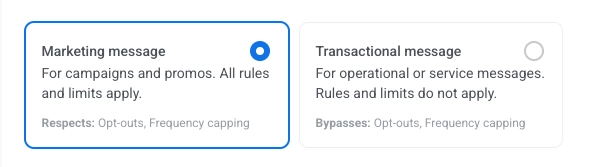
Learn how message type affects delivery.
Select the audience for your WhatsApp campaign
Anchor link toIn the Audience step, define who will receive your WhatsApp message.
For a custom message, this step is locked. The audience is WhatsApp: 24h window open, every contact whose 24-hour customer service window is open right now, and the step shows how many recipients it has. If nobody has an open window, you can’t send the message. The count is checked again when you click Send now, because windows keep closing while the form is open.
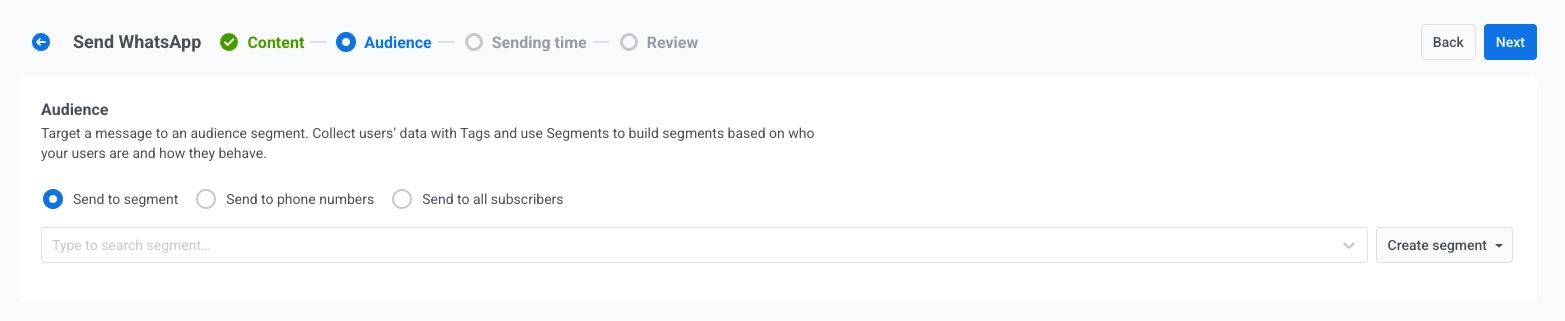
Send to segment
Anchor link toTarget a predefined segment of your audience based on tags, events, or behavior. Select a segment from the dropdown, or click Create segment to build or import one.
Send to a list of phone numbers
Anchor link toSend the message to a specific list of phone numbers entered directly in the form. Phone numbers that are not yet in your project are automatically registered as WhatsApp devices and included in the send.
Send to all subscribers
Anchor link toTarget your entire WhatsApp-reachable audience.
Once you’ve set your audience, click Next to proceed to the scheduling step.
Schedule WhatsApp message
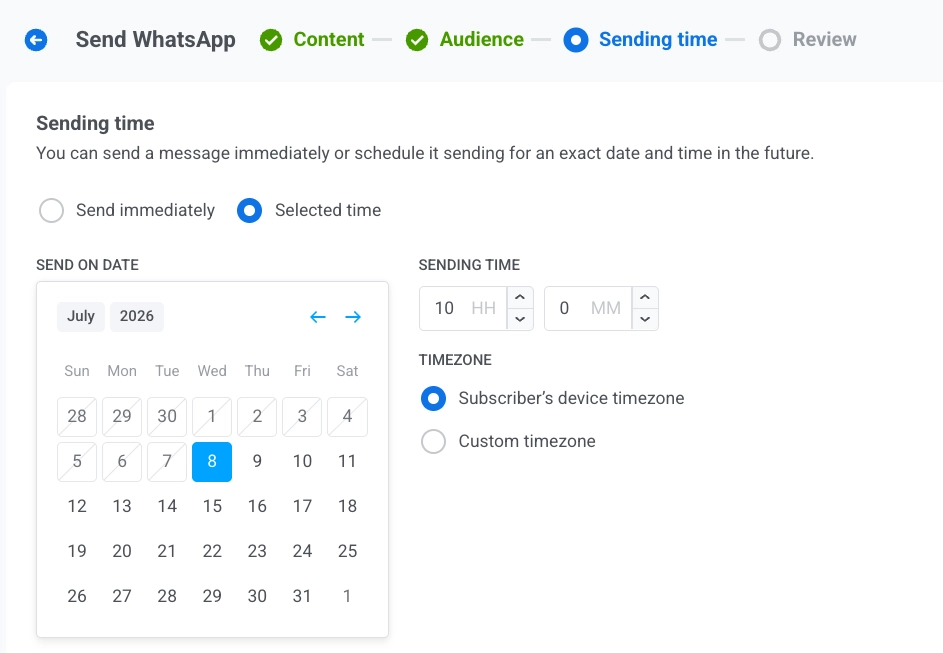
Anchor link toChoose when to send your WhatsApp message. A custom message is always sent immediately, so the scheduling options are locked for it.
Send immediately
Anchor link toSend the message as soon as the campaign setup is complete. This is ideal for urgent or time-sensitive messages.
Selected time
Anchor link toSchedule your WhatsApp message for a specific date and time.
- Set the date and time: Use the calendar to pick the date, then specify the time in hours and minutes (24-hour format).
- Select the timezone:
- Subscriber’s device timezone: The message is sent at the specified local time for each recipient.
- Custom timezone: The message is sent at the same time for all recipients, useful for targeting a particular region.
Configure message delivery settings
Anchor link toSet frequency capping
Anchor link toUse Frequency capping to limit how often users receive WhatsApp messages, preventing over-messaging and reducing opt-outs. Choose one of the following options:
-
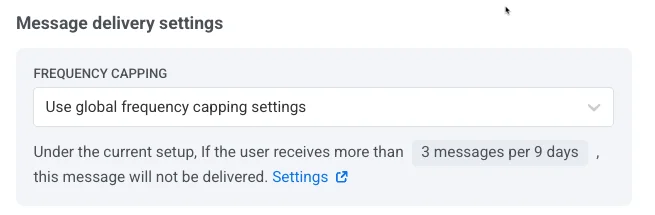
Use global frequency capping settings
Apply the project-wide limits configured in your Global frequency capping settings. For example, if the global limit is 3 messages in 9 days, additional messages exceeding this limit are skipped.
-
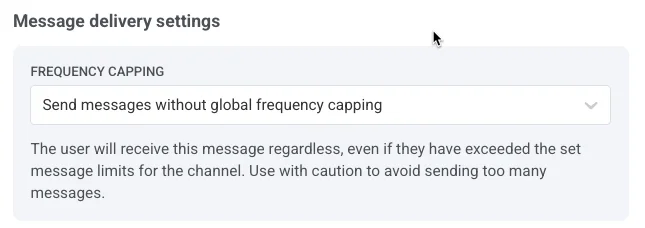
Send messages without global frequency capping
The user receives this message even if they’ve exceeded the channel’s message limits. Use with caution to avoid over-messaging.
-
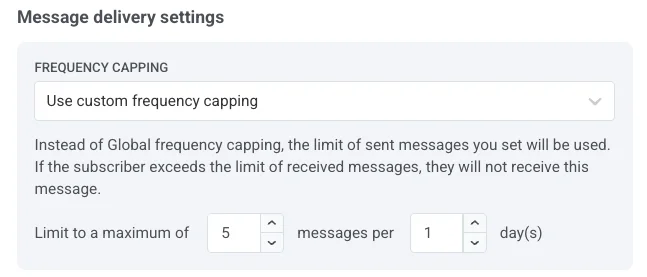
Use custom frequency capping
Set a custom message limit for this message. If the user exceeds this custom cap, the message is skipped. Under Counting mode, choose how sent messages are counted:
- Rolling window: counts the messages sent within the last N×24 hours before each send, where N is the number of days in the limit. For example, with a limit of 3 messages per 2 days, a message sent Monday at 9 AM stops counting on Wednesday at 9 AM.
- Calendar day: counts the messages sent today and on the previous N-1 calendar days, starting at midnight. With the same limit of 3 messages per 2 days, on Wednesday every message sent since Tuesday midnight counts. Right after midnight, the window moves to Wednesday and Thursday. Select a Capping timezone to set when midnight falls. If you don’t select one, calendar days are counted in UTC.
Set send rate limits
Anchor link toThe Send rate setting controls how quickly messages are delivered to your audience. Adjusting the send rate helps you manage delivery speed, prevent backend overload, and improve overall deliverability.
Choose one of the following options:
-
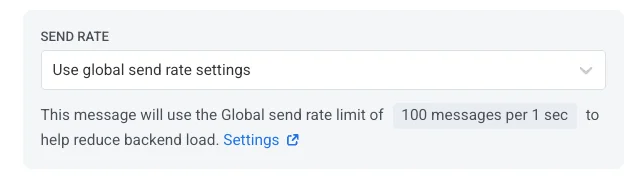
Use global send rate settings
Applies the send rate limits configured in your project’s message delivery settings. If no limits are set, all messages are sent immediately. Learn more about global send rate limits
-
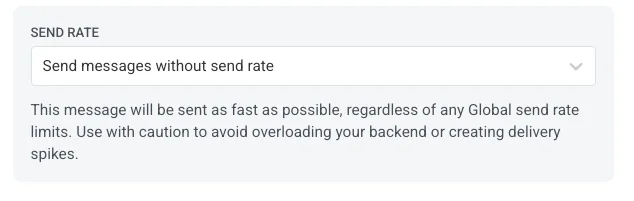
Send messages without global send rate
Sends messages as fast as possible, ignoring any global send rate limits. Use with caution to avoid delivery spikes.
-
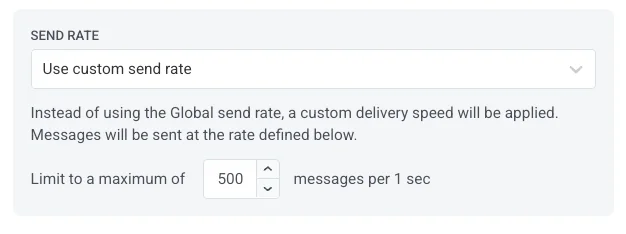
Use custom send rate
Overrides the global send rate for this message only. Specify the number of messages sent per minute for full control over delivery speed.
Once you’ve configured the options, click Next to proceed to the confirmation step.
Review and send
Anchor link toIn Review, check the preview and the summaries for content, audience, and schedule. Update anything that still needs to change before you send.
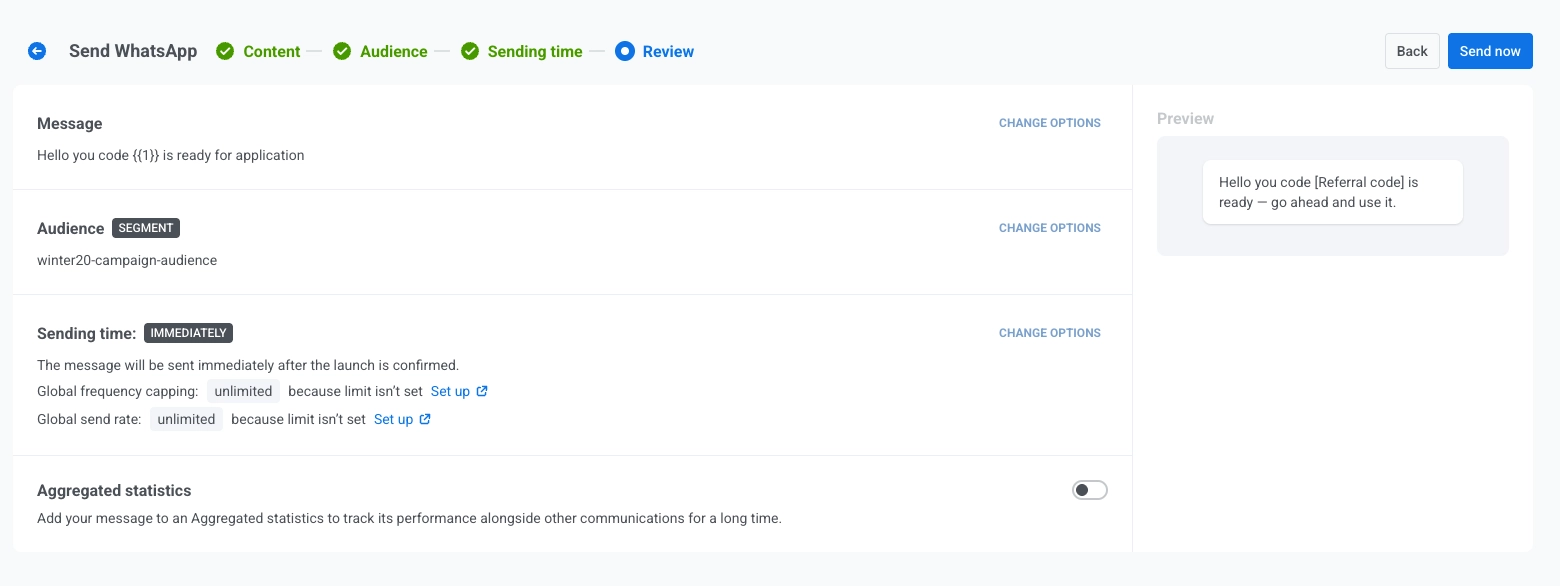
Click Schedule or Send Now to open a Send this WhatsApp message? dialog with a Campaign name field: a free-text label for this one send.
Campaign name is prefilled with the selected template’s own body text, or with your text for a custom message (multi-line text prefills as a single line). Clear it and Message History falls back to naming the row after the template, the same as before this field existed. Keep it to 255 characters or fewer. Typing past the limit truncates the text without a warning.
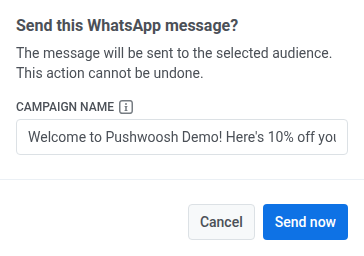
Once set, the campaign name becomes this message’s bold title in Message History and its CSV export, in place of the template name. In the One-time messages list, a custom message row is titled Custom, the list’s short label for this message type, with its text shown underneath. Confirm again in the dialog to finish, depending on your selected scheduling options.
Cancel or edit a scheduled WhatsApp message
Anchor link toFor WhatsApp messages that are scheduled and not yet sent (status PENDING), you can change or cancel them. Open the list of messages in Campaigns → One-time messages, then open the actions menu (⋮) for the message:
- Edit message: opens the WhatsApp form with the message data loaded. You can update the content, audience, schedule, and delivery settings. In Review, the button is labeled Apply changes instead of Schedule or Send Now. Click it, then confirm again in the Send this WhatsApp message? dialog to save your changes, including any edit to the campaign name.
- Rename: opens a small dialog to set or change the campaign name, without reopening the full edit form. Same 255-character limit as the Campaign name field you set at send time. Clear the field and save to remove the name. The row reverts to its previous default title.
- Delete message: cancels the scheduled delivery and changes the status to Canceled.
Example scenario
Anchor link toImagine you run an e-commerce store and want to send a flash-sale alert by WhatsApp to customers who purchased in the last 90 days, scheduled for the morning the sale starts.
1. Navigate to Campaigns, select One-time messages, click Send message, and choose WhatsApp.
2. In the Content step, select the Flash Sale Alert template and fill in its placeholders. For example, map the body’s {{1}} variable to the discount tag with a 50% fallback.
Keep the message type as Marketing so it respects frequency capping.
3. In the Audience step, choose Send to segment and select Recent buyers (90 days).
4. In the Schedule step, choose Selected time, set the date and time to the sale’s start, and select Subscriber’s device timezone so each customer receives it at the same local time.
5. In Review, check the preview and the audience and schedule summaries, then click Schedule to finalize the campaign.