Feature flags
A feature flag is an on/off switch for a feature in your app or website. You flip it in the Control Panel, with no new release.
For each flag you choose who gets the feature: users in a segment, a percentage of all users, or both. For example, show a new screen to 10% of users first, then raise the percentage. If something goes wrong, you can turn the feature off for everyone with the Kill switch button. A flag can also carry properties, such as a button color or a discount limit, that you set per audience.
Before you start
Anchor link to- Plan: Feature flags are available only on plans that include them. On other plans, Feature Flags doesn’t appear in the Audience menu. To turn them on, contact your account manager.
- Access: Feature Flags appears in every application you can see. To create and change flags, you need the Modify applications permission or the same permission for this application in its app-specific permissions.
- Developer setup: A flag affects users only after your developers read it in the app or website code by its key. They need Web SDK 3.94.1 or later, Android SDK 6.16.0 or later, or iOS SDK 7.2.10 or later. In an application with no flags yet, the Feature flags page shows ready-made code samples for Web, Android, and iOS. Give them to your developers together with the flag key. Share the Web SDK guide, the Android SDK guide, or the iOS SDK guide with them.
If your plan stops including feature flags, devices stop receiving flags and your app or website uses the values set in its code. Creating or restoring a flag then fails with the message Feature flags are not available on your plan, for example in a Control Panel tab that was opened before the plan changed.
How a flag decides what each user gets
Anchor link toEvery flag has a list of rules. Each rule has a segment, a percentage of users that get the flag on (Rollout, %), and optional property values. For every device, Pushwoosh checks the rules from top to bottom:
- The first rule whose segment the device matches decides. A rule with no segment matches every device.
- The Rollout, % of the rule decides whether this user gets the flag on. At 20%, two users in ten get it.
- A user who gets the flag on receives the property values set in that rule. A user who gets it off receives the default property values.
Once a device matches a rule, the later rules are skipped, even when that rule turns the flag off for it. A device that matches no rule gets the flag off.
A user gets the same result on every visit. Devices signed in with the same User ID get the same result when they match the same rule, because Pushwoosh checks segments for each device. Pushwoosh identifies a user by User ID, or by device ID when no User ID is set. When you raise the percentage, users who already have the flag keep it and new users join them.
Create a flag
Anchor link to-
Go to Audience → Feature Flags.
-
Click Create feature flag.

-
Enter the Key, for example
new_checkout. The key is any name you choose, but your developers read the flag in code by this exact key, letter case included. Agree on it with them before you save the flag. -
Enter a Name and, optionally, a Description so your team knows what the flag controls.
The key follows these rules:
- Latin letters, digits,
_,., and-, up to 58 characters. - You can’t change the key later.
- You can’t reuse a key that another flag of the application has, even an archived one, or a key that differs from it only in letter case, such as
New_Checkoutandnew_checkout.
Add properties
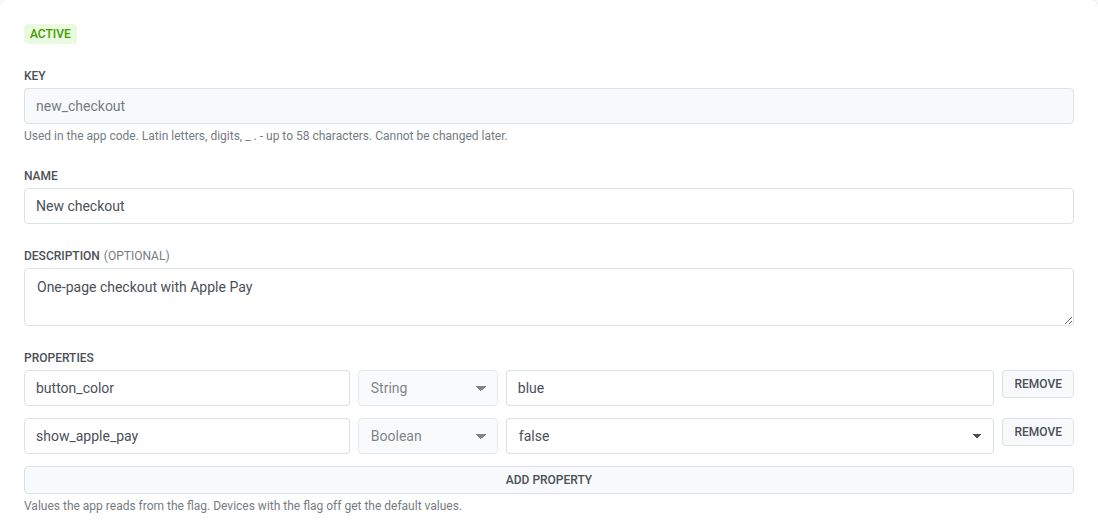
Anchor link toProperties are values the app or website reads from the flag, for example the text of a banner or the number of items in a recommendation block. Skip this step if the flag only turns a feature on and off.
- In Properties, click Add property.
- Enter the Property key, for example
button_color. Use Latin letters, digits, and_, up to 64 characters. The property key is any name you choose, but your developers read the value in code by this exact key, letter case included. Agree on it with them before you save the flag. - Choose the type: String, Number, Boolean, or JSON. You can’t change the type after you save the flag.
- Enter the Default value. Users who get the flag off receive this value.
A flag can have up to 50 properties.
Add rules
Anchor link to- In Rules, click Add rule.
- Enter a Rule name, for example
Paying customers. - In Segment, choose who the rule applies to. Leave it empty to apply the rule to all users.
- In Rollout, %, enter the percentage of the segment that gets the flag on, from 0 to 100 with up to two decimals.
- In Values for users this rule turns on, change the properties that should differ from the defaults for these users. Properties you leave unchanged keep their default values.
- To add another audience, repeat the steps. Use Move up and Move down to change the order, because the first matching rule decides.
A flag can have up to 10 rules.
Under Rollout, %, each rule shows about how many devices it turns on, for example ≈ 1,200 devices. Pushwoosh multiplies the size of the rule segment by the percentage. For a rule with no segment, it takes all devices of the application. Read the number as the most the rule can reach, because a device that matches an earlier rule stops there.
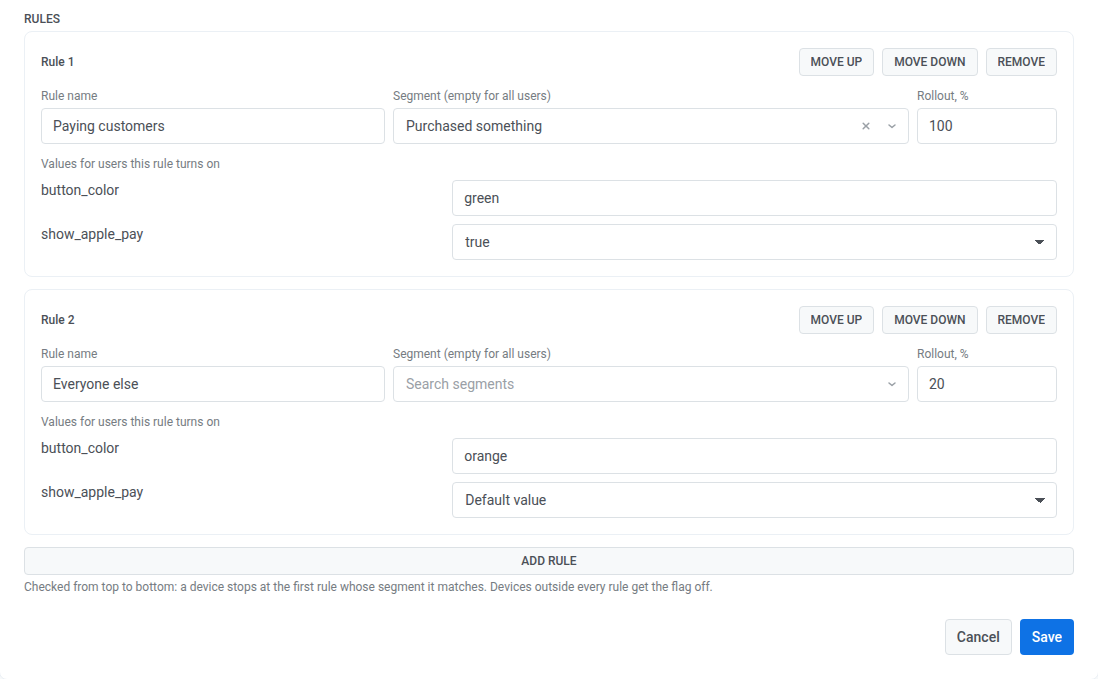
For example, to give a new checkout to all paying customers and to 20% of everyone else, create two rules:
| Rule | Segment | Rollout, % | Values for users this rule turns on |
|---|---|---|---|
| Paying customers | Purchased something | 100 | button_color = green, show_apple_pay = true |
| Everyone else | — | 20 | button_color = orange |
Save the flag
Anchor link toClick Save. The flag is created as Active, and devices receive it the next time they check for flags.
Manage flags
Anchor link toThe flag list shows the name, key, status, number of rules, and last update time of each flag. To see archived flags, turn on Show archived. To open a flag, click its name. The SDK support block at the top of the list and of every flag shows the share of the application’s devices on an older SDK, when their devices report the SDK version. These devices don’t get flags until users update the app.
A flag has one of three statuses:
| Status | What users get | Actions |
|---|---|---|
| Active | The flag works by its rules. | Reshuffle, Kill switch, Archive |
| Killed | The flag is off for every user, with default property values. Rules and properties are kept. | Turn back on, Archive |
| Archived | Devices no longer receive the flag, so the code uses the values your developers set in it. | Restore |
Change a flag
Anchor link to- Open the flag.
- Edit the name, description, properties, or rules.
- Click Save.
- If you changed the rules or the default property values, the Review the changes dialog lists what happens to devices. Check it and click Save.
The dialog shows one line per change:
- Rollout of a rule: about how many more devices get the flag, or how many lose it.
- Values of a rule: about how many devices get the new values, and the old and new value of each property.
- New or removed rule, a different segment, or a new rule order: where devices move. For example, devices of a removed rule move to the next rule that matches them.
- Default values: the old and new values that devices with the flag off get.
Changes to the name or description alone are saved without the dialog.
To roll a feature out gradually, raise the Rollout, % of a rule step by step.
If someone else saved the flag while you were editing it, the Control Panel doesn’t overwrite their changes and asks you to reload the flag. Click Reload and make your changes again.
Turn a flag off for everyone
Anchor link toUse Kill switch when a feature causes problems and you need to stop it for everyone:
-
Open the flag and click Kill switch.

-
Confirm. Every device gets the flag off with default property values the next time it checks for flags.
While your website or app is open, devices get the change within an hour. See how the Web SDK, the Android SDK, and the iOS SDK check for flags.
To turn the flag back on with its rules as they were, click Turn back on.
Pick a different sample of users
Anchor link toReshuffle places every user in a new group, so the same percentage of users is made up of different people. Use it when you want a fresh sample, for example to start a new test.
- Open an active flag and click Reshuffle.
- Confirm. Some users who have the flag on lose it and others get it the next time their devices check for flags, while the percentages stay the same.
Archive and restore a flag
Anchor link toArchive a flag when the feature is fully released or removed from the code. An archived flag doesn’t count toward your plan’s limit of flags per application, and its key stays reserved.
- Open the flag and click Archive.
- Confirm.
An archived flag can’t be edited. To bring it back, turn on Show archived in the list, open the flag, and click Restore. A restored flag comes back as Killed, so it doesn’t reach users on its own. Click Turn back on when you’re ready.
See who changed a flag
Anchor link toThe change history shows every saved version of a flag: what changed, who changed it, and when. Anyone who can open the flag can see its history.
History is recorded for changes from October 13, 2026. A flag with no recorded changes shows No changes recorded yet. For a flag created before that date, the oldest entry shows no list of changes, because there is no earlier version to compare it with.
- Open the flag.
- Click History.
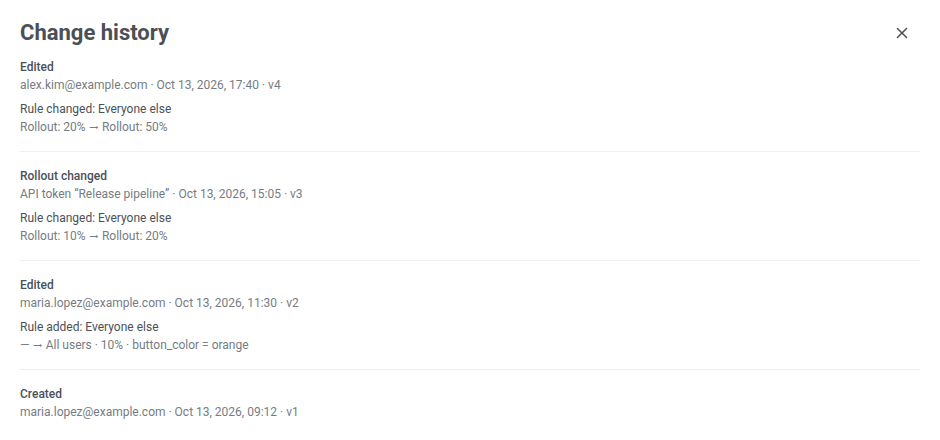
The Change history panel lists the versions of the flag, newest first. Each entry shows:
- The action, for example Edited.
- Who made the change: the user’s email, or the API token the change came through, for example API token “Release pipeline”, or API token for a token with no name.
- The date and time.
- The version number, for example v4.
To load earlier entries, click Show more.
| Action | What happened |
|---|---|
| Created | The flag was created. |
| Edited | Someone saved changes to the flag. |
| Rollout changed | The rollout of one rule was changed through the API or the MCP server. In the Control Panel, a rollout change is saved as Edited. |
| Killed | Someone clicked Kill switch. |
| Turned back on | Someone clicked Turn back on. |
| Archived | The flag was archived. |
| Restored | The flag was restored from the archive. |
| Users reshuffled | Someone clicked Reshuffle. |
Under each entry, the panel lists what changed, as the value before and after: Name, Description, Status, Properties, Rule order, and every added, removed, or changed rule. For a changed rule, it shows only the fields that differ: name, Segment, Rollout, or Values. A rule with no segment shows All users.
Segment users by flag
Anchor link toA feature flag condition in a segment finds the devices that got a flag on, got it off, matched one of its rules, or reached the part of the app the flag controls. Use it to message the users who see a new feature, for example to ask for feedback, or to build a journey around them.
- Open the segment builder, as described in How to create segments.
- Click Feature flag in the list of conditions.
- In Select feature flag…, choose the flag. Archived flags aren’t in the list.
- Choose the state:
- is on: devices that got the flag on.
- is off: devices that got the flag off.
- is in rule: devices that matched the segment of a rule, whether or not the rule’s Rollout, % turned the flag on for them. Choose the rule in Select rule….
- saw the feature (30 days): devices that sent at least one impression of the flag in the last 30 days, that is, the app called
logImpressionfor this flag key. See Find users who reached a feature.
Feature flag appears in the segment builder only on plans that include feature flags. High Speed Delivery segments, which can hold only tag conditions, can’t have it.
Which devices are in each state
Anchor link toA device’s state follows the flags it received last and the current status of the flag:
- A device that has never requested the flag, for example because its SDK doesn’t read flags, is in none of the states.
- After you change the rules or a rule’s Rollout, %, a device moves to another state only when it requests flags again.
- When you kill or archive the flag, is on and is in rule become empty within about 10 seconds, without waiting for devices to request flags again. is off then holds every device that has ever got the flag.
Find users who reached a feature
Anchor link toTo find users who saw the enabled feature:
- Add saw the feature (30 days) for the flag.
- Add is on for the same flag and join the two conditions with AND.
saw the feature (30 days) matches users who reached the screen or code the flag controls, whether the flag was on or off for them. That’s why you add is on: it keeps only the users who got the new version. The result is close but not exact. is on reflects the flag a device got last, and its impression may come from an earlier visit when the flag was off.
The segment stays empty when the app doesn’t log impressions. To log them, see Log impressions in the Web SDK, Android SDK, or iOS SDK guide.
Killing or archiving the flag doesn’t empty this state. A device leaves it 30 days after its last impression.
Use flag segments in journeys
Anchor link toA segment with a feature flag condition works in an Audience-based entry and in a Condition split. For example, split users who got a new checkout from those who didn’t and send each group its own message.
Limits
Anchor link toThe Control Panel and the API enforce these limits when you save a flag:
| Limit | Value |
|---|---|
| Rules per flag | 10 |
| Properties per flag | 50 |
| Size of the properties of one flag (keys, types, and default values) | 10,000 bytes |
| Nesting depth of a JSON value | 5 levels |
| Flags per application | Set by your plan, archived flags don’t count |
| Data one device receives for all flags of the application | 64 KB |
Manage flags through the API
Anchor link toYour developers can create and change flags from their own systems with the Feature Flags API, and AI assistants connected through the Pushwoosh MCP server can manage flags with the same operations.