Show in-app content to specific users
Every block in the built-in editor, and every element inside it, has a Display condition setting in the right panel that controls who sees it.
Show content to specific users
Anchor link toA display condition shows or hides a block for specific users based on their Tags. Every user gets the same in-app template, but each one only sees the blocks meant for them.
You can add a display condition to any block or element on the canvas.
To set a display condition:
- Select the block or element on the canvas.
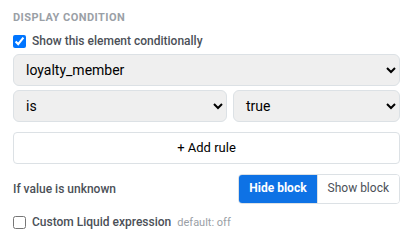
- In the right panel under Display condition, turn on Show this block conditionally (Show this element conditionally if you selected an element inside a block).
- Pick a Tag, an operator, and a value (for example, is and true).
- Click + Add rule to add more rules.
- Under If value is unknown, choose Hide block or Show block. This controls what happens when the Tag has no value for a user.
Example scenario: win-back offer for lapsed users
Anchor link toA win-back offer that only appears for users who haven’t purchased in a while, so active shoppers don’t see a discount they don’t need.
| Condition | What the user sees |
|---|---|
RFM Recency ≥ 90 | The win-back Card block, with a discount offer |
| Anything else | The Card block stays hidden |
To set up this scenario:
- Add a Card block with the win-back offer (image, heading, and a discount code button).
- Select the Card on the canvas, and under Display condition, turn on Show this block conditionally.
- Set the rule to
RFM Recency≥90. - Under If value is unknown, choose Hide block — new users without purchase history shouldn’t see a win-back message meant for lapsed ones.
A user who last ordered 120 days ago sees the offer. A user who ordered last week, or has no order history yet, never sees the block.
Write a custom Liquid condition
Anchor link toWhen the rule builder is not enough, write the condition yourself in Liquid.
- Select the block or element on the canvas.
- Under Display condition, turn on Custom Liquid expression.
- Type your condition. For example, to show a block to users in Germany or VIP subscribers:
Country == "DE" or VIPA custom expression replaces any rules set in the builder above it.
Tag names with spaces are converted automatically. For example, Last Order becomes LastOrder.