Piano Analytics integration
Piano Analytics is a tool that helps businesses understand how people interact with their websites and apps. It collects data about user behavior and provides insights through reports and visualizations. This information helps businesses make better decisions about how to improve their digital products and marketing efforts.
Integrating Piano Analytics and Pushwoosh allows for detailed user behavior insights to create precise segments and send highly targeted push notifications, emails, and in-app messages to the right users at the right time.
Integration overview
Anchor link toIntegration type
Anchor link to- Destination: Data is sent from Piano Analytics to Pushwoosh.
- Source: Data is sent from Pushwoosh to Piano Analytics.
Prerequisites
Anchor link toPaid accounts in both Pushwoosh and Piano Analytics
Glossary (mapping entity names if they are different)
Anchor link toWhen integrating Pushwoosh and Piano Analytics, certain entity names may vary between the two platforms. Here are the mappings between Pushwoosh and Piano Analytics:
| Pushwoosh | Piano Analytics |
|---|---|
| Piano Visitor ID tag | visitor ID (idclient) |
| PostEvent.EventName | event name |
| PostEvent.UserID | pushwooshid (sent as pushwooshID, Piano lowercases property keys) |
| PostEvent.RichMediaID | src_medium |
| PostEvent.CampaignID | src_campaign |
| PostEvent.PlatformID | rendering_platform (iOS App, android, web, or pwa for any other platform) |
| Browser Type tag | device_type (Mobile Phone or Desktop) |
| Country tag | geo_country (full country name) |
| OS Version, Device Model, and Browser Type tags | User-Agent and Client Hints request headers |
Synchronized entities
Anchor link toSource
- Events
- Push Stats (as the
PW_NotificationSendandPW_NotificationOpenevents) - Tags (as event properties and request headers)
Destination
- Segments
Use cases
Anchor link toUnified analytics
Combine Pushwoosh engagement data with Piano Analytics for comprehensive user insights. This allows you to get a holistic view of user behavior and interactions across multiple touchpoints.
Segmentation
Create targeted user segments in Pushwoosh based on Piano Analytics data. Use this enhanced segmentation to deliver personalized and effective marketing campaigns.
Performance Monitoring
Track campaign effectiveness and user interaction across platforms.
How does the integration work?
Anchor link toFlow Overview
Anchor link to- Setup: Configure integration settings in both Pushwoosh and Piano Analytics accounts.
- Event Selection: Choose which Pushwoosh system events are sent to Piano. Events keep their names in Piano.
- Data Transfer: Pushwoosh sends the selected events to Piano Analytics.
- Segment Import: Piano Analytics sends segment data to Pushwoosh for audience segmentation.
Technical Flow
Anchor link to- Post Events
- Pushwoosh sends event data to Piano Analytics.
- Event properties are mapped as shown in the glossary.
- Push stats:
- Push sends and opens reach Piano as the system events
PW_NotificationSendandPW_NotificationOpenif you select them. - Delivery status is not sent.
- Push sends and opens reach Piano as the system events
- Piano VisitorID Integration:
- Pushwoosh sends events only for users whose device has the Piano Visitor ID tag. Set it as described in Mapping Piano VisitorID to Pushwoosh UserID/HWID.
Setting up the integration
Anchor link toTo set up the integration, go to Settings > 3rd Party Integrations in your Pushwoosh account and locate Piano. Click Configure.
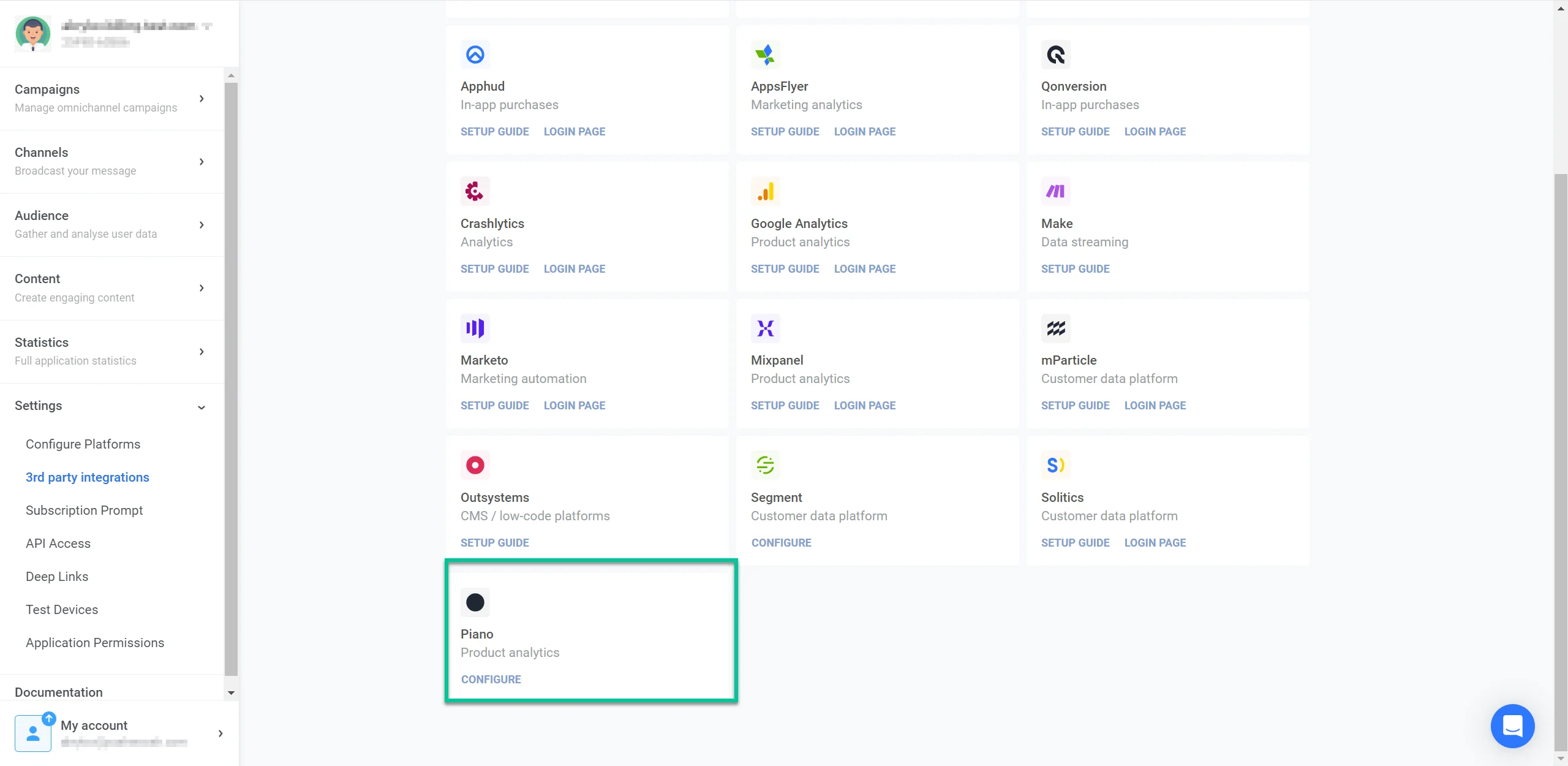
In the window that opens, fill in the following settings:
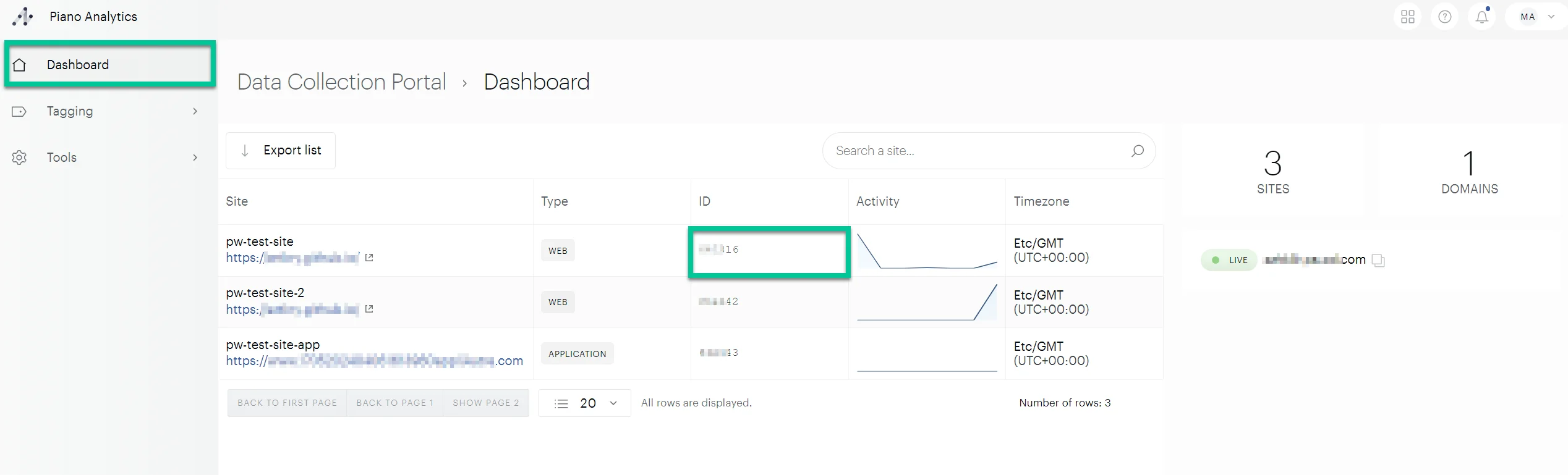
- Site ID
To locate your Site ID, log in to your Piano account and go to Analytics > Data Collection Portal > Dashboard. Find the relevant website and copy its ID.
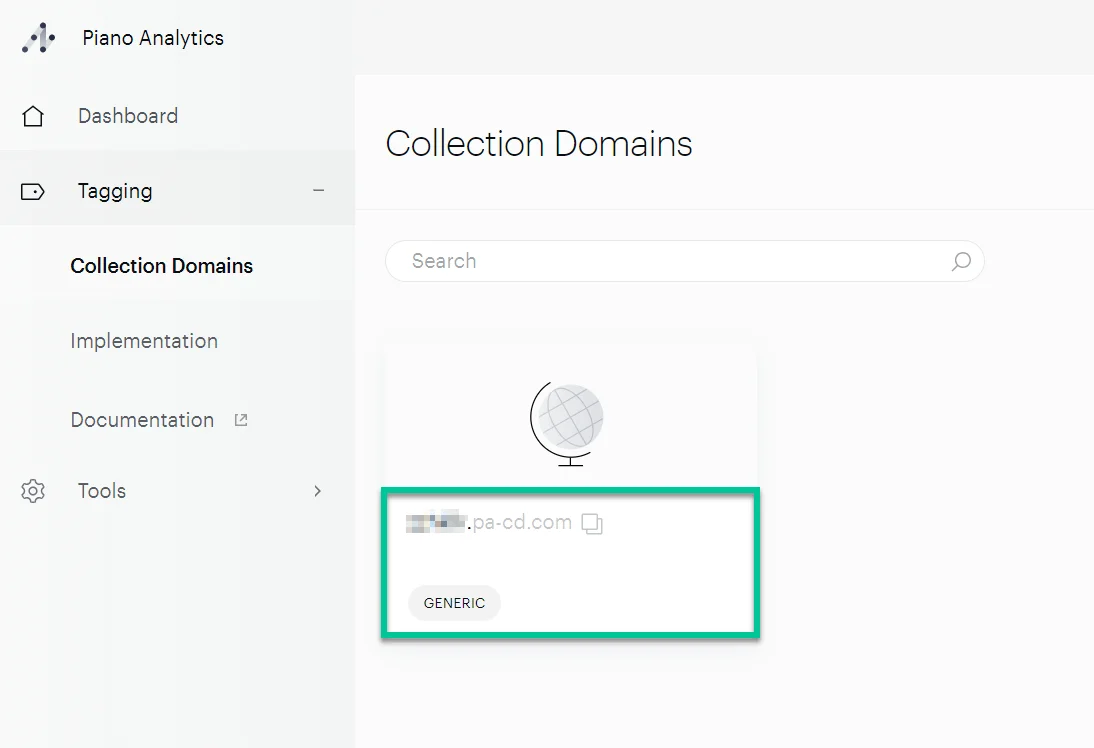
- Collection Domain
To find the Collection Domain, navigate to Tagging > Collection Domains. Copy the Collection Domain ID. Make sure to enter the collection domain in the ****.pa-cd.com format without the https:// prefix.
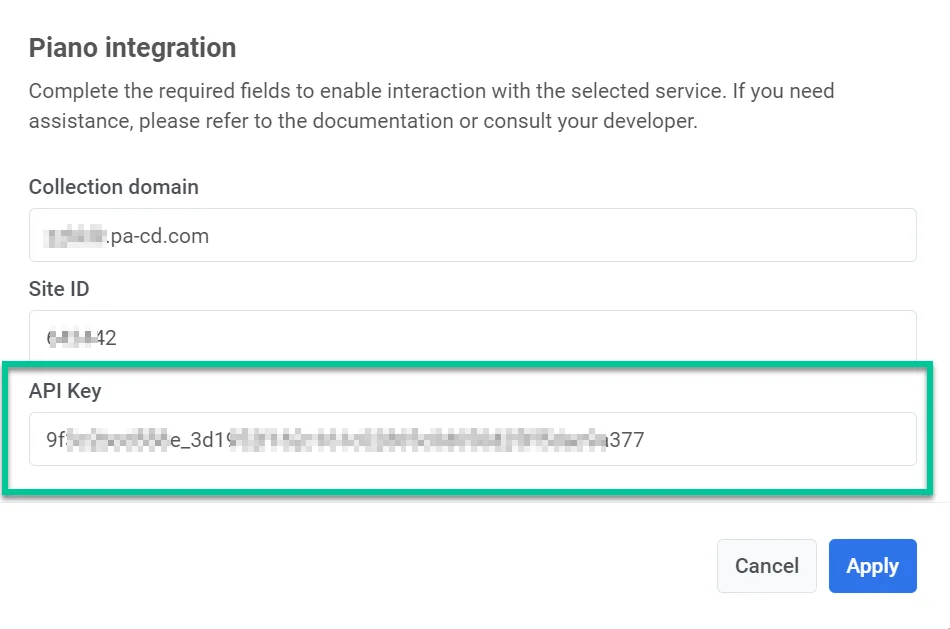
- Piano API Access and Secret keys
To get the keys:
- In your Piano account, click on See profile below your account name.
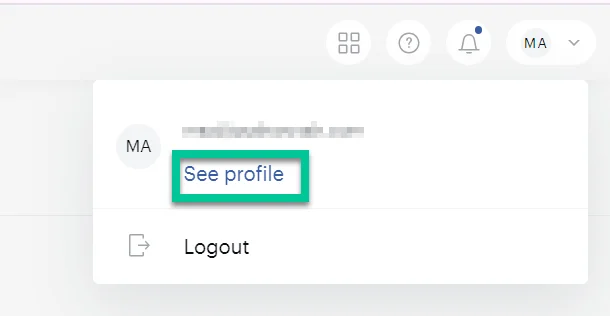
- Navigate to the API Keys tab and create a new key with a clear name and description. Then click OK.
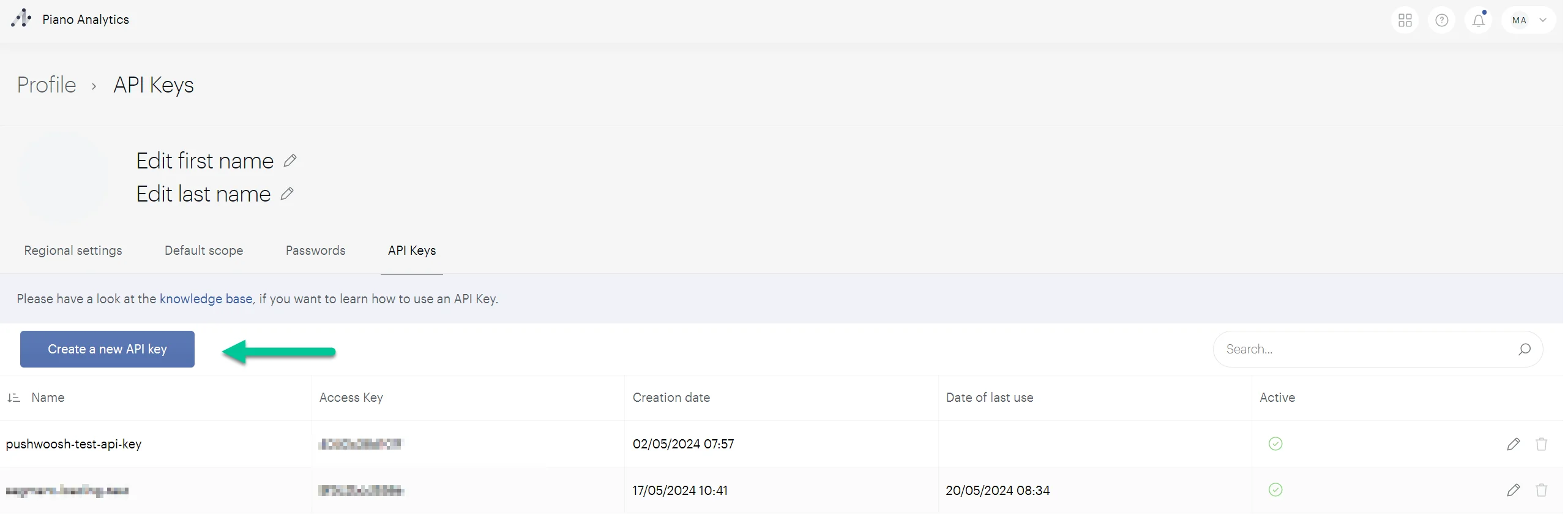
- In the window that opens, copy your Access Key and the Secret Key.
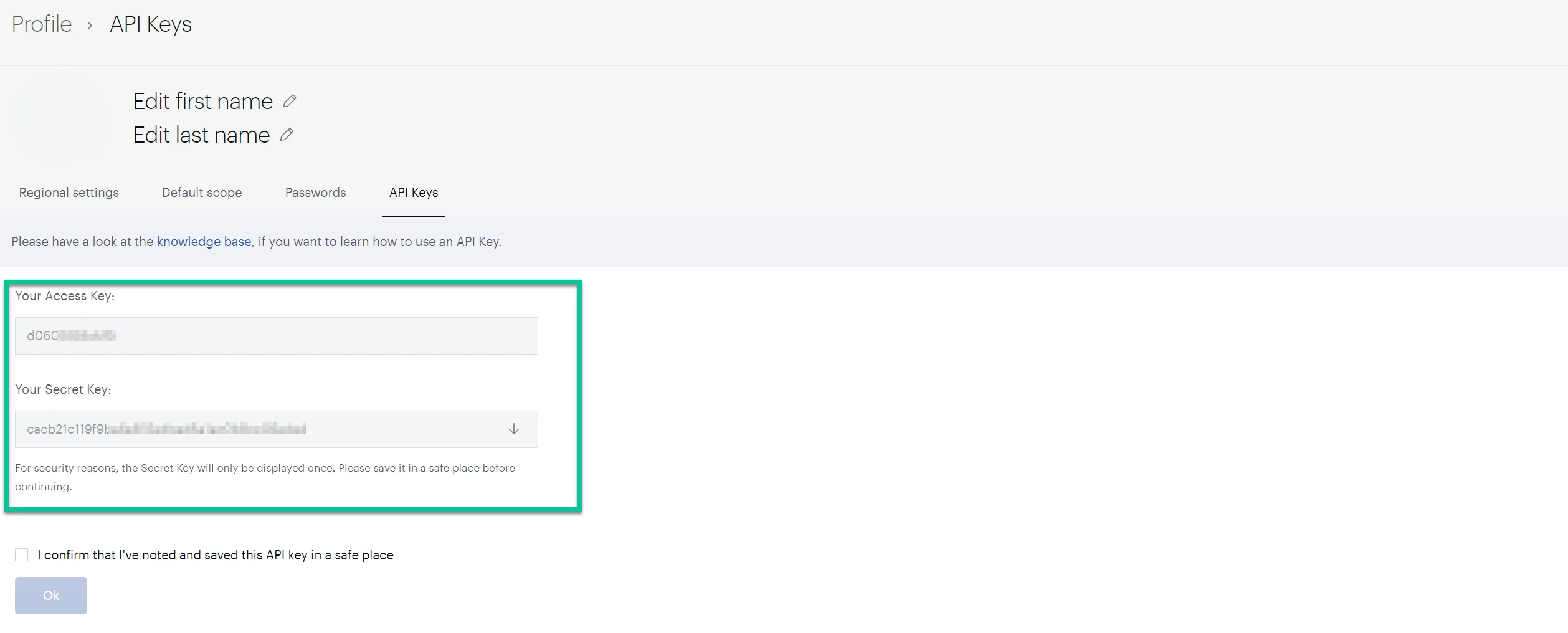
- In the API key field in Pushwoosh, enter both the Access Key and Secret Key, separated by an underscore. For example: accesskey_secretkey.
- Events
In Events, select at least one event to send to Piano. Only these Pushwoosh system events are available: PW_DeviceRegistered, PW_DeviceUnregistered, PW_ApplicationOpen, PW_ApplicationMinimized, PW_ScreenOpen, PW_SiteOpened, PW_InAppPurchase, PW_NotificationSend, PW_NotificationOpen, and PW_EmailLinkClicked.
- Unique events (optional)
Turn on Unique events enabled, set Timeframe in hours (from 1 to 168), and select events in Unique Events. For each user, Pushwoosh then also sends a <event>_unique event, for example PW_SiteOpened_unique, at most once within the timeframe.
The timeframe is shared by all unique events of a user. For example, if both PW_ApplicationOpen and PW_SiteOpened are unique and the timeframe is 24 hours, a user who opens the app and then the site on the same day gets only PW_ApplicationOpen_unique.
Creating Piano events to match Pushwoosh events
Anchor link toTo track events sent from Pushwoosh in Piano, you need to create corresponding events manually within Piano. If you use unique events, also create a <event>_unique event for each of them, for example PW_SiteOpened_unique.
Here’s how to do it in your Piano account:
- Go to Settings > Data management > Data model.
- Select Events and click the plus icon to create a new event.
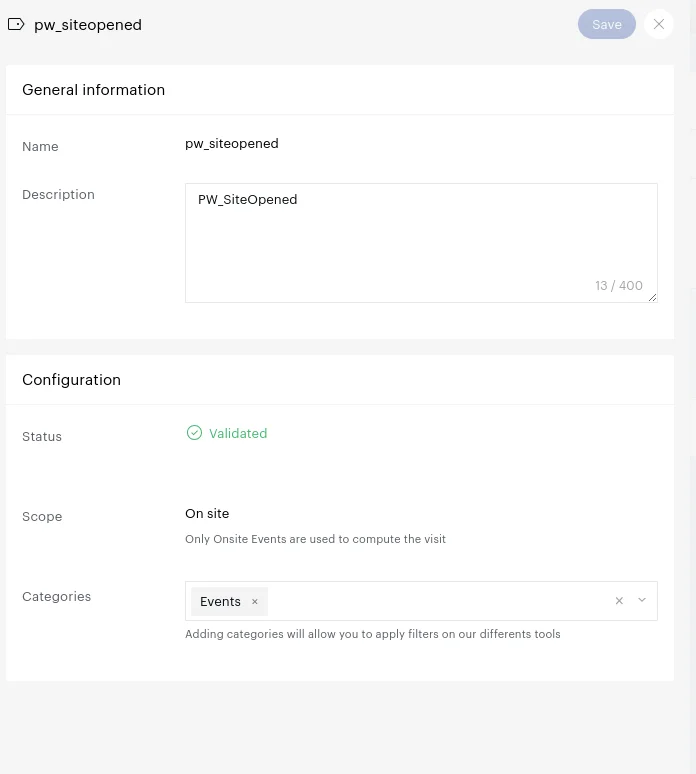
- In the window that opens, provide the event name and description, for example, “pw_siteopened”.
- In the Type field, select On-site.
- In the Categories field, select Events.
- Click Save.
Setting your website’s time zone in Piano
Anchor link toSetting the correct time zone for your website in Piano is crucial for accurate data tracking and analysis. The best practice is to match the time zone with the location where you’re sending events and conducting analysis. This eliminates time discrepancies.
To edit the timezone in Piano, go to Dashboard and click the line containing your site information. In the pop-up window, click Edit and select the desired time zone. Then, click Save.
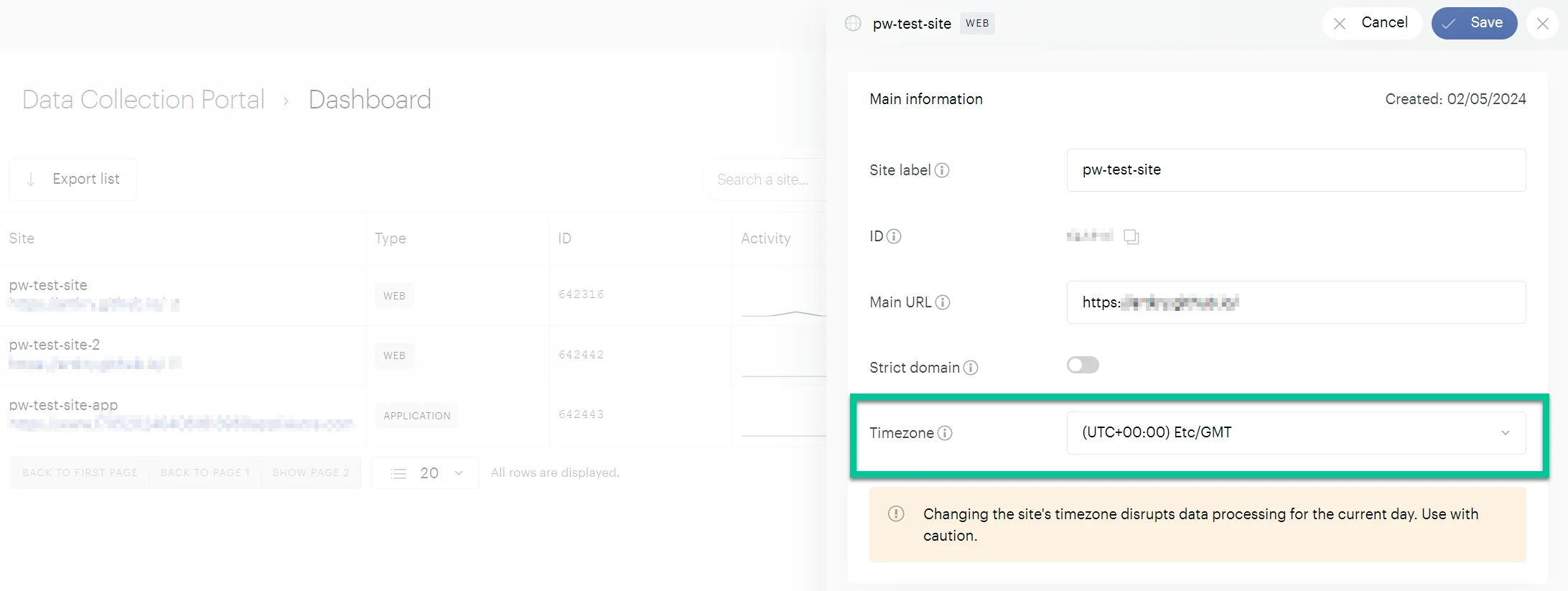
Creating a property for identifying events sent from Pushwoosh in Piano
Anchor link toTo make data management easier, create a property in Piano that can be associated with Pushwoosh events. This will allow you to easily identify events sent from Pushwoosh.
Here’s how to create the property:
- In Piano, go to Settings > Data Management > Properties.
- Click Create Property.
- In the Name field, enter pushwooshid.
- In the Property Key field, enter pushwooshid.
- Set the Type to String.
- Click Save.
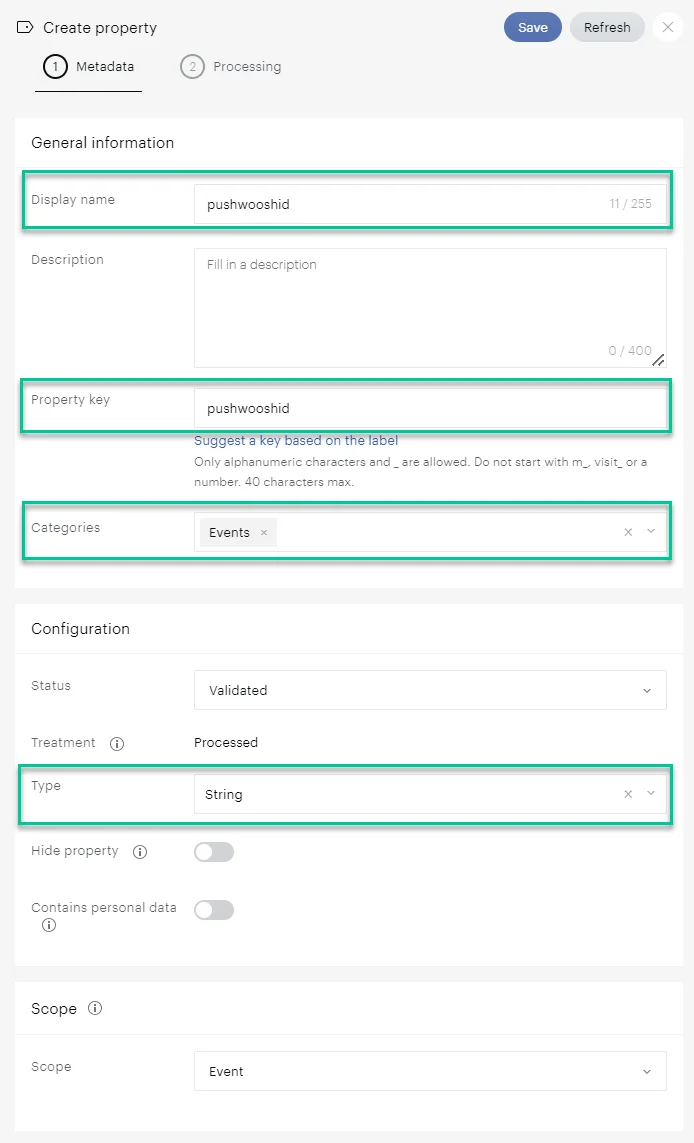
Checking if Pushwoosh events are sent to Piano
Anchor link toTo verify that events set up in Pushwoosh are successfully sent to Piano, follow these steps:
- In your Piano account, go to Explorer > Audience > Overall Traffic.
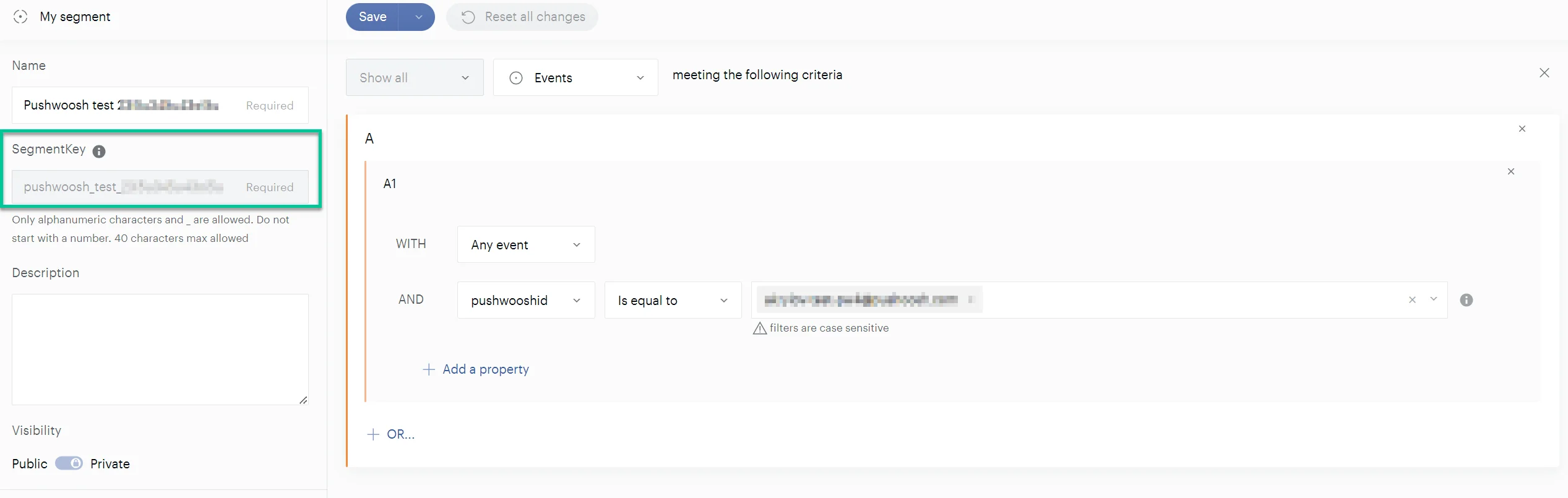
- Create a segment based on events where the property pushwooshid is not empty.

The filtered view will display overall traffic information, including any associated events.
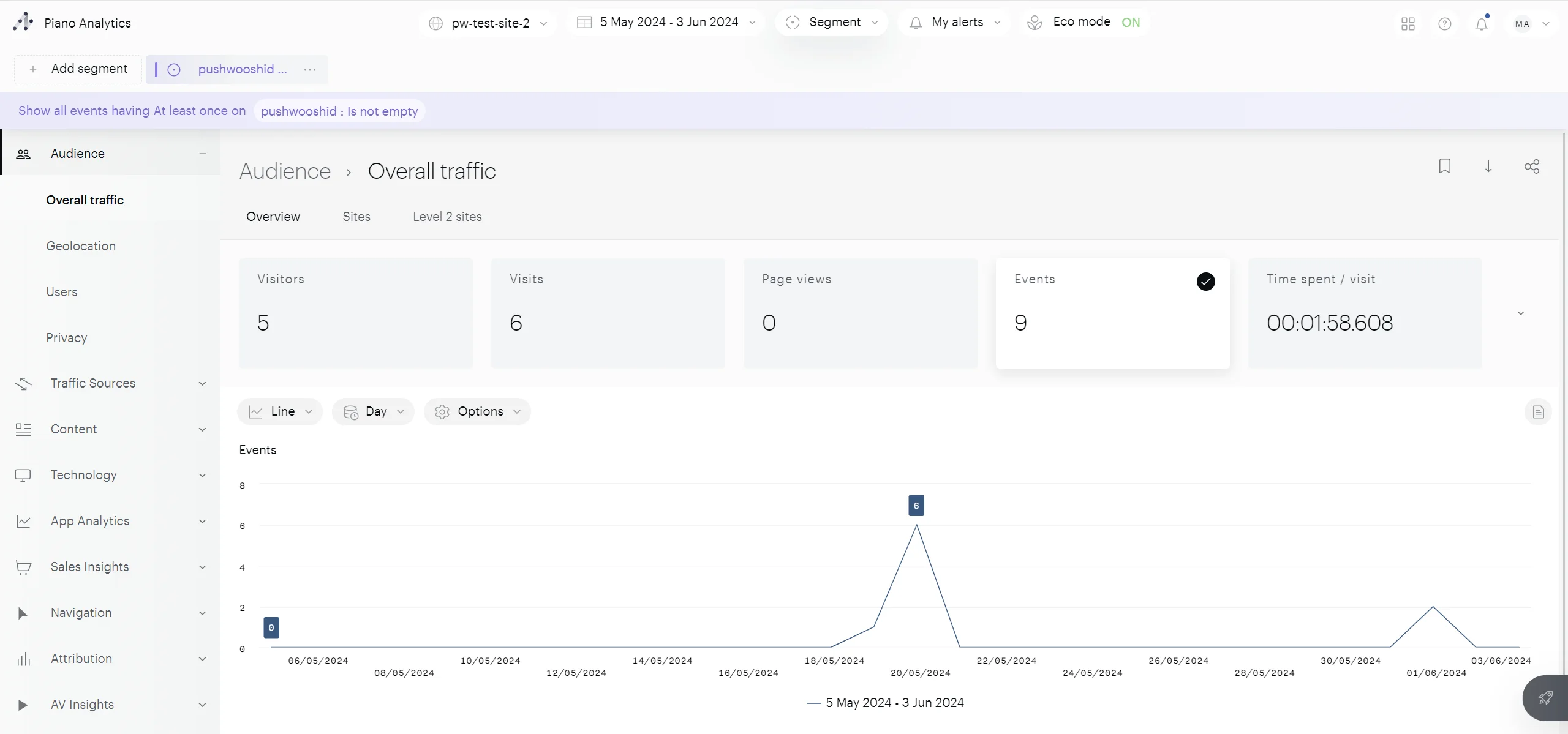
For a more granular view of events sent from Pushwoosh, navigate to Content > Events. This section provides a detailed breakdown of all the events sent from Pushwoosh, including the number of times each event occurred.
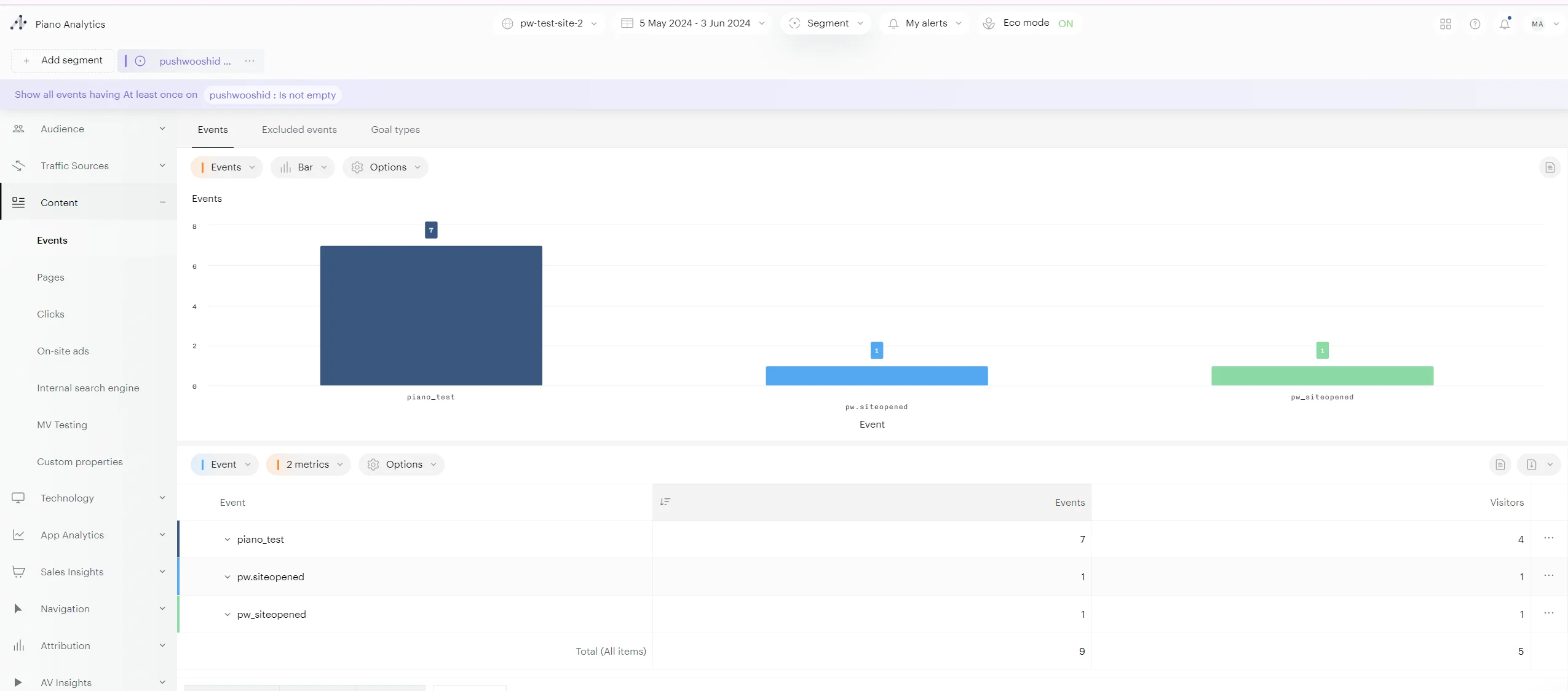
Creating segments in Piano
Anchor link toOnce you’ve completed the integration setup, you can start analyzing events sent from Pushwoosh within Piano. To access these events, navigate to Explorer > Content > Events in your Piano account.
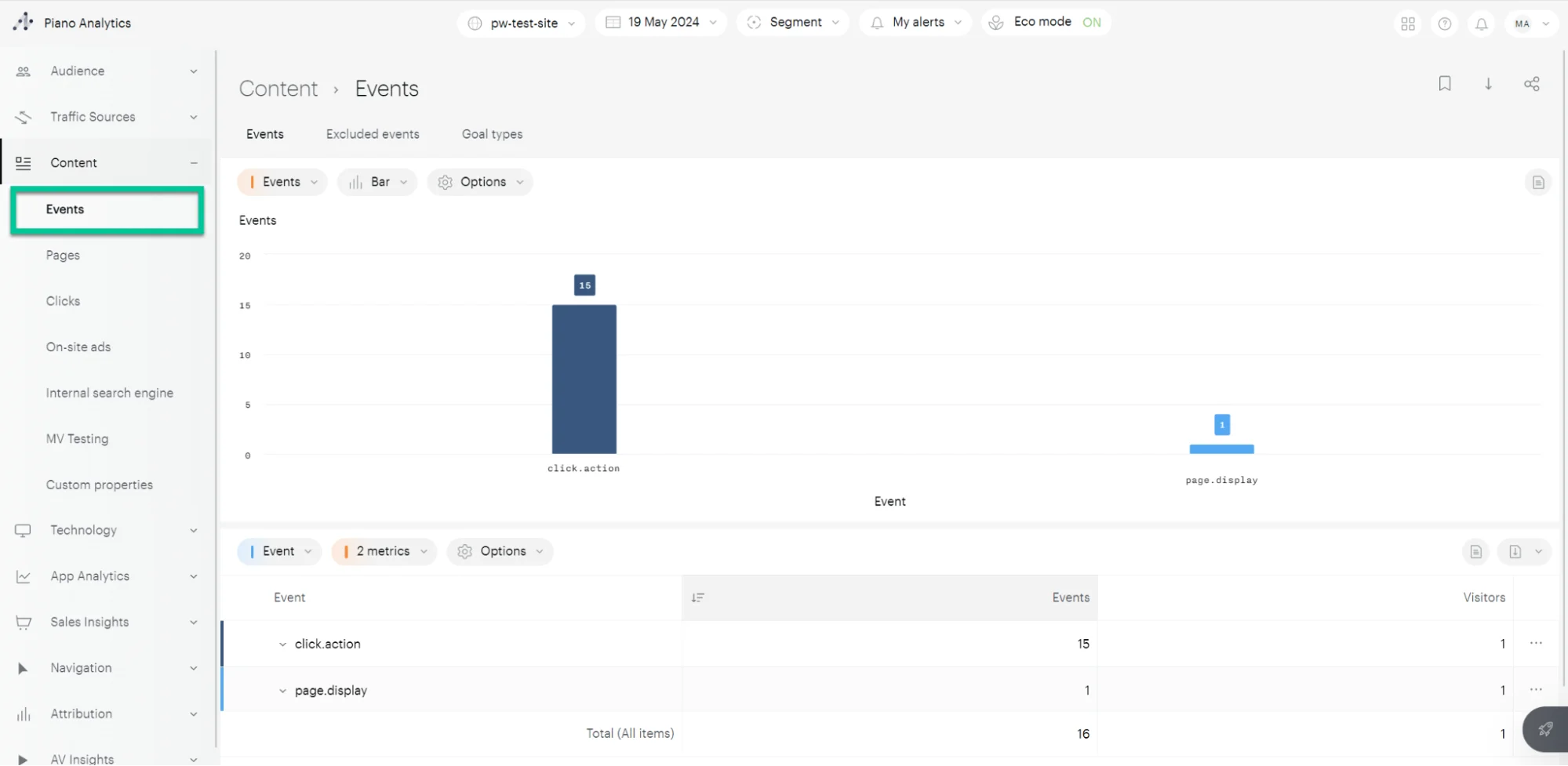
Then create Segments using these events. When creating segments, select the pushwooshid property you’ve created earlier to filter events.

Make sure to give your segment a clear and descriptive name. The Segment Key, which is a unique identifier for the saved segment, will be needed later for sending segments to Pushwoosh.
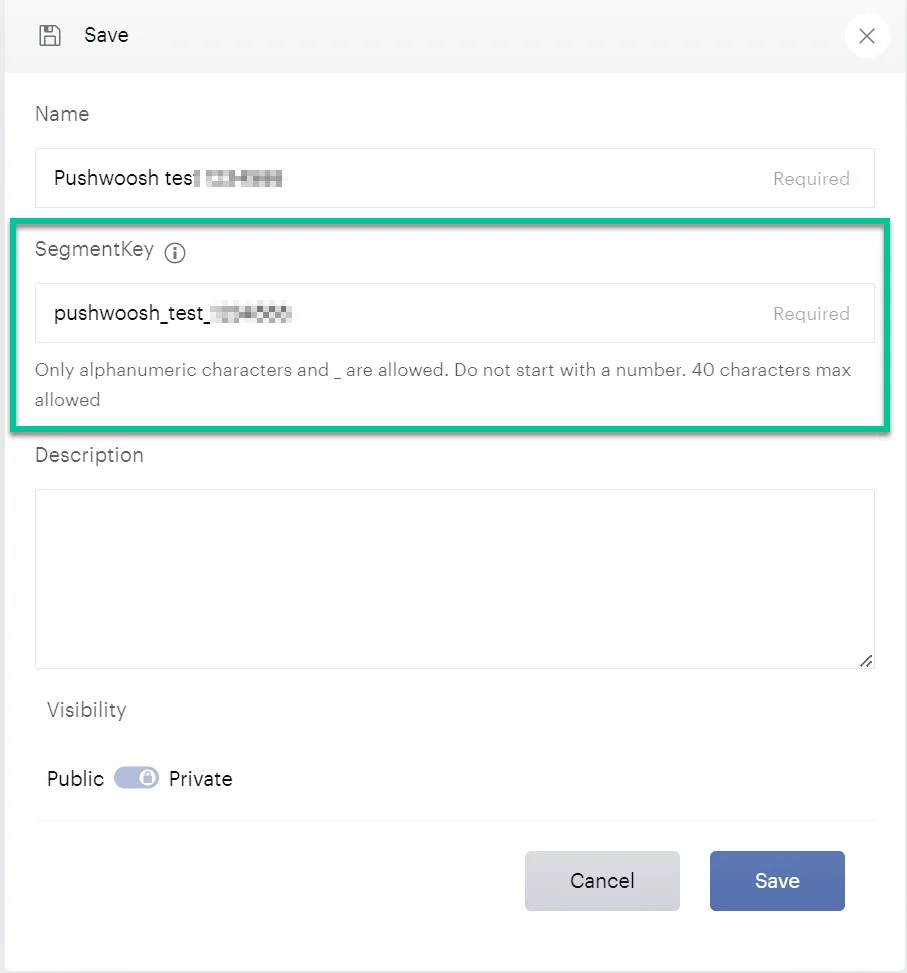
Sending segments from Piano to Pushwoosh
Anchor link toTo enable Pushwoosh to retrieve segments from Piano, provide Pushwoosh with the SegmentKey you created. To find the SegmentKey for a segment, go to Analysis > Library > Segments. Click on the segment you need and copy the Segment Key.
In the Pushwoosh Integrations section, locate Piano and click Import segment. Then, enter the Segment key you copied.
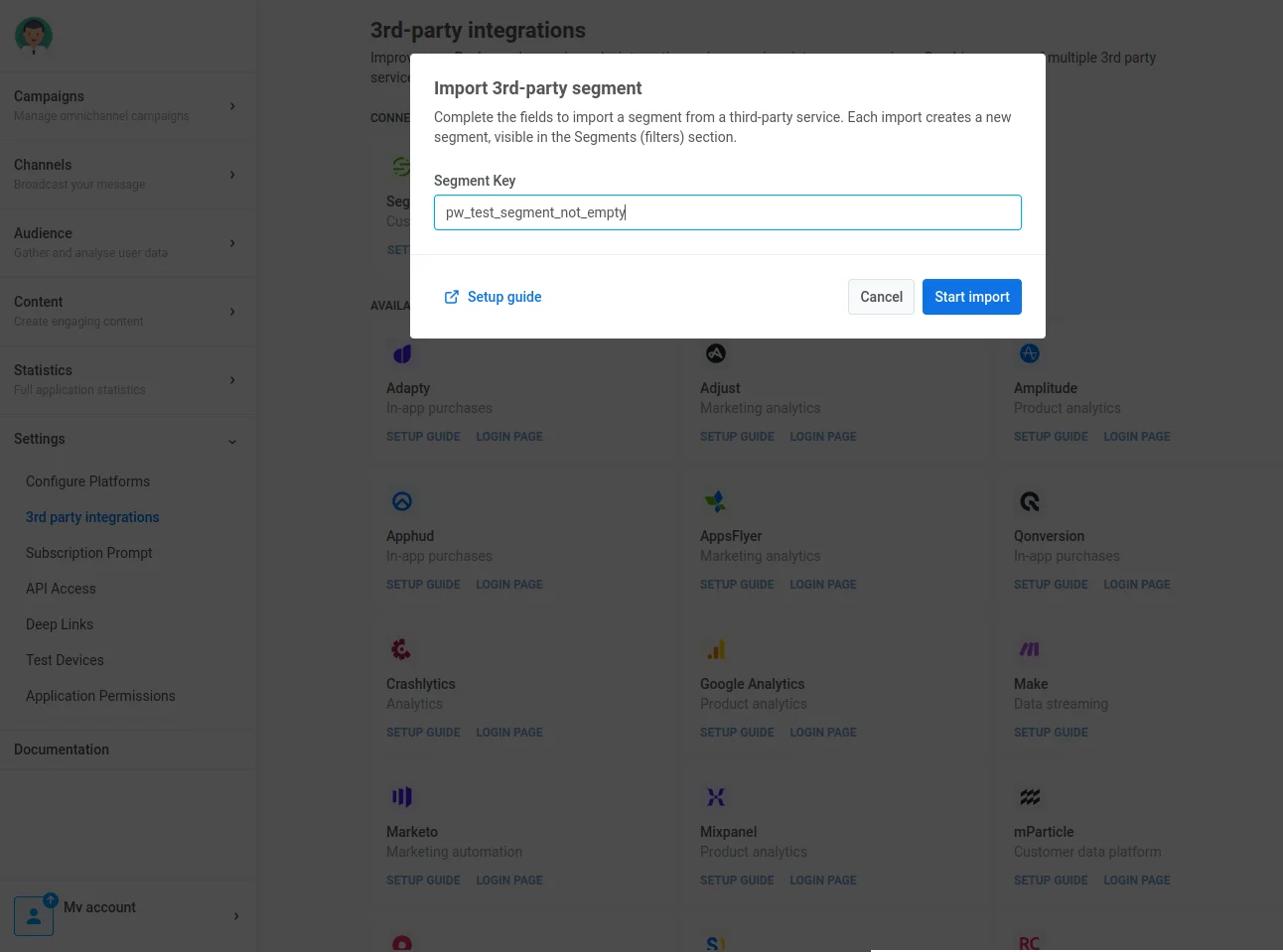
If the import is successful, you’ll see a confirmation message.
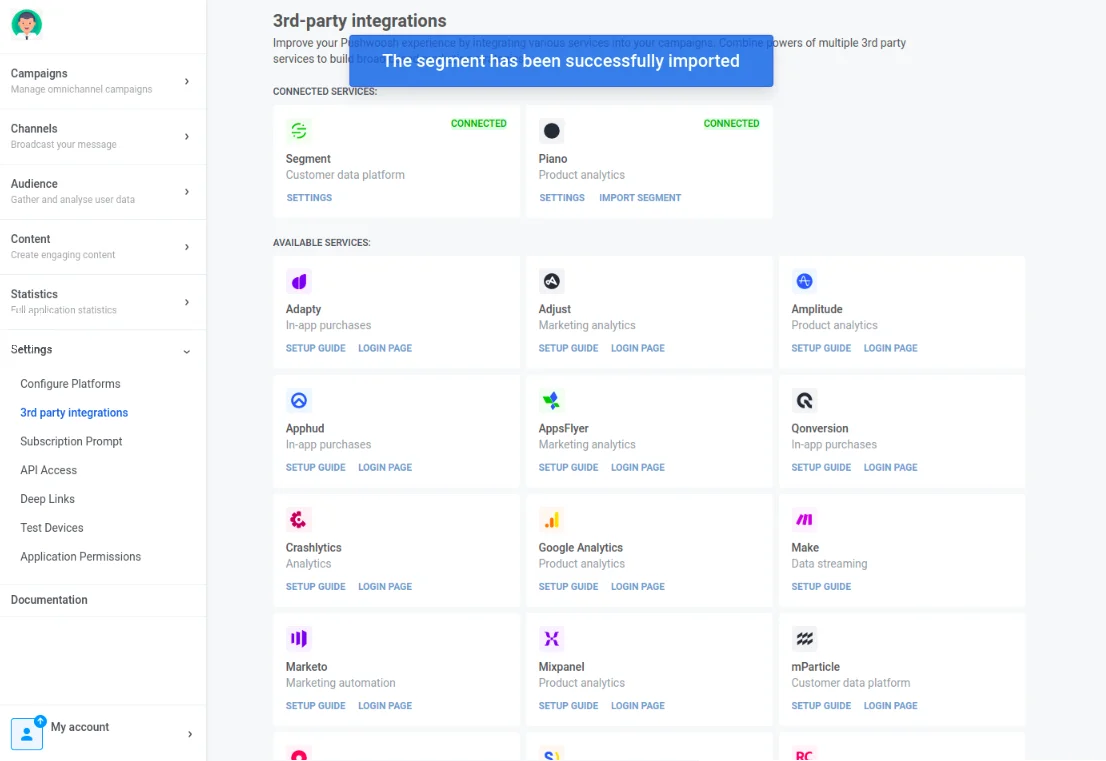
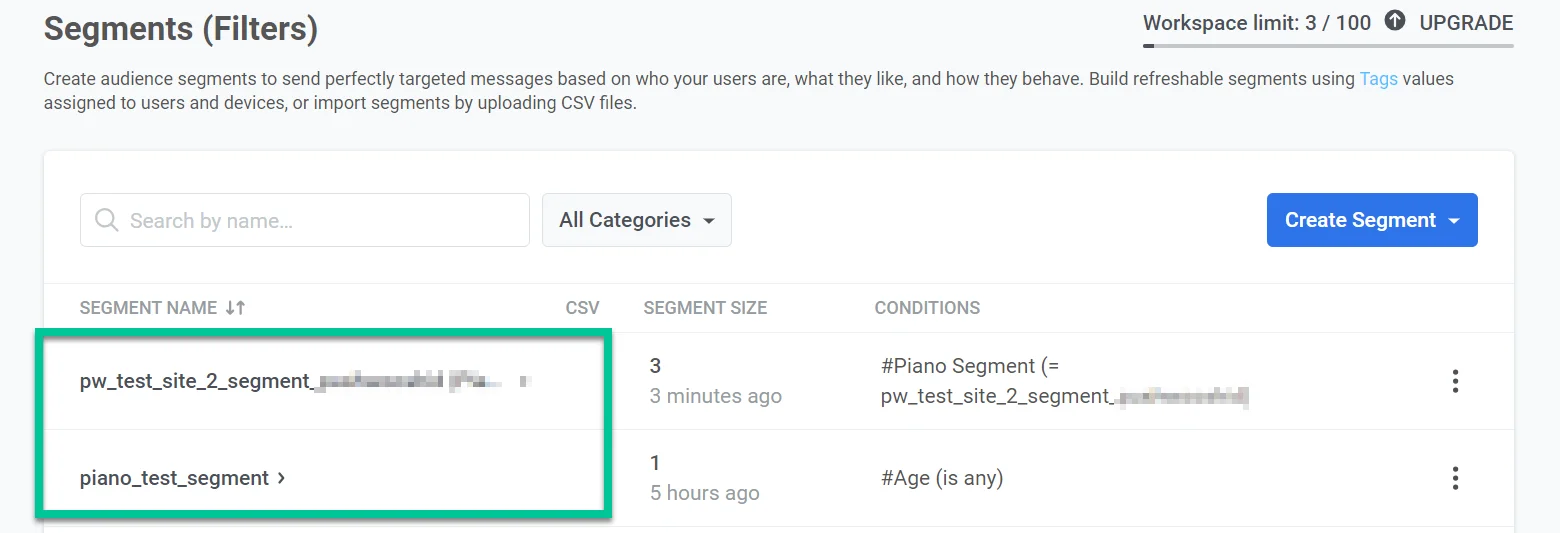
You can access your imported segments in Pushwoosh. Once the import is complete, they’ll be listed in the Audience > Segments section of your Pushwoosh account as <segment key> (Piano Autogenerated).
Import is a one-time snapshot of users who matched the segment in Piano from the same date of the previous month up to today. Pushwoosh adds the segment key to the Piano Segments list tag of matched devices. Only users whose events carry pushwooshid are matched.
Users who leave the segment in Piano later keep the tag. Importing the segment again adds the key to newly matched devices and does not remove it from devices tagged earlier.
Mapping Piano VisitorID to Pushwoosh UserID/HWID for accumulated analytics across SDKs
Anchor link toIf a client wants to accumulate analytics from both the Pushwoosh SDK and the Piano Analytics SDK, Pushwoosh needs to map Piano VisitorID to Pushwoosh UserID/HWID. The solution is to send a Piano VisitorID tag to Pushwoosh for the user/device.
For this, do the following:
- Create a tag named ‘Piano Visitor ID’ on the Pushwoosh side for the application. Note: The tag name must be exactly as described.
- On the client’s application side, get the Piano Visitor ID within the Piano SDK using the getVisitorId method.
- On the client’s application side, use the Pushwoosh SDK to call the
setTagsrequest with the tag value once.
If the tag value (Piano Visitor ID) exists for the user/device, Pushwoosh will automatically include it as Client ID in requests to Piano Analytics. On the Piano Analytics side, it will be transformed into a unique visitor ID value. If the tag is empty, Pushwoosh does not send the user’s events to Piano.
Code examples
Anchor link toWeb Push SDK (JavaScript)
Anchor link toPushwoosh.push(function(api) {// Set tags for a userapi.setTags({'Piano Visitor ID': pa.getVisitorID(),});Android (Java)
Anchor link toString value1 = PianoAnalytics.getInstance().visitorId();TagsBundle pianoTag = new TagsBundle.Builder() .putString("Piano Visitor ID", value1) .build();Pushwoosh.getInstance().setTags(pianoTag);iOS (Swift)
Anchor link tovar pianoId: String = pa.getVisitorId(completionHandler: { visitorId inPushwoosh.sharedInstance().setTags([ "Piano Visitor ID": visitorId ])})iOS (Objective-C)
Anchor link to__block NSString *pianoId;[pa getVisitorIdWithCompletionHandler:^(NSString *visitorId) { Piano Visitor ID = visitorId; [[Pushwoosh sharedInstance] setTags:@{@"Piano Visitor ID": visitorId}];}];In general, Pushwoosh uses device tags to provide device and other information to Piano Analytics within each request. Here is a list of common tags used:
- Country
- Device Model
- OS Version
- Browser Type (in some cases)
How to verify the integration is working
Anchor link toSource: Detecting events sent to Piano Analytics
Anchor link toThere are two easy ways to detect events that were sent to Piano Analytics:
Stream Inspector
Anchor link to- Go to your Piano Analytics account.
- Navigate to Settings > Data Collection Portal > Tools > Stream Inspector.
- Choose the connected site you want to check.
- Select the events you want to inspect and start a session.
- Verify that the events were received by Piano Analytics.
Check Events in Overall Traffic
Anchor link to- Go to your Piano Analytics account.
- Navigate to Settings > Explorer > Audience > Overall Traffic.
- Choose the site and date range in the menu below.
Destination: Importing Piano’s Segment
Anchor link toTo verify the integration on the destination side:
- Import Piano’s segment.
- You should see a new segment (filter) with a name constructed like
segment_key (Piano Autogenerated). - Recalculate the segment to get up-to-date information about current devices processing.
FAQ troubleshooting: Common issues
Anchor link toHow can I ensure events are correctly sent from Pushwoosh to Piano Analytics?
Anchor link toSolution: Use Piano’s Stream Inspector or check Overall Traffic in Piano Analytics to monitor incoming events from Pushwoosh.
What should I do if segment data isn’t imported correctly into Pushwoosh?
Anchor link toSolution: Ensure the Segment Key from Piano matches the setup in Pushwoosh. Check for any errors in segment size calculations or data retrieval.
Can I integrate Piano VisitorID with Pushwoosh for enhanced analytics?
Anchor link toSolution: Yes, by setting up a specific tag in Pushwoosh and using Piano’s SDK to fetch VisitorID, you can synchronize user IDs across platforms.
What should I do if there are issues with API key configurations?
Anchor link toSolution: Review API request logs, ensure correct endpoint URLs and authentication tokens (API keys), and check for any server-side errors reported by either service.