Canvas navigation and controls
The Canvas settings panel controls how you pan, zoom, and select elements on the Customer Journey canvas. Open it by clicking the gear icon in the bottom-right corner of the canvas.
What control schemes are available
Anchor link toA control scheme is a preset bundle of canvas behaviors: what a left-button drag does, what the scroll wheel does, and whether new steps snap to a grid. Pick one from the Control scheme dropdown at the top of the panel.
| Modern (recommended) | Classic | |
|---|---|---|
| Left-button drag on canvas | Selects an area | Moves the canvas |
| Scroll wheel & trackpad | Trackpad pans the canvas, mouse wheel zooms it (auto-detects the device) | Scroll wheel zooms the canvas |
| Zoom | Ctrl/⌘ + scroll, trackpad pinch, mouse wheel | Scroll wheel |
| Snap to grid | On | Off |
Existing accounts keep the scheme they were already using; new accounts start on Modern. Changing any individual setting below the dropdown (drag mode, wheel mode, either invert toggle, or snap to grid) switches the dropdown to Custom setup. Pick a preset again to reset all of these settings to its defaults.
How to configure panning and zooming
Anchor link toTwo dropdowns below Control scheme let you fine-tune panning and zooming independently of the preset:
- Left-button drag on canvas: choose whether dragging with the left mouse button draws a selection rectangle (Selects an area) or pans the canvas (Moves the canvas).
- Scroll wheel & trackpad: choose Auto-detect (trackpad scrolling pans the canvas, a mouse wheel zooms it), Move canvas (trackpad) to always pan regardless of device, or Zoom canvas (mouse wheel) to always zoom.
Two toggles invert the default direction for macOS “natural scrolling” preferences:
- Invert scrolling flips the direction of trackpad/wheel panning.
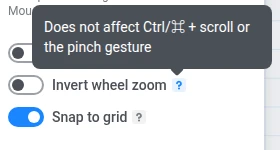
- Invert zoom flips the direction of a plain mouse-wheel zoom only. It does not affect
Ctrl/⌘+ scroll or the trackpad pinch gesture, because those are separate bindings and no OS inverts a pinch gesture.
Regardless of scheme, you can always pan with Space + drag, a right-click drag, or the middle mouse button, and zoom to the cursor with Ctrl/⌘ + scroll or a trackpad pinch.
Snap to grid applies both while dragging a step and while adding a new one: the step snaps to the nearest free cell so steps never overlap. Turn it off to position steps freely.
Canvas keyboard shortcuts
Anchor link toThe Mouse and keyboard section of the panel lists every canvas shortcut, grouped into three tabs: Canvas, Selection, and Actions. Shortcuts adjust to your current drag and wheel settings and to your OS (⌘/⇧/⌫ on macOS, Ctrl/Shift/Del elsewhere).
Common canvas shortcuts:
| Action | Shortcut |
|---|---|
| Zoom in / out | Ctrl/⌘ + / Ctrl/⌘ − |
| Zoom to 100% | Ctrl/⌘ 0 |
| Fit to screen | Shift 1 |
| Toggle minimap | Shift M |
| Show/Hide UI | Ctrl/⌘ \ |
| Select all / Deselect | Ctrl/⌘ A / Esc |
| Duplicate a step | Ctrl/⌘ D |
How to use the minimap
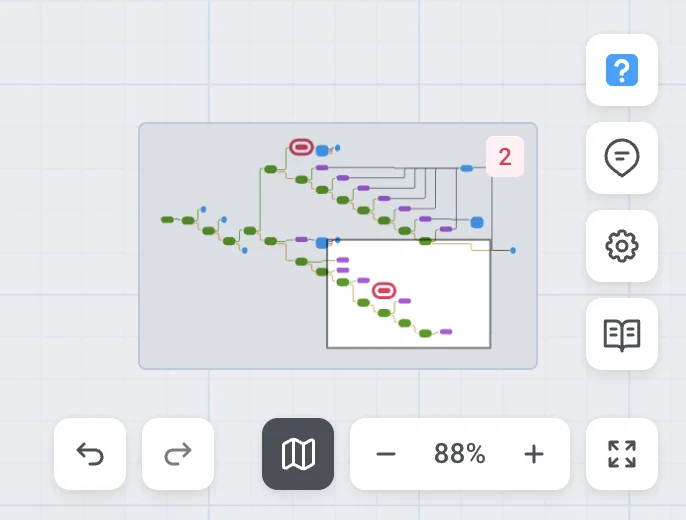
Anchor link toThe minimap gives you an overview of the whole journey and a quick way to jump to any part of it. It sits in the bottom-right corner of the canvas, above the zoom controls, and shows every step as a colored dot (colored by its group), with each connection drawn as an arrow along its real route. A rectangle marks the area currently visible on the canvas. It stays visible in Hide UI mode.
Toggle the minimap with the button next to the zoom controls or the Shift + M shortcut; your choice is remembered in this browser.
- Click anywhere on the minimap to center the canvas on that point.
- Drag the viewport rectangle to pan the canvas.
- Scroll over the minimap to zoom the canvas in and out — this respects the invert zoom setting.
A red badge on the minimap shows how many steps still need configuration; it’s informational only and isn’t clickable.
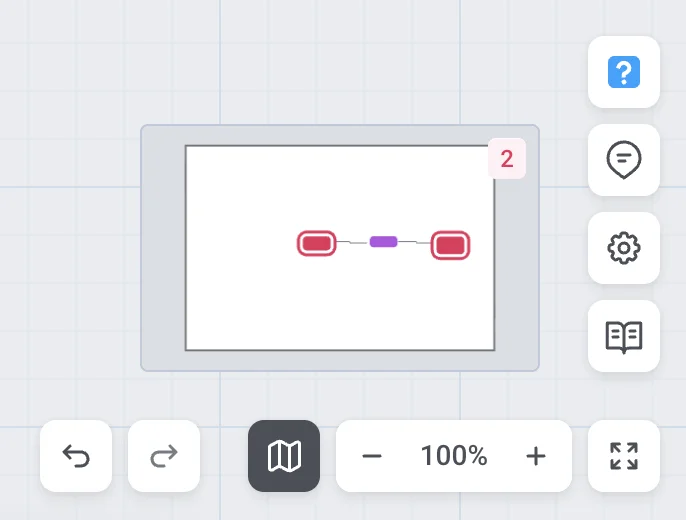
On a larger journey, the badge and the ringed dots make it easy to spot which steps need attention without scrolling around the canvas to find them:
What Show/Hide UI does
Anchor link toPress Ctrl/⌘ + \ to hide the header, sidebar, and all buttons, leaving a clean canvas for presentations or screenshots. Press the same combination again, press Esc, or click the button in the corner of the canvas to bring the UI back. Reloading the page also restores it, since the clean-canvas mode is not remembered between page loads.
How to show metrics on the canvas
Anchor link toFor a launched or finished campaign, a Show metrics toggle sits at the bottom of the Canvas settings panel. Turn it on to keep live stats displayed under every step at once; regardless of the toggle, hovering over a single element also shows its stats.
While metrics are on and the campaign is not a draft or paused, a goal-selector button appears in the top bar. If the campaign has more than one goal, All goals is the top item in that menu; if it has only one goal, that goal is selected automatically and All goals is not shown. For more on reading these stats, see Customer Journey statistics.