HubSpot: get contact properties
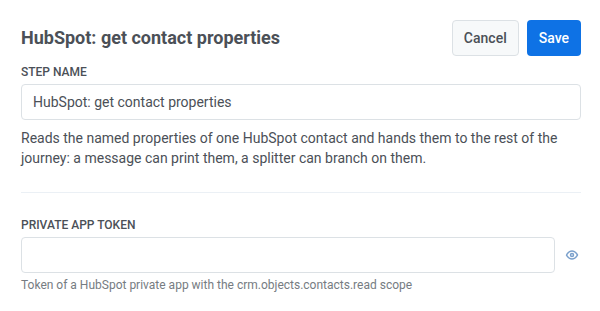
The HubSpot: get contact properties Point template reads the properties you name off one HubSpot contact and hands them to the rest of the journey: a message can print them, a splitter can branch on them.
This point authenticates with its own HubSpot private app token — it doesn’t use any account-level HubSpot integration configured elsewhere in Settings.
Configure the point
Anchor link to- Drag HubSpot: get contact properties from the Integrations section onto the canvas.
- Double-click the point and enter a Step Name.
- In Private app token, enter a HubSpot private app token with the
crm.objects.contacts.readscope. It’s stored masked, like a webhook secret header.
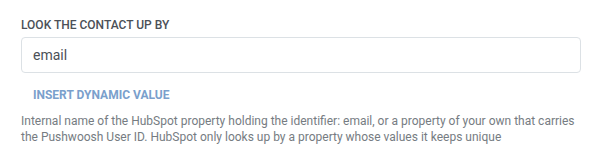
- In Look the contact up by, enter the internal name of the HubSpot property that holds the identifier —
emailby default, or a property of your own that carries the Pushwoosh User ID. HubSpot only looks a contact up by a property whose values it keeps unique.
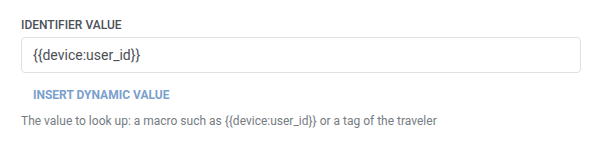
- In Identifier value, enter the value to look up, for example
{{device:user_id}}or a tag of the traveler.
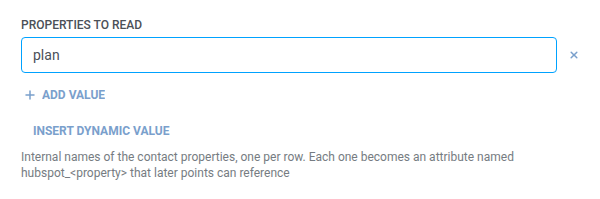
- In Properties to read, add a row per HubSpot property’s internal name (for example
firstname,lifecyclestage) — see list fields. Keep at least one non-empty value.
- Click Save.
Connect the branches
Anchor link toAfter you save, the point shows two branches on the canvas. Connect a next step to each:
- Found: the identifier matched an existing HubSpot contact. For example, continue with a Condition split or a message that uses the properties you read.
- Not found: HubSpot answered with a 404 (no matching contact). The traveler is not dropped. The point does not retry or wait out a failed-request cooldown the way a real failed request does. For example, send a different path or a generic message.
Not found is not a failed request. A real failed request drops the traveler instead. See Errors and failed requests.
Response
Anchor link toOn Found, later steps can use:
- Each property you asked for as
hubspot_<property>. For example,firstnamebecomeshubspot_firstname. - The contact’s ID as
hubspot_contact_id.
Use them the same way as a Webhook response attribute. For example, branch with a Condition split or set a Tag with Update user profile.
On Not found, none of these attributes are available.
Example scenario: Personalizing a message with a HubSpot contact’s plan
Anchor link toA team wants a push to mention the traveler’s plan tier as stored in HubSpot, without keeping a separate copy of it in Pushwoosh tags.
- Add HubSpot: get contact properties at the point in the journey where the plan should be read. Leave Look the contact up by at
emailand set Identifier value to{{tag:Email}}. In Properties to read, addplan. - Click Save, then connect Found to a Push step that uses
hubspot_planin its text, and connect Not found to a step that sends a generic push instead.
Once this runs, a traveler with a matching HubSpot contact gets a push mentioning their actual plan, and a traveler with no match still gets a message instead of being dropped.