Journey editing
Both draft and active journeys can be edited. You may need to update journey elements in the following cases:
- Test the effectiveness of your communications
- Adjust a journey to some special events and changing conditions
- Edit occasional errors
Editing a draft journey
Anchor link toTo edit an element of a journey that has not yet been launched, simply double-click on it. You can learn more about setting up each element in the journey elements article.
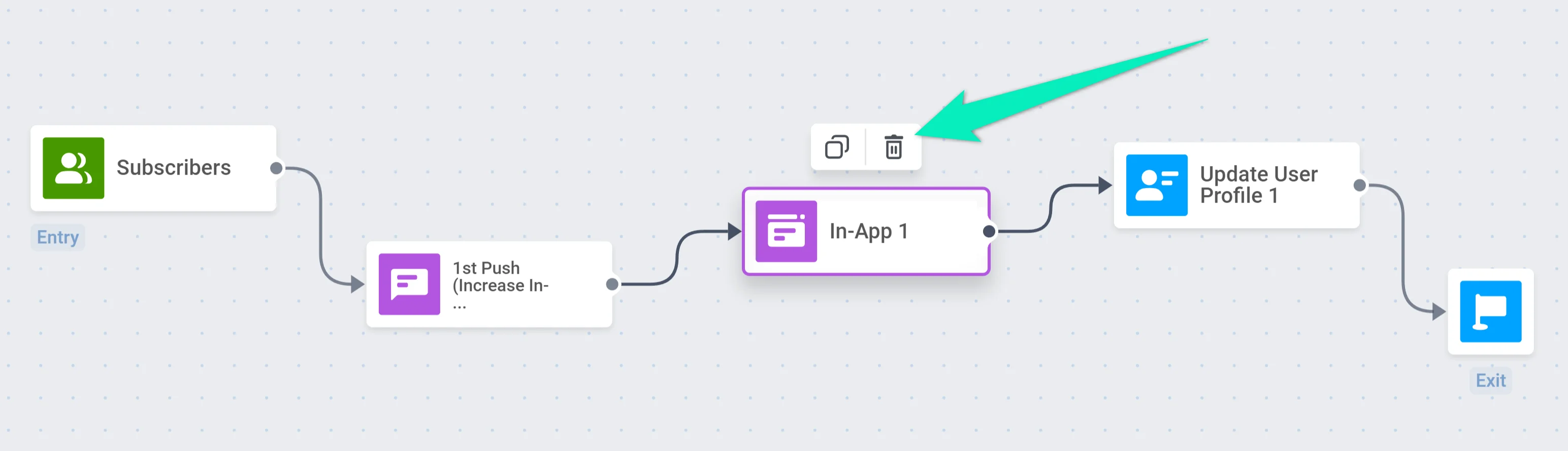
If you need to delete an element of a draft journey, select this element and click on the trash icon:
Editing an active journey
Anchor link toTo edit an active journey, you first need to pause it. Click on the campaign’s dropdown menu and select Pause to edit.
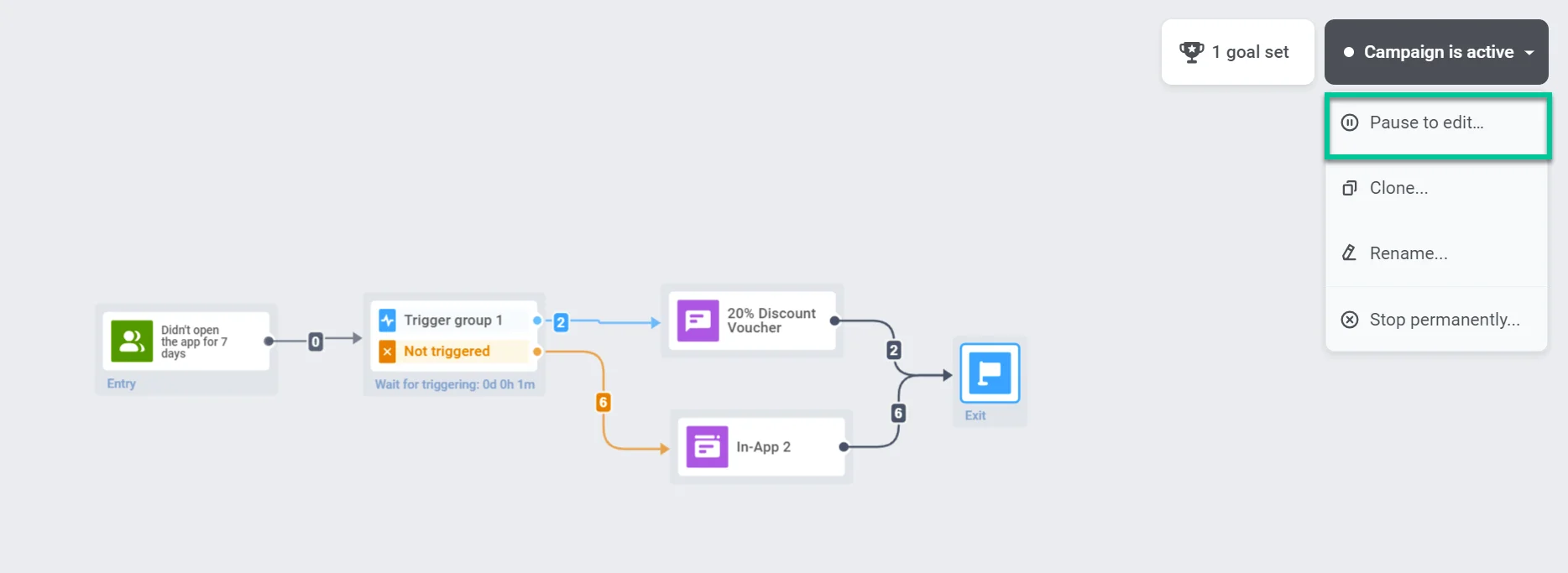
While the journey is paused, no new users enter it. Users who already entered stay in the journey and continue from where they left off once you resume it. See What happens to users already in the journey when you pause it for details on specific elements.
Edit elements on the canvas
Anchor link toModify and delete elements the same way as in a draft journey. Double-click an element to open its settings.
Delete or add elements
Anchor link toIf you delete an element, connect the remaining elements to each other or to a new element if you add one:
Leaving a branch without an outgoing connection is also a valid way to end it. On the canvas, an open branch end shows a small hint icon with a counter of how many users left there. In statistics, these departures count under Exits, not as an error.
Save changes
Anchor link toPushwoosh saves your changes automatically while you edit a draft or paused journey, so saving by hand isn’t required. The status below the campaign name tells you what to do:
- Not saved: autosave hasn’t saved your edits yet. No action needed. It saves automatically about 10 seconds after you start editing. Closing the tab or navigating away before then doesn’t lose the edit. It stays cached in this browser and picks up again when you reopen the journey here.
- Saved: your edits are saved. This appears briefly after each successful save, then the status goes back to showing the campaign name.
- Saved only in this browser: autosave couldn’t reach the server. The status turns orange in the header, and a banner appears below the canvas with a Save again button.
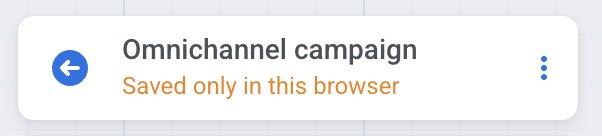
The banner below the canvas repeats this information with a way to retry:

A change marked Saved only in this browser stays in this browser’s local storage: it survives a reload here, but won’t reach other browsers or devices until a save succeeds. Click Save again to retry immediately. Otherwise, Pushwoosh keeps retrying in the background and clears the banner once a save goes through.
If you try to leave the page while the latest change hasn’t reached the server, Pushwoosh asks whether to Leave anyway or Stay:
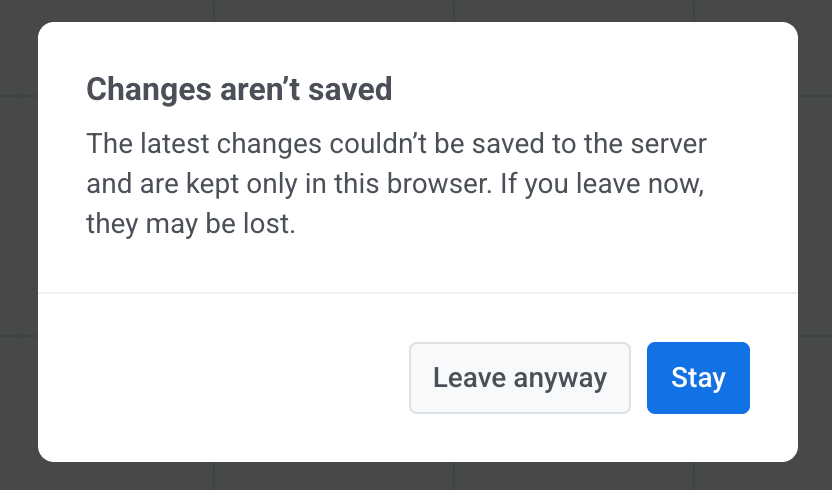
Leaving without saving doesn’t discard the edit. It stays cached in this browser and picks up again when you reopen the journey here.
Resume the campaign
Anchor link toWhen you finish editing, click Resume campaign at the top right of the canvas.
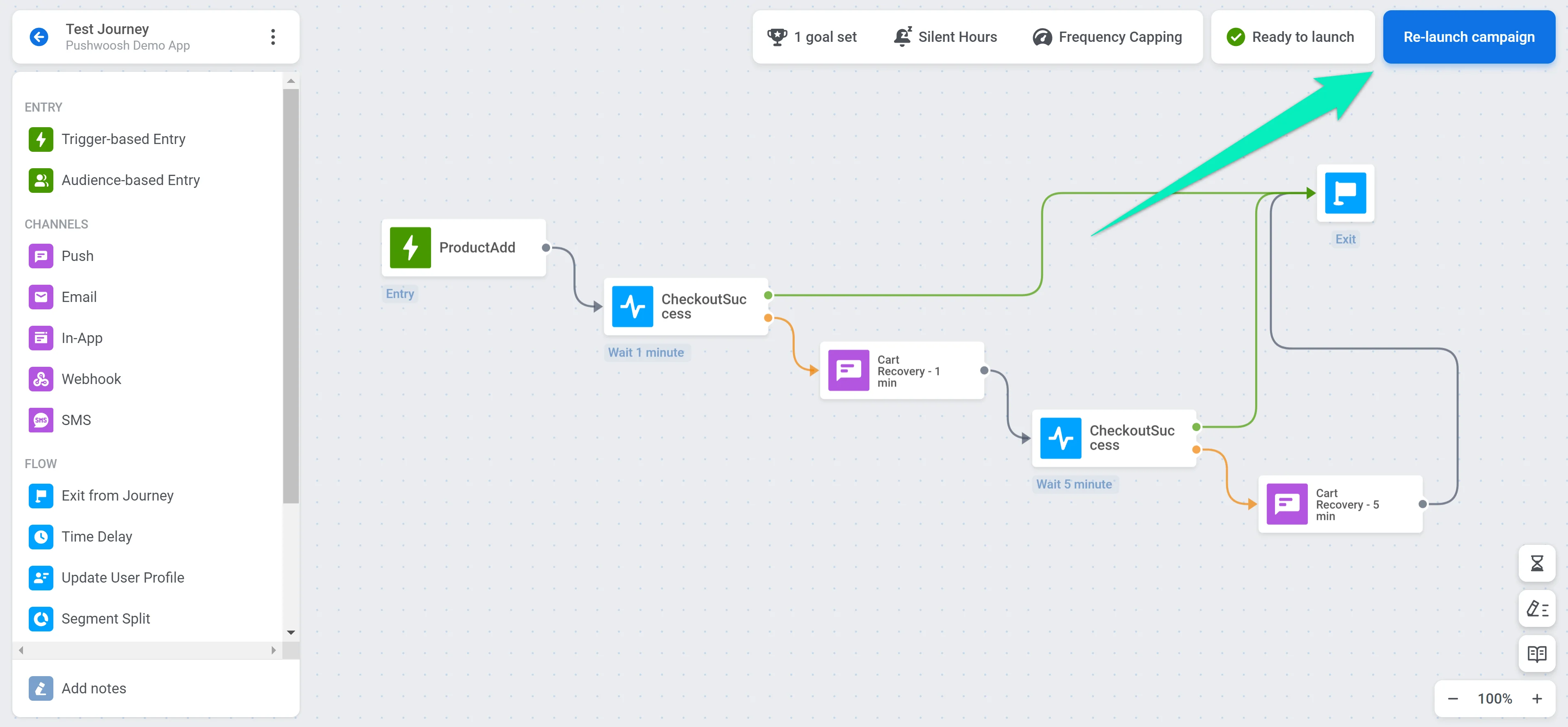
For journeys with Audience-based entry, the resume step shows additional audience options. See Resume options for Audience-based entry.
Depending on what you changed, resuming either keeps the campaign on its current version or starts a new one. See Journey history and versions for what each option means and how to manage versions afterward.
What happens to users already in the journey when you pause it
Anchor link toPausing a journey does not stop users who already entered it: they continue from where they left off once you resume it. What happens to a user in the meantime depends on which element they were waiting at when you paused.
A user is waiting at a Time Delay
Anchor link toPausing the journey does not pause the Time Delay timer: the send time is fixed the moment the user enters the delay point, not when the journey resumes.
- If that time falls inside the pause window, the user waits at this step and the message goes out immediately once you resume the journey.
- If it falls after you resume, the message goes out at the originally scheduled time, as if the pause never happened.
For example, a user enters a 24-hour Time Delay on Monday at 10:00, so the message is scheduled for Tuesday at 10:00. Pause the journey Monday at 15:00 and resume it Wednesday: the message sends immediately on resume. Pause it Monday at 15:00 and resume Tuesday at 08:00 instead: the message still sends at the originally planned Tuesday 10:00.
A user is waiting at Wait for Trigger
Anchor link toIf the event waiting period of the Wait for Trigger element ends while the journey is paused, the user waits at this step. Once you resume the journey, the user continues along the Not triggered branch.
A user is waiting on the Opened/Not opened split
Anchor link toA user who received a message just before you paused the journey, in a flow with Split flow if message is opened turned on, waits at this step if the wait time for that split ends while the journey is paused. Once you resume the journey, the user continues along the Not opened branch.
Resume options for Audience-based entry
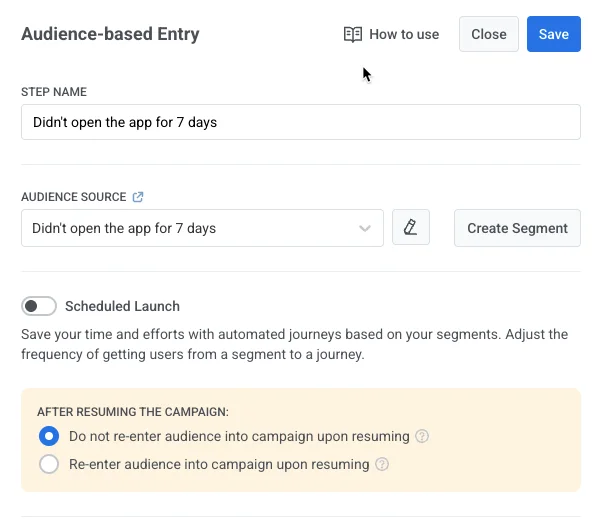
Anchor link toAfter you pause the journey, edit it (e.g. change message content or add steps), and click Resume campaign, the Audience-based entry element shows options that depend on the current Entry schedule setting. These options control how users are treated when the journey resumes.
No scheduled entry date
Anchor link toIf Entry schedule is One-time entry and Immediately (users entered at launch, no date was set), choose how the audience is handled when the journey resumes:
-
Do not re-enter audience into campaign upon resuming (default)
Users who previously entered will not re-enter the journey. They will continue from where they left off. -
Re-enter audience into campaign upon resuming
Users who still match the segment criteria will be allowed to re-enter the journey upon resuming if the Campaign entry limit settings allow re-entry, and the user is not currently in the journey.This means users who previously entered and are no longer active in the journey can be re-added if both conditions are met.
Scheduled entry date
Anchor link toIf Entry schedule is One-time entry and Schedule for a specific day, select what happens for users whose scheduled entry time (in their local timezone) has already passed:
- Exclude users whose local time has passed
Users whose local scheduled time (e.g. 10:00) has already passed will not enter the campaign. - Let users enter immediately
Users whose local time has already passed will enter the campaign immediately when it resumes.
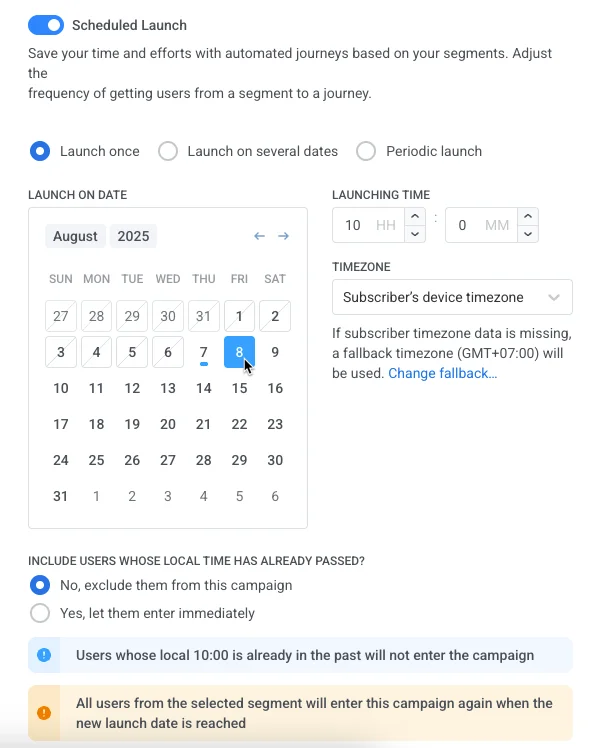
In the After resuming the campaign section, choose how the audience is handled when you click Resume campaign:
-
Do not re-enter audience into campaign upon resuming (default)
Users who previously entered will not re-enter the journey. They will continue from where they left off. -
Re-enter audience into campaign upon resuming
Users who still match the segment criteria will be allowed to re-enter the journey upon resuming if the Campaign entry limit settings allow re-entry, and the user is not currently in the journey.
Entry close date
Anchor link toIf the point has When entry closes set to On a specific day, clicking Resume campaign validates the close date the same way a first launch does. If the close date isn’t later than the entry start date in every timezone it applies to, the resume is rejected with the same error as at launch: End entry must be later than start entry, or End entry is not later than start entry in timezones: … naming the affected ones.
Changing only the close date doesn’t reprocess the audience the way a new Schedule for a specific day start date does. Whether users who already passed through re-enter still depends only on the Do not re-enter / Re-enter choice above, not on the close date.
View journey change history and versions
Anchor link toClick the clock icon at the bottom-right corner of the canvas to open the history panel, on the right side of the journey builder. See Journey history and versions for what the panel’s tabs show, whether you get a Versions tab at all, how to read the change log, and how to switch between versions.