Send Viber messages
This guide walks you through how to send Viber messages in Pushwoosh via Customer Journey or API.
Send Viber messages via Customer Journey
Anchor link toPushwoosh allows you to integrate Viber messaging into Customer Journeys. Follow these steps to configure it:
-
Go to Campaigns > Customer Journey Builder in the main sidebar.
-
Click Build a journey from scratch.
-
Add an Entry element to define who enters the journey. Learn how to configure the Entry elements
-
Add a Viber element and connect it to the rest of your flow (e.g., entry trigger and next steps).
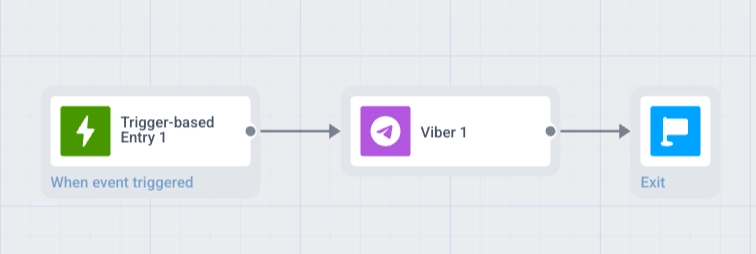
-
Click the Viber element to open its settings panel. Learn more about the Viber element
-
In Template, select a template from your Omni Messaging account. A promotional template loads its content into Message Text, where you can edit it. To send your own text instead, leave Template empty and enter the text in Message Text.
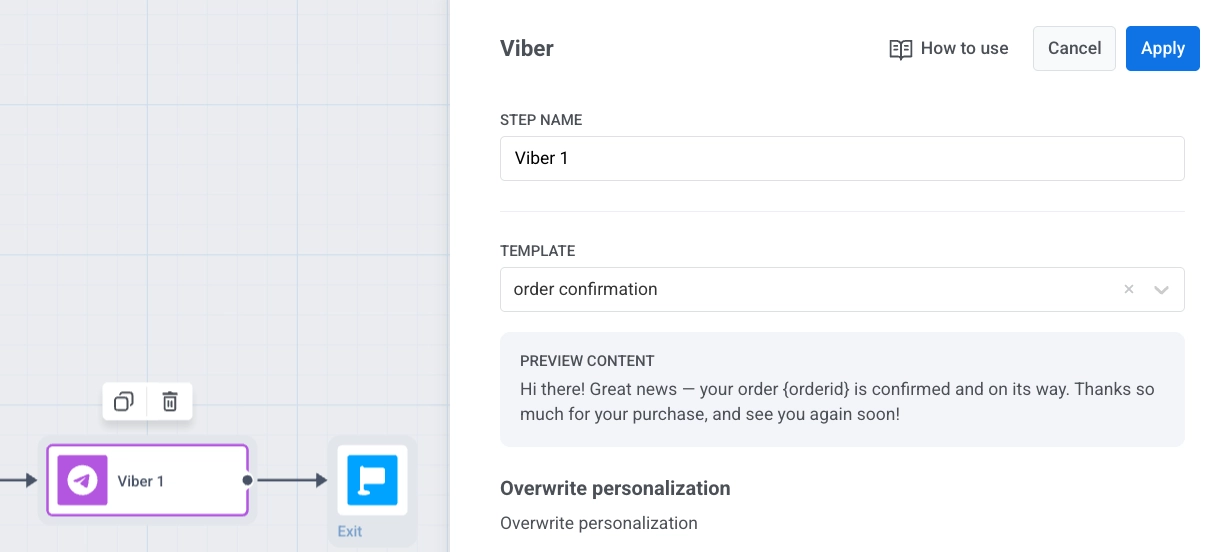
-
Select the message type: Marketing or Transactional.
-
Optionally, for a Marketing message, set Frequency capping under Delivery settings.
-
Optionally, if you use a promotional template or your own text, turn on Use Vouchers to use vouchers in your message text.
-
Click Apply to save the element settings.
-
Complete the journey setup, ending each branch with an Exit element or by leaving it without an outgoing connection. When you’re ready, click Launch campaign to activate it.
Send Viber messages via API
Anchor link toSend Viber messages using the Notify method in Messaging API v2.