News feeds
News feeds keeps a list of RSS or Atom feeds for your application. Once a feed is registered, Pushwoosh checks it for new articles on the schedule you set, so a News block in email, a News feed push preset, or a News Feeds preset in SMS can pull the newest articles at send time instead of going stale between campaigns.
To open it, go to Content → News Feeds for the application in the Pushwoosh Control Panel.
Prerequisites
Anchor link to- A public RSS 2.0 or Atom feed URL that Pushwoosh can reach without a login.
Register a feed
Anchor link to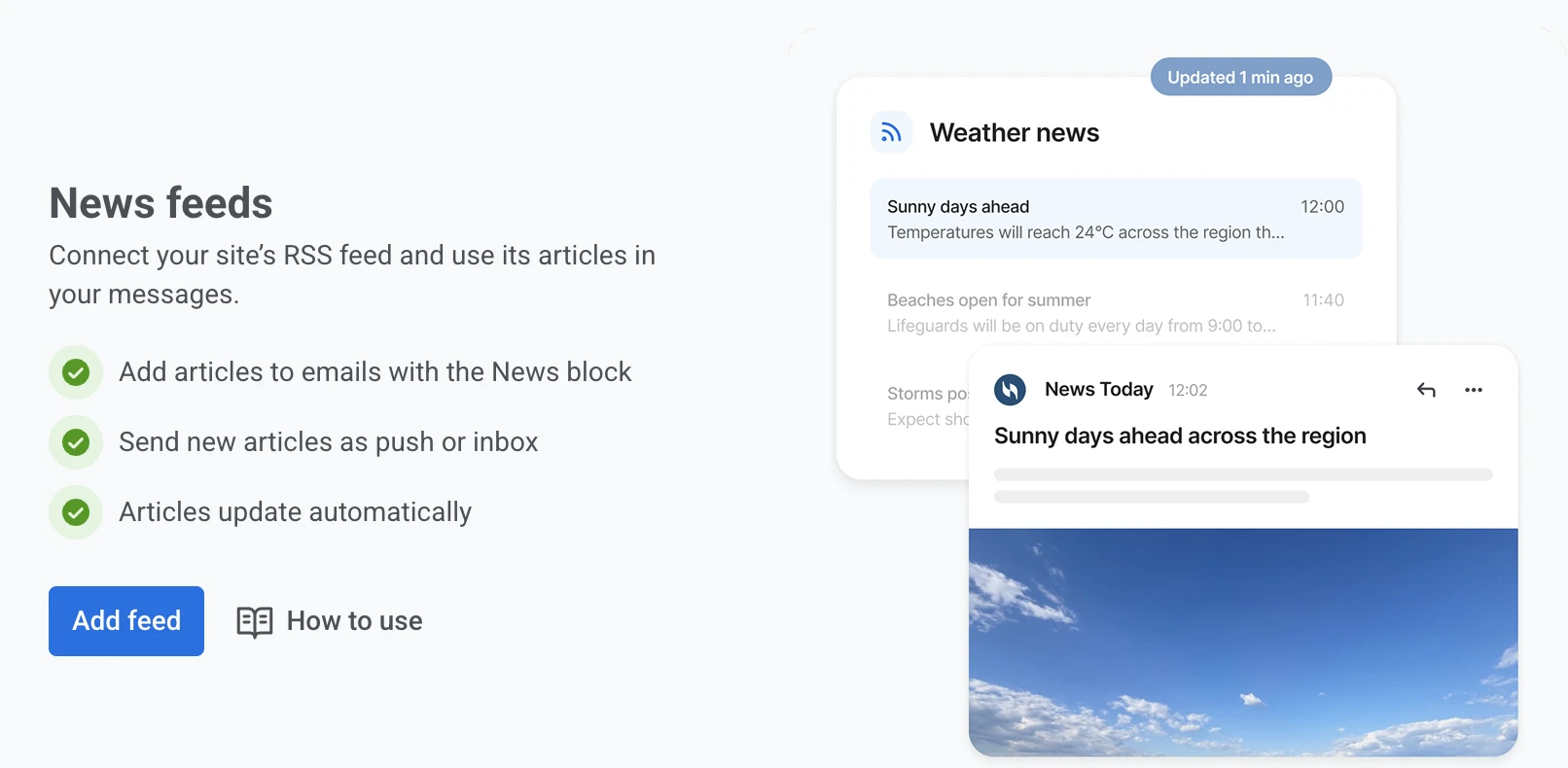
- Click Add feed.
- Enter the feed’s URL in Feed URL.
- Click Check feed. Pushwoosh reads the URL without saving anything yet.
- Adjust Name if needed. It’s filled in from the feed’s own title once the check succeeds, and is what you’ll see when picking this feed in a News block or a News Feeds preset.
- In Check for new articles every, choose how often Pushwoosh looks for new articles: every 1, 15, or 30 minutes, or every hour. New feeds start at 15 minutes.
- Click Add feed.
Check the feed before you name it, set the interval, or add it. The check reports one of:
- Articles found: how many articles the feed returned, with the headlines of the latest three.
- We couldn’t read this feed: the URL is unreachable or doesn’t return valid RSS or Atom data. Open the URL in a browser to confirm it returns the feed, fix it, and click Check feed again.
- The URL responds but contains no articles: the feed is reachable but empty, so it can’t be saved. Use the URL of a feed that already has articles, or publish an article and check again.
Once you add the feed, Pushwoosh imports its articles right away, then checks for new articles at the interval you chose.
If a registered feed later goes unreachable or stops returning articles, the content that reads it still goes out. The News block in email hides its card grid for affected recipients, while the News feed push preset and the News Feeds SMS preset fall back to whatever you set under If the feed returns nothing.
Track your feeds
Anchor link toOnce at least one feed is registered, the page lists your feeds in a table. Use Search to find a feed by name or URL, and click the Name column header to sort the list.
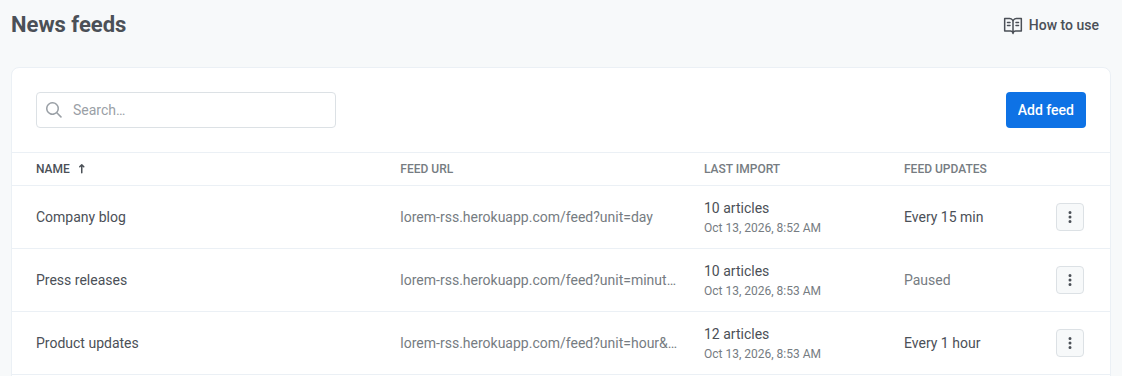
For each feed, the table shows:
- Last import: how many articles the latest import read and when it ran, or Not imported yet for a feed that hasn’t been imported.
- Feed updates: how often Pushwoosh checks the feed, for example Every 15 min, or Paused for a deactivated feed.
If the latest import failed, Error: Couldn’t read this feed appears under the feed’s name. Hover over it to see the reason, for example “feed returned HTTP 404.”
Manage a feed
Anchor link to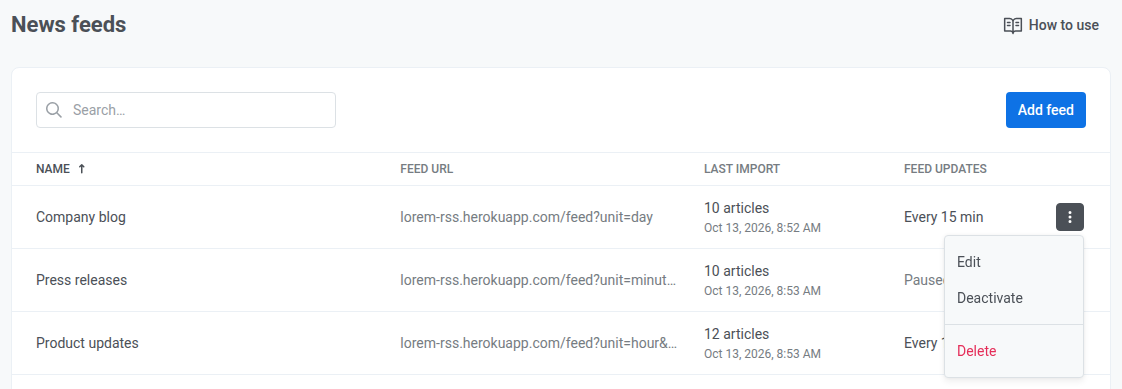
Click a row’s menu (⋮) to manage a feed:
- Click Edit, or click the feed’s name, to change its URL, name, or check interval. If you change the URL, click Check feed again before saving.
- Click Deactivate to stop checking the feed for new articles. The feed and its already-imported articles stay. Click Activate to resume, which imports the feed right away and then checks it at its interval again.
- Click Delete to remove the feed and its articles from emails that read it. This can’t be undone, so deactivate the feed instead if you only want to pause it. A feed that a feed campaign uses can’t be deleted. Delete those campaigns first.