Multi-Armed Bandit
The Multi-Armed Bandit element sends a push notification to users, just like the Push element. Instead of a single preset, you provide several content variants. Optimization runs continuously on live data, without manually restarting the test or keeping a fixed traffic split. Pushwoosh shifts more traffic toward the variant that gets opened most or leads to the most conversions.
Add the Multi-Armed Bandit element after the event or condition that should trigger it, then configure the element.
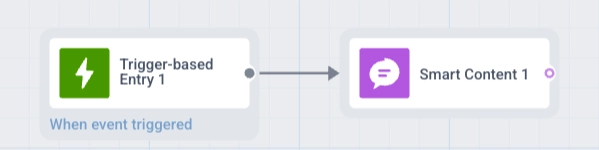
Add content variants
Anchor link to- Double-click the Multi-Armed Bandit element to open its settings.
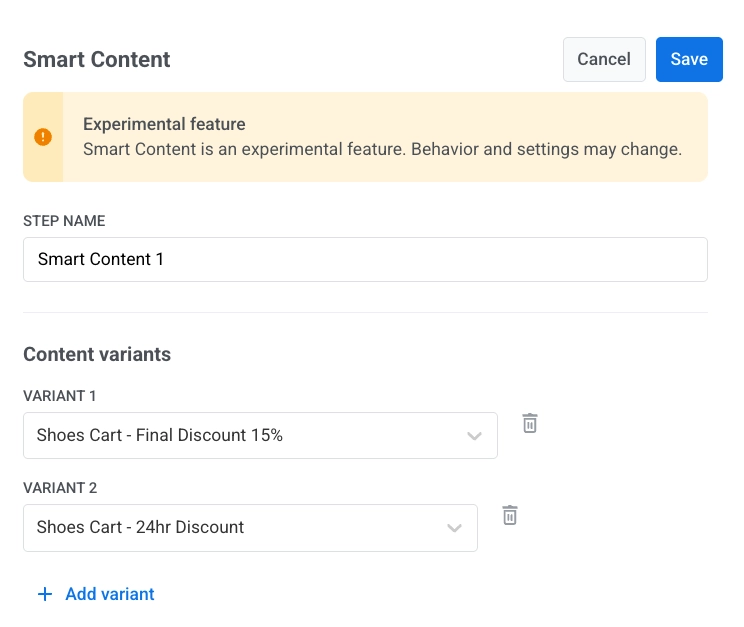
- In Content variants, select at least two different push presets.
- Click Add variant to include more presets. There is no upper limit.
If content approval is on for your account, this picker doesn’t show version status or disable unapproved presets, but every variant still needs to be Approved. Launching or resuming the Journey blocks on any variant that isn’t.
Choose success metric
Anchor link toIn the Reward section, pick what counts as a win for a variant:
- Push opened: a variant wins a send when the user opens that push.
- Event happened: a variant wins a send when the user triggers an event after receiving that push, for example a purchase. Select the event in Reward event. The list shows events of the journey’s project. Learn more about events.
With Event happened, Pushwoosh credits the event to the last push this element sent to the user before the event, if the event happens within that push’s reward window. If the user triggers the event several times within the window, that push still counts as one conversion.
Set Reward window (hours) to define how long Pushwoosh waits after a send for the open or the event:
| Reward | Default window | Allowed window |
|---|---|---|
| Push opened | 2 hours | 1–72 hours |
| Event happened | 24 hours | 1–168 hours (7 days) |
You can’t save the element with a window outside the allowed range for the selected reward.
In a new element, changing the reward switches the window to that reward’s default. In a saved element, the window keeps its value, so check that it suits the new reward.
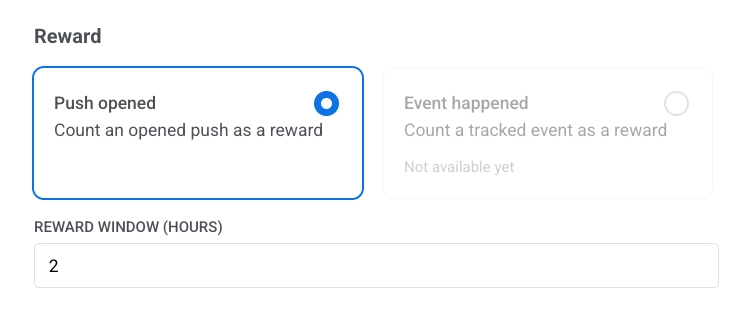
Pushwoosh compares variants only once the reward window has passed since the first sends. A longer window catches more late opens or events, but Multi-Armed Bandit also waits longer before it can learn from each send.
Personalize variants and add vouchers
Anchor link toPersonalize with Dynamic Content
Anchor link toToggle Personalise message with event attributes to fill placeholders in your variant presets with values from an event, instead of device tags. Multi-Armed Bandit collects the placeholders used across all your selected variants into one list, so you map each placeholder once, no matter which preset ends up being sent.
Learn more about personalization in journeys.
Overwrite Liquid placeholders
Anchor link toToggle Overwrite Liquid placeholders and select an event to feed its attributes into Liquid tags in your variant presets that match by name. If you enable both Dynamic Content and Liquid personalization, Liquid takes priority.
Use vouchers
Anchor link toToggle Use Vouchers to attach a unique code from a voucher pool to whichever variant gets sent. Create your variant presets with the {{voucher}} placeholder in advance, then select the Voucher Pool to pull codes from. Optionally, use Assign Tag to save the delivered code to a user tag.
Set message type
Anchor link toChoose Marketing message or Transactional message:
- Marketing message: For campaigns and promos. All rules and limits apply. Respects: frequency capping and the silence period. Excludes: the control group users.
- Transactional message: For operational or service messages. Rules and limits don’t apply. Bypasses: frequency capping. Sent to: the control group users.
No message type is preselected. Until you choose one, the element shows a Message type not selected warning. If the element is reached only from an Audience-based entry, Marketing message is shown with a Default badge. Choose Transactional message if the message is a service one.
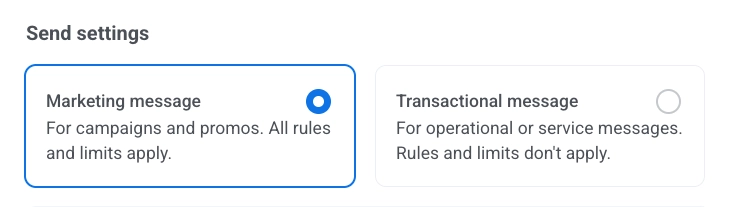
Learn how message type affects delivery.
Configure message delivery settings
Anchor link toSet frequency capping
Anchor link toUse Frequency capping to limit how often users receive push messages, preventing over-messaging and reducing churn. In the Multi-Armed Bandit element settings, choose one of the following options:
-
Use global frequency capping settings
Apply the project-wide limits configured in your Global frequency capping settings.
For example, if the global limit is set to 3 messages in 9 days, additional messages exceeding this limit will be skipped.
-
Send messages without global frequency capping
The user will receive this message even if they’ve exceeded the channel’s message limits. Use this option with caution to avoid over-messaging.
-
Use custom frequency capping
Set a custom message limit for this message. If the user exceeds this custom cap, the message will be skipped, and the user will proceed to the next step.
Choose a counting mode for this custom limit: Rolling window or Calendar day.
Set send rate limits
Anchor link toThe Send rate setting controls how quickly messages are delivered to your audience. Adjusting the send rate helps you manage delivery speed, prevent backend overload, and improve overall deliverability.
Choose one of the following options:
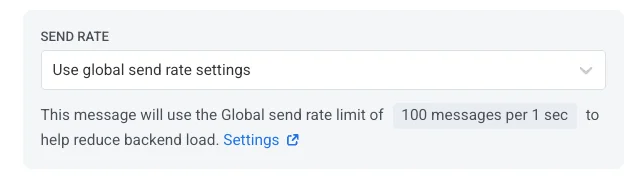
- Use global send rate settings Applies the send rate limits configured in your project’s message delivery settings. If no limits are set, all messages will be sent immediately. Use this option when you want delivery speed to follow your project’s default rules. Learn more about global send rate limits
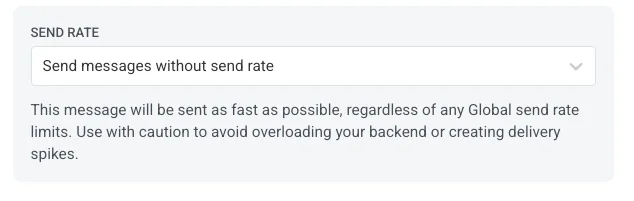
- Send messages without global send rate Sends messages as fast as possible, ignoring any global send rate limits. Use with caution to avoid overloading your backend or creating delivery spikes.
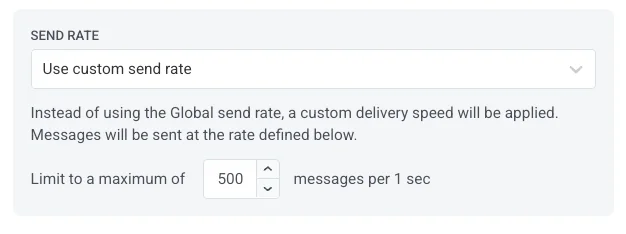
- Use custom send rate Overrides the global send rate for this message only. Allows you to specify the number of messages sent per minute, giving you full control over delivery speed. Messages will be sent at the custom rate you define in the message element.
When you finish configuring the Multi-Armed Bandit element, click Save.
How Multi-Armed Bandit picks a variant
Anchor link toMulti-Armed Bandit doesn’t alternate between variants evenly or run a fixed 50/50 split like A/B/n split. Instead, it continuously watches which variant gets opened more often, or leads to the reward event more often, and gradually sends that variant to a larger share of users. It still sends the other variants often enough to keep learning from real data.
A few things to know about how it behaves:
- It takes some time and volume for a clear leader to emerge. Early on, variants are sent close to evenly.
- Pushwoosh avoids sending the same variant to the same user twice in a row, so people don’t get the exact same message repeatedly.
- Selection is based on the overall performance of each variant across all users in the journey, not on an individual user’s preferences.
Even after a variant is confirmed as the winner, Multi-Armed Bandit keeps running. Unlike an A/B/n split, it doesn’t lock in the winner and route all traffic to it. The winning variant keeps getting the largest share of sends, while the others still receive a smaller share so Pushwoosh can keep learning. If performance shifts over time, Multi-Armed Bandit adapts and can move traffic to a new leader.
Example scenario: Recovering an abandoned cart
Anchor link toUse Multi-Armed Bandit when users add items to their cart but don’t complete checkout. The example below starts a journey on a Cart abandoned event and tests three push variants to bring users back.
- Prepare push presets. Create three push presets in your account before you build the journey. Learn more about creating push presets.
For this abandoned-cart scenario, you might create presets like these:
- Cart reminder: “Items are waiting in your cart”
- Cart urgency: “Your cart expires in 1 hour”
- Cart discount: “Get 10% off if you check out now”
-
Create the journey. In Campaigns → Customer Journey Builder, click Create Campaign and choose Build a Journey from Scratch. Add a Trigger-based entry element to the canvas.
-
Set the trigger. Create or enable a Cart abandoned event that fires when a user doesn’t complete checkout within a few hours. In the Trigger-based entry element, select this event as the journey trigger. Learn more about events.
-
Add the Multi-Armed Bandit element. Place the Multi-Armed Bandit element after the trigger, then open its settings.
-
Add content variants. In Content variants, select the three presets you created in step 1.
-
Choose the success metric. In Reward, select Push opened. Set Reward window to 2 hours. This window is long enough to catch opens from users who don’t check their phone right away, but short enough to keep learning fast.
-
Finish setup and launch. Configure message type and delivery settings, click Save, and activate the journey.
After launch
Anchor link toMulti-Armed Bandit may behave roughly like this. Actual traffic split and timing depend on send volume and how users respond to each variant.
First, Pushwoosh sends all three variants close to evenly, since it doesn’t have enough data yet. As opens come in, it starts shifting more traffic toward whichever variant gets opened more. For example, if “Get 10% off if you check out now” consistently outperforms the other two, it might receive about 60% of sends while the other two split the rest.
Pushwoosh keeps sending the lower-performing variants too. This keeps learning going and follows the rule that a user who was just sent one variant won’t receive that same variant again the next time they hit this step.
Review results
Anchor link toAfter you save the element and launch the journey, open the Multi-Armed Bandit element’s statistics panel to see how your variants are performing.
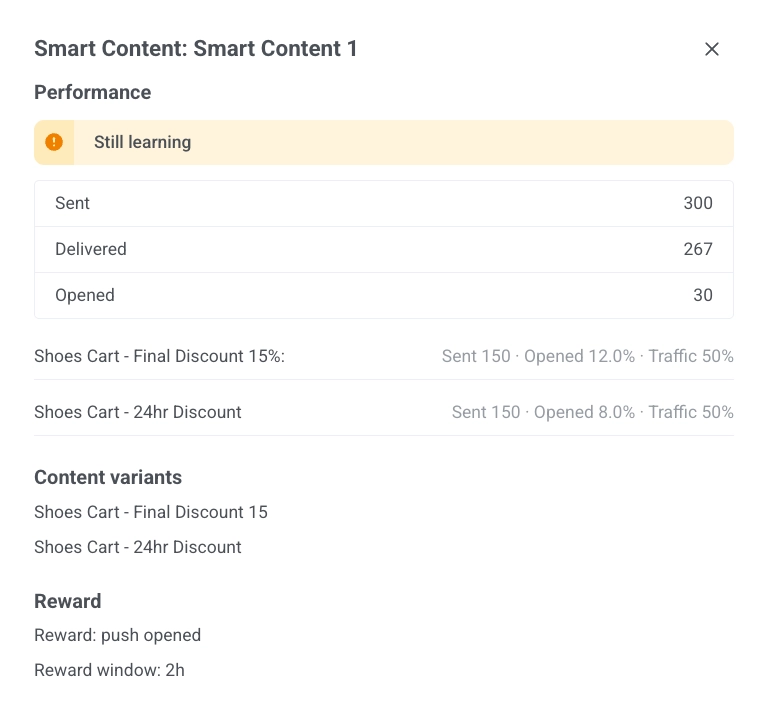
A banner at the top shows the current status of the experiment:
- Not enough data yet: Multi-Armed Bandit hasn’t collected enough sends to say anything meaningful.
- Still learning: there’s data, but no variant is a clear, statistically significant leader yet.
- Significant leader: one variant is confirmed to outperform the others. It’s marked with a Winner badge.
For each variant, you’ll see:
- Sent: how many times this variant was sent.
- Opened (with Push opened) or Converted (with Event happened): the share of sends that got the reward within the reward window.
- Traffic: the current share of new sends going to this variant.
Multi-Armed Bandit vs. A/B/n split
Anchor link toBoth Multi-Armed Bandit and A/B/n split optimize your messaging, but they work differently. Use the table below to decide which one fits your use case.
| Multi-Armed Bandit | A/B/n Split | |
|---|---|---|
| Mechanics | Continuously shifts traffic toward the best-performing variant based on live opens or conversion events | Splits users into fixed percentage branches you define upfront. Branches can hold entirely different downstream flows |
| Variants | At least two push presets required. No upper limit on variants | Up to four branches per test |
| Traffic split | Starts close to even, then shifts automatically as data comes in | Fixed percentage you set, stays fixed until a winner is picked |
| Duration | Runs continuously, with no defined end | Runs until statistical significance is reached or you stop it manually |
| Winner | Never locks in: the winning variant gets more traffic, but the others still receive some | Locks in after a winner is picked: losing branches deactivate, and all new users route to the winner |
| Best for | Ongoing content optimization for a single message step (push presets only, for now) | Testing structurally different flows or sequences when you want a one-time, locked-in decision |