Custom events
Unlike default events, which are universal across many apps and sectors, custom events are specific to your app. These events track specific actions unique to your needs, such as completing a workout or extending a subscription. They help you understand how users interact with your specific features. Also, they provide deeper insights into user behavior, help track retention, and allow for the creation of highly personalized and effective marketing campaigns. This ultimately improves user engagement and satisfaction.
If a custom event carries revenue data (for example, order_completed with a price attribute), you can track its revenue as a conversion event without adding new code.
Creating custom events
Anchor link toTo create a custom event in Pushwoosh:
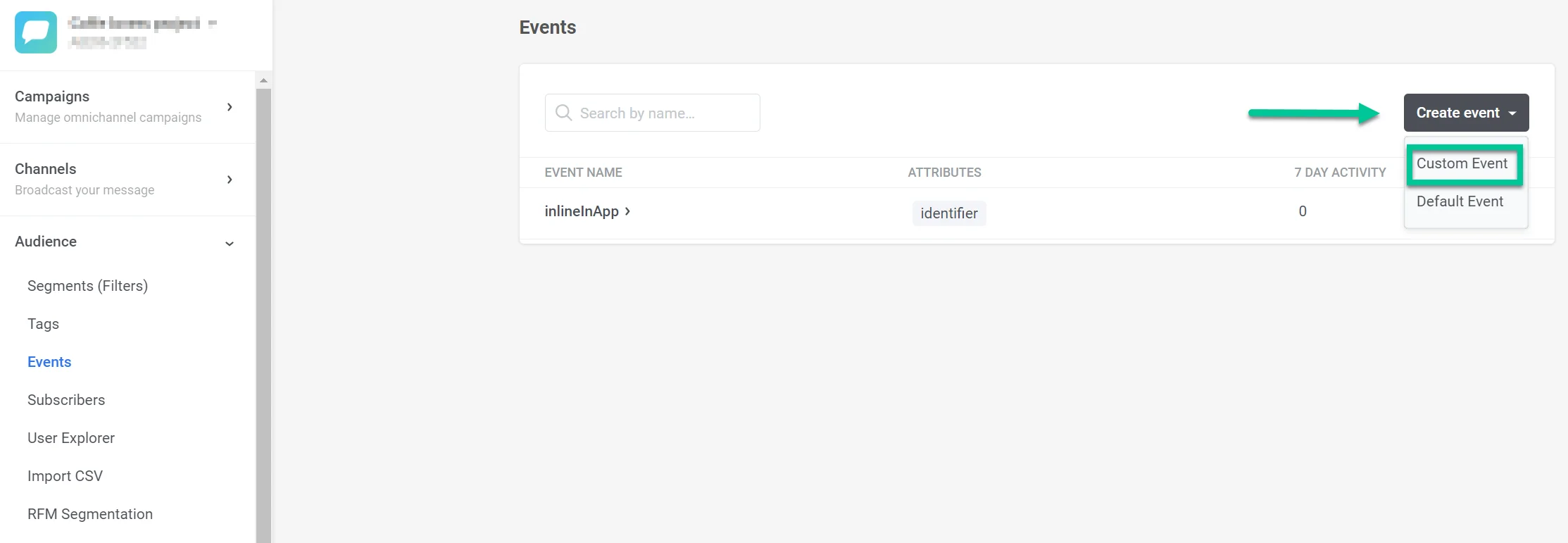
- Go to Audience > Events and click Create Event. In the drop-down menu that appears, select Custom Event.
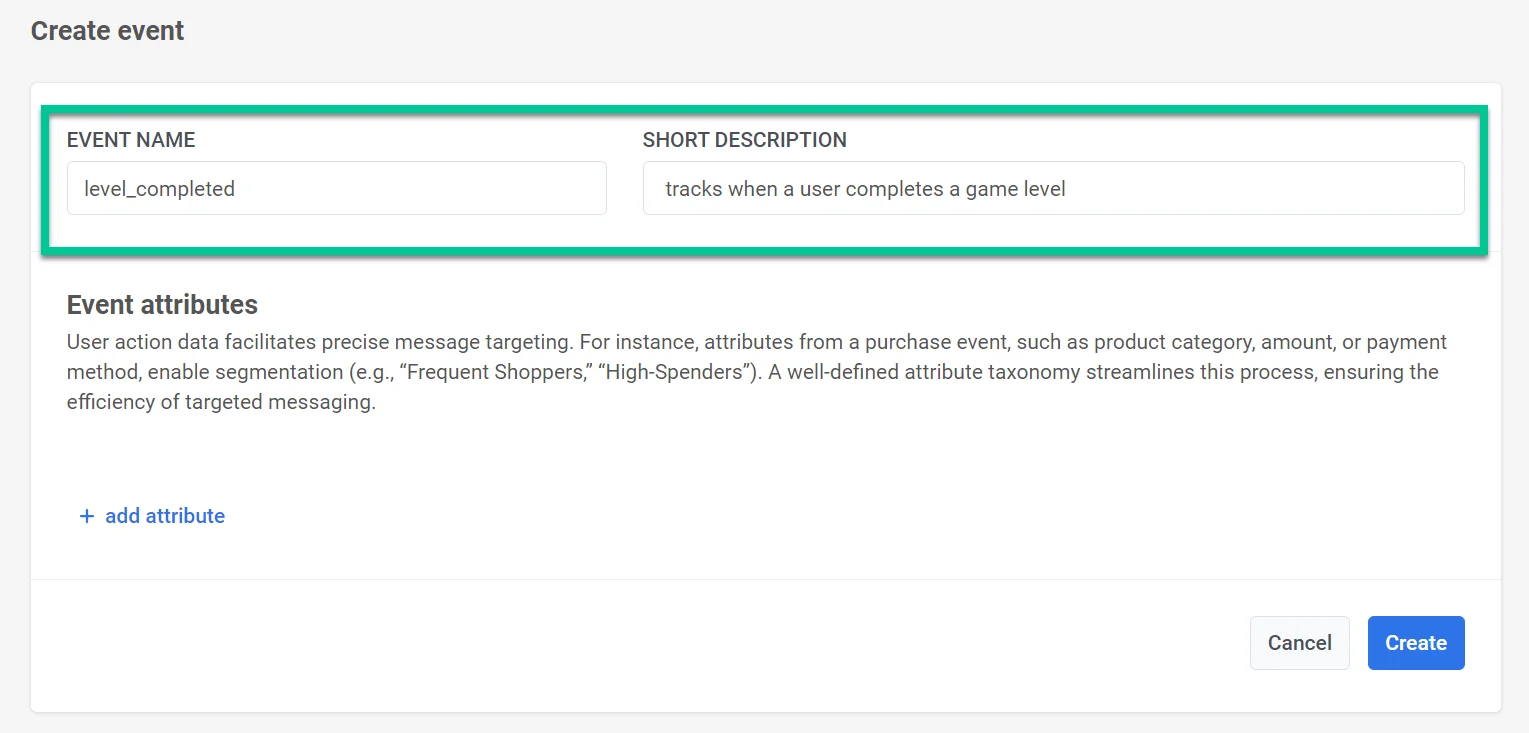
- In the window that opens, enter the name of your event in the Event Name field. For example, use level_completed to track when a user completes a game level. Provide a brief description of the event in the Description field. This helps quickly identify the event’s purpose.
- Define the specific attributes relevant to your event and select the attribute type. Event attributes are specific pieces of information that describe the details of an event. They capture various aspects of a user’s interaction within your app. This provides valuable data for precise message targeting and segmentation. You can add up to 100 attributes to an event.
Available attribute types:
- integer
- string
- boolean
- list
- decimal (price)
- date
- version
- time zone
For details on attribute types, see Understanding events.
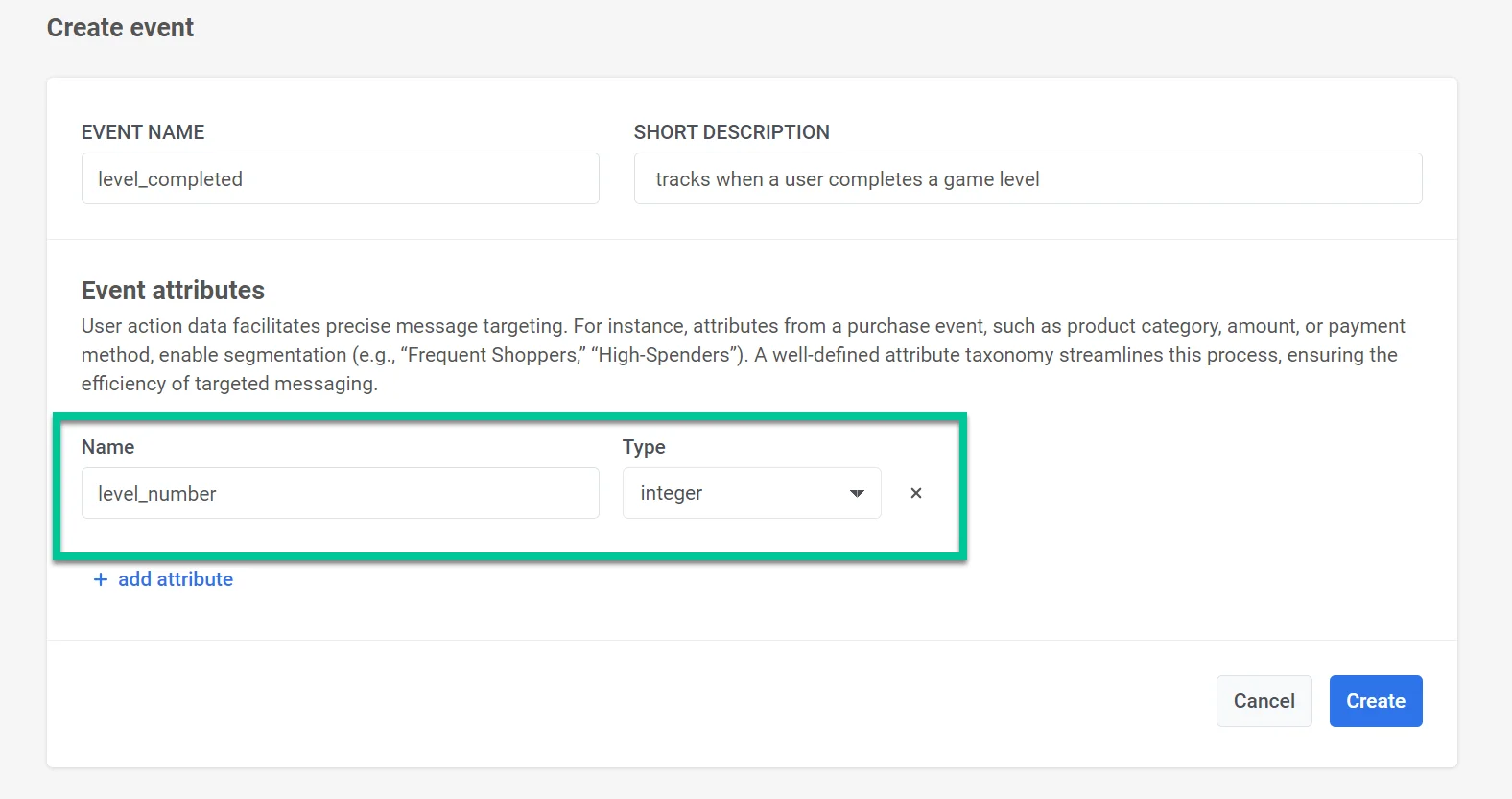
For each event that occurs, there will be corresponding attribute values. For example, attributes for the level_completed event could include level_number, completion_time, score, or points_earned. When the event is recorded in Pushwoosh, it will include these attribute values along with a timestamp. This data can later be used to build segments, target messages, and collect statistics.
After filling in the necessary details and adding attributes, click Create to finalize the event setup. If you decide not to proceed with creating the event, click Cancel to discard the changes.
Managing custom events
Anchor link toThe events list provides an overview of all custom events you’ve created for your application. Each event helps you track specific user interactions or behaviors.
Event Details
- Event Name that identifies the event (e.g., “button_clicked”, “video_watched”)
- Attributes or key pieces of information associated with the event, providing additional context (e.g., “button_id”, “video_category”)
- 7-Day Activity - the number of times the event occurred in the past seven days, offering a quick view of recent engagement
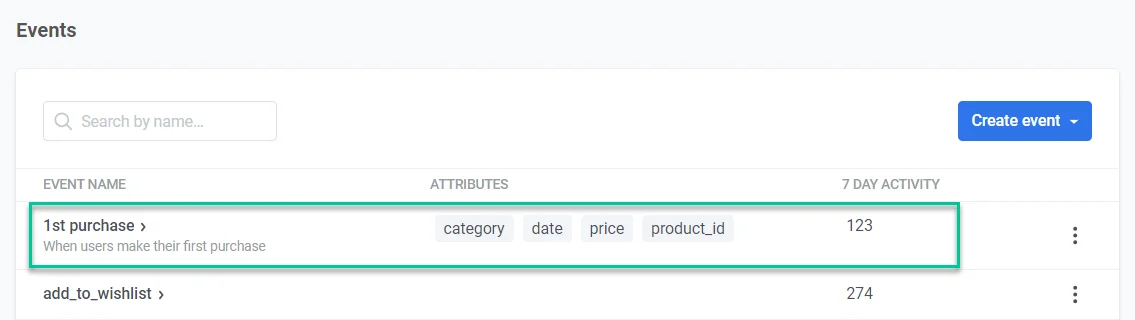
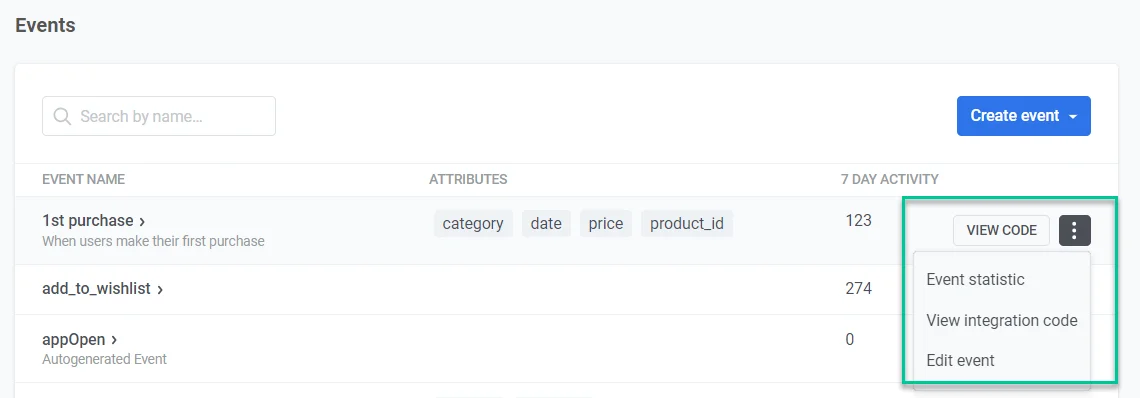
Each event has a menu for further management:
- Click View Code to access the code snippet required to integrate this event into your app’s codebase.
- Click Event Statistics to dive deeper into detailed statistics for the chosen event, providing insights into user behavior.
- Click Edit Event to modify an event’s settings, including its name and associated attributes, to ensure accurate data collection.
Using custom events in Pushwoosh
Anchor link toOnce you’ve set up your events, you can use them to:
- Create a customer journey that will launch at your custom event, using the Trigger-based entry element.
- Build segments by events, including filtering by event attribute values and operators.
- Segment users by criteria such as how many times they performed a custom event or when the event last occurred. Use these segments to set up Audience-based entries to customer journeys or use the Segment Split option within the journey.
- Set a time delay in your customer journey based on the custom event users trigger within their journey.
- Use the custom event in the Wait for Trigger step to set different communication scenarios based on whether a user triggers this particular event or several events within a specified time.
Custom events use cases
Anchor link to| App Type | Custom Event | Description | Use Case |
|---|---|---|---|
| Fitness and Health apps | workout_complete | A user completes a workout session. | Send motivational messages or rewards to keep users engaged and encourage regular workouts. |
| E-commerce apps | cart_abandoned | A user adds items to their cart but does not complete the purchase. | Send a reminder email or push notification with a special offer or discount on the items left in the cart. |
| Education and e-Learning apps | complete_course | A user completes a course. | Send congratulatory messages and recommend advanced courses or related topics. |
| Media and entertainment apps | watch_video | A user watches a video. | Send notifications about similar content or new releases. Recommend other videos. |
| Travel and hospitality apps | book_flight | A user books a flight. | Send travel reminders, packing tips, and recommendations for activities at their destination. |
| Subscription apps | start_trial | A user starts a free trial. | Send onboarding messages with tips, offer assistance, and highlight key features. |
| Mobility or carsharing apps | ride_completed | A user completes a carsharing ride. | Send a follow-up in-app message, request feedback, or offer a discount on the next ride. |
| Gaming apps | level_completed | A user completes a game level. | Send congratulatory messages and offer tips or rewards for completing the next level. |
Tracking custom events
Anchor link toEvents statistics
Anchor link toYou can track each event you’ve created. For this:
- Navigate to Audience > Events.
- In the Events list, find the event you want to track and click on the three dots next to it. Select Event Statistics.
- Set the date range for which you want to analyze the event data.
- To count only events with specific attribute values, click Attribute, then pick the attribute, an operator, and a value.
- In the dropdown next to the date range, choose how to group the chart: Hourly, Daily, or Weekly.
The chart shows how many times the event was triggered in each hour, day, or week of the range. For a range of one or two calendar days, the chart groups events by hour at first. For three days or more, it groups them by day.
Days and weeks follow the timezone shown next to the date range, and weeks start on Monday. When the range starts or ends mid-week, the first or last week counts only the days inside the range.
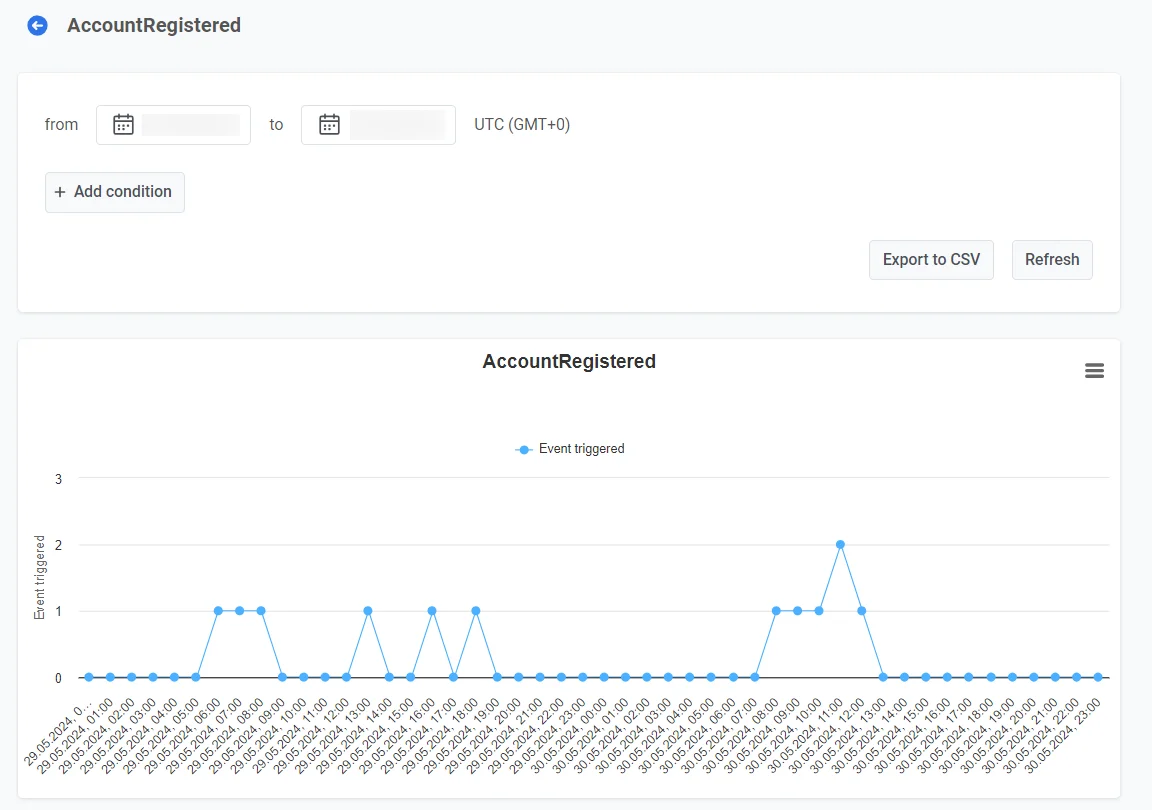
To download the chart data as a CSV file, click Export data. The file has one row per point on the chart: the start time of the hour, day, or week, written in UTC, and the number of events.
Export users list is available only with the Personal data permission. To download the list of users who sent the event, click it. Pushwoosh prepares a CSV file in the background. When the file is ready, click the Download CSV button that appears on the page.
The file contains:
- Rows: one row for each time a user sent the event. If a user sent the event five times, the file has five rows for that user.
- Columns: the time of the event, the User ID, the HWID, the platform, and one column for each event attribute.
- Dates: all events from the selected dates, including the whole last day.
- Filters: the Attribute filter doesn’t apply, so the file includes all events.
To reload the data for the same range, click Refresh.
Events brought by messages
Anchor link toEvent Statistics counts every event your app sent. To see which events followed a particular message, open the statistics of that message or of a journey.
There, the Events table lists the events that users sent after clicking the message. An event is counted for the last message the user clicked in the 72 hours before the event. For example, a user taps a push and buys something two hours later: the purchase event appears in that push’s statistics.

- If the user clicked several messages in that window, the event is counted for the last one only.
- If the user clicked no message in that window, the event isn’t counted for any message. It still counts in Event Statistics.
- A click is a tap on a push, opening an App Inbox message, a click on a link in an email, or reading a WhatsApp message. Opening an email or clicking its unsubscribe link doesn’t count. SMS messages have no clicks, so events are never counted for them.
Where to find these events:
- A single message: the Events table on the Timeline tab of push, email, App Inbox, or WhatsApp statistics
- A journey: the Events block in the journey statistics, broken down by step
Dashboards
Anchor link toPushwoosh also allows you to track custom events using the Events dashboard, which contains statistics related to the events used in your campaigns, or by building your own custom dashboard. Learn more
Retention tab
Anchor link toUse the Retention tab to track retention related to specific events relevant to your business. Learn more