Create opt-out recovery popups
In-app messages can win back users who unsubscribed from push notifications, whether they declined the system prompt or never granted it. Re-engaging these users can help improve overall user retention and increase their lifetime value to your business.
For the first ask before the system push permission prompt (and to open that dialog from the accept button), see Show an in-app before the push permission prompt instead.
Pushwoosh In-App Editor allows you to create in-apps easily, without developer and designer skills required. You can add headers, texts, images (including AI-generated pictures and stock photos), buttons, forms, and other elements to the canvas and customize them in just a few clicks. You can incorporate in-app messages in an omnichannel customer journey to get the most out of your user communications.
Build a recovery popup template
Anchor link toHere’s an example of a popup that asks users to turn notifications back on:

Create a part-screen popup in the In-App Editor, then return here to automate when it appears in your app.
Automate the display of your in-app message in Customer Journey Builder
Anchor link toOpt-out recovery popup
Anchor link toWe recommend creating a customer journey for a segment of users who have disabled or never enabled notifications in the app.
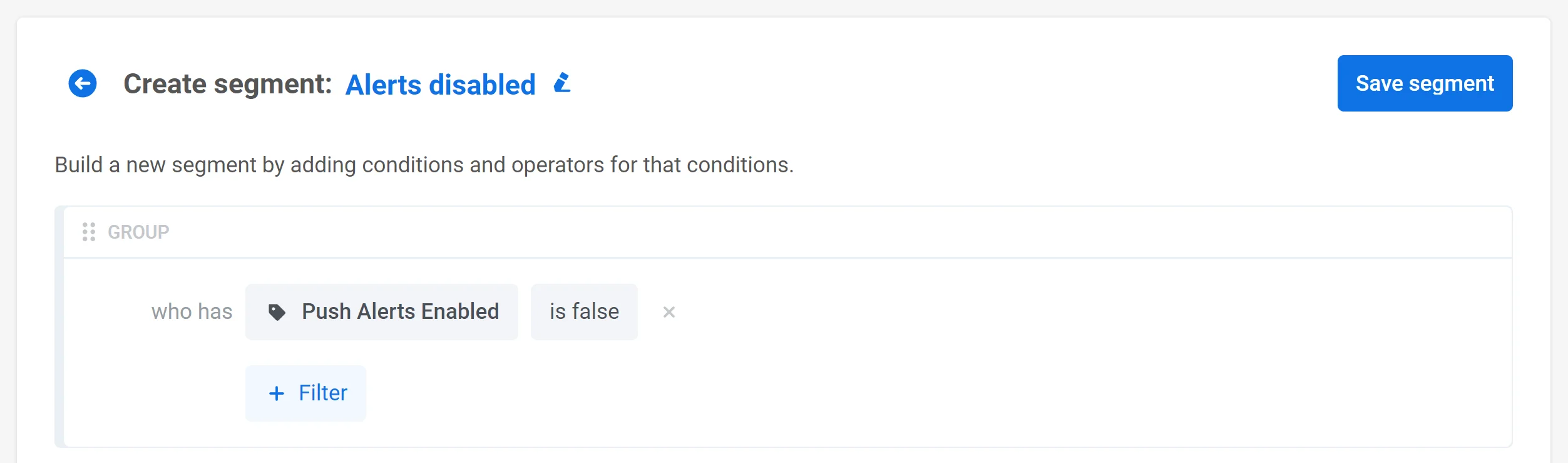
First, build a Segment of users who have alerts disabled. Filter on the default Push Alerts Enabled tag (the SDK sets it automatically from the device’s system notification permission) and set the operator to is false:
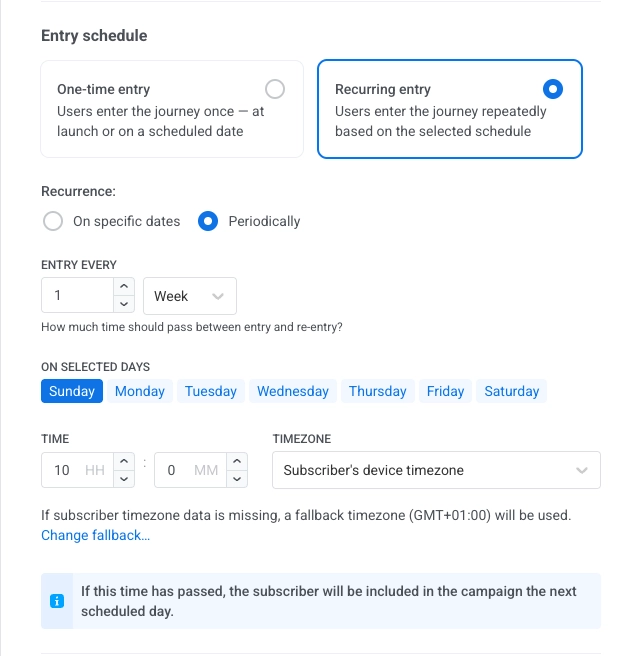
After that, you can build a customer journey starting with the Audience-based Entry. Select the segment you created and set Entry schedule → Recurring entry → Periodically (e.g. once a month):
You can also add the Wait for Trigger step with the default PW_ApplicationOpen Event as the trigger so that the popup will appear once a user opens the app. As a result, the journey will look like this:
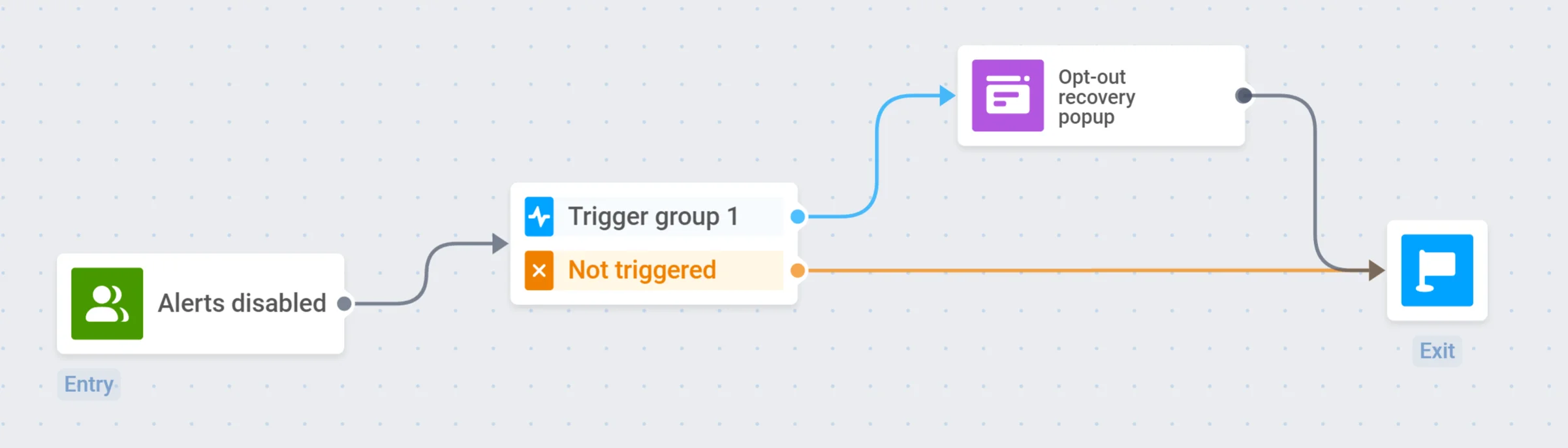
Every month, Pushwoosh will launch this journey for a segment of users who have notifications turned off.