Facebook Messenger platform configuration
Pushwoosh enables you to send and receive Facebook Messenger messages as part of your omnichannel campaigns. Connect your Facebook Page to Pushwoosh to use Facebook Messenger in Customer Journey and one-time messages.
Prerequisites
Anchor link toBefore configuring Facebook Messenger, ensure the following requirements are met:
- Facebook Page: the Page you want to message customers from.
- Meta App: a Meta App with the Messenger product added, connected to your Facebook Page.
- Page ID and Page Access Token: generated for your Page in the Meta App dashboard.
You enter those values in Pushwoosh in the steps below. For Meta App and token creation, share this page and Meta’s Messenger docs with development.
Set up the Facebook Messenger configuration
Anchor link toTo set up the Facebook Messenger configuration, follow these steps:
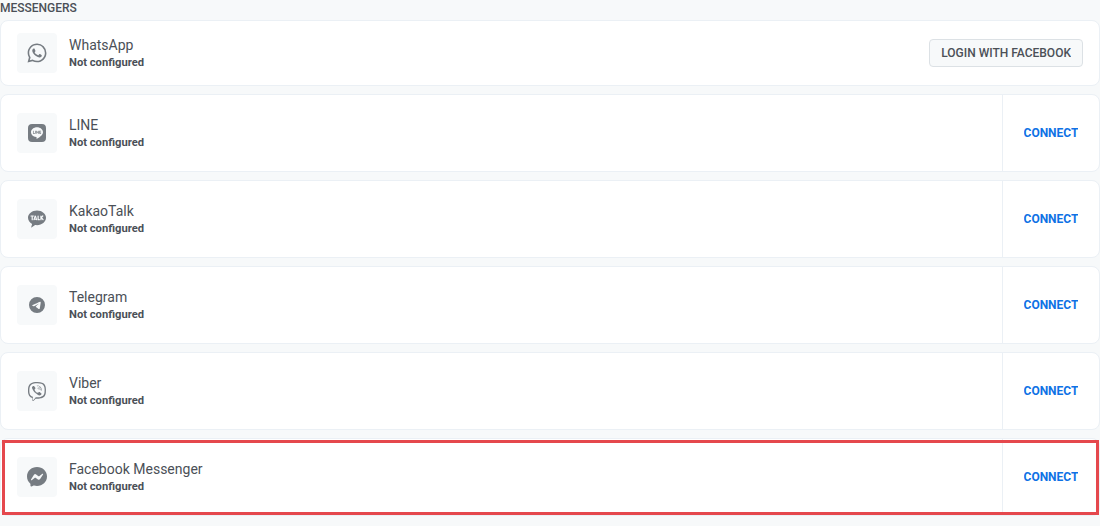
- Go to Settings → Configure platforms. Under Messengers, click Connect on Facebook Messenger.
- On the Facebook Messenger Configuration page, enter your Page ID and Page Access Token from the Meta App dashboard.
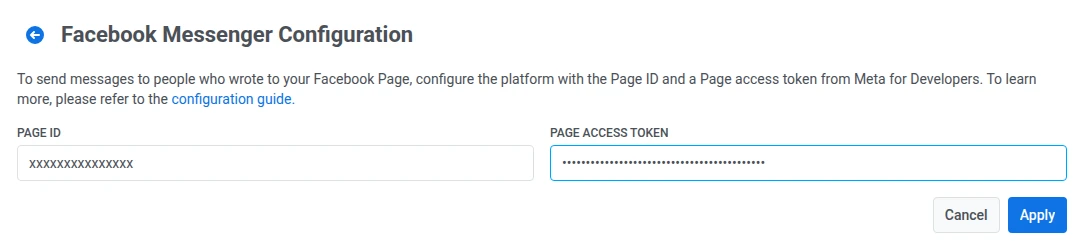
- Click Apply to save your configuration. To discard changes, click Cancel.
After you click Apply, Pushwoosh registers the inbound events it needs with Meta (messages, messaging_postbacks, messaging_optins, messaging_referrals, message_deliveries, message_reads) automatically. You do not need to choose those event types yourself in Pushwoosh.
Set the Webhook URL in Meta
Anchor link toTo allow Meta to send incoming messages and events to Pushwoosh, configure a webhook URL in your Meta App dashboard.
Follow these steps to set it up:
- In your Meta App dashboard, go to the Messenger > Settings page.
- In the Webhook section, enter the following callback URL:
https://tw-callback.svc-nue.pushwoosh.com/api/v1/fbMessengerCallback- Enter the verify token you configured for this Page, then click Verify and Save.
- Subscribe the webhook to your connected Page in Meta (the same Page you connected in Pushwoosh). This is separate from the inbound event fields Pushwoosh registers after Apply.
Refer to the official Meta documentation for details on setting up Messenger webhooks.
What’s next
Anchor link toAfter setup, you can send Facebook Messenger messages in Customer Journeys and one-time messages.