Salesforce: create or update record
Use Salesforce: create or update record to upsert one Salesforce record from a journey step, matched on an external id field: it updates the record when the value is already there and creates it when it isn’t. Salesforce has no static API token, so this point authenticates through a connected app registered once for the whole account. There’s no token field on the point itself.
Typical uses:
- Keep Salesforce in sync: create or update a Contact or Lead as the traveler moves through the journey, so sales sees current data.
- Sync journey activity into CRM: set a field when a traveler reaches a milestone, so sales can filter or report on it.
- Avoid duplicate records: matching by external id means a traveler who passes through this point again updates the same record instead of creating a new one.
Before you start
Anchor link toCreate a connected app in your Salesforce org and connect it under Settings > 3rd-party integrations > Salesforce:
- In Salesforce, create an External Client App (or a classic connected app) with OAuth enabled and the Manage user data via APIs (api) scope.
- Enable the Client Credentials Flow on it and pick the run-as user. The point writes as that user, so its profile decides which objects and fields it may touch.
- In Pushwoosh, in My Domain host, enter your org’s host without
https://, for exampleacme.my.salesforce.com. - In Consumer Key and Consumer Secret, paste the app’s credentials. The secret is stored write-only: Pushwoosh never shows it again, so paste a new one to replace it.
- Click Connect Salesforce.
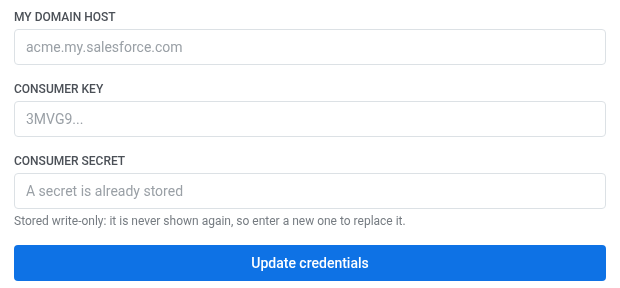
After you connect Salesforce, install the integration so the point appears in the journey builder.
Two things also need to be in place on the Salesforce side:
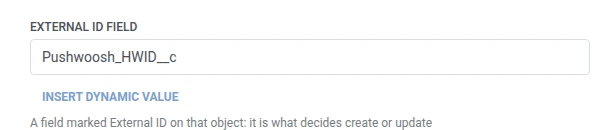
- The field you match on has to be marked External ID on that object. A plain text field, even
Email, isn’t enough — Salesforce refuses the request withNOT_FOUNDwhen the field isn’t an external id. - The connected app’s Run As user needs field-level access to that field. A field created through Setup or the API grants nothing by itself, and without the permission Salesforce answers with the same
NOT_FOUND: Field name provided ... does not match an External ID— the field is invisible to that user, so from the API’s side it does not exist. Add it to a permission set assigned to the Run As user.
Configure the point
Anchor link to- Drag Salesforce: create or update record from the Integrations section of the left panel onto the canvas.
- Double-click the point and enter a Step Name.
- In My Domain host, enter the same host the connected app lives on.
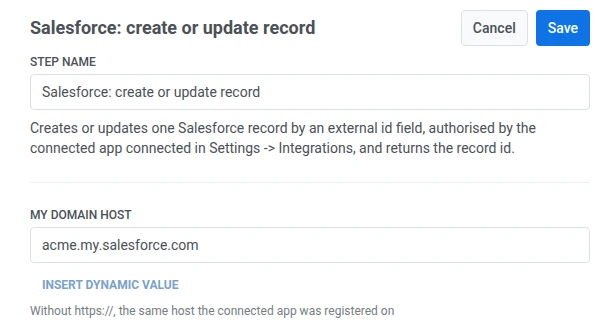
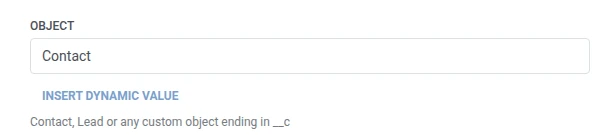
- In Object, enter the object’s API name —
Contact,Lead, or a custom object ending in__c.
- In External id field, enter the API name of the field marked External ID.
- In External id value, enter the value to match on, usually a macro like
{{device:hwid}}.
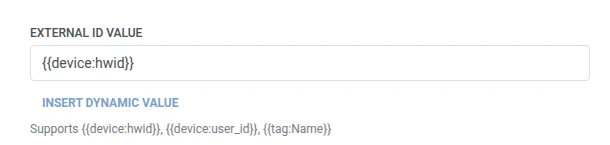
- In Fields, add one row per Salesforce field to set. Enter the field’s API name and the value. Names must be non-empty and unique. Required fields of the object have to be among them, or Salesforce refuses to create a new record. A value can be fixed text or a traveler macro such as
{{device:hwid}}, the same macros as in a Webhook body. Or click Insert Dynamic Value to pick an attribute an earlier step in this journey produced, for example an LLM response or a mapped Webhook value.

- Click Save.
Response
Anchor link toThe traveler continues to whatever step you connect next on the canvas.
Attributes after the step runs
Anchor link to| Attribute | What it holds |
|---|---|
salesforce_record_id | The record’s ID |
How to use it in later steps
Anchor link toThe traveler already continued to the next step regardless of this attribute. Save it to a Tag with Update user profile if you need to reference this specific record later, for example through Salesforce’s own API.
Failures and unexpected responses
Anchor link toOpen Calls log in the point’s drawer and check the response:
- 401 — the connected app’s credentials are wrong, or the client credentials flow isn’t enabled on it.
- NOT_FOUND in the body — the object name, or the external id field, doesn’t match anything on that org. Check that the field is really marked External ID.
- REQUIRED_FIELD_MISSING in the body — creating a new record needs a field the point doesn’t send. Add it in Fields.
- INVALID_FIELD in the body — a name in Fields isn’t an API name on that object. A custom field’s API name ends in
__c.
A failed request drops the traveler from the journey. See Errors and failed requests.
Example scenario: Routing an in-app advisory request to sales
Anchor link toA wellness app lets users tap Talk to an advisor in-app. The team wants that request to become a Salesforce Contact a rep can follow up on.
- Add a Trigger-based entry element and set it to fire on an
AdvisorCallRequestedevent. - Add Salesforce: create or update record right after it. Set Object to
Contact, External id field toPushwoosh_HWID__c, and External id value to{{device:hwid}}. In Fields, setEmailto{{tag:Email}}. - Click Save.
Once this runs, every in-app advisor request lands in Salesforce as a Contact, matched by device so a repeat tap updates the same Contact instead of creating a duplicate.