Mattermost: post message
Use Mattermost: post message to notify your team in Mattermost from a journey step, on your own Mattermost instance or Pushwoosh’s. This point authenticates with its own bot token. It doesn’t use any account-level integration configured elsewhere in Settings.
Typical uses:
- Alert on high-value conversions: post when a traveler completes a purchase or hits a goal, so the team sees it in real time.
- Flag a step that needs a human: notify support or sales when a traveler reaches a point a bot can’t finish.
- Track journey health: post a line each time a cohort finishes a branch, without building a dashboard.
Configure the point
Anchor link to- Drag Mattermost: post message from the Integrations section of the left panel onto the canvas.
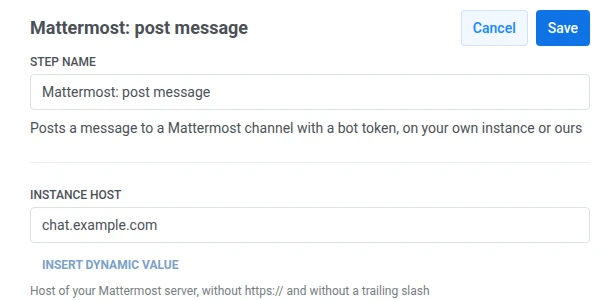
- Double-click the point and enter a Step Name.
- In Instance host, enter your Mattermost server’s host, for example
chat.example.com. Don’t includehttps://or a trailing slash. Pushwoosh addshttps://and the API path itself.
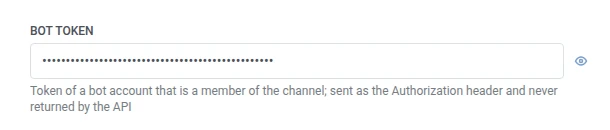
- In Bot token, enter the token of a bot account that’s a member of the target channel. It’s stored masked, like a webhook secret header, and Mattermost never returns it back to Pushwoosh.
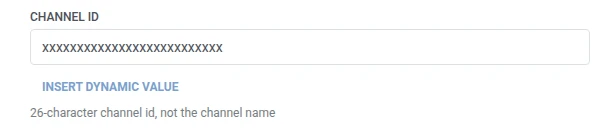
- In Channel ID, enter the channel’s 26-character ID, not its name.
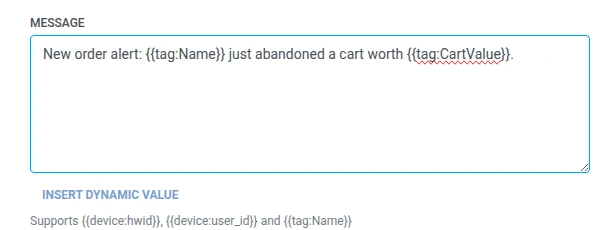
- In Message, enter the text to post. It takes the same macros as any Webhook body:
{{device:hwid}},{{device:user_id}},{{tag:Name}}.
- Click Save.
Response
Anchor link toThe traveler continues to whatever step you connect next on the canvas.
Attributes after the step runs
Anchor link to| Attribute | What it holds |
|---|---|
mattermost_post_id | The created post’s ID |
How to use it in later steps
Anchor link toThe traveler already continued to the next step regardless of this attribute. Save it to a Tag with Update user profile if you need to reference this specific post later, for example when troubleshooting delivery.
Failures and unexpected responses
Anchor link toA failed request drops the traveler from the journey. See Errors and failed requests.
Example scenario: Alerting the success team about a churn-risk subscriber
Anchor link toA subscription app wants its customer success team notified in Mattermost when a high-value subscriber’s plan is about to lapse, so someone can reach out before they churn.
- Add a Trigger-based entry element and set it to fire on a
SubscriptionExpiringSoonevent. - Add Mattermost: post message right after it, posting to the success team’s channel with
{{tag:Name}} ({{tag:Plan}}) renews on {{tag:Renewal Date}}. - Click Save.
Once this runs, the success team gets a Mattermost post the moment a high-value subscriber is at risk, with enough detail to reach out.