Holdout Split
Use the Holdout Split element to hold a share of users back from the rest of a journey, then compare their goal completion against everyone who continued past that point. Unlike the account-wide Control group, which is fixed per application and blocks marketing messages everywhere, a Holdout Split applies only inside one journey, at one point in its flow.
When to use Holdout Split
Anchor link to- Measure one journey’s impact at a chosen point. Hold out a share of the users reaching this point and see whether the steps after it move your Conversion Goals more than skipping those steps would.
- Test a specific segment or flow. Combine Holdout Split with an Audience-based or Trigger-based entry to measure impact only for the users who matter for this campaign, instead of holding out your whole application.
- Get a per-goal uplift, not just an event count. If the journey has several Conversion Goals, Holdout Split reports uplift and statistical significance for each one separately.
For example, place Holdout Split after entry and before your onboarding messages. Compare a purchase Conversion Goal for users who continued on In journey against users on Holdout, who exit there and get nothing else from this journey.
Prerequisites
Anchor link toDefine at least one Conversion Goal for the journey if you want numbers in the uplift report. You can still place and save Holdout Split without a goal. Without one, the report shows a prompt to add a goal instead of rates and uplift.
Add and configure Holdout Split
Anchor link to-
Place the Holdout Split element on the canvas where you want to start measuring the rest of the journey (before the messages or steps you are testing).
-
Double-click the element to open its settings.
-
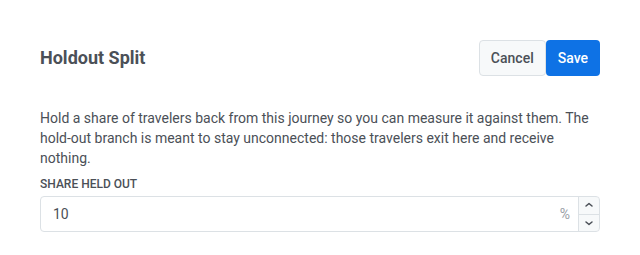
Set Share held out: the percentage of users reaching this point who are routed to the Holdout branch. The rest continue on the In journey branch. Share held out accepts 1–20%.
-
Connect the branches on the canvas:
- Leave the Holdout branch unconnected. Users on that branch exit the journey immediately and get nothing else from it.
- Connect the In journey branch to the rest of your flow.
-
Click Save.
After you save, you should see two branches from the element: Holdout with no next step, and In journey leading into the flow you connected.

Check the uplift report
Anchor link toUse Goal uplift vs holdout to answer one question: do the steps after this point raise your Conversion Goals compared with users who stopped here?
-
Open the running journey.
-
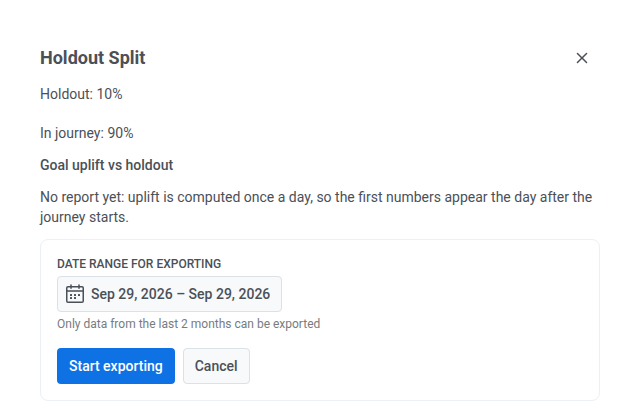
Open the Holdout Split point and find Goal uplift vs holdout below the current split.
-
If you see a placeholder instead of rates, come back the next day. Pushwoosh refreshes the report once a day, and the first numbers appear the day after the journey starts.
-
In the report header, check sample size and timing before you trust the rates:
- How many users were on In journey and Holdout at the last refresh
- The attribution window (how many days after the point a goal completion still counts)
- When the report was last computed
A tiny holdout sample makes uplift noisy even if the in-journey rate looks strong.
-
For each Conversion Goal, compare the branches, then read uplift and significance:
- Compare Conversion, in journey with Conversion, holdout (rate and count). That is the difference between users who got the rest of the journey and users who got nothing else from it after this point.
- Read Uplift for that difference as a relative change. Positive uplift means the in-journey branch converted better than holdout. If holdout had zero conversions for this goal, uplift shows — (no base for a relative difference).
- Read the significance badge before you treat uplift as a decision:
- Significant: the difference between the branches is real, not random. Trust the uplift number.
- Not significant: Pushwoosh has enough data, but the difference isn’t reliable. Don’t act on this uplift number yet.
- Not enough data: too few conversions so far to tell either way. Keep the journey running for a larger sample.
To review every Holdout Split in one place, open the journey’s Campaign health dashboard and check the same report for each point.
To get the uplift for every Holdout Split point as a CSV file, with revenue per currency, export the uplift report through the API.
Export users from each branch
Anchor link toDownload a list of which users went to Holdout and which went to In journey in a running journey.
Export users requires the Personal data permission in your role.
-
Open the running journey.
-
Open the Holdout Split point.
-
Click Export users below Goal uplift vs holdout.
-
Set the date range. You can export data from the last 2 months only.
-
Click Start exporting.
-
When the file is ready, a download button appears in the same panel. Click it to get the CSV.
Each row lists a user ID and the branch that user took, holdout or journey. If no one reached the point in that date range, the file has only the header row.
If you need an account-wide holdout instead of a per-journey one, use Control groups.