Comment configurer une campagne de panier abandonné
Les acheteurs qui ajoutent des articles à un panier et partent sans acheter sont parmi les conversions les plus faciles à récupérer. Ils ont déjà manifesté leur intention.
Ce guide vous montre comment leur envoyer un e-mail de panier abandonné dans Pushwoosh : déclenchez l’événement PW_AbandonedCart depuis votre boutique, affichez les articles laissés dans l’e-mail avec le bloc Produits, et déclenchez l’envoi depuis un Customer Journey.
Qu’est-ce que PW_AbandonedCart ?
Anchor link toPW_AbandonedCart indique qu’un utilisateur a laissé des articles dans son panier sans les acheter. Ce n’est pas un événement par défaut intégré. C’est un nom d’événement partagé utilisé dans les intégrations e-commerce de Pushwoosh pour que les journeys, le bloc Produits et les segments fonctionnent tous de la même manière.
- Intégration Magento : envoie
PW_AbandonedCartetPW_OrderCreatedpour vous automatiquement. - Toute autre boutique ou backend personnalisé : votre équipe envoie les deux événements via postEvent avec les noms et attributs décrits dans Comment envoyer des rappels de panier abandonné.
Que se passe-t-il lorsque vous envoyez PW_AbandonedCart
Anchor link toL’envoi de PW_AbandonedCart effectue deux actions du côté de Pushwoosh :
- Il est enregistré comme n’importe quel autre événement personnalisé, vous pouvez donc le voir dans les Statistiques des événements et l’utiliser dans les segments.
- Pushwoosh stocke le contenu du panier et tague l’utilisateur avec :
- PW_AbandonedCartID : un identifiant pour le panier actuel, utilisé pour récupérer son contenu au moment de l’envoi.
- PW_AbandonedCartDate : la valeur
abandonedDatede la charge utile de l’événement.
Que se passe-t-il lorsque vous envoyez PW_OrderCreated
Anchor link toLorsque l’acheteur passe une commande, envoyez PW_OrderCreated (ou PW_OrderUpdated). Pushwoosh efface immédiatement PW_AbandonedCartID et PW_AbandonedCartDate pour cet utilisateur. Il ne fait pas correspondre les valeurs orderId : toute commande de l’utilisateur supprime les deux tags, même si l’achat concernait un panier différent.
Exemple : Un acheteur abandonne le panier ORDER-100, puis achète ORDER-200 avant que le rappel ne soit envoyé. Pushwoosh efface les tags, il ne recevra donc pas de rappel concernant ORDER-100.
Comment envoyer des rappels de panier abandonné
Anchor link toSuivez ces étapes pour créer les événements, les envoyer depuis votre boutique, construire l’e-mail et lancer le Customer Journey.
Créez les événements dans votre Panneau de Contrôle
Anchor link to- Allez dans Audience → Events dans votre Panneau de Contrôle Pushwoosh et cliquez sur Create Event.
- Créez un événement personnalisé nommé
PW_AbandonedCartavec ces attributs :
| Attribut | Type |
|---|---|
email | string |
orderId | string |
customerId | string |
orderUrl | string |
abandonedDate | date |
createdDate | date |
totalPrice | decimal (price) |
shippingAmount | decimal (price) |
taxAmount | decimal (price) |
discountAmount | decimal (price) |
currency | string |
- Répétez pour
PW_OrderCreatedavec un seul attributorderId.
En savoir plus sur la création d’événements personnalisés.
Envoyez les événements depuis votre backend
Anchor link toDemandez à votre équipe de développement d’appeler postEvent chaque fois qu’un panier est abandonné, en utilisant ce schéma d’attributs :
{ "request": { "hwid": "8f65b16df378e7a6bece9614e1530fb2", "application": "XXXXX-XXXXX", "event": "PW_AbandonedCart", "attributes": { "email": "shopper@example.com", "orderId": "ORDER-10293", "customerId": "CUST-4471", "orderUrl": "https://yourstore.com/cart/restore/ORDER-10293", "abandonedDate": "2026-07-28T10:15:00Z", "createdDate": "2026-07-28T09:40:00Z", "totalPrice": 129.90, "shippingAmount": 9.90, "taxAmount": 0, "discountAmount": 0, "currency": "USD", "items": [ { "productId": "SKU-4821", "name": "Wireless headphones", "quantity": 1, "price": 119.90, "sku": "SKU-4821", "description": "Over-ear, noise-cancelling", "imageUrl": "https://yourstore.com/media/sku-4821.jpg", "productUrl": "https://yourstore.com/products/sku-4821", "category": "Audio" } ] }, "userId": "shopper@example.com" }}Lorsque le panier se transforme en commande, envoyez PW_OrderCreated avec juste le orderId pour effacer les tags du panier :
{ "request": { "hwid": "8f65b16df378e7a6bece9614e1530fb2", "application": "XXXXX-XXXXX", "event": "PW_OrderCreated", "attributes": { "orderId": "ORDER-10293" }, "userId": "shopper@example.com" }}Ajoutez un bloc Produits à votre e-mail
Anchor link to- Ouvrez l’éditeur de contenu d’e-mail et ajoutez un bloc Produits au canevas.
- Dans le panneau des paramètres, définissez Source sur Panier.
- Définissez Max products shown pour limiter le nombre d’articles du panier qui apparaissent dans l’e-mail.
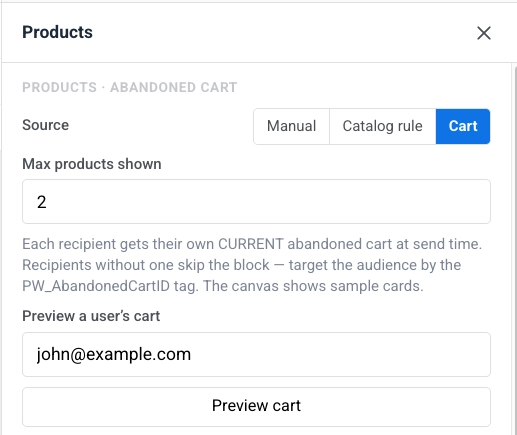
- Stylisez la grille et le modèle de carte selon vos besoins. Voir Styliser la grille.
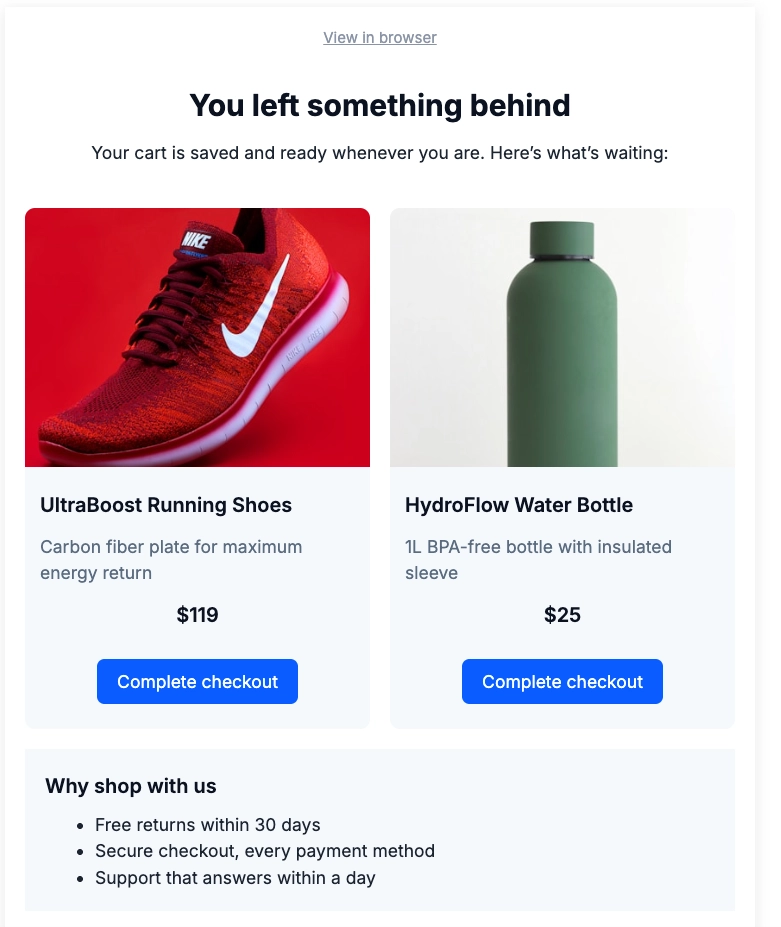
Lorsque l’e-mail est envoyé, le bloc Produits recherche le panier stocké de chaque destinataire en utilisant son tag PW_AbandonedCartID. Il remplit ensuite le bloc avec les articles actuels du panier : image, titre, prix et un lien de retour vers le panier. La mise en page provient du modèle de carte que vous avez défini dans l’éditeur. Les destinataires sans ce tag (rien d’abandonné, ou déjà commandé) ignorent le bloc au lieu d’afficher un contenu vide, il est donc sûr de l’utiliser également dans une campagne plus large.
Construisez le Customer Journey
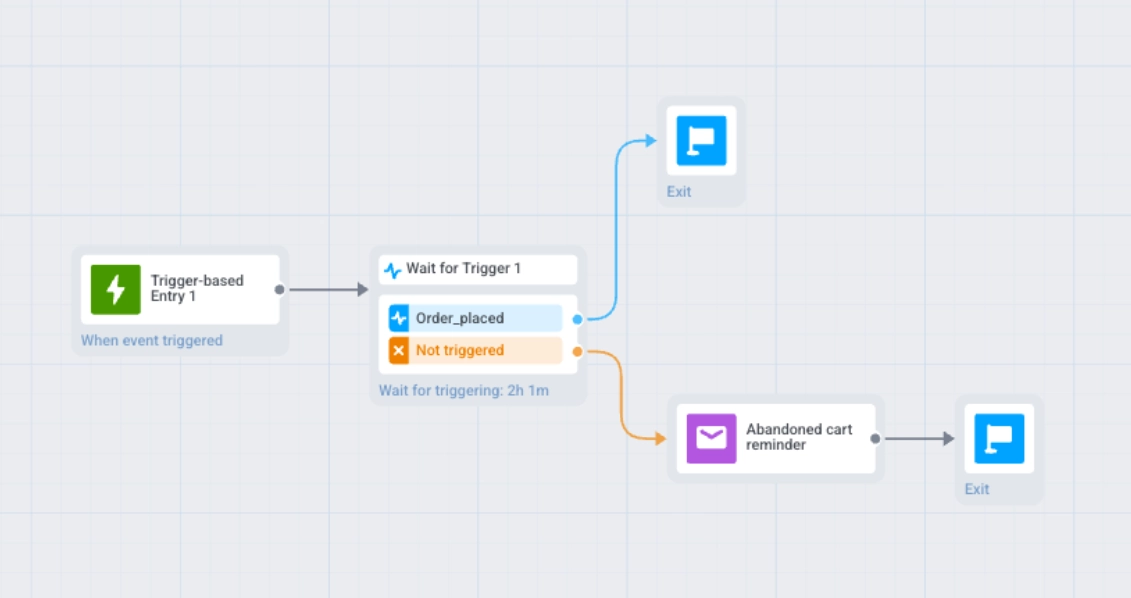
Anchor link to- Ajoutez une Entrée basée sur un déclencheur en utilisant l’événement
PW_AbandonedCart. - Ajoutez une étape Attendre un déclencheur. Définissez sa période d’attente à une heure ou deux. Nommez la branche Order placed et ajoutez-y l’événement
PW_OrderCreated.
- Dirigez la branche Order placed vers Sortie. L’utilisateur a déjà acheté, ne lui envoyez donc pas de rappel.
- Dirigez la branche Not triggered vers l’étape E-mail. Enregistrez l’e-mail que vous avez construit dans Ajoutez un bloc Produits à votre e-mail en tant que contenu d’e-mail, puis sélectionnez-le comme contenu de cette étape.
Testez avant de lancer
Anchor link to- Envoyez un événement
PW_AbandonedCartde test pour un appareil de test. Ne définissez pas le tagPW_AbandonedCartIDmanuellement : le bloc Produits charge le contenu du panier à partir du panier stocké que l’événement crée, et non à partir de la valeur du tag. Sans un événement réel, le bloc s’affichera vide. - Prévisualisez l’e-mail et confirmez la mise en page et le contenu du produit avant de l’envoyer à de vrais acheteurs.