Rich messages
Build a message with buttons, media, cards, or a carousel once and send it over RCS, WhatsApp, LINE, and Facebook Messenger. Pushwoosh checks the content against each channel while you edit and turns it into a preset for each channel, so you don’t build the same message four times.
Before you start
Anchor link toPushwoosh creates a copy of the message only for channels set up in the project. A channel that isn’t set up gets the Has errors status, and nothing is sent there.
- RCS (Rich Communication Services) shows messages from your brand in the phone’s built-in messaging app, with buttons, cards, or media instead of plain text. To send it, connect Twilio with your own account credentials and a Messaging Service. A Twilio number without a Messaging Service can’t send RCS. See RCS messages through Twilio.
- WhatsApp: connect your WhatsApp Business account for the project.
- LINE: configure the LINE platform for the project.
- Facebook Messenger: connect your Facebook Page.
Create a rich message
Anchor link to- Go to Content > Messenger presets.
- Open the Rich messages tab.
- Click Create rich message.
- Click Enter preset name next to Rich message at the top and enter a name for the message.
Add languages
Anchor link toThe message starts with the Default language, which is sent to users with no matching language. To add translations:
- Click the plus (+) icon next to the language dropdown.
- Select the languages you want to add.
- Switch between languages in the dropdown and fill in the content for each one.
Every language has its own content type and fields. The channel status is the worst one across all languages: if one language has errors in a channel, the whole message has errors there.
Choose the content type
Anchor link toSelect a Type in the Content type block. The type decides which blocks and fields the form shows, so choose it first.
| Type | What it is | Use it when |
|---|---|---|
| Text | Plain text with no media or buttons. | You only need to tell users something. |
| Media | Text with an image, video, document, or audio file. | You want to send a file together with the text. |
| Quick reply | Text with reply buttons. | You want users to answer with one tap. In a journey, each button gets its own branch, so users continue by their answer. |
| Call to action | Text with buttons that open a link or call a phone number. | You want users to open a page or call a number straight from the message. |
| List picker | Text with a list of options. | You want users to choose one option from a list. Works only in WhatsApp, inside the 24-hour window, so use it only when the fallback text works on its own. |
| Card | One block with media, a title, text, and buttons. | You present one item with a picture and buttons. |
| Carousel | Two to ten cards in one message. | You present several items at once. |
| Custom LINE Flex | Your own LINE Flex layout. | You already have a LINE Flex layout. Works only in LINE. |
The other types work in all four channels: RCS, WhatsApp, LINE, and Messenger. In a channel where a type doesn’t work, users get the fallback text instead.
Next to Type, WhatsApp category sets the category of the WhatsApp template. See Get the WhatsApp template approved.
Fill in the message
Anchor link toThe Type decides what follows the Content type block. Most types have a Message block with the Body. List picker adds a List block, Card and Carousel add a Card or Carousel cards block, and Custom LINE Flex has only the LINE Flex message block. Find your type below.
The editor checks the limits of each channel and gives the channel the Has errors status when the content goes over one of them. The limits are listed with each type. For WhatsApp, the issues under the WhatsApp badge come from the template check and the Meta review state.
Text
Anchor link toUse it for a plain message without media or buttons. It works in all channels.
- In Type, select Text.
- Type the message text in Body. You can insert emoji and personalization placeholders.
Body limits: 1,600 characters in RCS, 5,000 in LINE, and 2,000 in Messenger.
Media
Anchor link toUse it to send an image, video, document, or audio file with text. You choose the type of file, then add a link to it.
- In Type, select Media.
- Enter the Body.
- Select the Media type: Image, Video, Document, or Audio.
- Set the file link in Media URL:
- For an image, click the attachment icon next to the field and pick a JPEG or PNG file from the media library, or paste an
https://link. - For a video, document, or audio file, paste an
https://link. The media library holds images only.
- For an image, click the attachment icon next to the field and pick a JPEG or PNG file from the media library, or paste an
- For a video, set a Video poster URL the same way as an image. LINE needs it to show the video: without it, the LINE badge has errors.
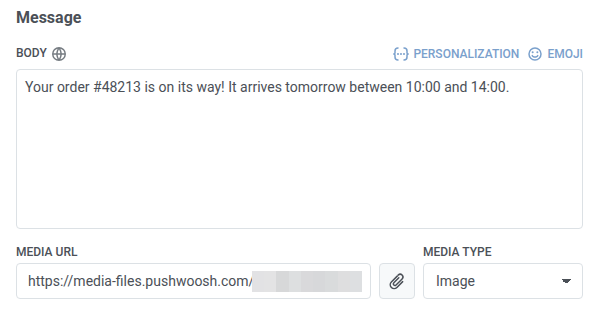
Body limits: 1,600 characters in RCS and 2,000 in Messenger.
The same steps set Header media URL and the media of cards.
Quick reply
Anchor link toUse it when you want users to answer with one tap. In a journey, each button gets its own branch, so you can continue the journey by the user’s answer.
- In Type, select Quick reply.
- Enter the Body.
- Click Add button and enter the button Title.
- Repeat step 3 for each button.
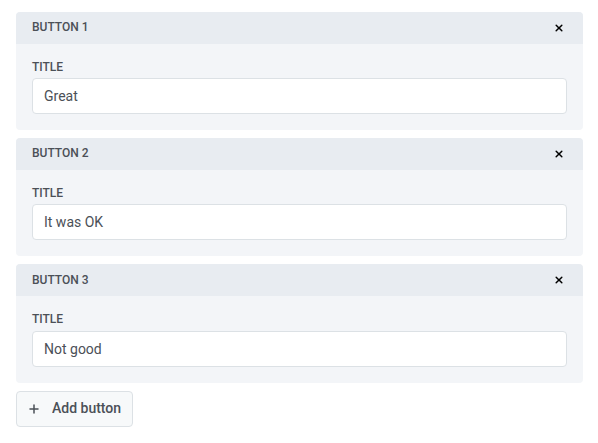
Limits:
- Buttons: 1–4 in RCS, 1–13 in LINE and Messenger.
- Button title: 25 characters in RCS, 20 in LINE and Messenger.
Call to action
Anchor link toUse it to send users to a link or let them call a phone number straight from the message.
- In Type, select Call to action.
- Enter the Body.
- Click Add button.
- Select the Type of action: Open URL or Call phone.
- Enter the button Title.
- For Open URL, enter the URL. For Call phone, enter the Phone number in international format, for example
+1234567890.
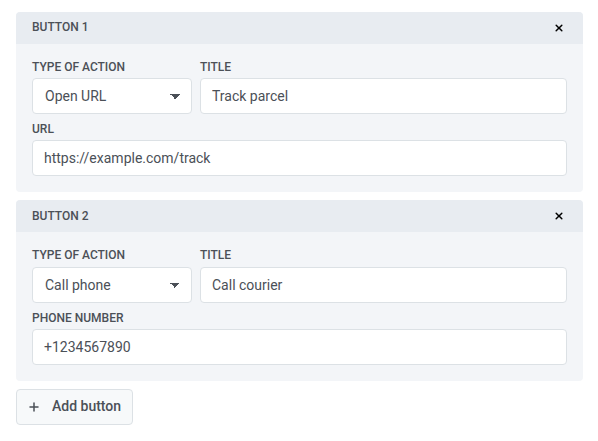
Limits:
- Buttons: 1–4 in RCS, 1 or more in LINE, 1–3 in Messenger.
- Button title: 25 characters in RCS, 40 in LINE, 20 in Messenger.
- Body: 1,600 characters in RCS and 640 in Messenger. The editor doesn’t check the LINE body.
List picker
Anchor link toUse it to let users choose one option from a list.
- In Type, select List picker.
- Enter the Body.
- In the List block, enter the List button text.
- Click Add item.
- Enter the Item name and, optionally, the Item description.
- Repeat steps 4 and 5 for each item.
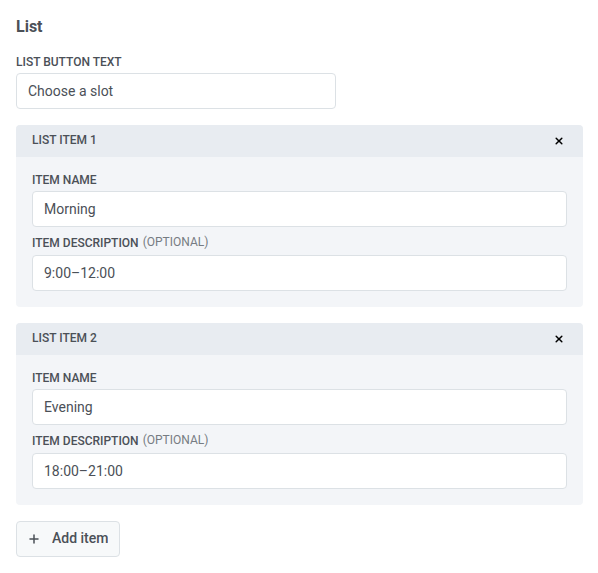
Card and carousel
Anchor link toUse a card for one block with media, text, and buttons. Use a carousel to show two to ten cards in one message.
-
In Type, select Card or Carousel.
-
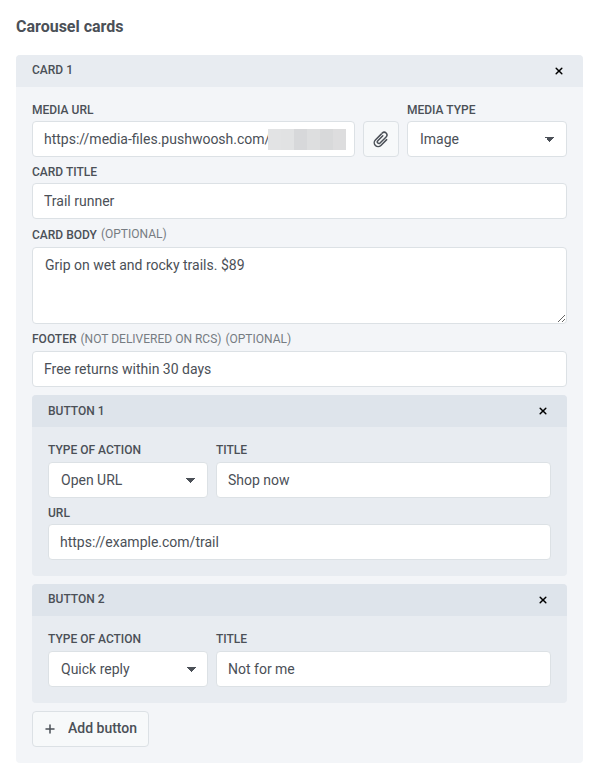
For a carousel, enter the Body in the Message block, then click Add card for each card, up to ten. RCS and Messenger don’t send the carousel Body.
-
Fill in each card:
- Media URL and Media type
- Card title
- Card body (optional)
- Footer (optional)
- Buttons: Quick reply, Open URL, or Call phone
-
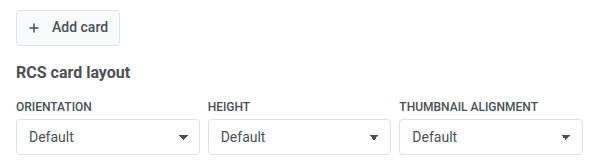
To change how the card looks in RCS, set Orientation, Height, and Thumbnail alignment under RCS card layout. Leave them at Default to use the RCS default layout.
Card rules by channel
Anchor link toThe channels accept different cards:
- RCS carousel: every card needs an image or a video, a Card body, and one or two buttons. The buttons must be of the same types in the same order on every card. RCS doesn’t show the card Footer in a carousel. In a single card, the footer is shown under the body and can’t contain placeholders.
- Messenger: every card needs a Card title, and card media must be an image. Messenger doesn’t show the card Footer.
- LINE: card media must be an image.
The editor also checks these limits:
- Cards in a carousel: 2–10 in RCS, LINE, and Messenger.
- Card title: 200 characters in RCS and 80 in Messenger. The editor doesn’t check it in LINE.
- Card body: in RCS, 1,600 characters in a single card, and 160 characters for the title and body together in a carousel. In Messenger, 80 characters. The editor doesn’t check it in LINE.
- Buttons on a card: in RCS, 0–4 on a single card and 1–2 in a carousel. In Messenger, 0–3. The editor doesn’t check it in LINE.
Custom LINE Flex
Anchor link toUse Custom LINE Flex when you already have a LINE Flex layout.
- In Type, select Custom LINE Flex.
- Paste a Flex container into Flex JSON. The container type must be
bubbleorcarousel.
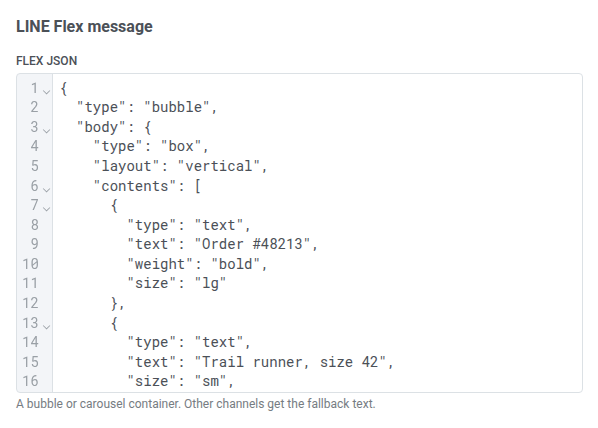
LINE sends it as is, and RCS and Messenger send the fallback text.
Set the fallback text
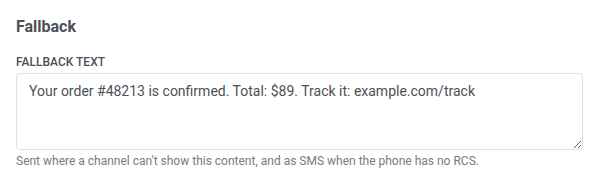
Anchor link toFallback text is what Pushwoosh sends where a channel can’t show the message as you built it. Enter it in Fallback text at the bottom of the form.
| Where Pushwoosh uses it | If Fallback text is empty |
|---|---|
| A channel that can’t show the content type, for example a list picker in RCS | The channel gets Has errors. |
| An SMS to a phone without RCS | Pushwoosh sends the Body. With both empty, RCS gets Has errors. |
| The LINE notification and chat-list text for cards, carousels, calls to action, and Flex messages | Pushwoosh uses the Body. With both empty, LINE gets Has errors. |
Fallback text limits: 1,600 characters in RCS, 2,000 in Messenger, and 5,000 in LINE (400 for cards, carousels, calls to action, and Flex messages).
Check channel compatibility
Anchor link toThe Channels strip under the header shows one badge per channel. Pushwoosh rechecks the message when you leave a field or change a dropdown.
| Badge color | Status | What it means |
|---|---|---|
| Green | Compatible | The channel sends the message as designed. |
| Orange | Partially compatible | The channel can’t show some of the content and sends the fallback text instead. |
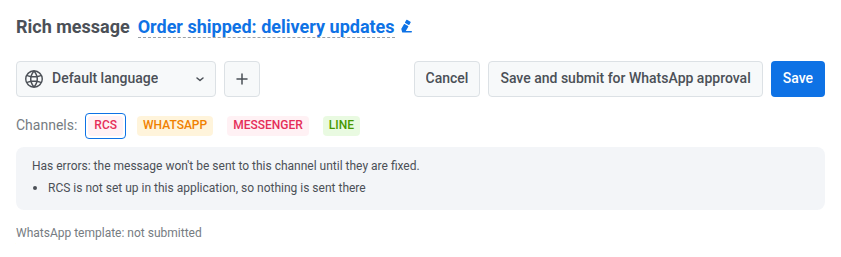
| Red | Has errors | Nothing is sent to this channel until you fix the errors. |
| Gray | Not checked | The message hasn’t been checked yet, or the check failed. Edit a field to check again. |
Click a badge to see the issues for that channel under the strip and to preview the message in that channel on the right. Each issue names the field and the rule it breaks.
When you select a channel, fields that it doesn’t deliver get a note next to their name in the form, for example (not delivered on RCS), and the preview leaves them out.
In this example, RCS has errors because RCS isn’t set up in the project:
Save the rich message
Anchor link toClick Save. Pushwoosh saves the message and, for every channel without Has errors, creates or updates its copy:
- RCS: an SMS preset with the same name. Pushwoosh creates an RCS template in your Twilio account and attaches it to the preset. Phones without RCS get the fallback text as an SMS.
- WhatsApp: a WhatsApp preset with the same name, available in the WhatsApp journey element and in one-time WhatsApp messages.
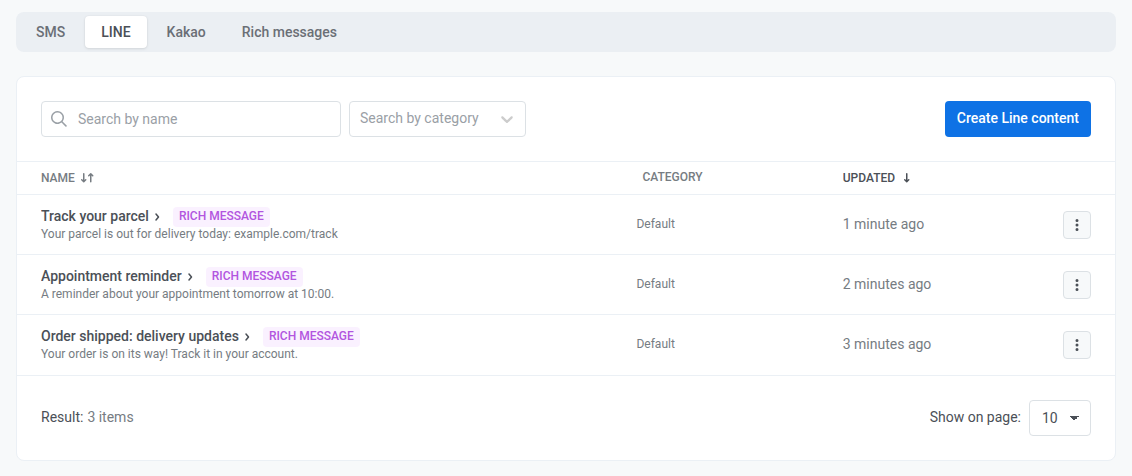
- LINE: a LINE preset with the same name.
- Messenger: a Messenger preset with the same name, available in the Facebook Messenger journey element.
The RCS copy is an SMS preset, so it appears on the SMS tab. The LINE copy appears on the LINE tab. Both have a Rich message badge. You manage a copy through its rich message:
- Edit a copy: click it or its Edit action. The rich message opens in the editor.
- Delete a copy: delete the rich message. You can’t delete a copy on its own, and Pushwoosh deletes all its copies with the message.
Get the WhatsApp template approved
Anchor link toOutside the 24-hour window that a user’s last message opens, WhatsApp delivers only templates approved by Meta. Until the rich message has an approved template, Pushwoosh sends it on WhatsApp only to users who wrote to you in the last 24 hours, and the WhatsApp badge stays orange.
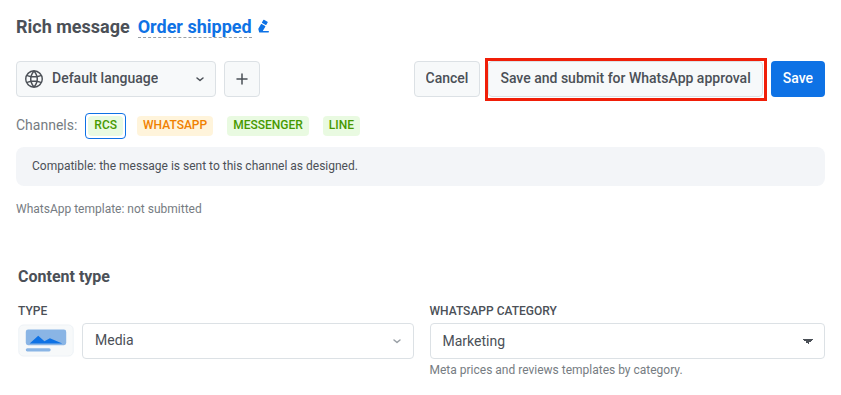
- Next to Type, select the WhatsApp category: Marketing or Utility. Meta prices and reviews templates by category.
- Save the rich message.
- Click Save and submit for WhatsApp approval. Pushwoosh saves the message and sends a template for every language to Meta.
Check the review state
Anchor link toThe line under the Channels strip shows the review state after WhatsApp template:. Before you submit, it reads not submitted:
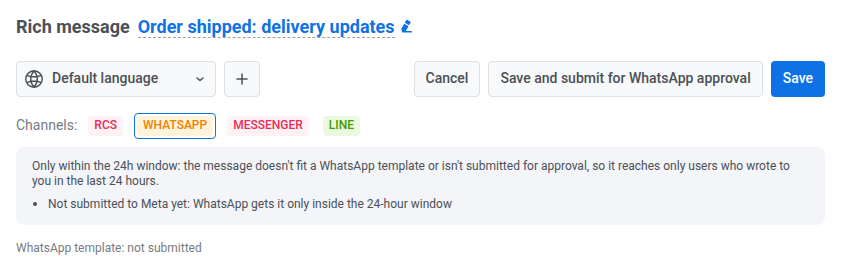
The state changes as Meta reviews the template:
| State | What it means |
|---|---|
| not submitted | The template hasn’t been sent to Meta. WhatsApp gets the message only inside the 24-hour window. |
| pending review | Meta is reviewing the template. Until it’s approved, WhatsApp gets the message only inside the 24-hour window. |
| approved | WhatsApp sends the template to any user. |
| the latest change is pending review, the approved version is sent | You edited and resubmitted an approved message. Outside the 24-hour window, users get the previously approved version. |
| rejected | Meta rejected the template, and the reason follows the state. Fix the content and submit it again. |
Pushwoosh checks the review state with Meta every few minutes. To check right away, click Refresh status. With several languages, the state shown is the one furthest from approval.
When you can’t submit
Anchor link toSave and submit for WhatsApp approval is unavailable when:
- WhatsApp isn’t set up in the project.
- the type is Carousel: a carousel goes out on WhatsApp only inside the 24-hour window.
- WhatsApp can’t build a template from the type, for example List picker or Custom LINE Flex.
Edit an approved message
Anchor link toEditing an approved message doesn’t stop it: outside the 24-hour window, the approved version keeps going out until Meta approves the new one. Submit the message again after each edit.
Send a rich message in a journey
Anchor link toSelect the copy in the element of its channel:
- RCS: in the SMS element, select the SMS copy as the preset. See Branch on RCS reply buttons.
- LINE: select the LINE copy as the preset. See Branch on reply buttons.
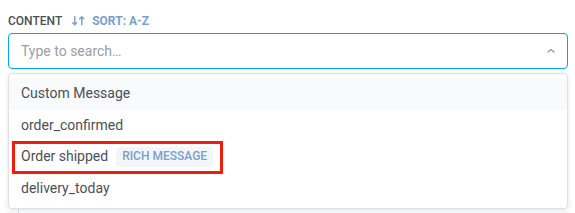
- WhatsApp: select the rich message in the Content dropdown, where it has a Rich message badge. See Use a rich message.
- Facebook Messenger: select Preset, then the Messenger copy. See Branch on reply buttons.
When the message has quick reply buttons, the element gets a branch for each button plus Not match.
Branch when the provider rejects the message
Anchor link toThe SMS, WhatsApp, LINE, and Facebook Messenger elements can send users whose message the provider rejected to a separate branch. Use it to try another channel instead of waiting for a reply that can’t come.
- Open the element settings.
- Turn on Branch when the provider rejects the message.
- Save the element.
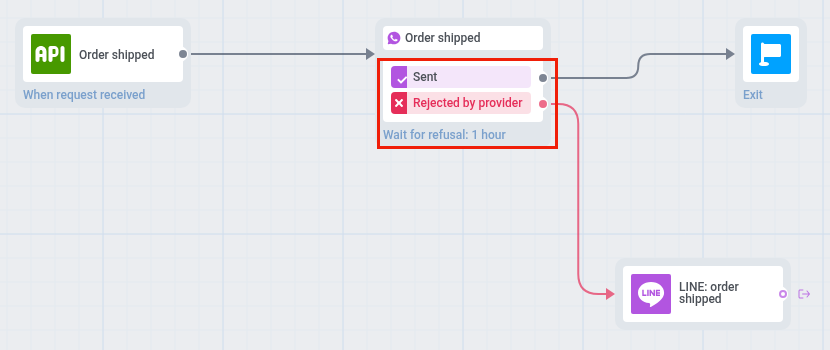
- On the canvas, connect the Rejected by provider branch to the next element.
Who goes to this branch
Anchor link toA user goes to Rejected by provider when:
- the provider refuses the message when Pushwoosh sends it, for example Messenger outside the 24-hour window or WhatsApp to a user who hasn’t written to you in the last 24 hours
- a later delivery report from Twilio, Meta, or an SMS provider marks the message as failed or undelivered.
Errors that Pushwoosh retries don’t lead to this branch.
How long the element waits
Anchor link toHow long the element waits depends on its other branches:
- With quick reply buttons: a rejected message goes to Rejected by provider at once. Other users wait for a tap.
- With a delivery split: the element waits for the time set in the split.
- Without buttons or a delivery split: the element holds the user for up to 1 hour, and the canvas shows Wait for refusal: 1 hour. If the provider doesn’t reject the message within that time, the user continues through Sent.
Without a connected Rejected by provider arrow, a user whose message was rejected follows the element’s other branches. Turning the setting off removes the branch and its arrow.
Send a rich message as a one-time WhatsApp message
Anchor link toIn a one-time WhatsApp message, select the rich message in the template dropdown on the Content step. See Send a rich message.
An approved rich message goes to any audience. Without an approved template, it goes only to contacts with an open 24-hour window, and the audience and sending time are fixed.
Manage rich messages
Anchor link toRich messages are listed on the Rich messages tab with a badge for each channel.
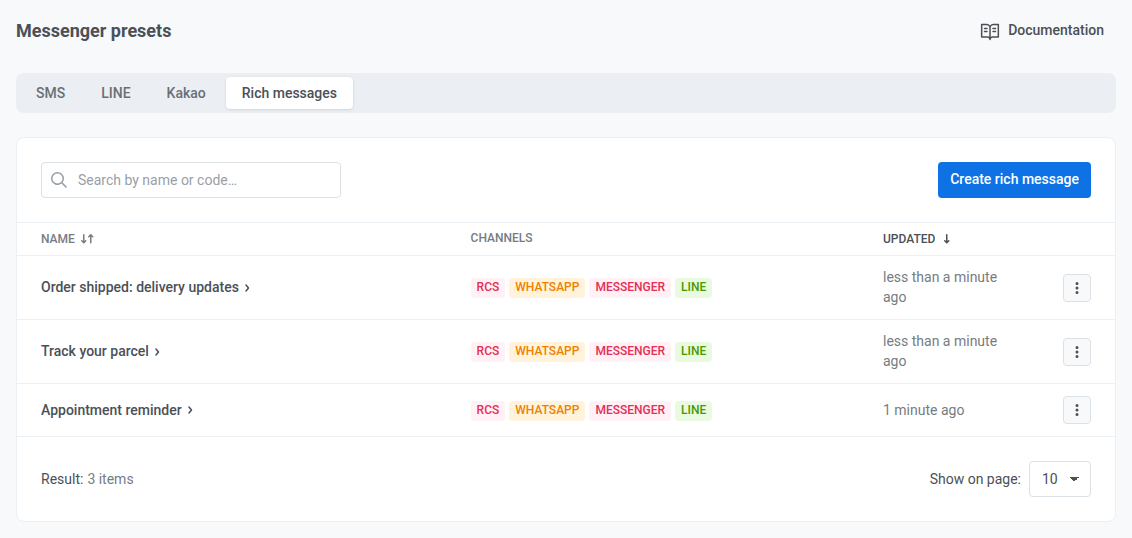
Open the ⋮ menu of a message to:
- Edit it.
- Duplicate it. The duplicate gets its own copies in every channel without Has errors.
- Delete it. Pushwoosh deletes its copies too. You can’t delete a rich message while a journey sends one of its copies: remove it from the journey first.