Build push stories content
Send a push that turns into a story on iOS, like Instagram stories. When a user expands the notification, it plays full screen. Each page has a picture and a button, and the pages change on their own.
Prerequisites
Anchor link toBefore you send push stories, whoever builds your iOS app needs to do two things:
- Add a Notification Content Extension to the app using the
PushwooshNotificationUImodule. Share the iOS push stories developer guide with them. - Release an app update that includes the extension.
See iOS push stories for what recipients see without that extension.
Create the preset
Anchor link toStart by creating a new preset of the Push stories type:
- Open Content → Push Presets.
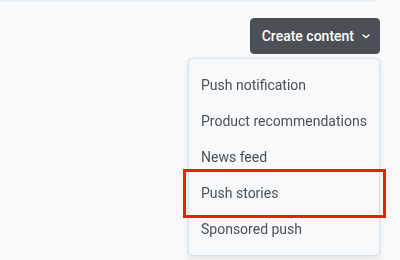
- Click Create content.
- Choose Push stories from the dropdown.
Compose the message
Anchor link toWrite the push title, subtitle, and message the same way as for a regular push preset.
Build the stories pages
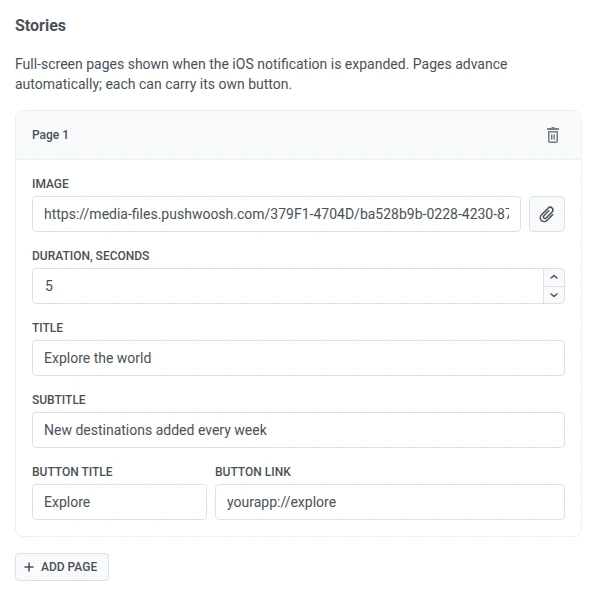
Anchor link toIn Stories, set up each page:
- Enter the Image URL of the page’s full-screen image, or click the paperclip to pick one from Media storage.
- Set Duration, seconds to how long the page stays on screen before it moves on, from 1 to 30 seconds. The default is 5 seconds.
- Enter the Title. It appears in large text over the bottom of the image.
- Optionally, enter the Subtitle. It appears in smaller text under the title.
- Enter the Button title, the label of the page’s call-to-action button.
- Enter the Button link, a URL or app deep link that opens when users tap the button.
- To add more pages, click Add page. You can add up to 10 pages. They play in order, and each has its own image, timing, and button.
Check the preview
Anchor link toUse the preview panel on the right to check each page before sending. It has two tabs:
- Push: the collapsed notification.
- Story: the page you’re editing, including its image and button. With several pages, the preview plays them in turn, and the progress bar at the top shows one segment per page.
Send push stories
Anchor link toSend the preset in a one-time push:
- Go to Campaigns → One-time messages → Send message → Push notification.
- Select this preset as the push content.
- Set up the audience, schedule, and other settings as for a regular one-time push. Target platforms locks to iOS, because stories play only on iOS.
For the full flow, see Send a one-time push with push stories.