Create a sponsored push
A sponsored push is a push that shows an advertiser’s ad to your subscribers. You pick the advertiser’s ad campaign from your Ad inventory, and the push takes its headline, text, and image from that campaign. If there is no ad to show when the push is sent, your own text goes out instead.
To create one, go to Content → Push Presets, click Create content, and choose Sponsored push from the dropdown.
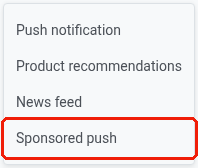
Select a campaign
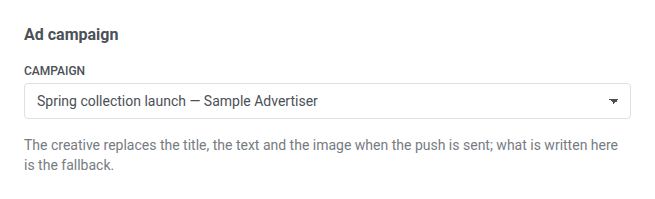
Anchor link toPick a campaign from the Campaign dropdown, listed by name and advertiser. Only campaigns with the Push channel turned on show up here. If none do yet, turn on Push for a campaign in the Ad inventory first.
Campaign is required.
Fallback content
Anchor link toWrite the title, message, and media the same way as any other push preset. That content is the fallback. When the push is sent, the campaign’s ad takes its place: users see the ad’s headline, text, and image, and a tap opens the ad’s target URL.
Your own content is sent instead when the campaign has no ad to show. This happens when:
- the campaign isn’t Active (it’s Draft, Paused, or Finished)
- the campaign is Active, but its start date hasn’t come yet or its end date has passed
- Push is turned off for the campaign in the Ad inventory
- its send limit is reached
- none of its creatives (the ad variants in the campaign) has both a headline and text
Track performance
Anchor link toAfter the push has gone out, check how the ad performed:
- Go to Content → Ad inventory and open the campaign.
- Scroll to Report.
- Check Push taps for the creative. It shows how many devices opened the notification. It doesn’t count clicks on the target URL.
The campaign’s email results are in the same report. For details, see View a campaign’s report.