Manage projects
A project in Pushwoosh represents a single app you send messages to. This page covers how to view a project’s details, edit its settings and permissions, and delete the project when it’s no longer needed.
Project details
Anchor link toTo see project details, choose the project from the list, and click its name at the top left of the page.
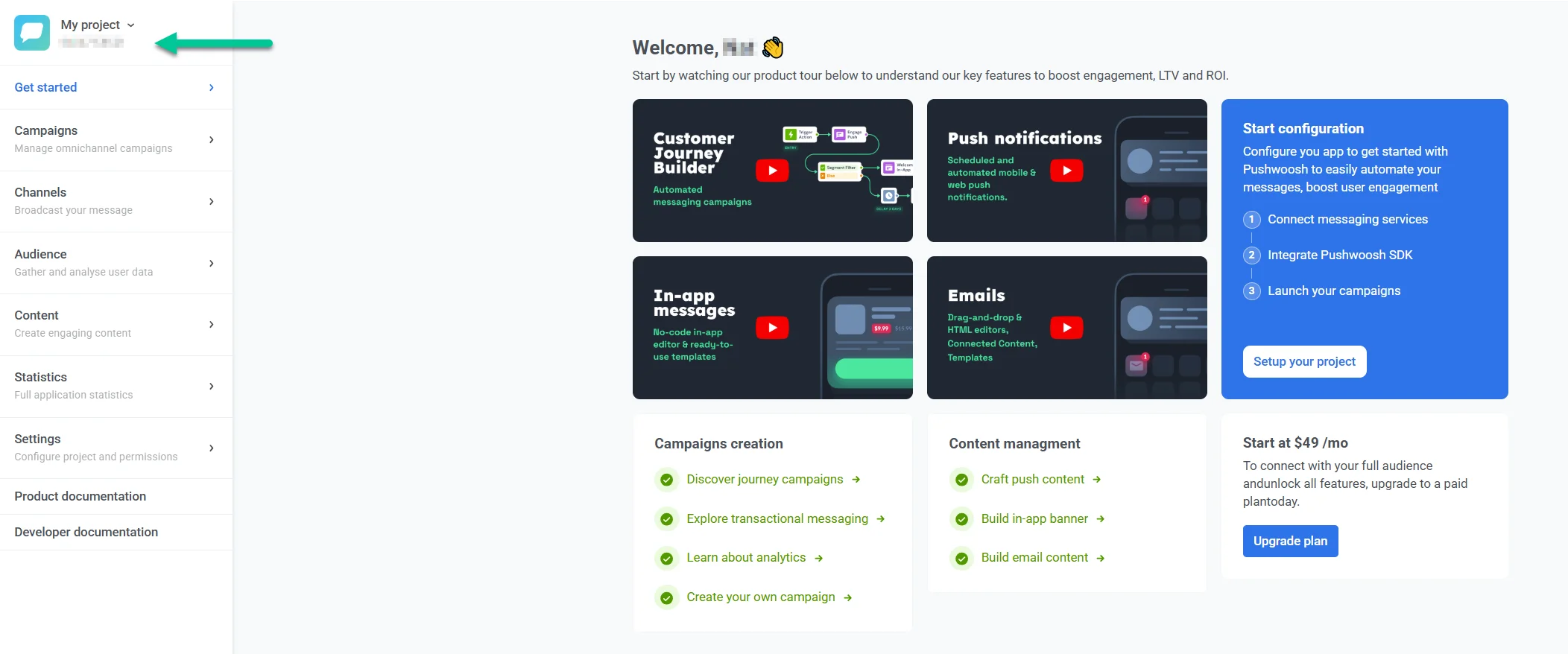
Here, the app code can be copied to the clipboard with a single click.
- The number of enabled devices shows how many devices are reachable with push notifications (i.e., they have push tokens assigned by cloud messaging gateways).
- Total devices are the devices registered for this app with or without push tokens. They are reachable with In-Apps even if there’s no push token assigned.
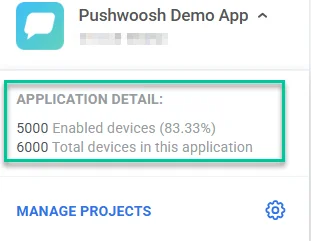
To see the list of all your projects, click Manage projects.
Editing projects
Anchor link toTo edit project settings or configuration, choose the project, then go to the Settings section.
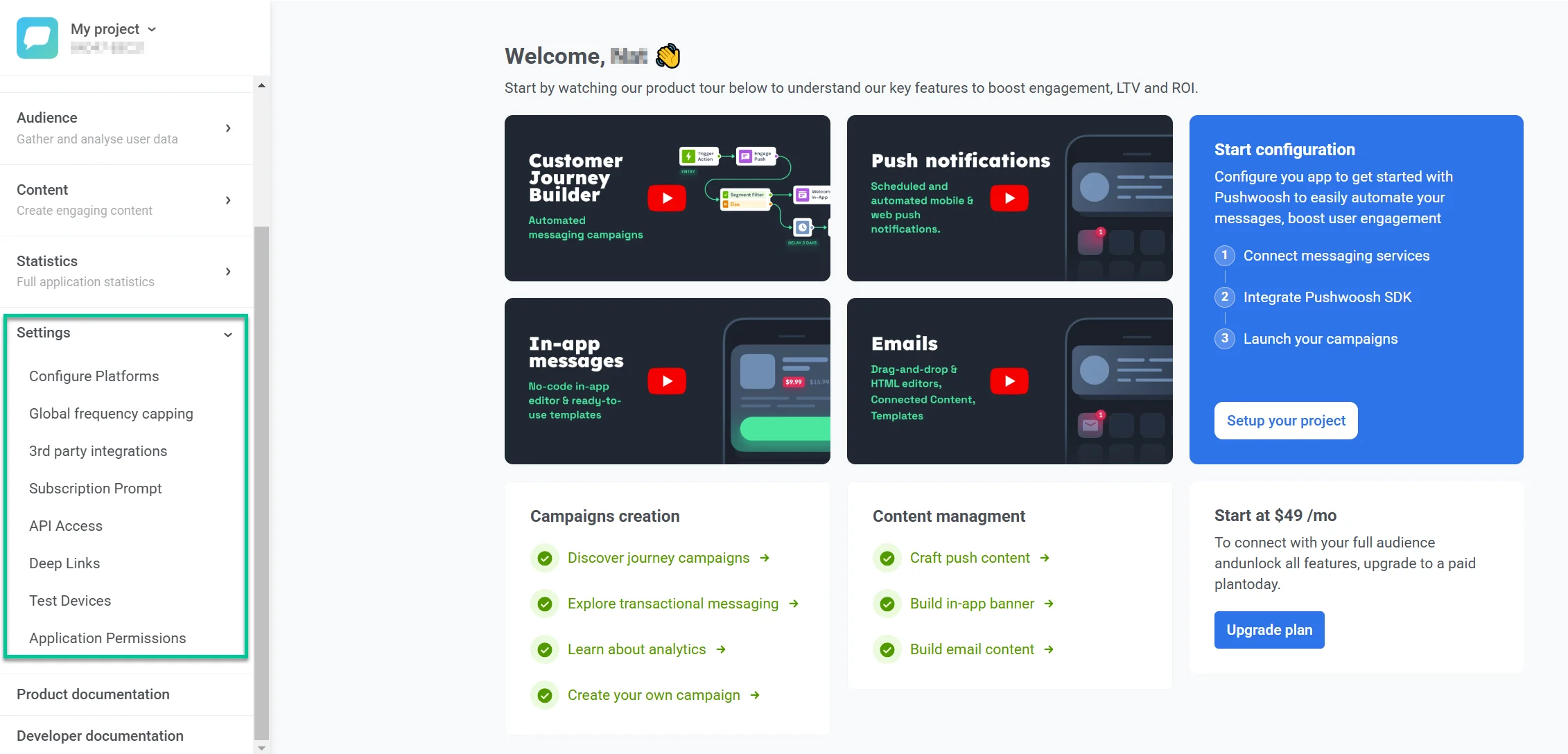
In the Settings section, you can:
- configure or reconfigure project platforms (iOS, Android, Web, Email, etc.).
- manage message delivery settings for frequency capping and send rate limits.
- connect 3rd party integrations with external tools and services.
- set up control groups to exclude a share of your audience from campaigns for unbiased measurement.
- create API tokens and manage access permissions.
- create and edit Deep Links that take users directly to specific app pages when they open push messages.
- add Test Devices to test your messages before sending them to subscribers.
- set permissions for sub-users to view or manage this particular project.
Edit project details
Anchor link toTo modify the project settings, go to the Configure platforms page in the Settings section and click Edit project in the top right corner.
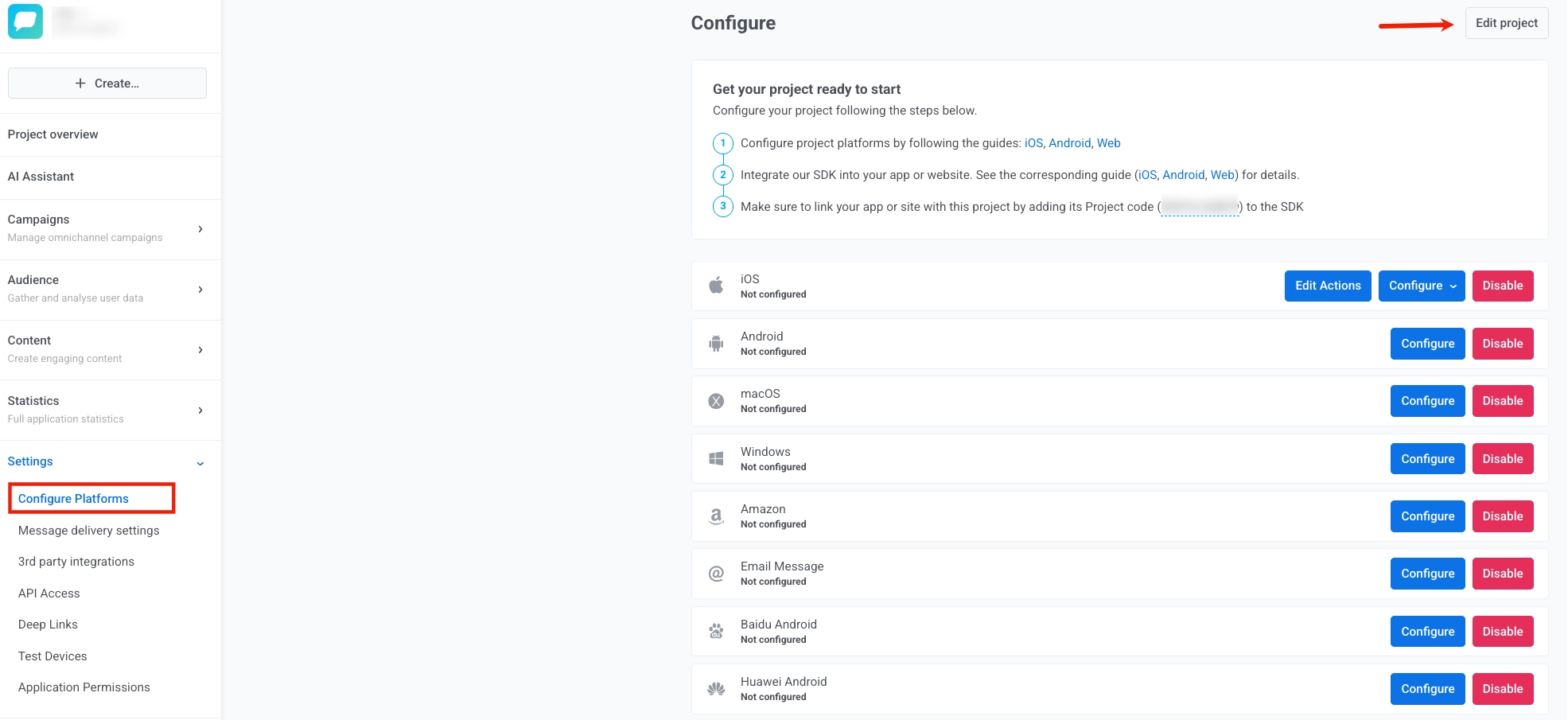
Here you can modify the following:
- Title: Update the project name in the TITLE field.
- Icon: Change the project icon by clicking Browse… next to the current icon and selecting a new image file.
- Bit.ly integration: Enable the I want to add my bit.ly account checkbox and enter your bit.ly access token in the ACCESS TOKEN field to integrate your Bit.ly account for link shortening.
- Email notifications: Configure email notification settings. Enable I want to receive Daily Application Performance Emails to receive daily performance reports. The email address where notifications will be sent is displayed below the checkbox.
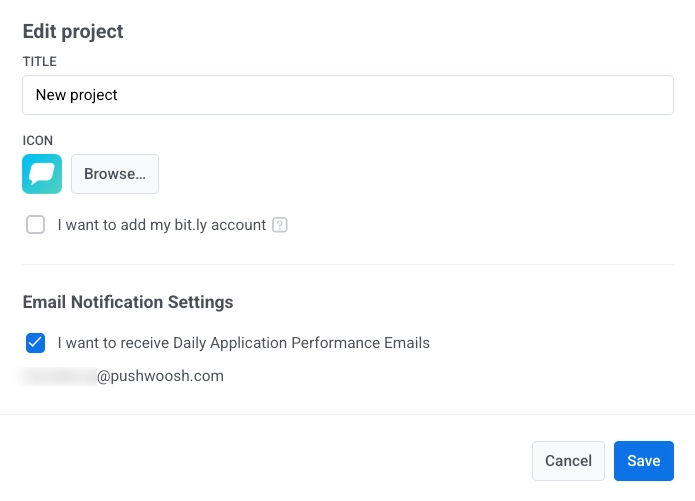
Click Save to apply your changes or Cancel to discard them.
Deleting projects
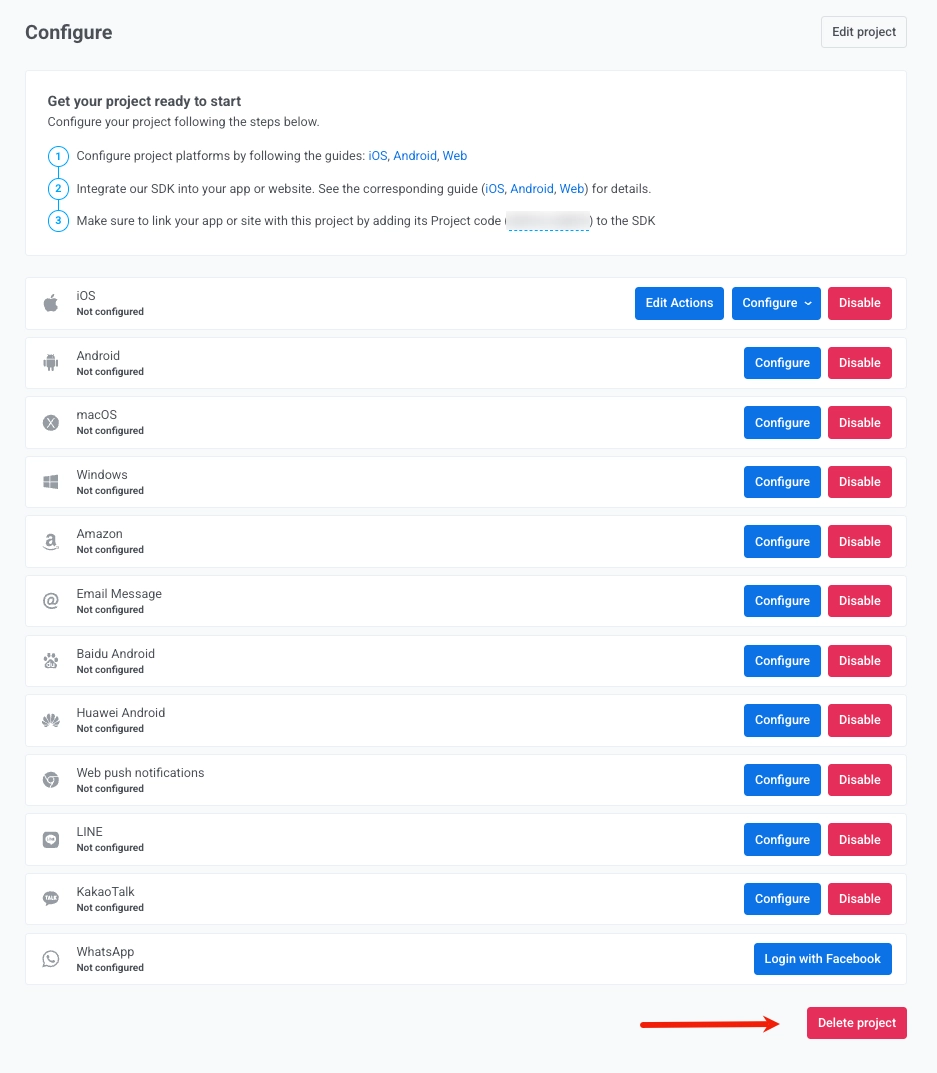
Anchor link toTo delete a project, go to the Settings section and navigate to the Configure platforms page. Open the three-dot menu at the top right of the page (next to Edit project) and select Delete project.