Set up the email subscription preference center
Email subscription preference center overview
Anchor link toThe email subscription preference center lets subscribers choose which types of emails they want to receive, such as newsletters, promotions, or product updates.
Instead of unsubscribing from all emails, users can opt out of specific categories and stay subscribed to what matters most to them. This improves the overall user experience, reduces full opt-outs, and helps you keep a healthier and more engaged audience.
Why you should set it up
Anchor link toSetting up a subscription preference center improves both user experience and legal compliance.
Improve user experience
Anchor link toLetting users choose which types of emails they want to receive, such as newsletters, promotions, or product updates, helps reduce full opt-outs and keeps your audience more engaged.
Ensure compliance with email regulations
Anchor link toSeveral laws require that users can easily manage their communication preferences:
-
GDPR (EU): Requires clear options to opt in or out of specific types of communication.
-
CAN-SPAM (U.S.): Requires every commercial email to include a visible unsubscribe link.
If you don’t provide these options:
-
You may face legal penalties for non-compliance
-
Your email service provider (ESP) account may be flagged or suspended
How email categories and message delivery work
Anchor link toHow subscriptions are stored
Anchor link toPushwoosh tracks category subscriptions using the Subscribed Email Categories tag. This tag stores the list of categories each subscriber is currently subscribed to.
Delivery logic:
- If a category name is in the list, the subscriber receives emails for that category.
- If a category name is not in the list, the subscriber does not receive emails for that category.
- You can populate this tag automatically when adding a category or by importing subscription categories via CSV.
Every subscribe, unsubscribe, and resubscribe action also fires the PW_EmailSubscribed or PW_EmailUnsubscribed event, so you can trigger follow-up automation based on category-level opt-ins and opt-outs.
Full opt-out with the Unsubscribed Emails tag
Anchor link toFor a complete opt-out from all marketing emails, Pushwoosh sets the Unsubscribed Emails tag to true. This happens when a subscriber:
With the preference center enabled:
- Clicks Unsubscribe from all in the preference center.
Without the preference center:
- Clicks the unsubscribe link in any email — this opts them out of all marketing emails immediately.
In both cases, unsubscribing via the email client using the List-Unsubscribe header (for example, the native unsubscribe button in Gmail or Apple Mail) also sets the tag to true.
Transactional emails are not affected by this tag and are always delivered.
How categories apply to campaigns
Anchor link toOnce the preference center is set up, every marketing campaign you send (via Journey or One‑Time Message) will prompt you to assign a category before sending. Learn more
This ensures emails are only delivered to subscribers who are subscribed to that content type.
Handling transactional messages
Anchor link toTransactional messages are a separate message type designed for critical, non-promotional communication. Unlike marketing emails, transactional messages bypass all delivery restrictions to ensure they reach the user.
When creating an email campaign in Pushwoosh, you must choose between two message types: marketing and transactional. Learn more about message types and delivery rules.
Set up the subscription preference center
Anchor link toTo enable category-based filtering and let users manage preferences, follow these steps to configure the preference center in your project:
- Go to Settings > Configure platforms. Locate Email channel configuration, click Edit, then find Subscription preference center.
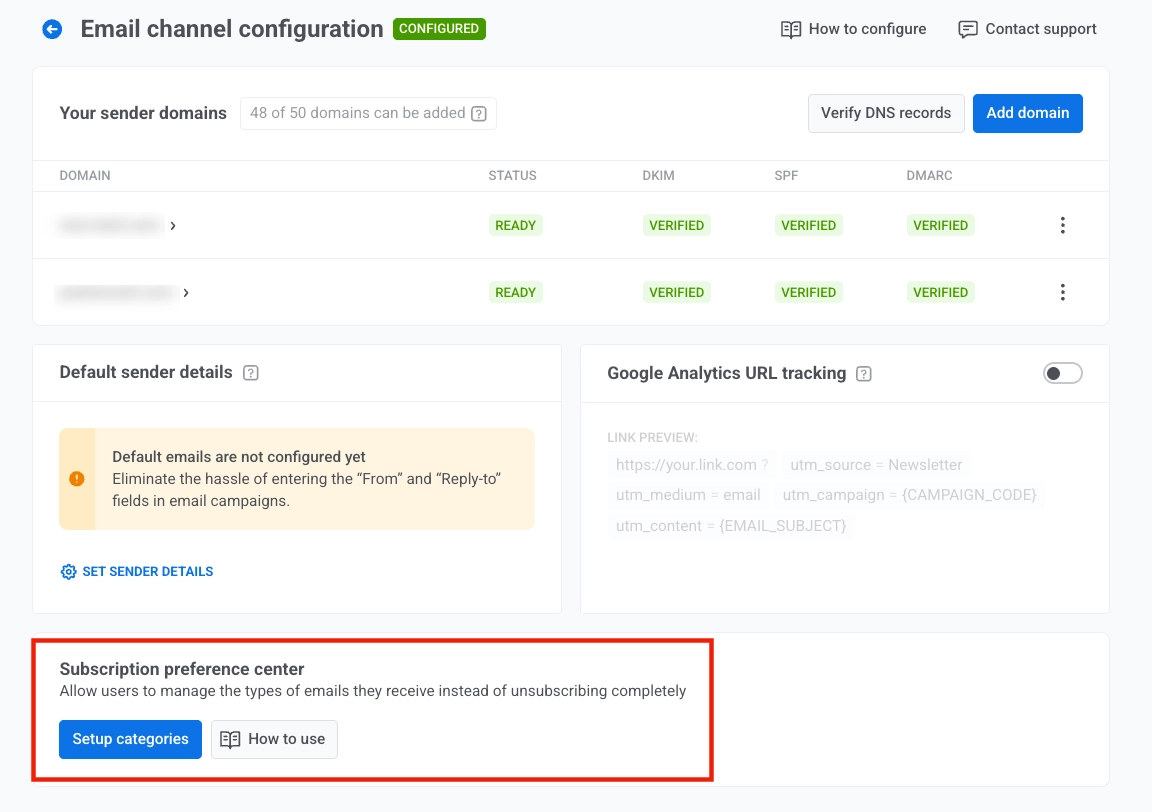
- Click Set up categories in the Subscription preference center to define which email categories users can subscribe to (e.g., Promotional, Newsletter, Product Updates, Events).
- In the Set up categories modal, review the existing category list, edit category names if needed, and add new categories with Add category.
Then configure subscription options:
- Subscribe new to subscribe new users automatically when they register.
- Subscribe existing to subscribe existing users when you save changes.
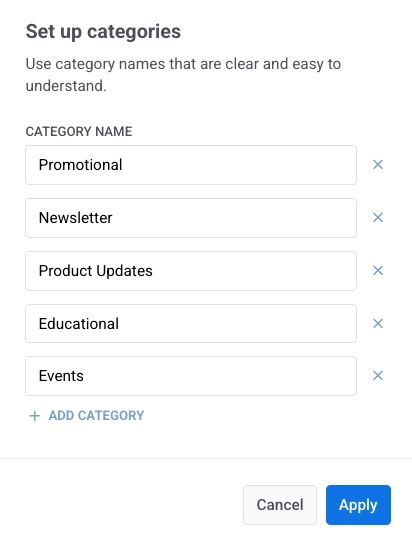
- Click Save. After you click Save, users will see these categories when they open the preference center.
Manage categories
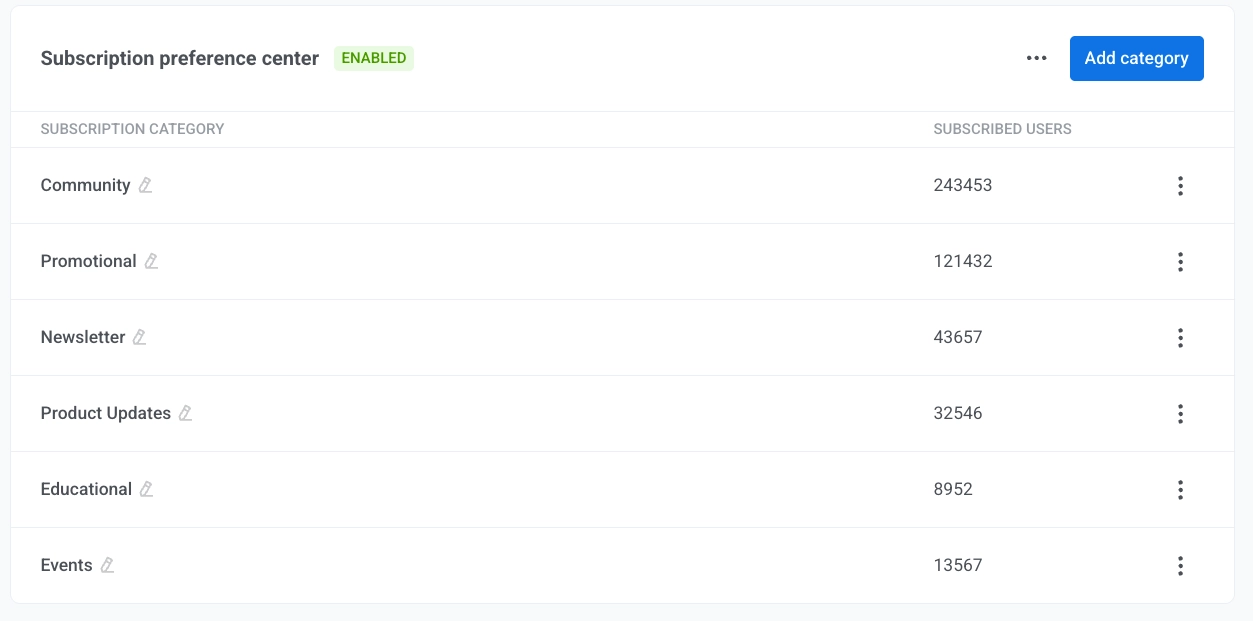
Anchor link toOnce the preference center is enabled, its settings will appear directly below the email configuration section. Here, you can view and manage your subscription categories, see how many users are subscribed to each one, and add or edit categories as needed.
In this table, New users subscription shows whether new users are auto-subscribed to each category, and Subscribed users shows the number of users currently subscribed.
Add a category
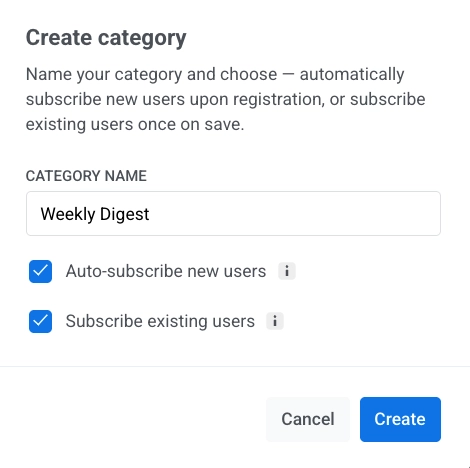
Anchor link toTo add a category to your Subscription preference center:
- Click Add category.
- Enter a clear, unique category name.
- Select Auto-subscribe new users to subscribe new users to this category automatically when they register.
- Select Subscribe existing users to subscribe current users to this category when you save it.
- Click Create.
Rename a category
Anchor link to-
To rename a category, open the three-dot menu next to the category and click Edit settings.
-
In Category settings, update the category name and set the Auto-subscribe new users checkbox as needed: select it to enable auto-subscription, or clear it to disable.
-
Click Save.
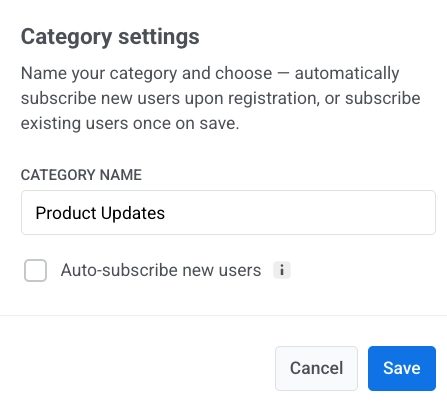
Once the category is renamed, the values in Subscribed Email Categories are automatically updated to match the new category name for all subscribers.
Delete a category
Anchor link toTo delete a category, open the three‑dot menu next to it and select Delete category.
Manage preference center settings
Anchor link toDisable the preference center
Anchor link toTo disable the preference center:
-
Click the three-dot menu in the top right of the Subscription preference center section.
-
Select Disable preference center.
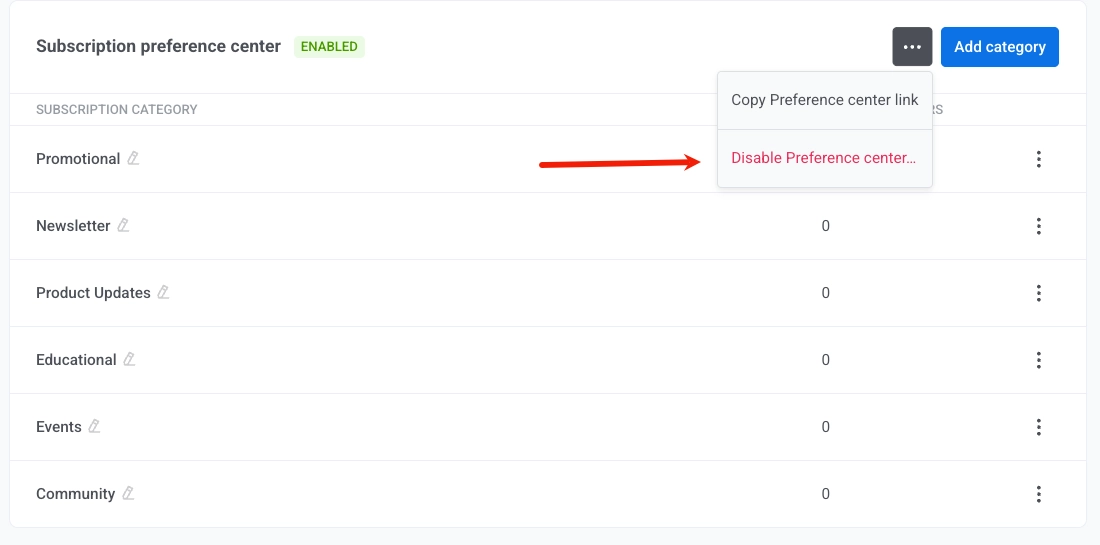
- In the confirmation dialog, click Disable.
Copy the preference center link
Anchor link toFrom the same three-dot menu, select Copy Preference center link to copy the URL.
Import subscription categories via CSV
Anchor link toUse Import subscription categories to import user subscriptions and bulk update the Subscribed Email Categories tag from a CSV file.
You can open this flow in either of these ways:
- Open the three-dot menu in the Preference center settings and select Subscribe users manually.
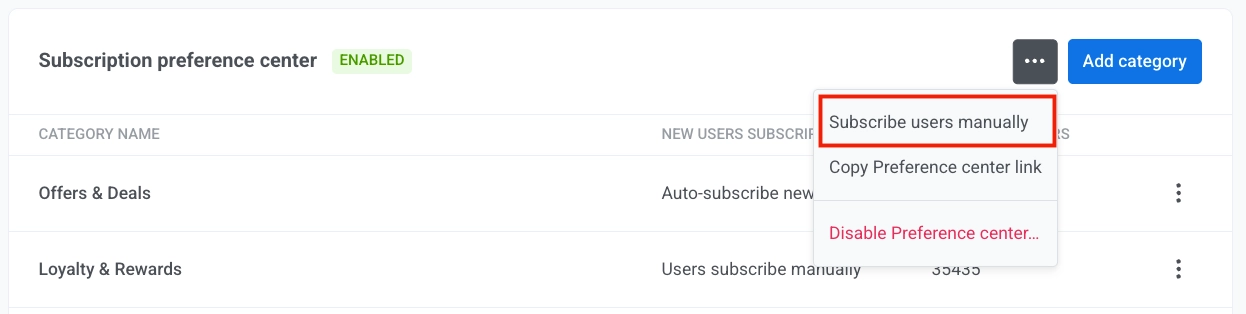
Alternatively, in the main menu, go to Audience and Segmentation > Import CSV > Import subscription categories.
- Upload your CSV file.
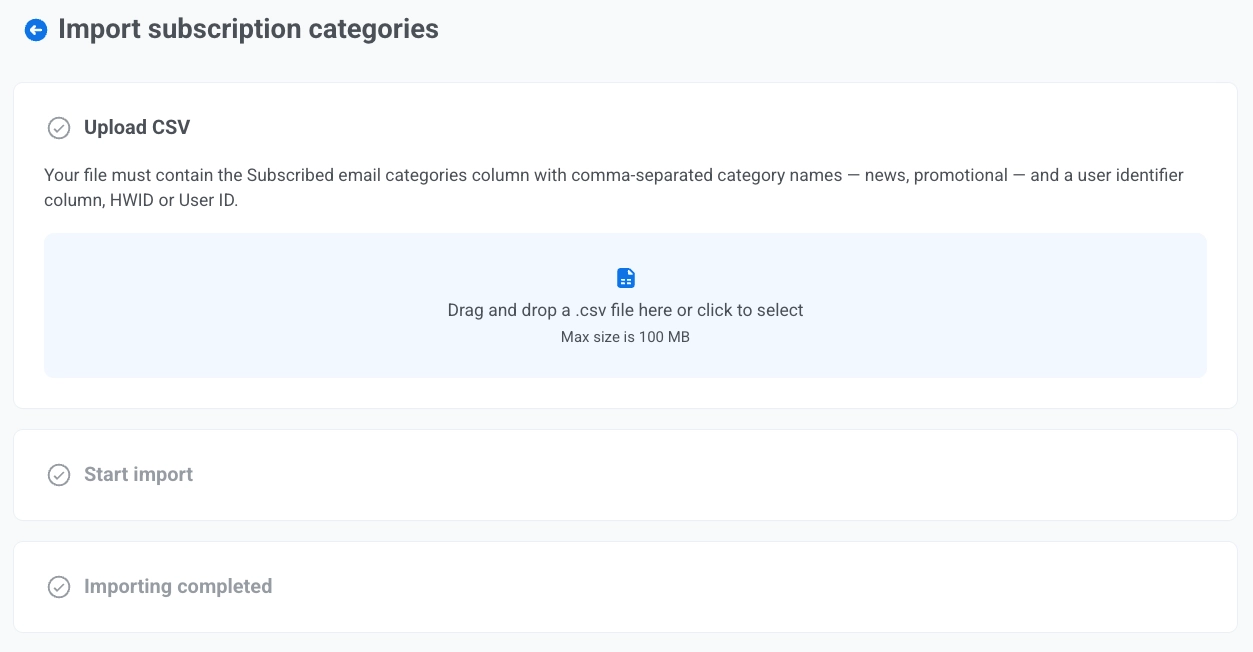
- Click Start import.
- Review results.
How to let users unsubscribe from a category or manage preferences
Anchor link toDefault behavior: Unsubscribe from a category
Anchor link toBy default, when a user clicks the Unsubscribe link you included in an email, they are unsubscribed only from the category assigned to that specific email (e.g., Newsletter). A confirmation screen appears, stating they will no longer receive emails from that category.
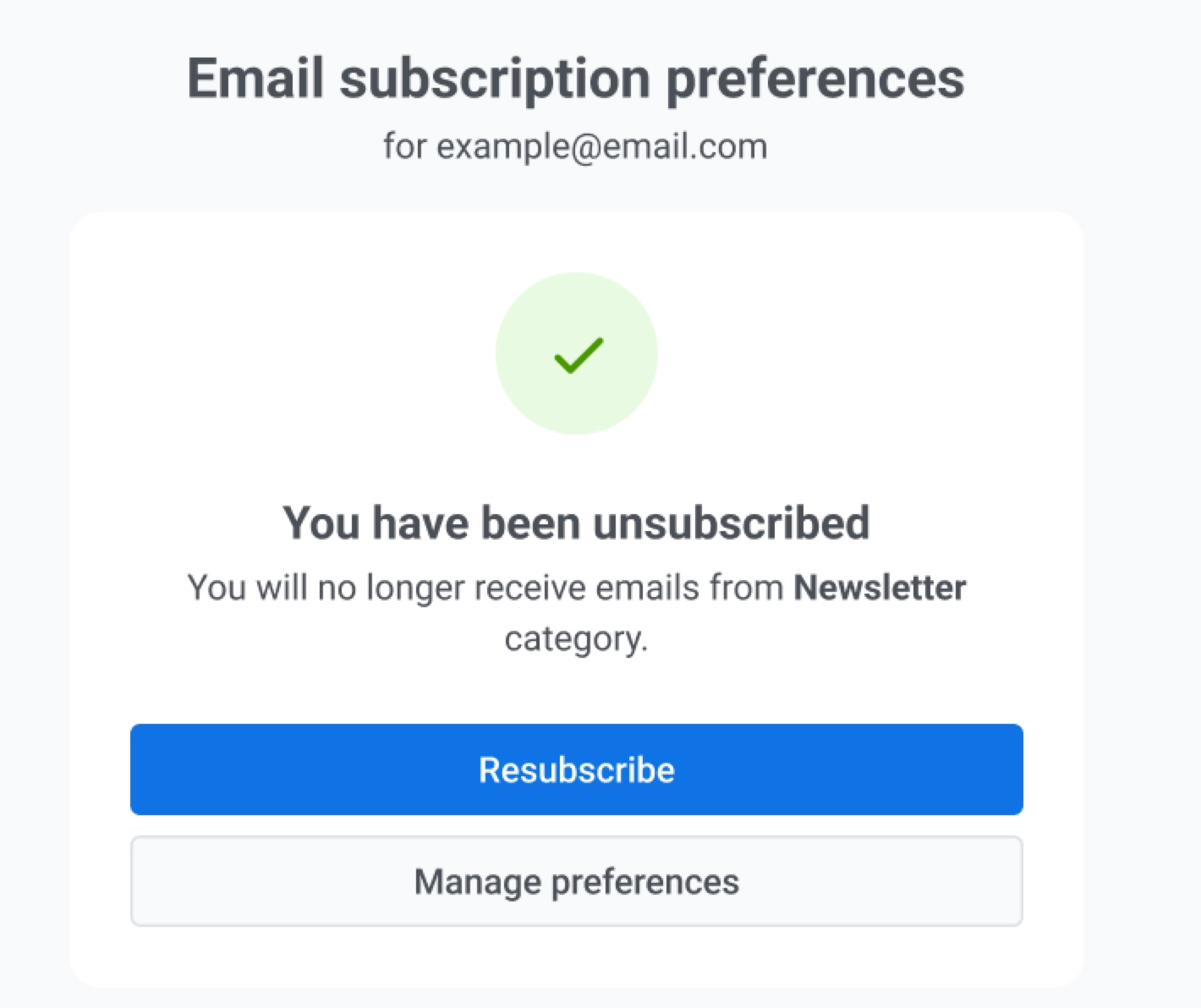
Here, users can also click:
-
Resubscribe to opt back into that category.
-
Manage preferences to adjust their full email preferences.
This is the default unsubscribe behavior and works automatically. No additional setup is required when adding an unsubscribe link to your emails.
Optional setup: Full preference center
Anchor link toYou can insert a link to the Preference center in your emails (for example, in the footer or a call-to-action button) so users can manage their communication preferences. To do so:
-
In the Drag & drop editor, select Manage preferences link from the Action type dropdown. Learn more
-
In the HTML code editor, use the variable
%%PW_EMAIL_PREFERENCE_CENTER_LINK%%. Learn more
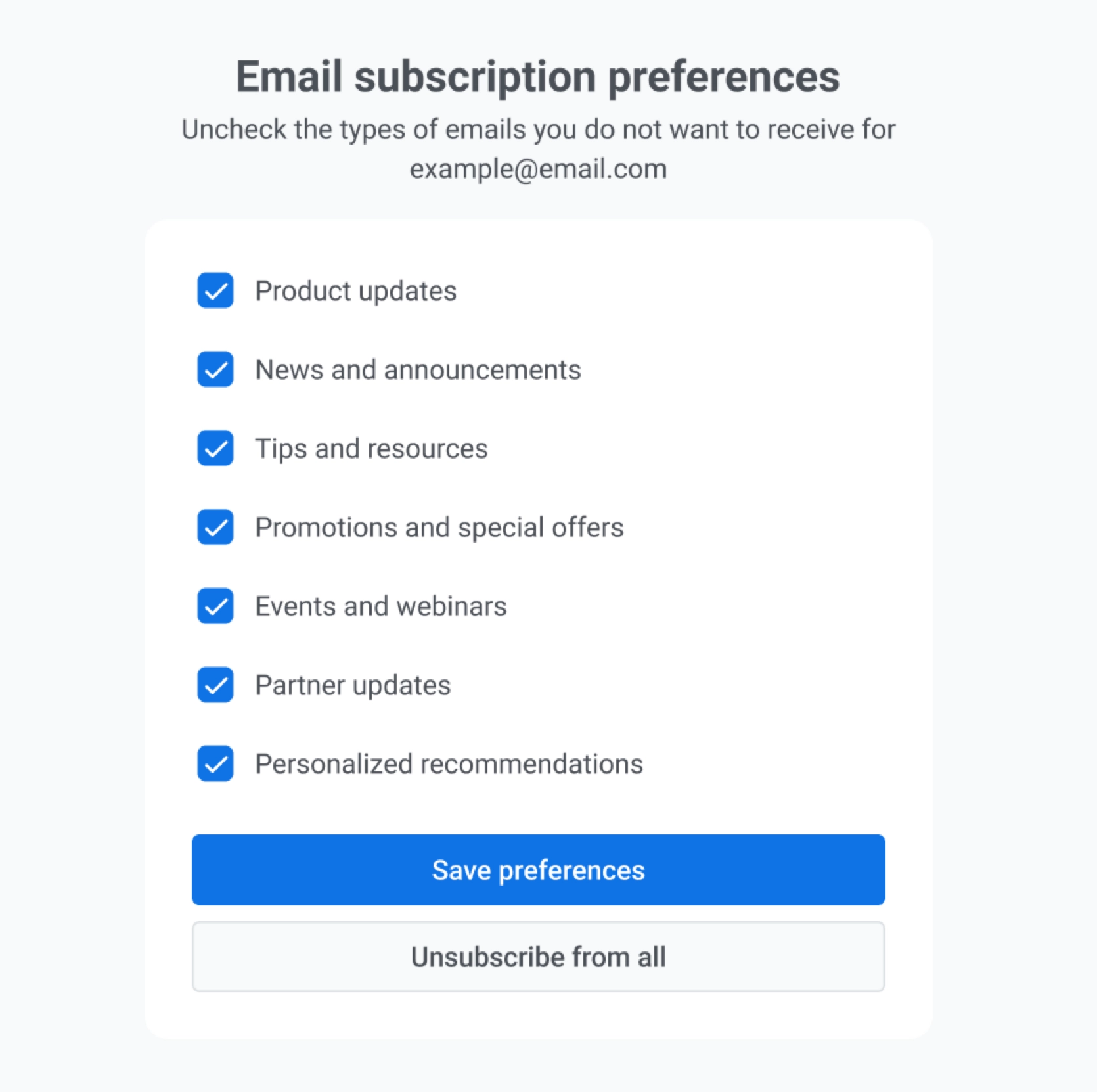
When users click the Preference center link, they will see a page showing all available email categories. Here they can:
-
Select which types of emails they want to receive.
-
Unsubscribe from multiple categories at once.
-
Click Unsubscribe from all to opt out of all marketing emails at once.
Frequently asked questions
Anchor link toWhat happens if I rename a category?
Anchor link toWhen you rename a category, the values in Subscribed Email Categories are automatically updated to match the new category name for all subscribers.
What happens to existing campaigns when I set up the subscription preference center?
Anchor link toEmail categories only apply to new campaigns and templates created after the feature is enabled. Campaigns created before category setup will be sent without regard to user preferences and will bypass opt-outs (like transactional messages).
Will users still receive transactional emails if they unsubscribe from all categories?
Anchor link toYes. Transactional messages bypass user preferences, unsubscribe settings, and frequency capping to ensure critical communication, such as password resets or order confirmations, is always delivered.
What happens to campaigns if I delete a category used in them?
Anchor link toAny active campaigns or journeys that use the deleted category will be paused automatically. You’ll receive a notification in the Notification Center informing you about the issue. To resume sending, you must assign a new category to the affected campaigns or journeys.
Can I create custom category names?
Anchor link toYes. You can create up to 20 unique categories per project. Use clear, user-friendly names that match the type of content users expect to receive (e.g., Newsletters, Product Updates).
Do I need to do anything to enable unsubscribe links?
Anchor link toAdd an unsubscribe link to your email content so recipients can opt out. The default behavior is described in Default behavior: Unsubscribe from a category. Optionally, add a Preference center link so users can manage all categories in one place.