Getting started with Journey elements
Customer journeys in Pushwoosh are built using modular journey elements. These represent entry points, communication channels, and flow controls that define how users move through your journey.
Working with Journey elements
Anchor link toAdding elements to a journey
Anchor link toTo add an element to your journey, either drag it from the left panel to the canvas, or click Connect this on an existing element and choose the next step from the list.
The left panel groups elements into sections: Entry, Channels, Flow, and Integrations. Click a section’s header to collapse or expand it. This browser remembers which sections you left collapsed the next time you open a journey.
Deleting an element
Anchor link toTo delete an element, click it once and press the Bin icon on the top.
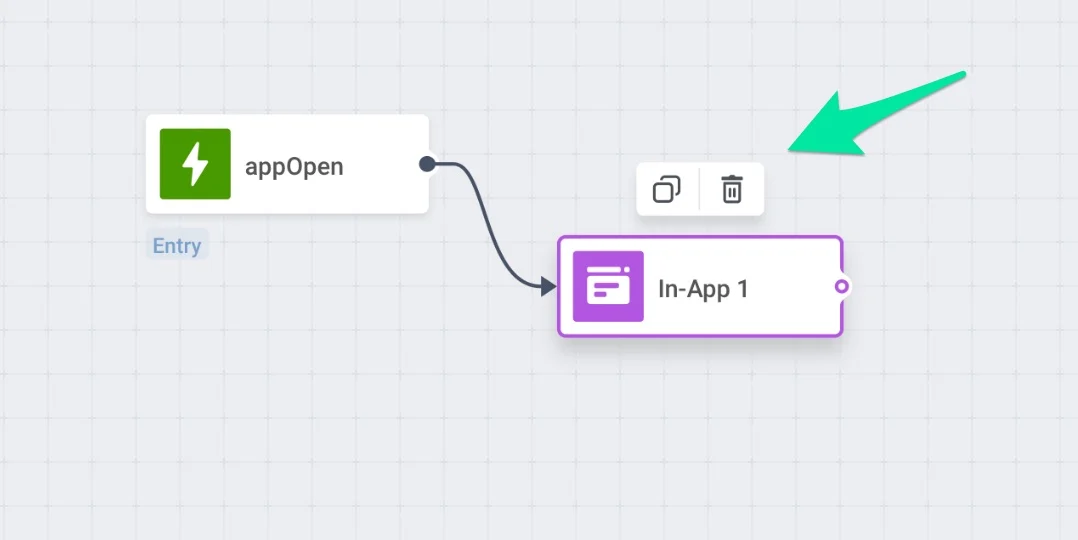
Editing an element
Anchor link toTo edit an element, click it twice and fill in the fields of the pop-up window that appeared.
Journey elements
Anchor link toJourney elements are grouped into four categories, based on the role they play in a journey.
Entry
Anchor link toEntry elements control when and how users enter a journey: on a trigger event, for a predefined audience, or through an API call from an external system.
Channels
Anchor link toChannel elements send the actual message to a user, such as push, email, SMS, WhatsApp, and other messaging channels, plus related options like issuing a wallet pass or running a multi-armed bandit test.
Flow
Anchor link toFlow elements decide what happens next in a journey: they branch users by segment or tag, test message variants, pause the journey for a set delay, or update a user’s profile.
Integrations
Anchor link toIntegration elements sync journey data with third-party CRM, analytics, and data warehouse tools like HubSpot, Salesforce, and BigQuery.
Canvas hotkeys
Anchor link toTo ease your journey configuration, use the hotkeys allowing instant managing journey’s parts with no clicks:
- Select a journey element and copy-paste it with Ctrl+C/Ctrl+V (Cmd+C/Cmd+V).
- Select several journey elements by holding Shift/Cmd and copy-paste the whole selection with Ctrl+C/Ctrl+V.
- Copy and paste elements between journeys (do not switch tabs while copying).
- Delete journey elements from the canvas by pressing your system Delete hotkey.
- Select a single journey element and copy its
<journeyUuid>/<pointUuid>pair to the clipboard with Ctrl+I (Cmd+I).