Configure platforms
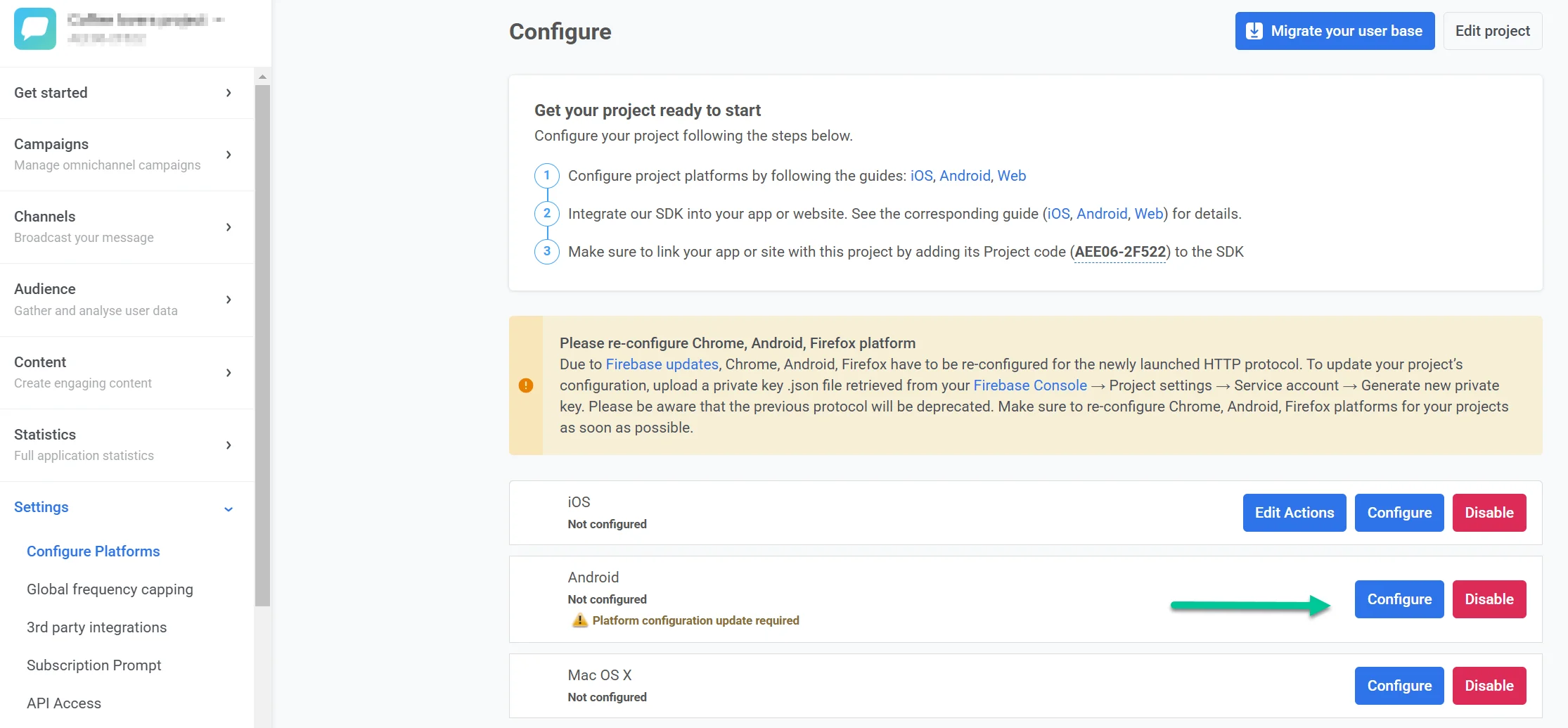
To enable Pushwoosh to send messages to your users, it’s essential to configure the platforms you plan to work with.
To start configuring a platform, go to Settings → Configure platforms and click Connect next to the required platform:
Mobile
Anchor link toiOS configuration
Anchor link to- iOS certificate-based configuration
- iOS token-based configuration
- Apple Wallet pass configuration for iOS
Android Firebase configuration
Anchor link toAmazon configuration
Anchor link toHuawei configuration
Anchor link toDesktop platforms
Anchor link to- Windows configuration
- macOS
Add your WhatsApp Business Account credentials directly in the Control Panel to enable WhatsApp messaging.
LINE
Anchor link toReach one of the most popular messaging audiences by connecting your LINE account to Pushwoosh. Once configured, you can send personalized LINE messages. Use Customer Journey or API to expand your communication strategy and boost engagement.
Kakao
Anchor link toConnect your KakaoTalk account to Pushwoosh to send messages to users in South Korea and other regions. Use approved templates in Customer Journey or via API.
Telegram
Anchor link toConnect a Telegram bot to your Pushwoosh project to send Telegram messages in Customer Journey.
Viber
Anchor link toConnect your Viber account to Pushwoosh to send Viber messages in Customer Journey using Rakuten-approved templates or freeform text.
Connect your own SMS provider directly in the Control Panel to enable SMS messaging. Once configured, you can send SMS in one-time campaigns and Customer Journeys.
- SMS configuration
- SMS provider webhooks (Developer docs: provider callback URLs)
Edit project
Anchor link toClick Edit project at the top right of the Configure platforms page to open project settings. There you can change the project title and icon, connect your bit.ly account to shorten links in push notifications, and manage email notification preferences.
Learn more about editing your project
Hide unconfigured platforms
Anchor link toAt the bottom of the Configure platforms page, use Hide unconfigured platforms to show only the platforms you have already set up. This keeps the list short when you work with a subset of channels.
Delete project
Anchor link toTo delete a project, go to Settings → Configure platforms, open the three-dot menu at the top right of the page (next to Edit project), and select Delete project.
For more on project management, see Manage projects.